How to choose who can see a simulation
Last updated: November 6, 2026
Every simulation is open to everyone in your workspace. You can restrict one to specific groups instead, so learners outside those groups do not see it in the library or in search. This covers setting that up, what learners see, and who can still reach a restricted simulation.
Restrict a simulation to specific groups
Go to Simulations.
On the simulation's row, select ..., then Manage access.
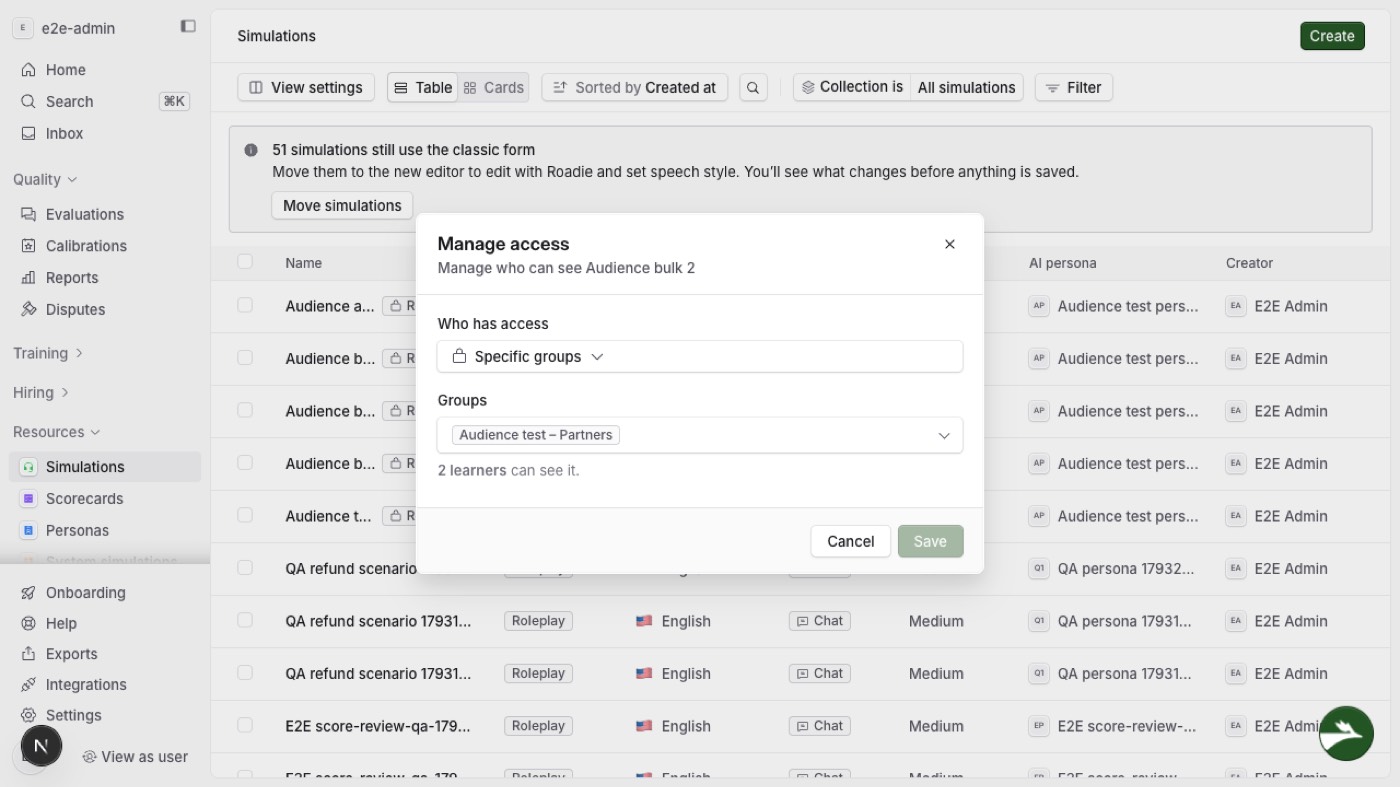
Under Who has access, choose Specific groups.
Under Groups, tick the groups that should see it. Each group shows its learner count, and ticking a parent includes its subgroups.
Read the line under the picker. It counts the learners who can see the simulation, and the extra learners who can open it through an assignment.
Select Save. A message confirms Access updated, and the row shows a Restricted badge.
If Manage access is not in the menu, ask your Solidroad contact to turn it on for your workspace.
Other ways to open Manage access
Select the Restricted badge on a row.
Tick several simulations, then select the lock button in the selection bar. This changes all of them at once.
Open the simulation's drawer and select the Access row, which names the audience.
Make a simulation open again
Choose Everyone in the workspace under Who has access. The line under the picker then counts everyone who can find it.
Choosing Specific groups without ticking a group leaves nobody in the audience, so only the people it is assigned to can open it.
What learners see
To learners in the audience, a restricted simulation looks like any other.
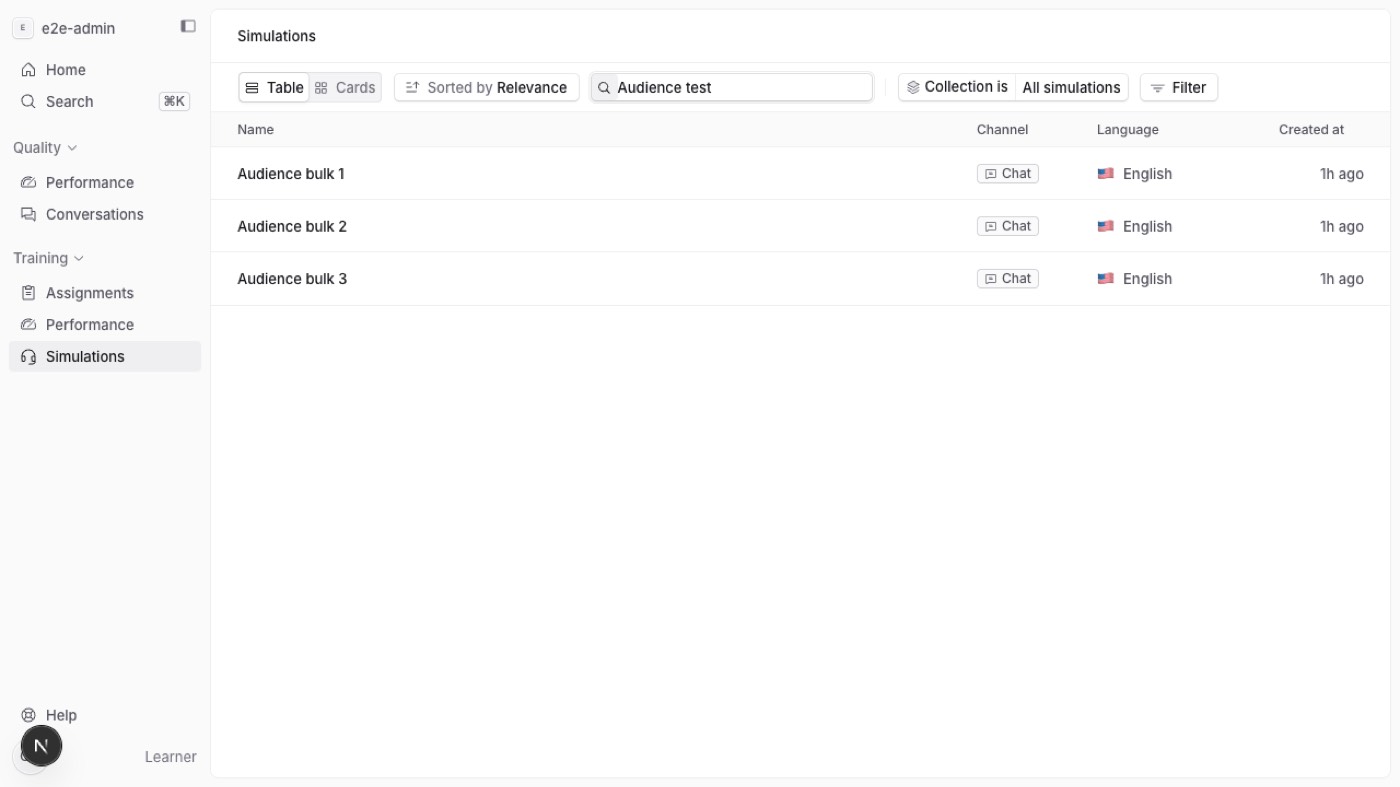
Everyone else loses it from the library, from search, from filters and from collection counts. A link to it shows Could not find simulation, the same page as for one that has been deleted.

Who can see a restricted simulation
Viewer | What they see |
|---|---|
Anyone who can manage simulations | Every restricted simulation, with the Restricted badge and the Visibility filter |
A member of an audience group, or of one of its subgroups | The ones restricted to their group |
A group lead | Also the ones restricted to a group they lead |
A learner who holds an assignment that includes it | That simulation, for as long as the assignment exists |
Anyone else | None |
A read-only admin sees the badges and the filter but cannot change access.
Finding restricted simulations
Set the Visibility filter in the library to list open or restricted simulations. Hover a Restricted badge to see the groups it covers.
Assignments
A learner who holds an assignment can open every simulation in it, whatever the audience. The assignment editor tells you when an assignment does this, and it does not stop you saving.
What restricting does not change
Duplicating a simulation keeps its restriction, and copying one into another workspace leaves the copy open.
Attempts learners have already made stay where they are, so restricting a simulation does not hide its results.
If someone else changes access while you have the dialog open, your save is refused with Someone else changed who can see this simulation. Close and reopen to see the latest. Nothing is saved.
Related articles
If you have any further questions, contact the Solidroad team via the Help tab in the platform.