How to create and manage groups
Last updated: September 22, 2026
A group is a collection of users you assign training to and report on together, such as a new hire cohort or a regional team. This article covers creating a group, adding members, and giving someone lead access so they can see that group's performance.
Step 1: Create the group
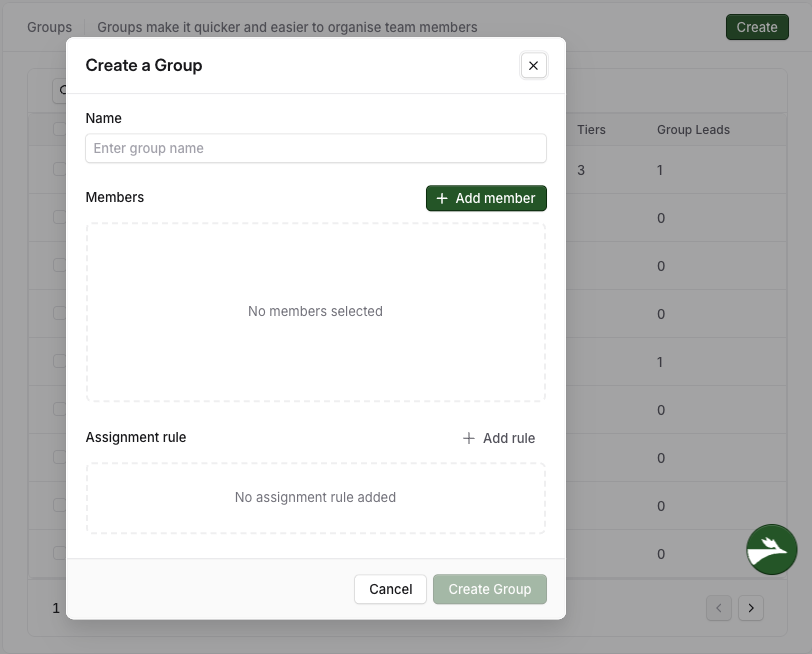
Go to Settings → Workspace and select the Groups tab.
Click + Create Group in the upper-right corner or middle of the page.
Enter a Group Name, for example "New Hires".
Under Add Members, tick each person you want in the group.
Select a group leader if someone should be able to see this group's performance. There are two other requirements for that to work, covered in Step 2.
Optionally set an Assignment Rule so users who match a condition are added automatically in future.
Click Create Group. The group appears in the list.
Step 2: Give a group lead access to the group
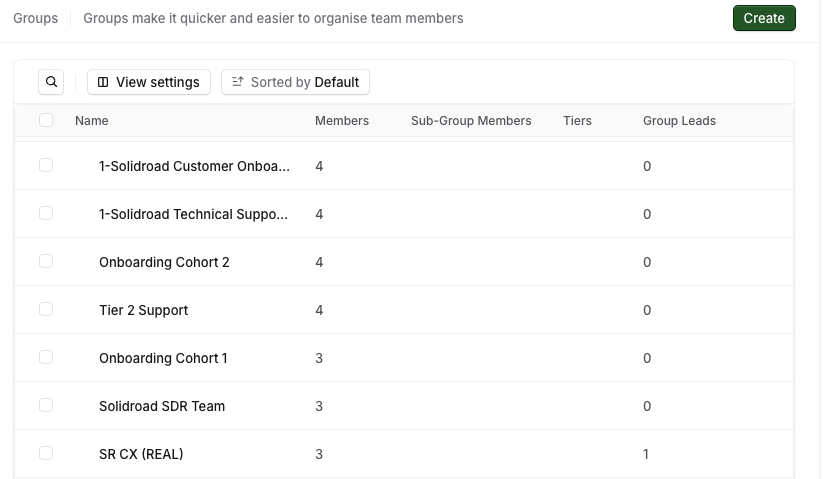
To confirm a group lead is configured, open the Groups tab in Settings → Workspace and look at the count under Group Leads column (pictured below).
Important: Until a group lead is assigned, the lead will not be able to see learners under Learners and their performance won't appear in Reporting so designating a lead is something you will want to do immediately.
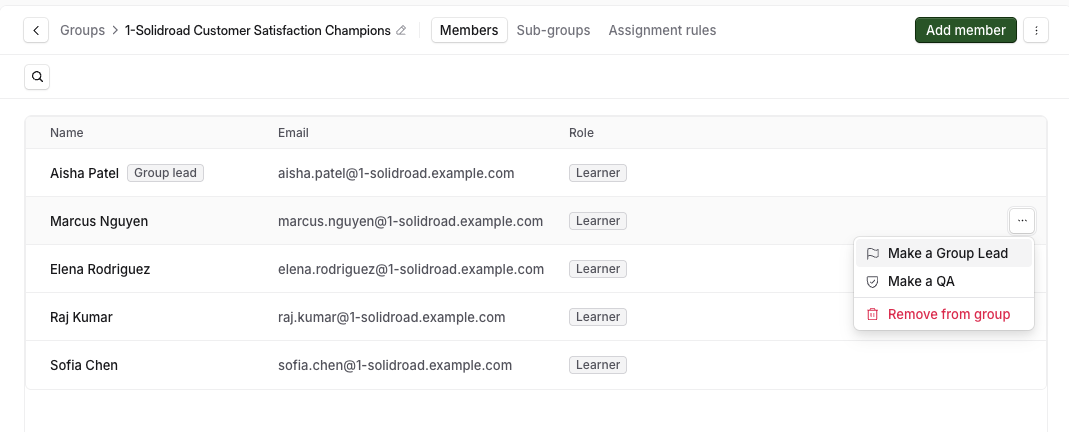
To add a lead to a group, click on the group from the Groups tab and click on the more options (...) next to the member you're looking to make a group lead. Choose Make a Group Lead.
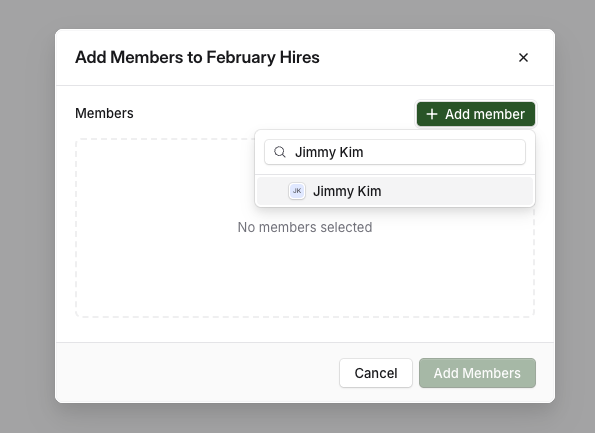
If your member is not in the group, you can always quickly add someone above using Add Member and then you can follow the process above.
Important: For SSO (SCIM) workspaces, you will need to configure a group lead on the app side and not the idP side.
What changed for group leads
A group lead is now a label on a group member, not a separate workspace role. Group leads can see learners and reporting for their groups without broader workspace access.
People with the former Group Lead role move to the Learner role. If they already had a group lead label, it stays in place. Check the Group Leads count under Settings → Workspace → Groups. If a label is missing, follow Step 2 above or contact support@solidroad.com. Existing leads continue to see their groups’ reporting.
Related articles
If you have any further questions, contact the Solidroad team via the Help tab in the platform.