How to edit or delete a custom role
Last updated: October 15, 2026
A custom role can be changed or removed at any time, and both affect whoever is holding it. This covers editing the permissions, checking what a change will do before you save, and deleting a role without stranding the people on it.
Default roles cannot be edited or deleted. Only roles with a Custom label can be changed.
Edit a role's permissions
Open Settings > Roles and click the role you want to change.
Tick and untick permissions. Custom roles explained covers how the levels depend on each other, which matters here because removing one can remove others in the same save.
Click Review changes.
Check the change before you save
The review screen lists every permission you have added and removed, grouped by area, and tells you how many people it affects, for example This role is assigned to 1 user. Editing this role will affect their granted permissions.
Read the removals first. People already on the role get the new permissions as soon as you save, so a permission you took off is access somebody loses, and the count tells you how many.
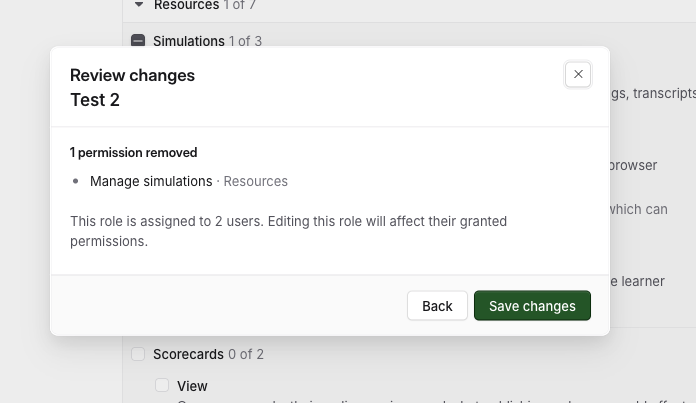
Save when you are happy. The change is completed in the background, so you don't have to wait for the confirmation. If someone still sees their old access afterwards, ask them to sign out and back in.
Delete a role
A role cannot be deleted while anyone holds it, so what you see depends on whether it is in use.
If nobody holds it, the page tells you so and you can go straight to the confirmation.
If people do hold it, a Reassign users step lists them first, with a Role dropdown beside each name. Set each person to the role they should move to, then click Continue.
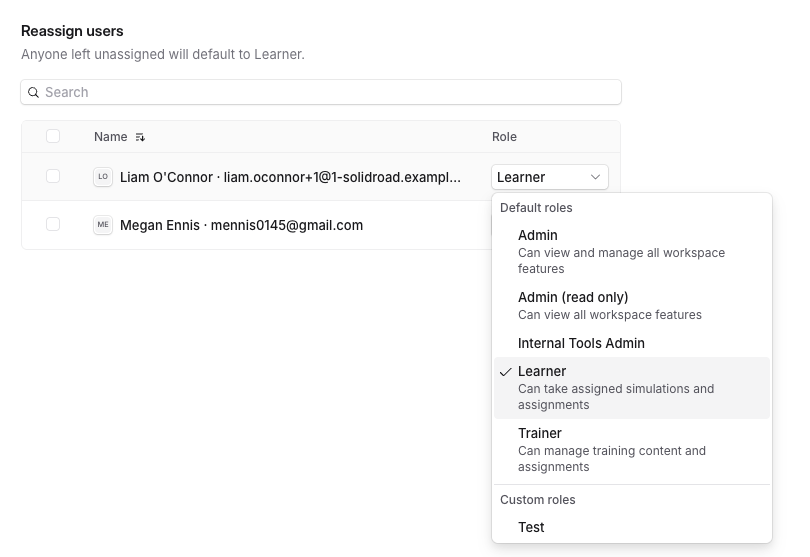
Everyone you don't reassign moves to Learner, the most limited role there is. Delete a role held by six trainers, click Continue without touching the dropdowns, and all six lose their training access. Nobody is removed from your workspace, but you would have to put each of them back manually.
The confirmation dialog is your last chance to catch that. It summarises where people are going, as a line such as 1 user moves to Learner. If that line says Learner and you did not mean it to, cancel and go back.
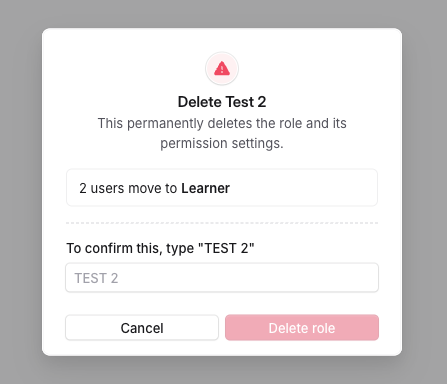
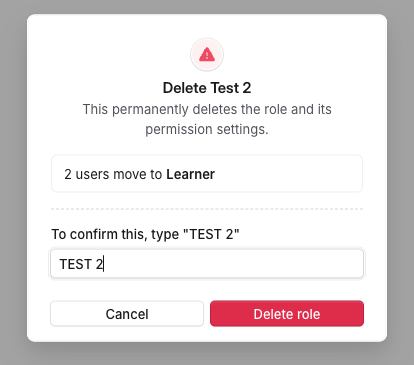
To finish, type the role's name in capitals, exactly as the dialog shows it, so deleting a role called test4 means typing TEST4. Lower case will not do, even though that is how the role is named, and Delete role stays greyed out until the field matches.
If your workspace maps identity provider values to roles, deleting a mapped role has extra steps, and some mappings have to be cleared by us first.
Find out who changed what
Role changes are recorded in two places, depending on whether you are asking about a role or about a person.
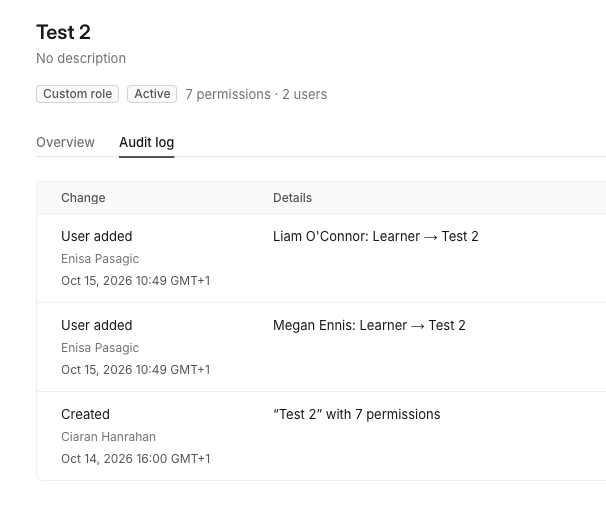
Open the role itself for its own history: what changed and who changed it. This is the place to start when several people lost the same access at once.
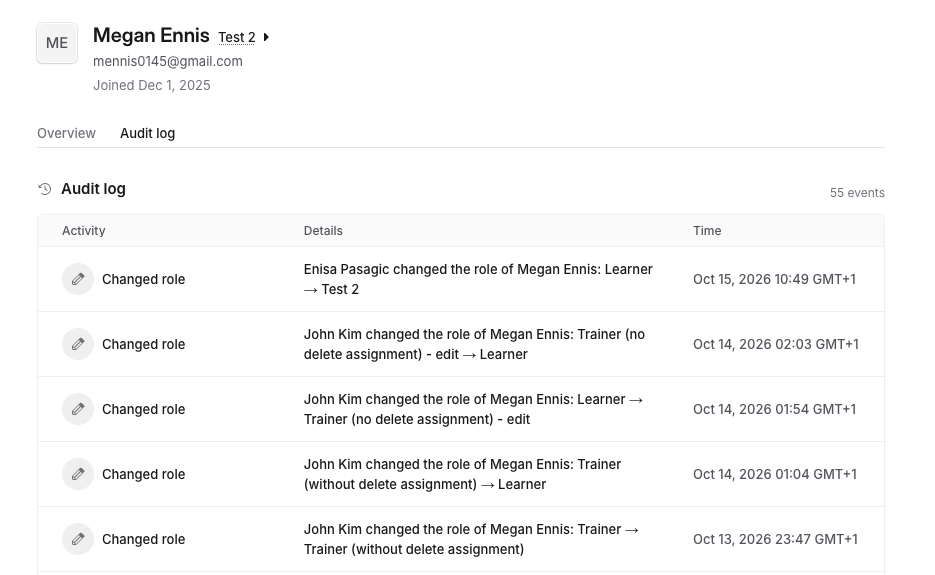
Open someone's record in Settings > Users for their audit log, which includes the role changes that affected them. Start here when it is one person.
Creating, editing and deleting a role are all recorded, along with the admin who did it.
Related articles
If you have any further questions, contact the Solidroad team via the Help tab in the platform.