Custom roles explained
Last updated: October 7, 2026
A custom role is one you create and name yourself, with the exact set of permissions you choose, for the jobs your default roles do not quite fit. This covers what a custom role can and cannot do, how the permissions fit together, and three examples worth copying.
Custom roles and default roles
Every Solidroad workspace has the same four default roles: Admin, Admin (read only), Trainer and Learner. They mean the same thing in every workspace, and they cannot be edited or deleted. Open one and you will see Default roles can't be edited. Duplicate this one to make a custom version.
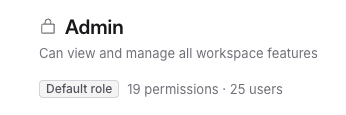
Anything you create is a custom role. It carries a Custom label in Settings > Roles, and it is yours to edit, rename or delete.
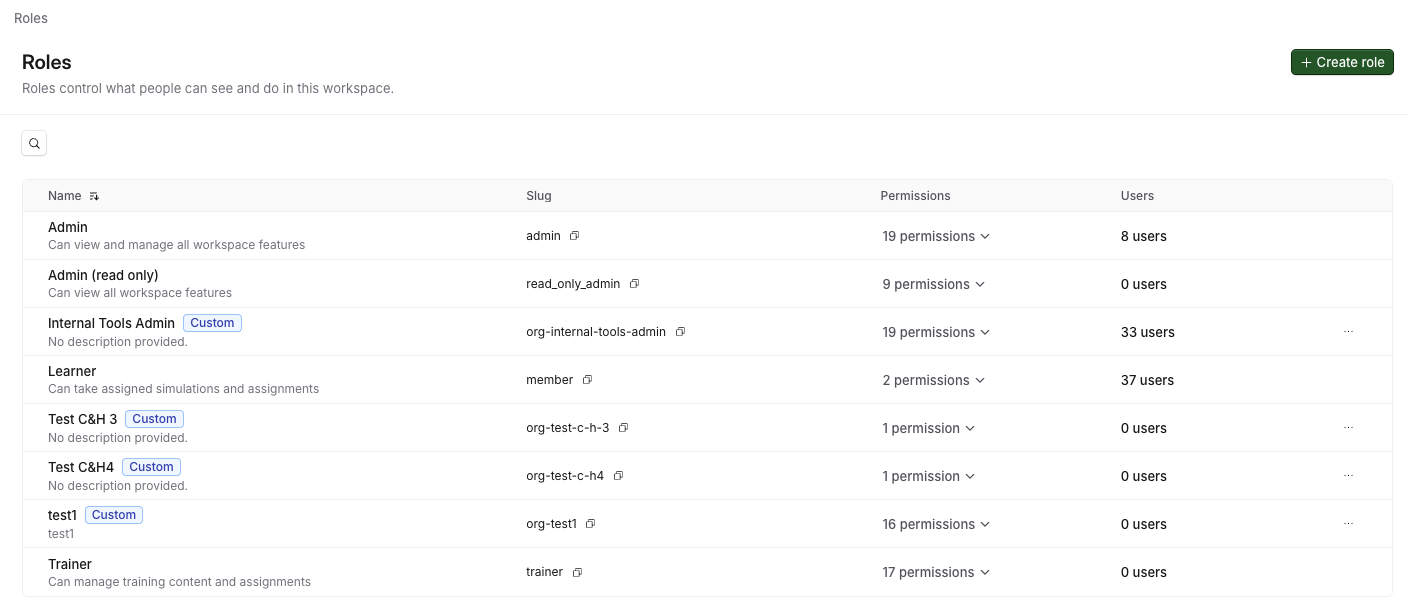
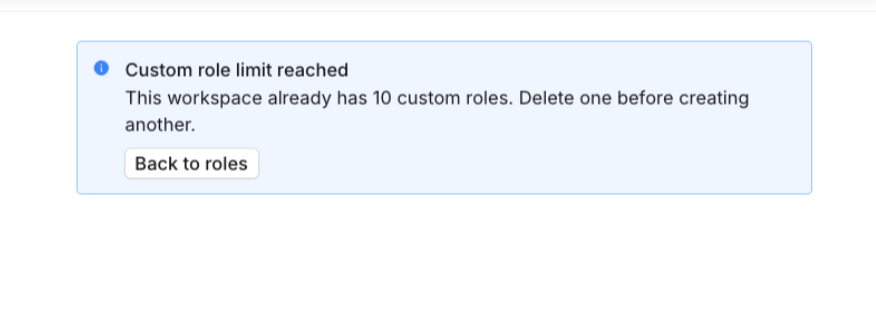
You can have up to 10 custom roles. A message tells you when you have reached the limit, and we can raise it if your workspace needs more.
How permissions fit together
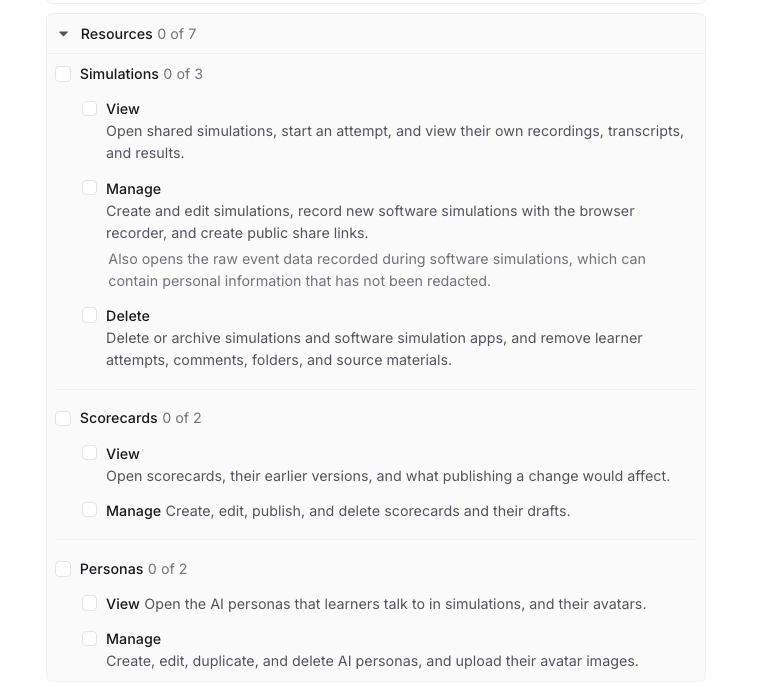
The permission list is grouped into four areas: Training, Resources, Hiring and Workspace. Across those four there are 19 permissions you can give a custom role.
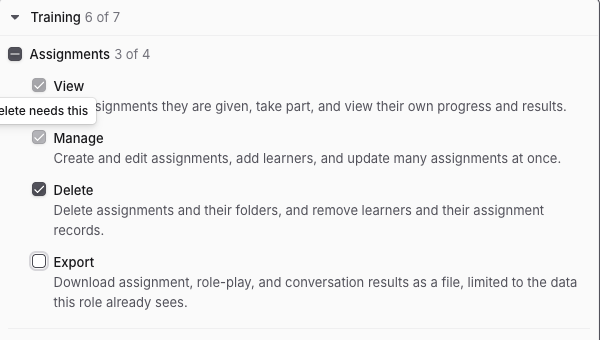
Within each area the permissions build on each other. To delete something you have to be able to see it and manage it, so ticking Delete ticks View and Manage as well, and neither can be unticked while Delete is on. Hover one of the locked boxes and it tells you what is holding it, for example Delete needs this.
Untick Delete first and the other two are released. This works in reverse too, which catches people out: unticking Manage removes Delete at the same time, because Delete cannot stand without it.
Export is the exception. It sits on its own and can be granted without any of the others.
Not every area has all three levels. Scorecards and Personas have View and Manage only, and Manage there includes deleting, so there is no way to let someone edit a persona but not delete one.
What a custom role cannot do
Permissions work per area, not per item. Someone with View on simulations sees your whole simulation library, so you cannot use a custom role to show one team their own simulations and hide another team's. Restricting access to individual items is not something custom roles do today.
A role also cannot grant more than the permission list offers. Some areas of the product, including parts of workspace settings and user management, are not available to custom roles at all. If what you need is not in the list, tell us what you are trying to let someone do and we will work out the closest fit.
Three roles worth copying
See some areas, not others. Start from scratch and tick View only for the areas someone actually works in. A team lead who runs simulations but has no business in your scorecard criteria or persona library gets View under Simulations and nothing under Scorecards or Personas. Areas they have no permission for stop appearing for them.
An existing role, minus delete. Duplicate Trainer and untick Delete on assignments and simulations, keeping everything else. This is the most common request we see: people who build and run training but should not be able to remove it.
Read-only on content they used to edit. Duplicate the role someone has now and untick Manage wherever you want them read-only. Remember that this removes Delete as well, so check the result before you save.
Related articles
If you have any further questions, contact the Solidroad team via the Help tab in the platform.