The simulation editor
Last updated: October 28, 2026
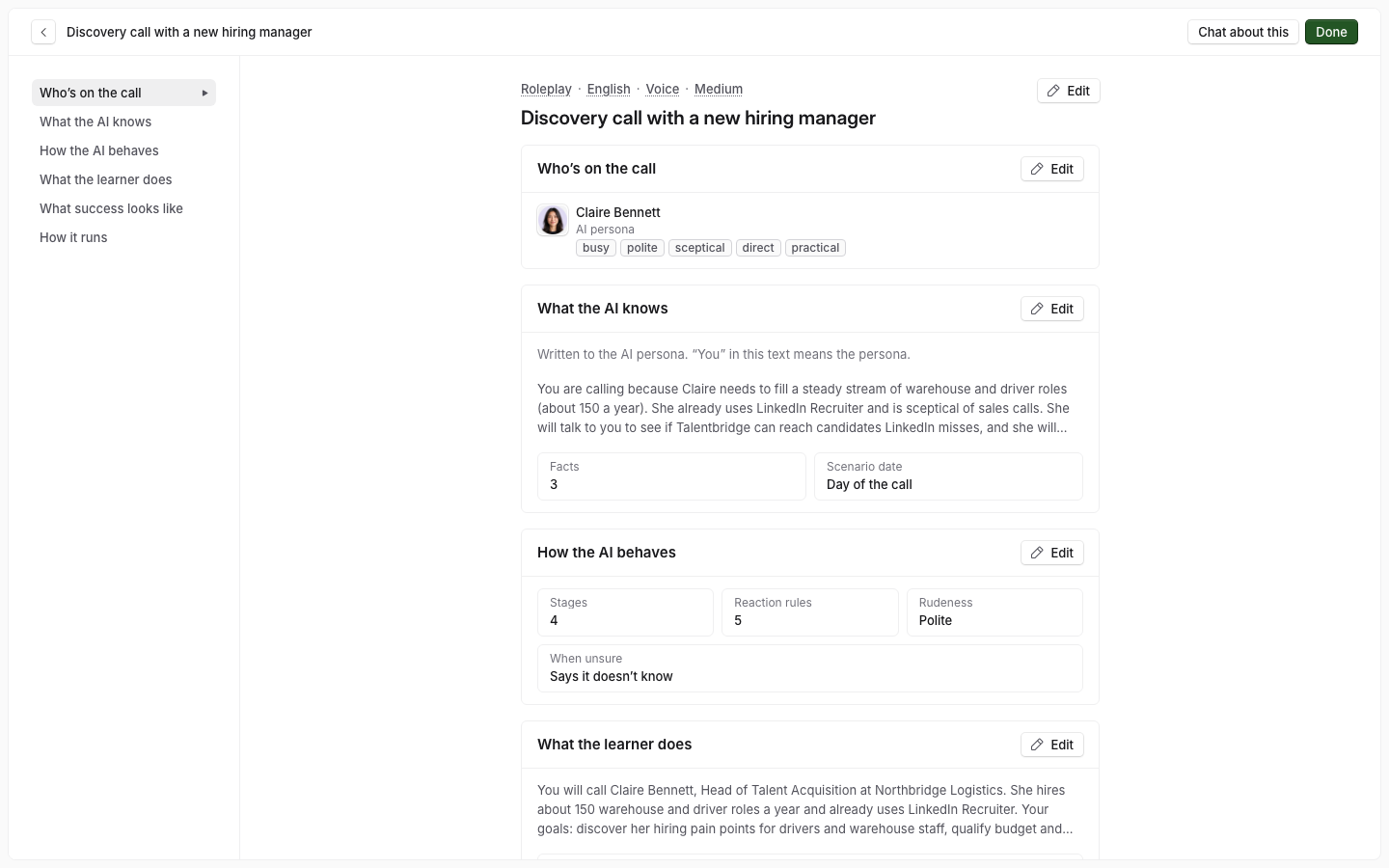
The editor shows every part of a simulation as a section card, so you can change a setting by hand instead of asking Roadie. This covers how to open it, how to change a section, and what each section holds. Saving a section saves the simulation at once, so if learners are assigned it, their next attempt uses the change.
Open the editor
Select Open in editor in the top bar of the chat. The editor opens in the same page. To go back, select Chat about this.
The editor has no preview. To try the simulation, go back to the chat and select Preview. See How to preview a simulation.
Edit a section
Select Edit on the section card. The section opens in a panel on the right.
Change the fields.
Select Save.
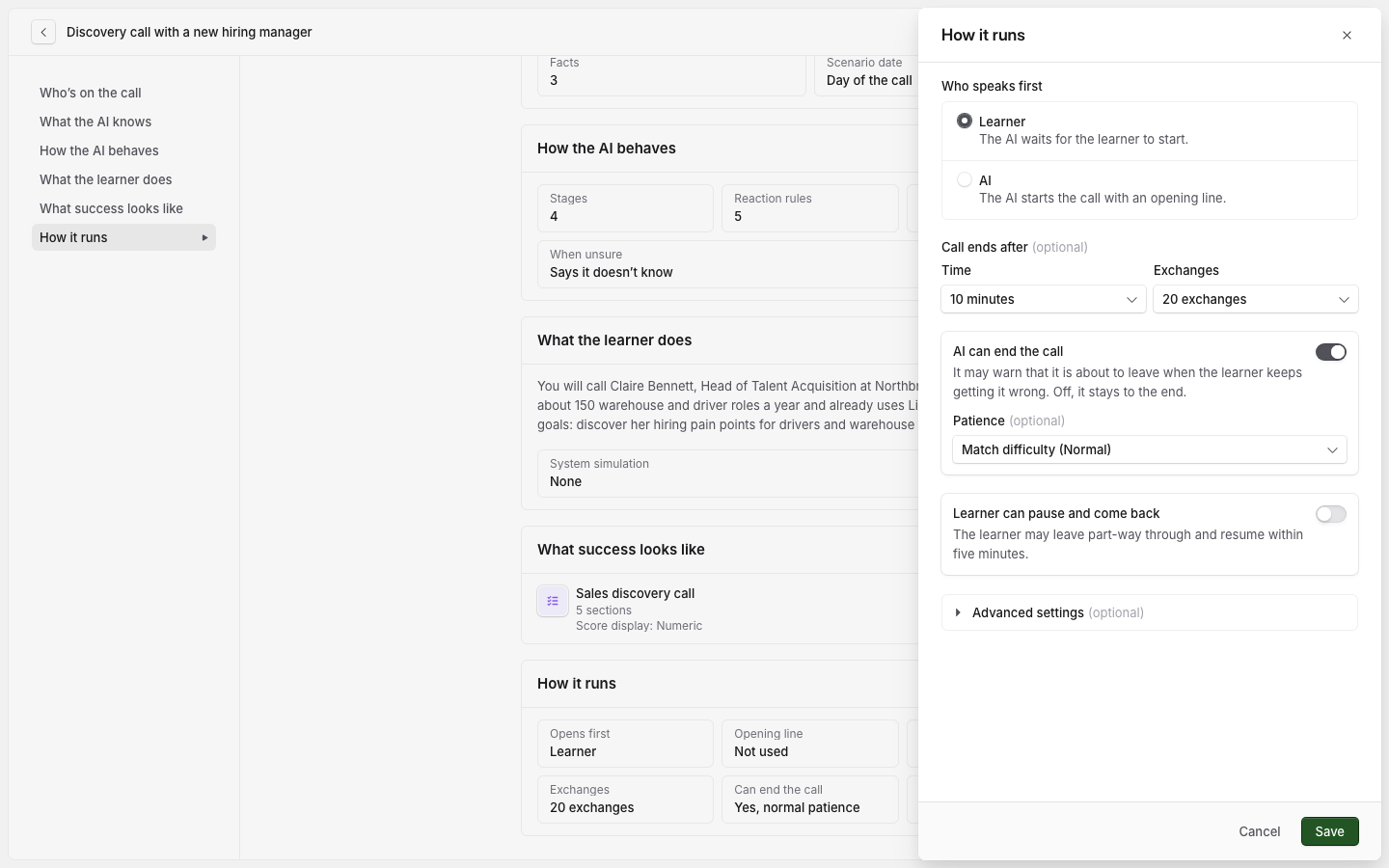
To close without saving, select Cancel. If you changed something, Solidroad asks "Discard changes?". Select Discard changes to close, or Keep editing to stay.
Some field labels have a dotted underline. Point to the label to see a short explanation.
Some sections end with Advanced settings (optional). Select it to show settings that most simulations do not need to change, as each type already has good defaults for them.
The sections
The fields you see depend on the type and the channel. Only a Roleplay has a difficulty, for example, and only a call can be paused.
Section | What it holds |
|---|---|
Details | The title, type, language, channel and difficulty. Select the details line under the title to open it. The type cannot change after the simulation is created. |
Who's on the call | The AI persona, the learner's role and the team. Called Who's in the chat or Who's in the email on those channels. |
What the AI knows | The scenario written to the persona, its facts, questions and reference material. See What the AI knows and what the learner is told. |
How the AI behaves | How the AI reacts to the learner, the stages of the conversation, and what the persona does when it does not know something. |
What the learner does | The learner instructions, and any system simulation the learner works in during the call. |
What success looks like | The scorecard, which of its sections count, and whether the AI gives feedback during the call. |
How it runs | Who speaks first, the opening line, time and exchange limits, pausing, and what happens after silence. |