How to correct a simulation score
Last updated: October 28, 2026
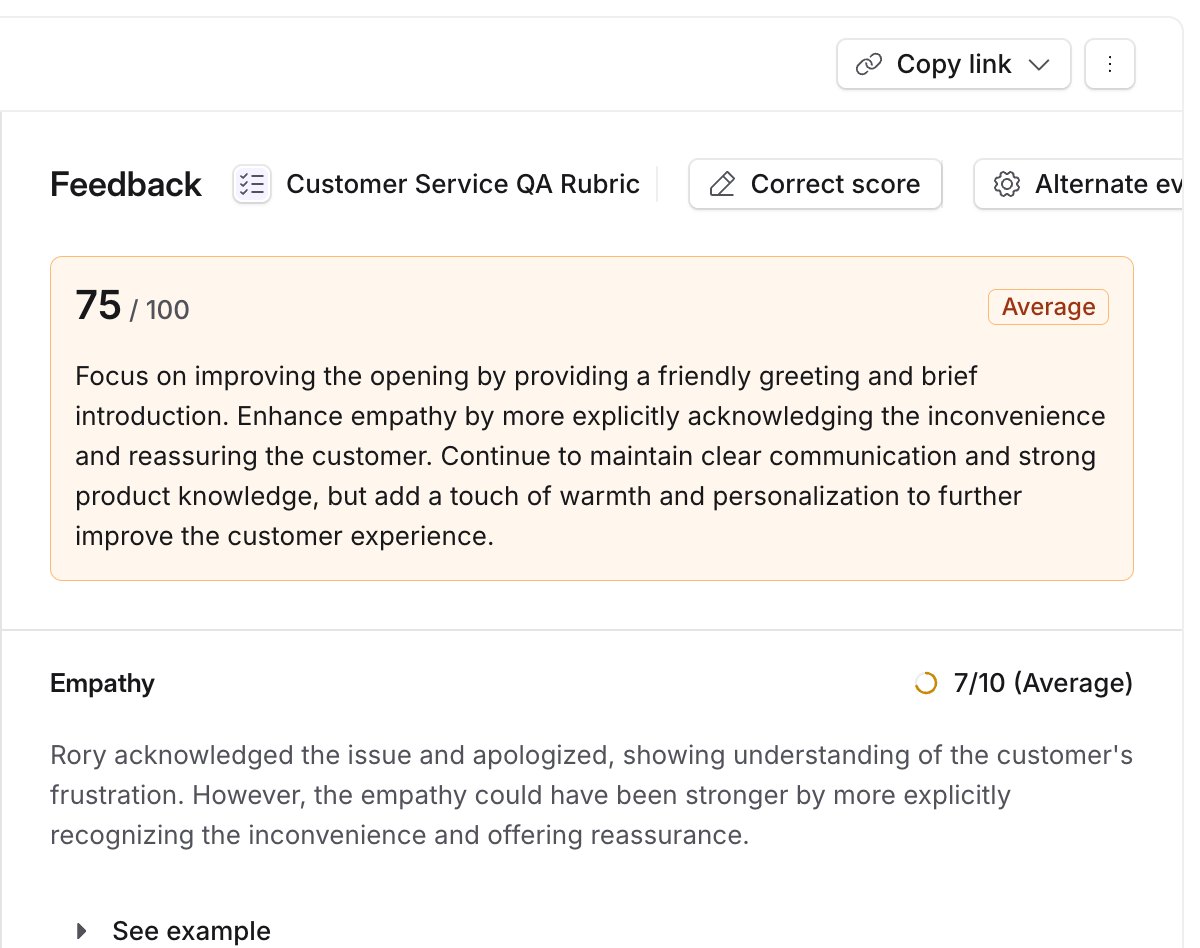
When the AI scores a simulation wrongly, you can change the section scores and the feedback yourself. The corrected score replaces the AI's everywhere the score is used, and the AI's original is kept so you can put it back. Learners can also ask you to review a score, which is covered further down.
Step 1: Open the correction
Open the completed simulation and select Correct score in the feedback header, next to Alternate evaluations.
Step 2: Change the section scores
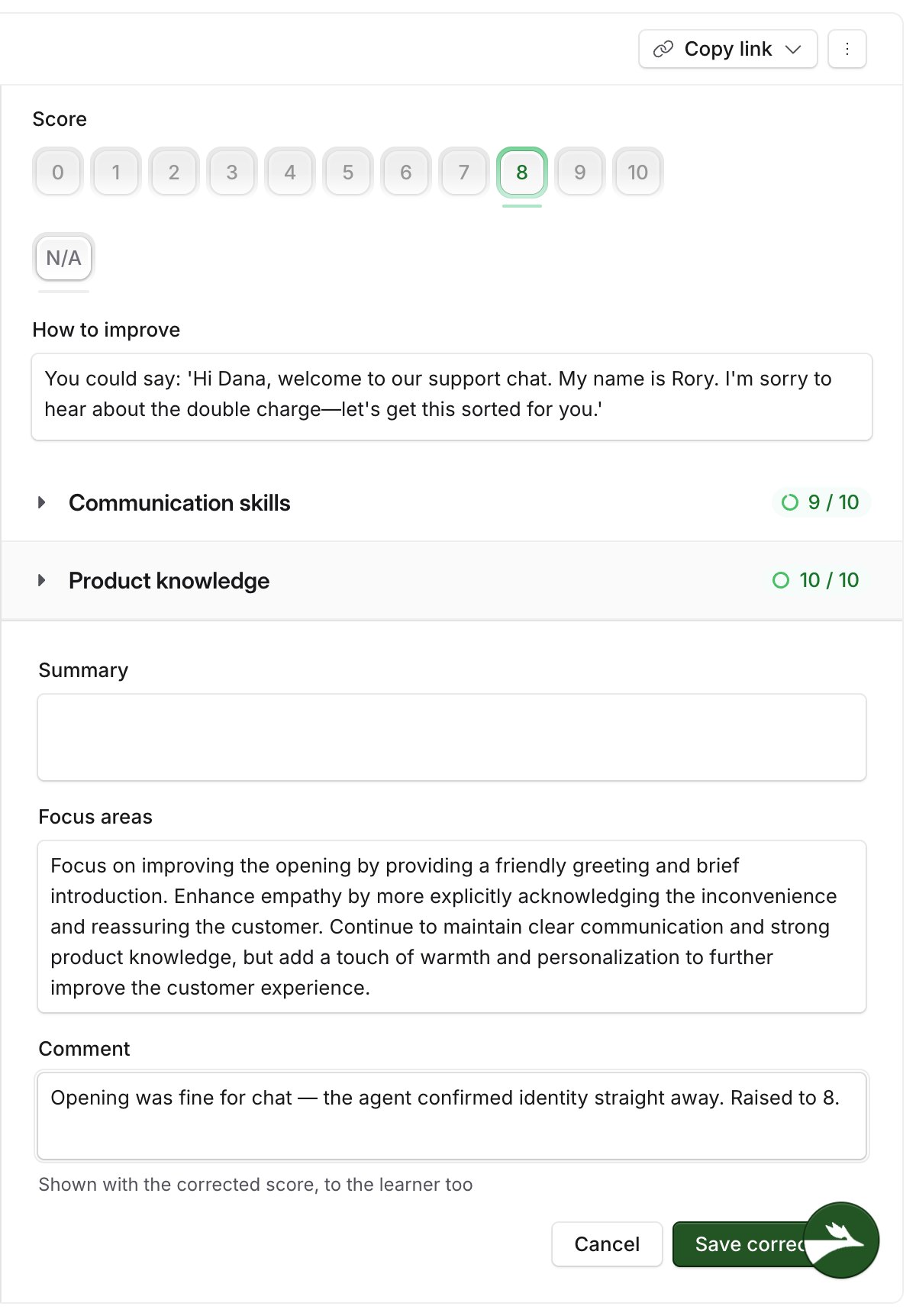
Open a section and pick its new score, anywhere from zero to the section's top score. Select N/A to leave the section out of the total altogether.
In the same panel you can rewrite that section's feedback and its "How to improve" text. The header shows Current score and New score, which update as you change each section.
Step 3: Add a comment and save
You can edit the summary and the focus areas, and add a Comment. The learner sees the comment, so use it to explain what you changed and why.
Select Save correction.
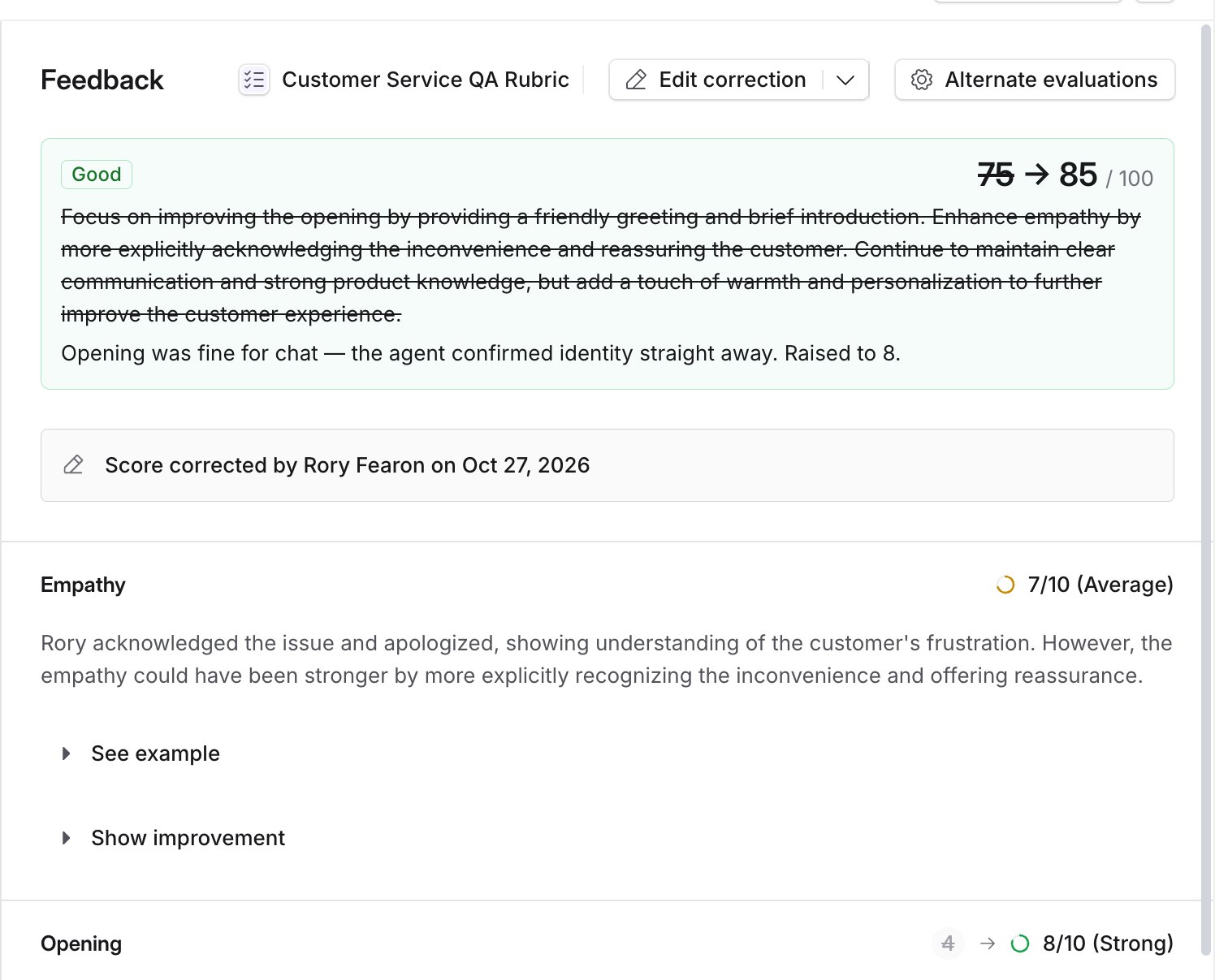
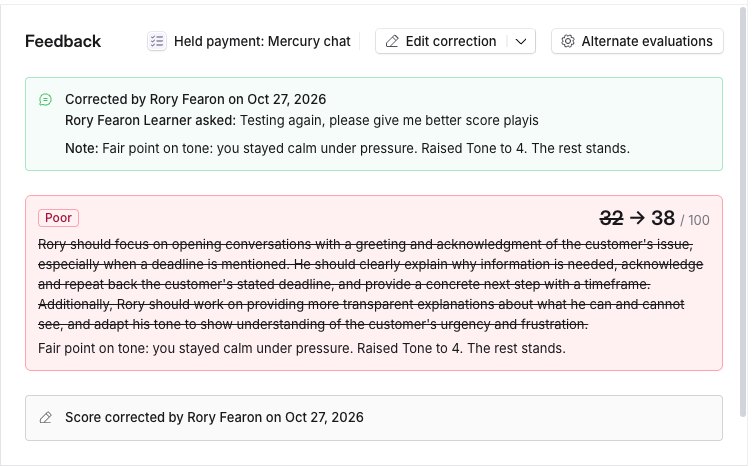
The old total then shows struck through beside the new one, each changed section shows its old and new score, and a line records who corrected it and when. The button becomes Edit correction.
Edit or remove a correction
Edit correction reopens the panel with your previous values.
The arrow beside it opens a menu with Remove correction, which puts the AI's score and feedback back after a confirmation reading "The score and feedback go back to what the AI gave."
If someone else corrected the same attempt while you had it open, your save is refused with "The score changed since you opened it. Reload and try again.", so nobody overwrites a change they have not seen.
Review requests from learners
A learner who thinks a score is wrong can ask for it to be reviewed. The request goes to the Inbox of their group lead, or to every admin and trainer when the learner has no group lead, and each person who receives it is emailed.
Open Inbox and filter Type to Score review. The row shows the simulation, the learner, and the assignment it came from, which is blank when the learner started the simulation from the library. Select the row to open the attempt.

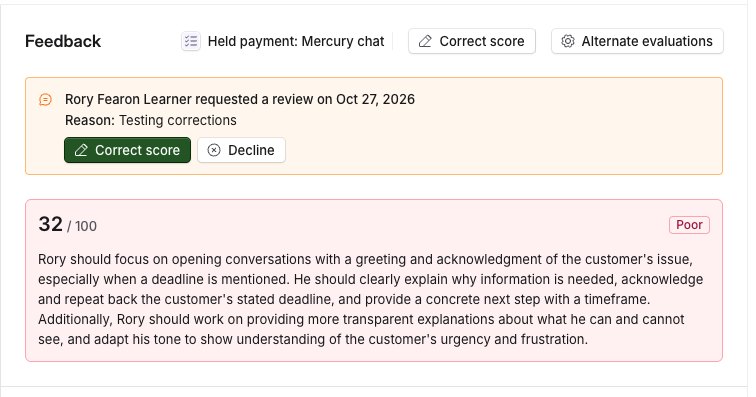
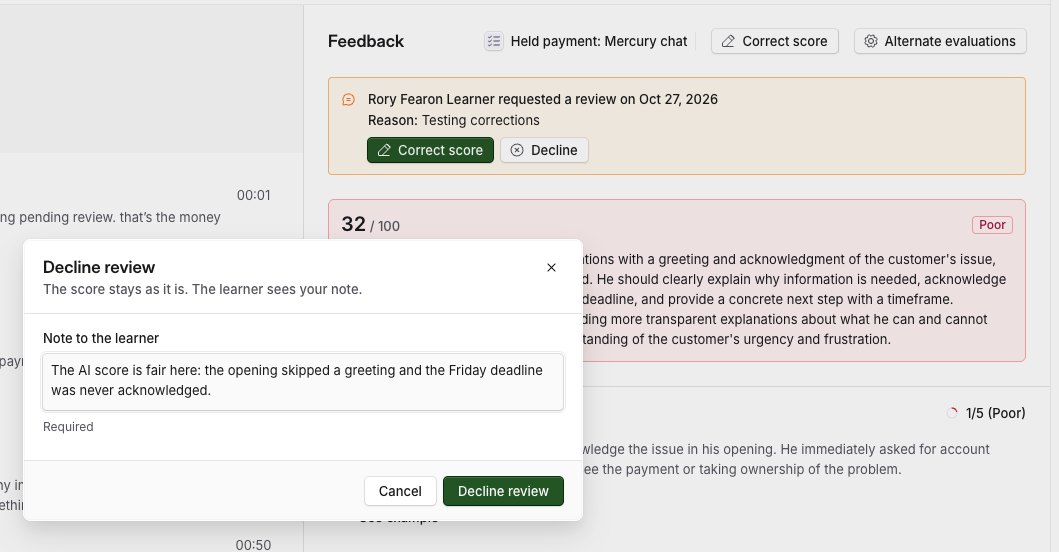
On the attempt, an amber banner shows who asked, when, and their reason, with Correct score and Decline.
Decline a request
Select Decline, write a note to the learner, and select Decline review. The note is required, and the button stays unavailable until you write one. The score does not change.
The banner then turns grey and shows who declined, the learner's reason and your note. The Inbox row moves to Completed.
Correct the score and close the request
Select Correct score in the banner and correct the score as above. Saving the correction closes the request in the same step, and your comment becomes the note the learner sees.
The banner turns green and the Inbox row completes.
What a corrected score changes
Everything that reads the score uses the corrected one: pass or fail on an assignment, the learner's home page and history, the learners list, training reports and exports.
If the attempt is scored again by the AI, your correction is not overwritten.
Learners see only the corrected score, never the AI's original. They also see a correction you made without any request, along with your comment.
When a score cannot be corrected
Score | Why |
|---|---|
A CEFR scorecard | Graded scorecards cannot be corrected or reviewed, and neither button appears. |
Additional feedback | Extra scorecards run on the same transcript are not corrected. Only the main score is. |
A scorecard scored only by people | There is no AI score to correct. |
Removing a correction does not reopen the review request it closed. The learner can send a new one.
Related articles
If you have any further questions, contact the Solidroad team via the Help tab in the platform.