How to create a simulation with Roadie
Last updated: October 28, 2026
In the new create flow, you describe a simulation in a chat and Roadie builds it for you. There is no long form to fill in, and the simulation is saved as soon as Roadie builds it, so there is nothing to publish. If you do not see the chat, ask your Solidroad contact to turn the new create flow on for you.
Step 1: Pick the basics
Go to Simulations.
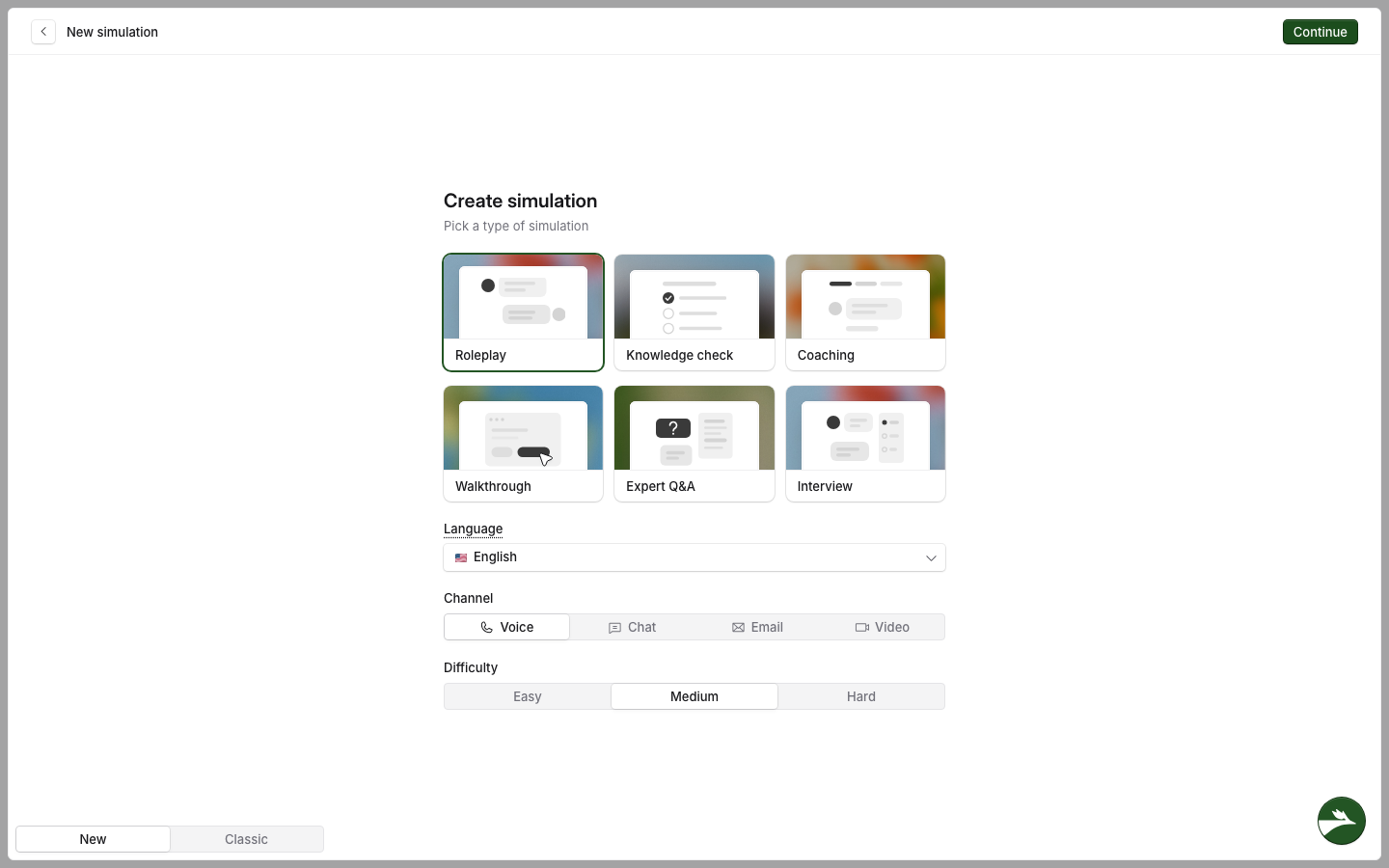
Select Create. The Create simulation step opens.
Fill in the four settings:
Pick a type of simulation The type sets who the learner talks to and how the attempt is scored. You cannot change it later, so see Interaction types and which one to choose first.
Language The language the simulation runs in.
Channel Voice, Chat, Email or Video.
Difficulty Easy, Medium or Hard. Only a Roleplay has this.
Select Continue.
The defaults are Roleplay, Voice and Medium.
To create a simulation inside a folder, open the folder first, then select Create. Roadie files the simulation in that folder when you save it.
Step 2: Describe the simulation
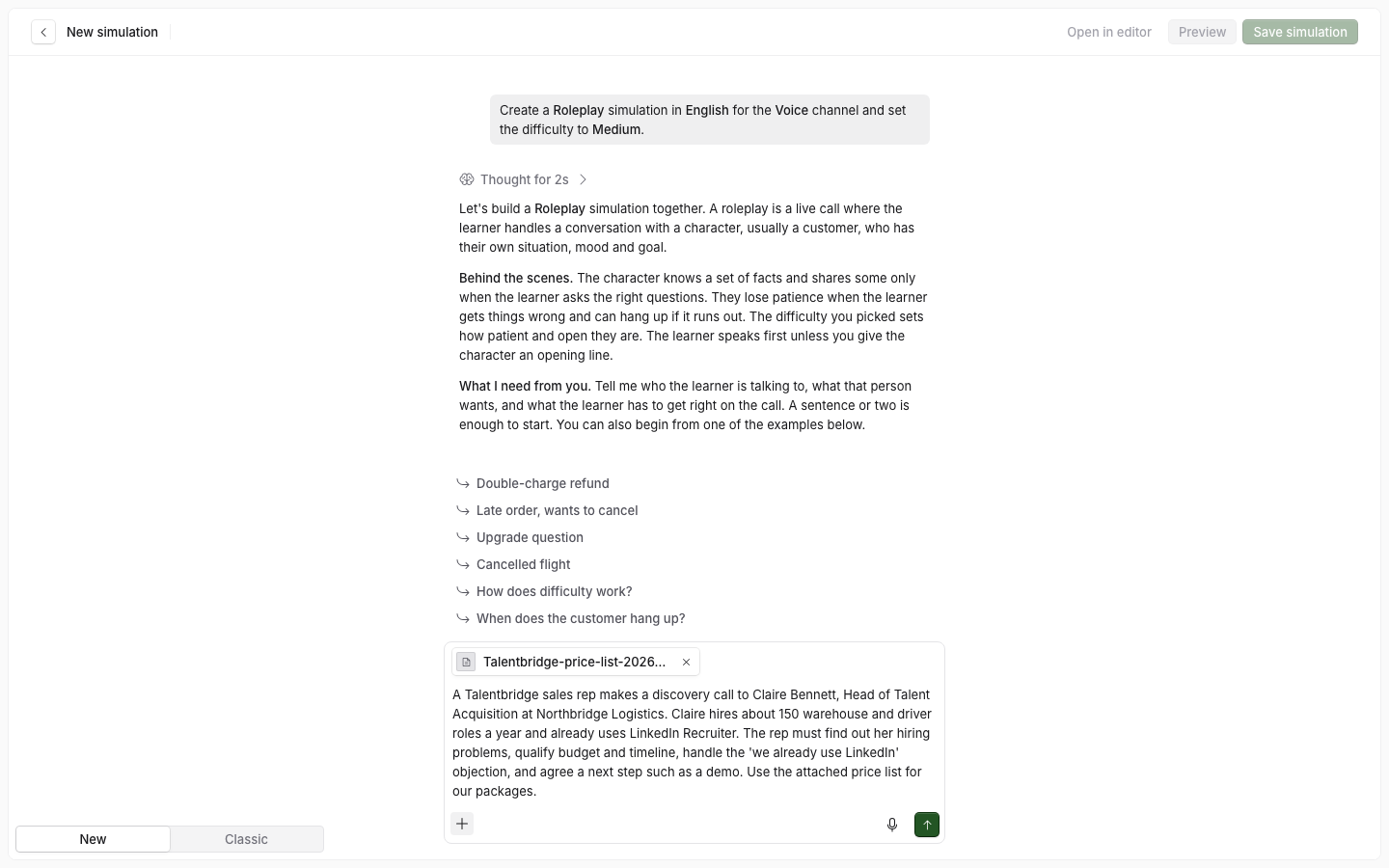
Roadie introduces the type you picked and tells you what it needs. A sentence or two is enough to start. You can also start from one of the examples under the chat box.
In the chat box, say what the learner should practise. Include who the learner talks to, what that person wants, and what the learner must get right.
To add source material, attach a file. You can attach up to 5 files per message, each up to 3 MB. Solidroad accepts PDF, Word (.docx), text files such as .txt, .csv and .md, and Excel spreadsheets (.xlsx, .xls). It reads the text from the file and does not keep the file.
Send the message.
A description might read: "A Talentbridge sales rep makes a discovery call to Claire Bennett, Head of Talent Acquisition at Northbridge Logistics. Claire already uses LinkedIn Recruiter. The rep must find out her hiring problems, qualify budget and timeline, handle the 'we already use LinkedIn' objection, and agree a next step such as a demo. Use the attached price list for our packages."
You can also attach files to the source material question, and when Roadie asks for a missing piece. Short answers and change requests take no files.
Step 3: Answer Roadie's questions
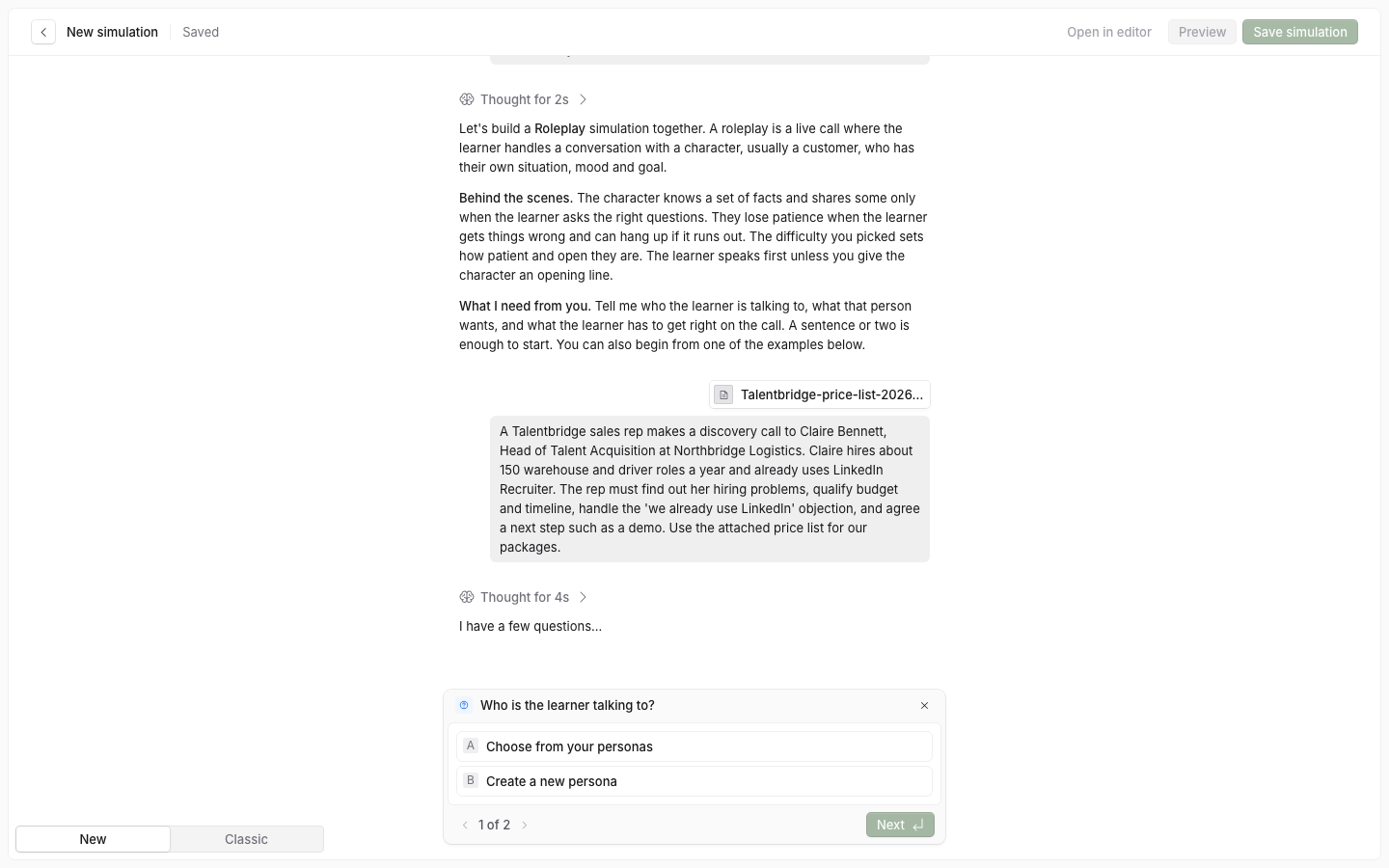
Roadie asks up to four short questions about what your description leaves open. If your description already says who the learner talks to, why, and what the learner must do, Roadie may ask none.
For each question, select one of the answers, type your own, or select Skip to use the answer Roadie suggests. Select Next to go to the next question. On the last question, select Send.
For a Knowledge check, Walkthrough or Expert Q&A, one question asks you to paste the source material. If you skip it, Roadie writes the simulation from your description only.
Roadie lists each answer it chose for you under What's been assumed on the draft card. Check them before you continue.
Step 4: Pick the persona and the scorecard
Roadie then asks two more questions. You cannot skip them.
Choosing the persona
Roadie asks "Who is the learner talking to?" for every type.
To use a saved persona, select Choose from your personas, then select a persona.
To create a new persona, select Create a new persona and describe the person. Roadie creates the persona in the same chat, then uses it. The new persona holds who the person is. What happens in this one conversation stays in the simulation.
If you do not have permission to create personas, you see Someone new instead. Describe the person, and Roadie writes a persona for this simulation.
If your description already said who the person is, Roadie asks only for a name or for what the description leaves out.
Choosing the scorecard
Roadie asks how the call should be scored for a Roleplay and an Interview, which must have a scorecard. On Chat and Email, it asks how the conversation should be scored.
Select Choose a scorecard, then select a scorecard, for example "Sales discovery call".
For a Walkthrough or an Expert Q&A, Roadie does not ask. You can add a scorecard later in the editor.
Step 5: Roadie builds the simulation
When you finish the questions, the draft card shows and Roadie builds the simulation at once. You do not need to press anything.
Before the build ends, you can select Change on the draft card to swap the persona or the scorecard.
When the build ends, the simulation is saved in your library and the preview opens, so you can try it. The card shows Preview and Save simulation.
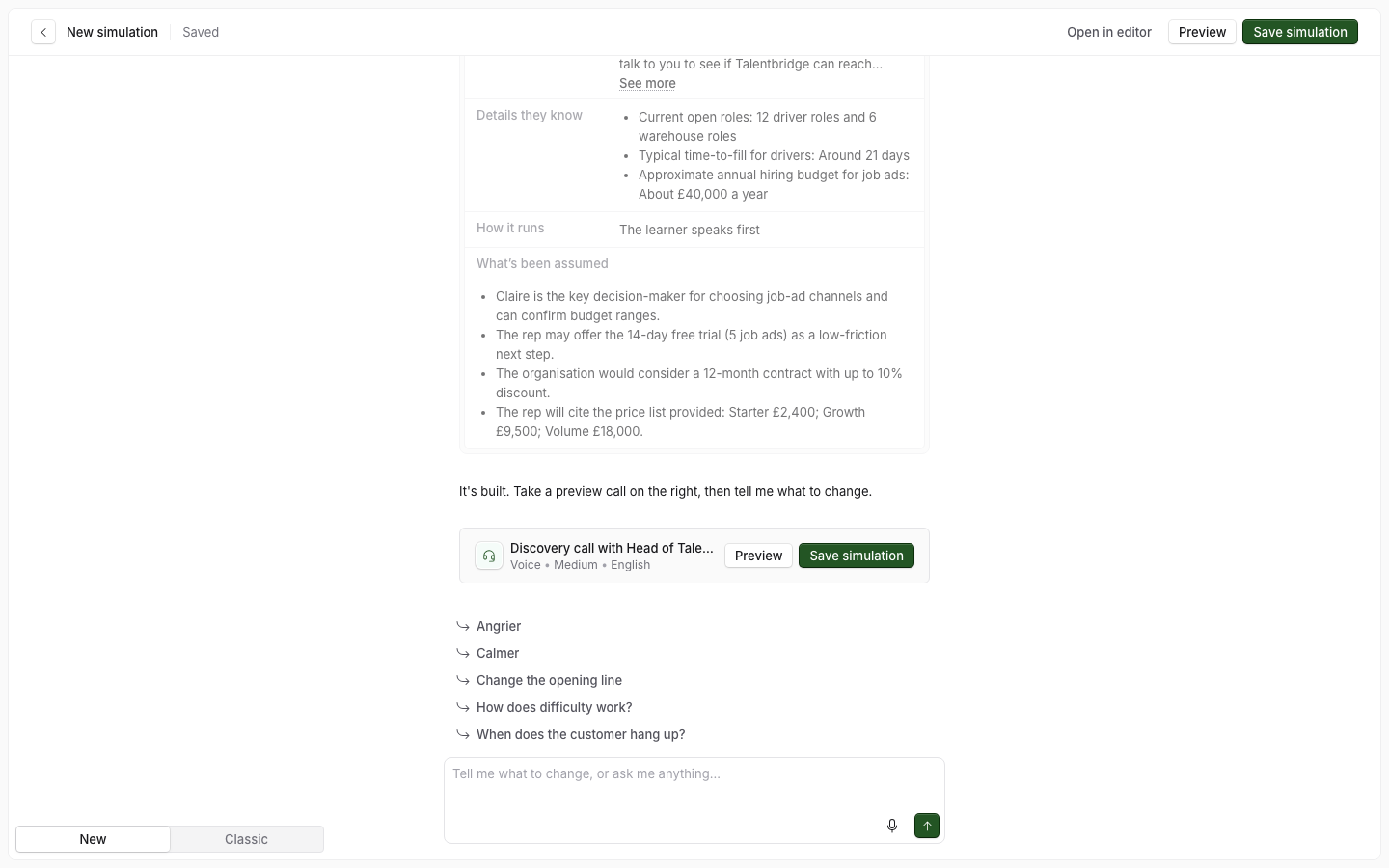
If the build fails, the card shows Create simulation. Select it to try again.
Step 6: Change it, then save
To change the simulation, tell Roadie in the chat, for example "Make Claire more sceptical about price." See How to change a simulation by chatting with Roadie.
To change a section by hand, select Open in editor. See The simulation editor.
When you finish, select Save simulation.
The simulation is already saved. Save simulation adds it to the folder you started from, if any, and takes you back to the library. It waits while a preview call is live, while Roadie makes a change, or while you have typed a message but not sent it.
Solidroad saves the conversation as you go, so if you reload the page it opens where you left it.
Leave without saving
Select Exit at the top left.
Before Roadie builds the simulation, Solidroad asks "Exit simulation". Select Yes, exit to leave. Nothing is saved.
After Roadie builds the simulation, Solidroad asks "Discard this simulation?". Select Discard simulation to delete it, or Keep editing to stay. To leave and keep it, select Save simulation.
If you do not have permission to delete simulations, Exit leaves at once and keeps the simulation.
Use the classic form
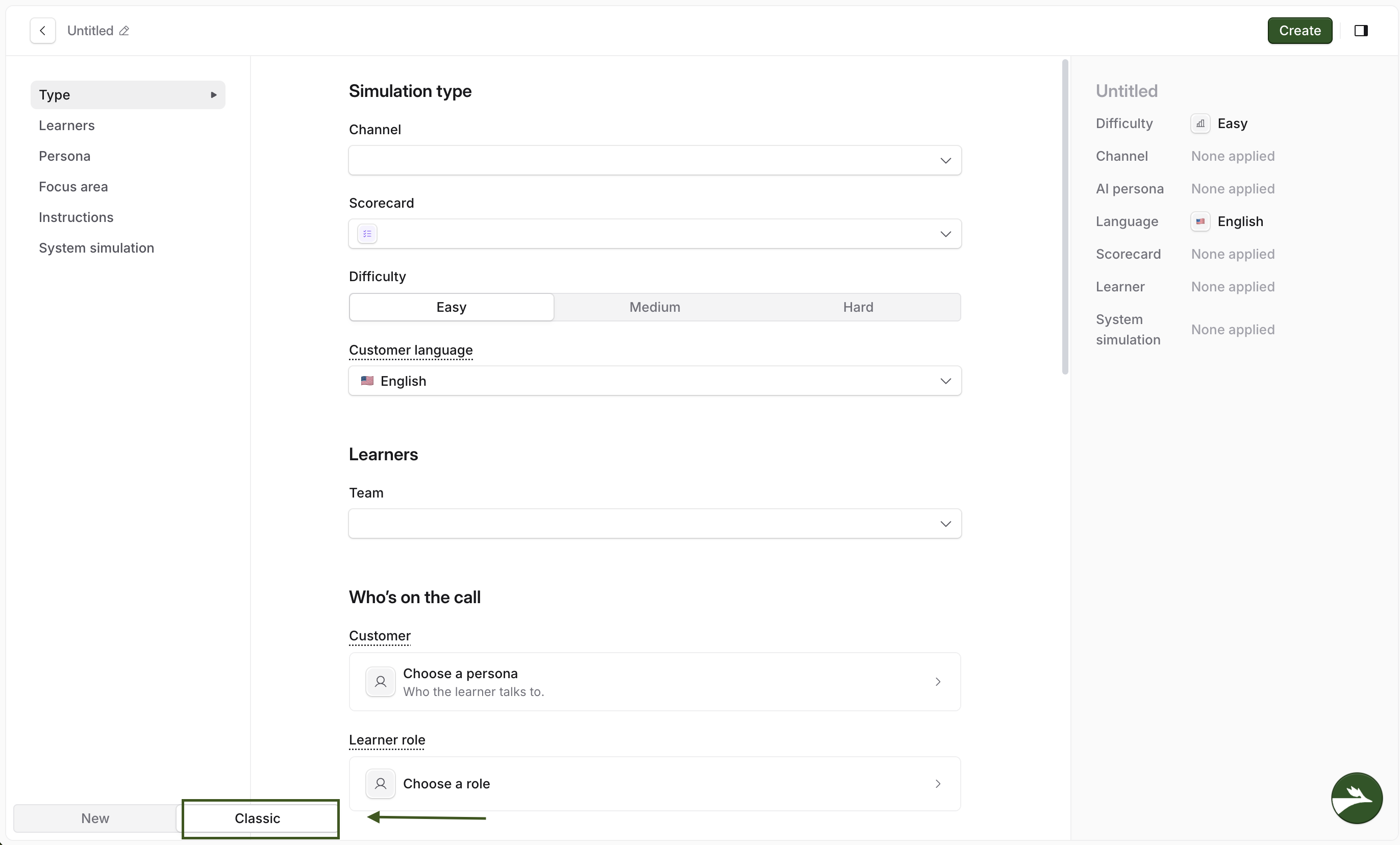
When the new create flow is on, a switch shows at the bottom left of the create page. Select Classic to use the old form, or New to go back to the chat.
New is the default. Solidroad remembers your choice in this browser, and simulations and personas each remember their own choice. Whatever you typed stays where you left it, so you can switch and come back without losing anything.
Simulations you made before the new create flow stay as they are and open in the classic form.