How to change a simulation by chatting with Roadie
Last updated: October 28, 2026
Tell Roadie what to change, in your own words. Roadie changes only the parts you name and saves the change at once. A change to a saved simulation is live for learners straight away, with no draft step, so if learners are assigned the simulation their next attempt uses the change.
Change a simulation while you create it
After Roadie builds the simulation, type the change in the chat and send it. For example:
"Make Marcus ask for a 15% discount early on."
"She should only say how many roles she hires for if the rep asks."
"The rep should agree a follow-up demo before the call ends."
Roadie replies "Updated. Here's the new version." and shows the new card. To try the change, run the preview again.
Change a saved simulation
Go to Simulations.
Open the simulation. The chat opens on the simulation as it is saved.
Type the change and send it.
When you finish, select Done.
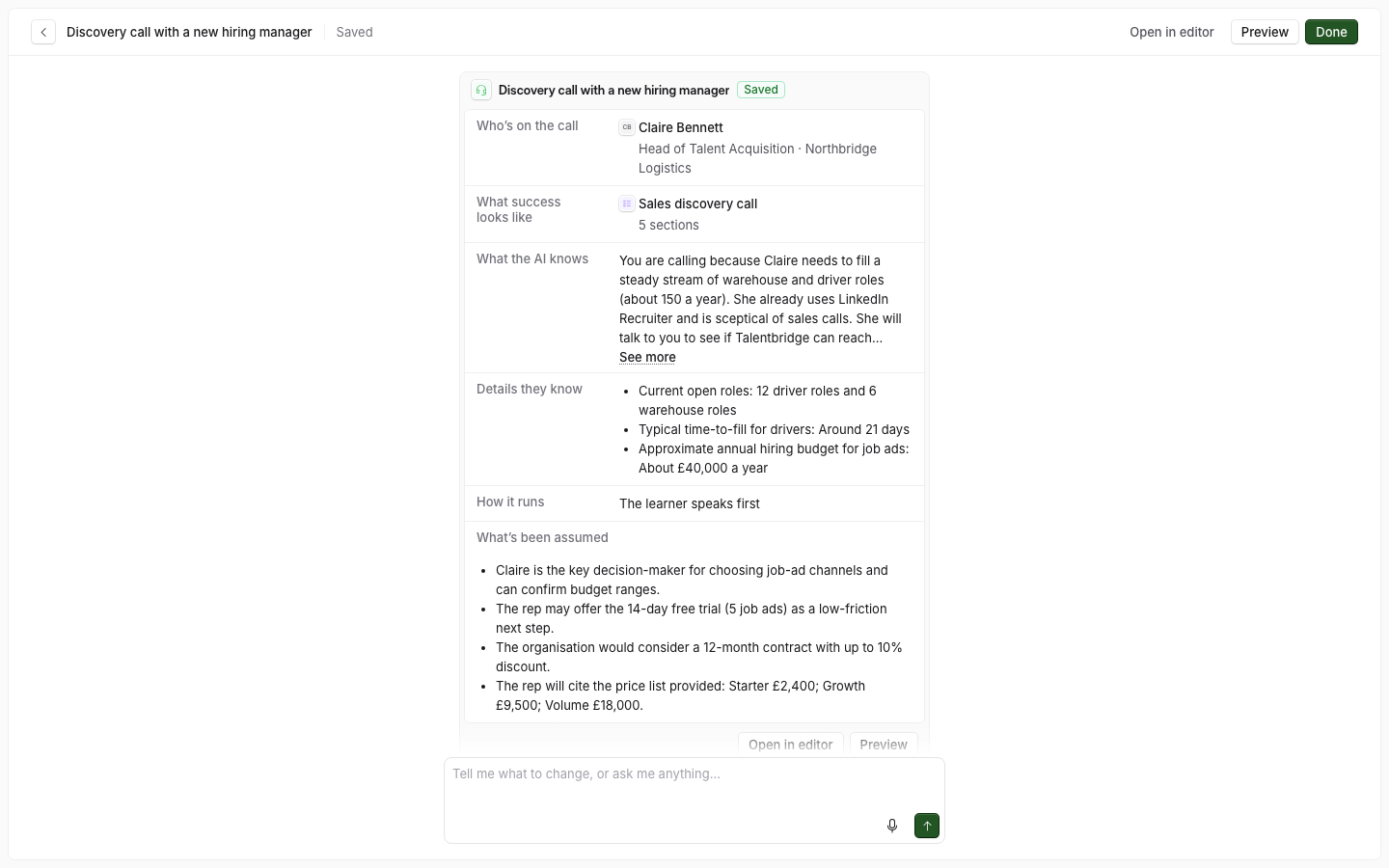
The chat opens only for simulations built in the new create flow, or moved to it. Other simulations open in the classic form.
What a change touches
Everything you did not name stays word for word, including your edits by hand and any material you pasted.
If Roadie cannot see what to change, it says "I couldn't see what to change for that. Try saying it another way." and nothing is changed.
The chat can change many settings by name: the difficulty, the patience, pausing, call limits, the title, the scorecard, the team and the learner role.
Some things you cannot change from the chat. Roadie tells you where to change them:
You want to change | Where |
|---|---|
The persona the learner talks to | Open in editor, then Who's on the call |
How the persona talks, or its voice or picture | On the persona |
The persona's name or language, when another simulation uses the same persona | On the persona. See Persona settings |
The channel | Open in editor, then Edit next to the title |
The system simulation | Open in editor, then What the learner does |
The type | You cannot change it. Create a new simulation. |
For example, ask "Make Claire more sceptical about our prices." Roadie changes the scenario and says: "I left how the character talks as it is: I can't change it from the chat. It is set on the persona: open the persona in the editor to change it."
Undo your changes with Exit
Select Exit at the top left.
If you changed something, Solidroad asks "Discard the changes made here?". Select Discard and leave to put the simulation back to how it was when you opened it, Keep changes and leave to keep your changes, or Cancel to stay on the page.
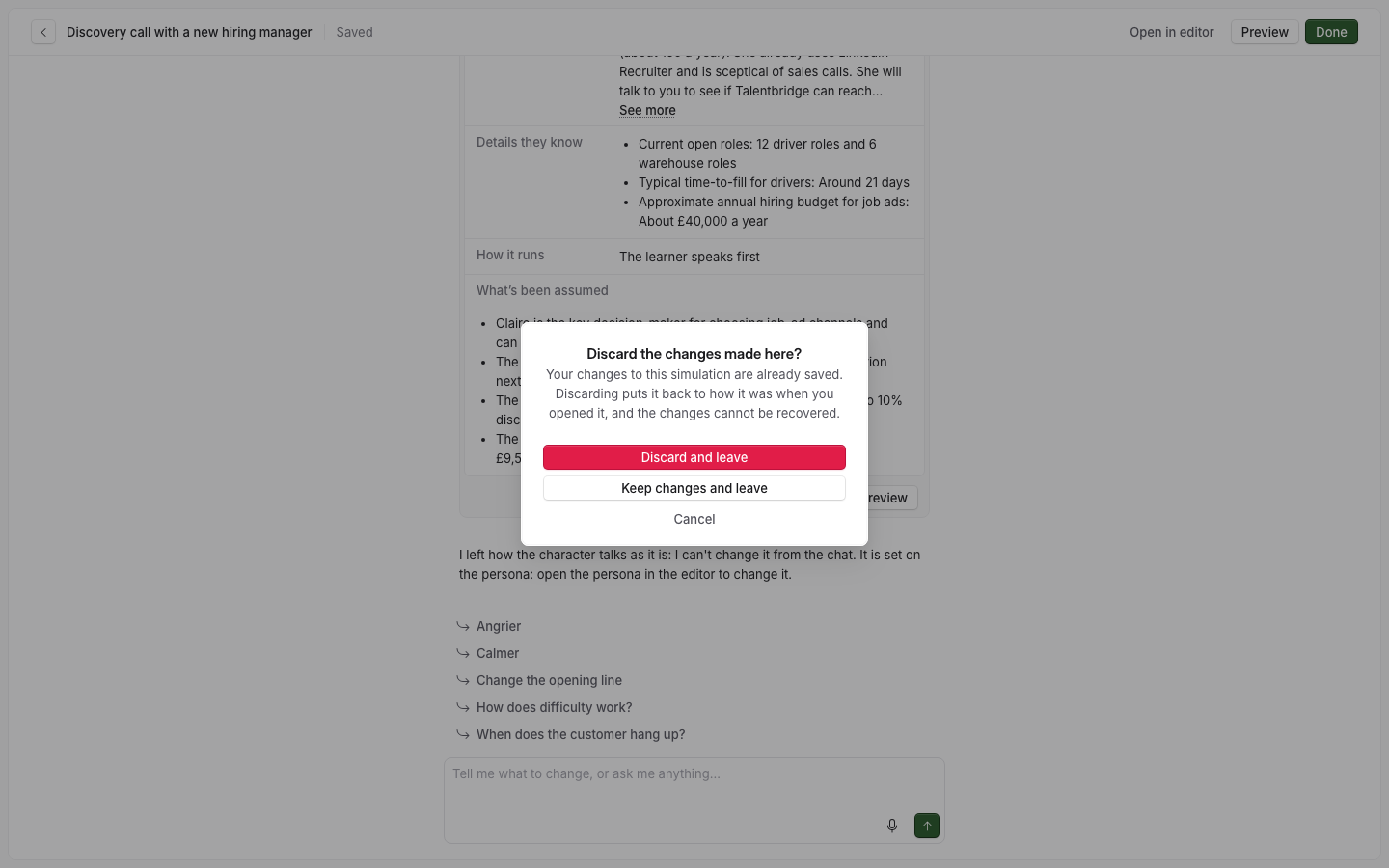
If you changed nothing, Exit leaves at once.
Discard and leave saves the version you opened as a new version, so nothing is deleted. It does not undo a persona rename, because a rename changes the persona rather than the simulation, and the dialog tells you the name the persona keeps.
When you cannot leave yet
Done, Save simulation and Exit all wait while a preview call is live or while Roadie is making a change, and you cannot stop a change once Roadie starts it. If you have typed a message without sending it, send it or clear it first.
If a save fails, the top bar shows Couldn't save. Select Retry.
Ask Roadie a question
You can ask Roadie how something works at any time, for example "How does difficulty work?". Roadie answers and stays where you were. A question does not change the simulation.