How to preview a simulation
Last updated: October 28, 2026
Select Preview to try a simulation yourself, as a learner does. It runs the same simulation they get, on the same channel, so a video simulation opens a call with the talking avatar and an email simulation opens an email thread. Nothing you do in a preview is scored or kept, so you can run one as often as you need.
What a preview does not do
You get no score and no feedback, and the attempt does not show in reports or in the learner's history. Your camera is not recorded, and the transcript goes away when you close the panel.
A preview also does not count as an attempt, so the simulation's scorecard stays changeable afterwards.
Preview a simulation
Open the simulation in the chat with Roadie. For a new simulation, carry on from where Roadie created it.
Select Preview in the top bar, or Preview on the simulation card.
Start the call or conversation in the panel. For a voice or video preview, let your browser use your microphone.
Talk or write to the persona as a learner would.
End the call or the conversation in the panel.
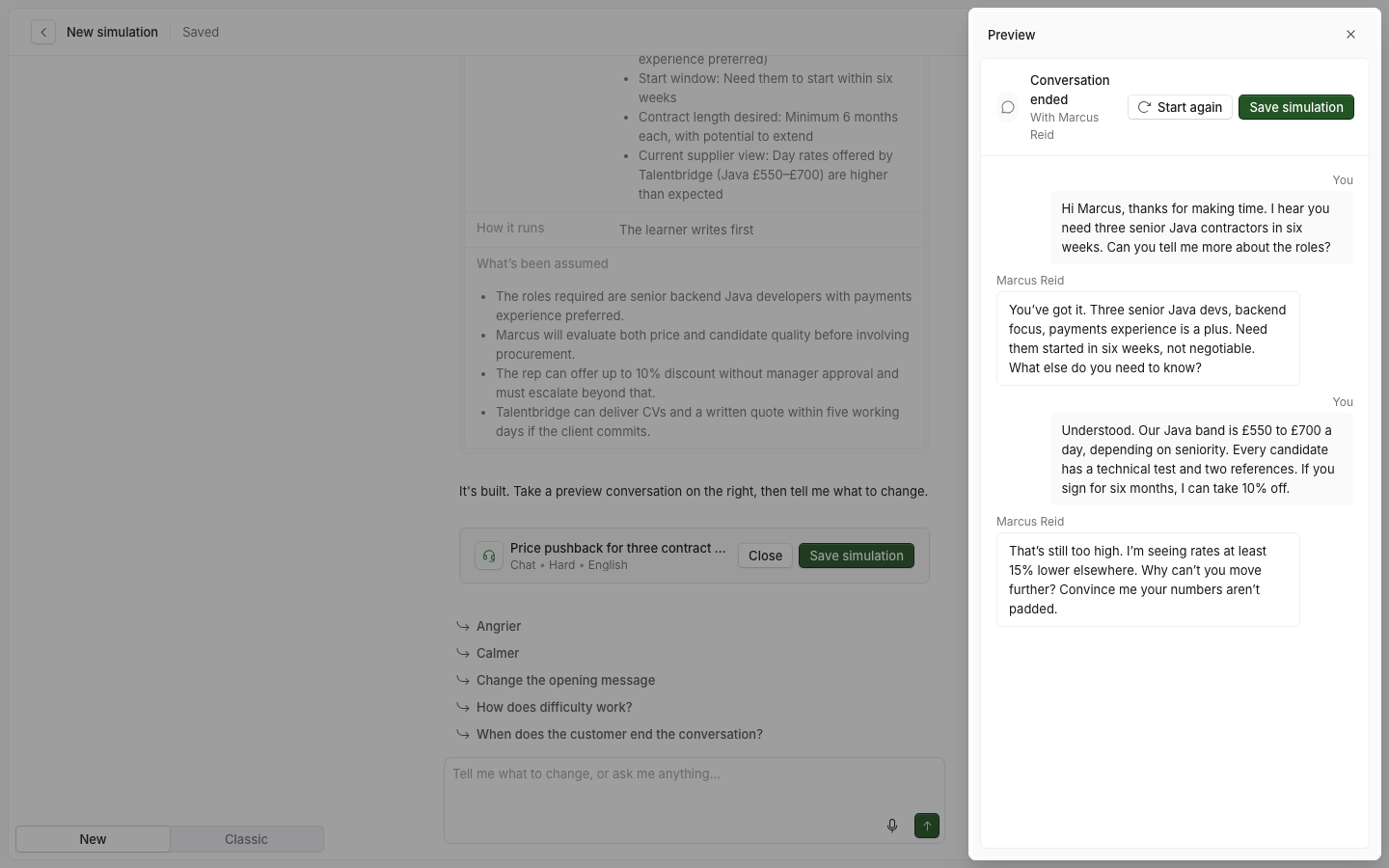
Read the transcript, then select Call again (voice and video) or Start again (chat and email) to try again. To finish, select Save simulation, or Done on a simulation you already saved.
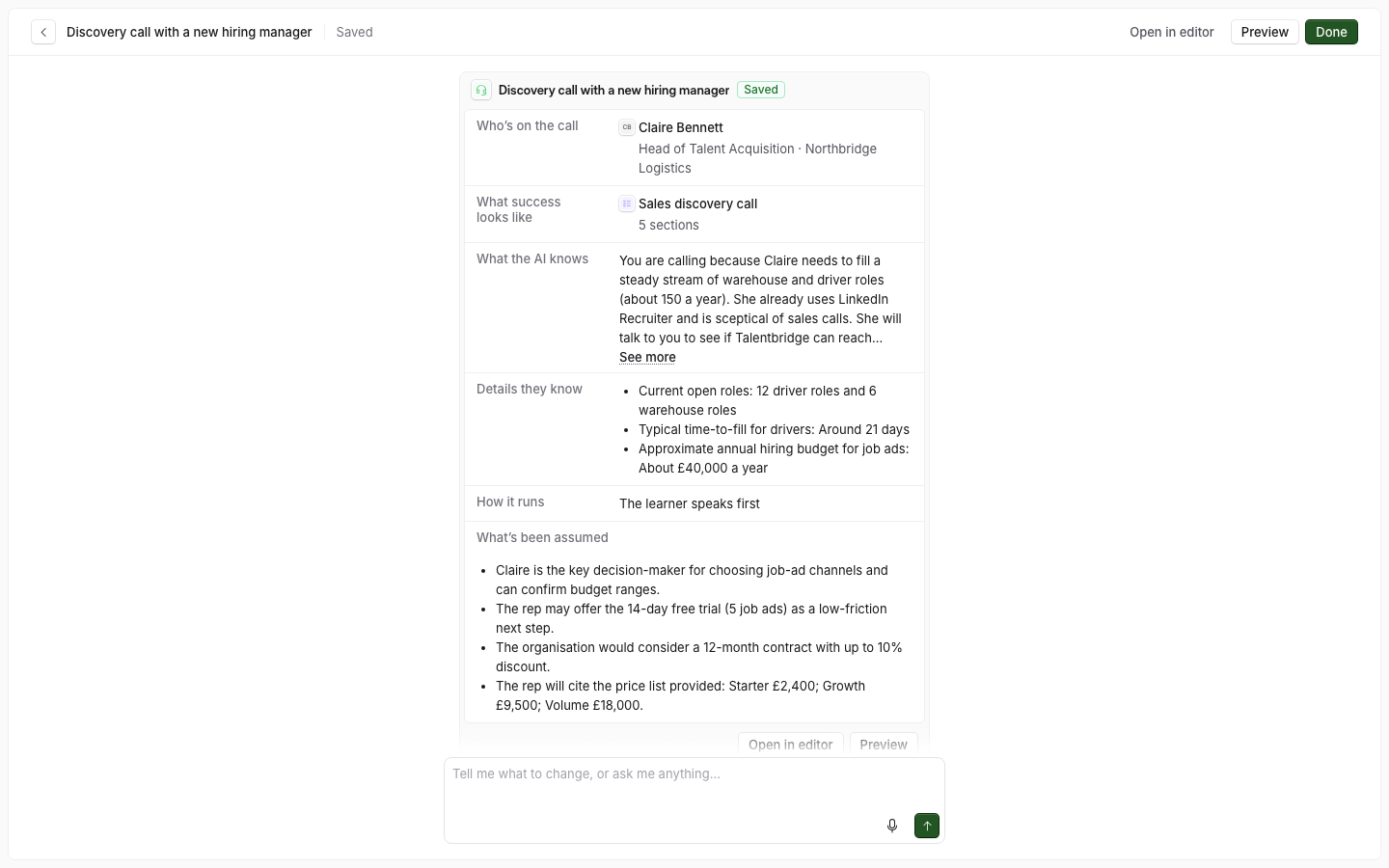
Until Roadie has created the simulation, Preview is not available and its tooltip says "Create the simulation to preview it".
While the preview is running
The panel shows a Live badge, and you cannot use the chat with Roadie until the preview ends. The chat says "Editing is paused while the conversation is live".
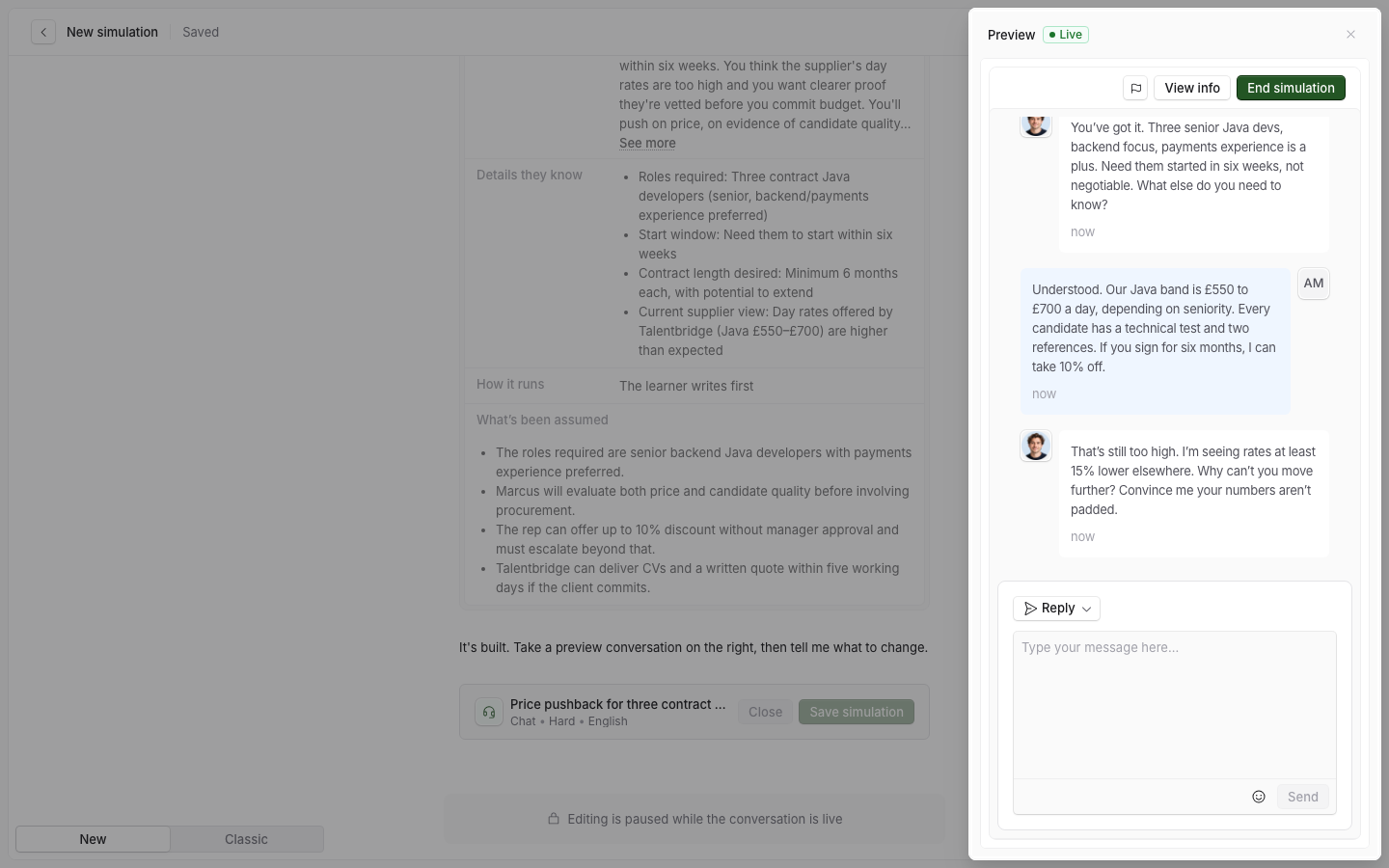
On a voice or video preview, select End call and close to hang up and close the panel at once, which can take a few seconds. On a chat or email preview you cannot close the panel while it is live: the tooltip says "End the conversation first". End the conversation, then select Close preview.
When the preview shows "Out of date"
A preview uses the simulation as it was when the preview started. If you change the simulation after that, the panel shows an Out of date badge.
End the call or conversation if it is live, then select Call again or Start again. The new preview uses the latest saved version.