How to create simulations
Last updated: September 15, 2026
Simulations are the training scenarios your learners practice on. An AI persona plays the customer, and the conversation is scored against a scorecard you choose. This guide walks you through building one, writing a scenario prompt that produces a realistic simulation, and previewing it before you assign it to your team.
Before you start: you'll need Admin access, a persona and a scorecard already created (or use the universal ones Solidroad provides).
Step 1: Open the simulation builder
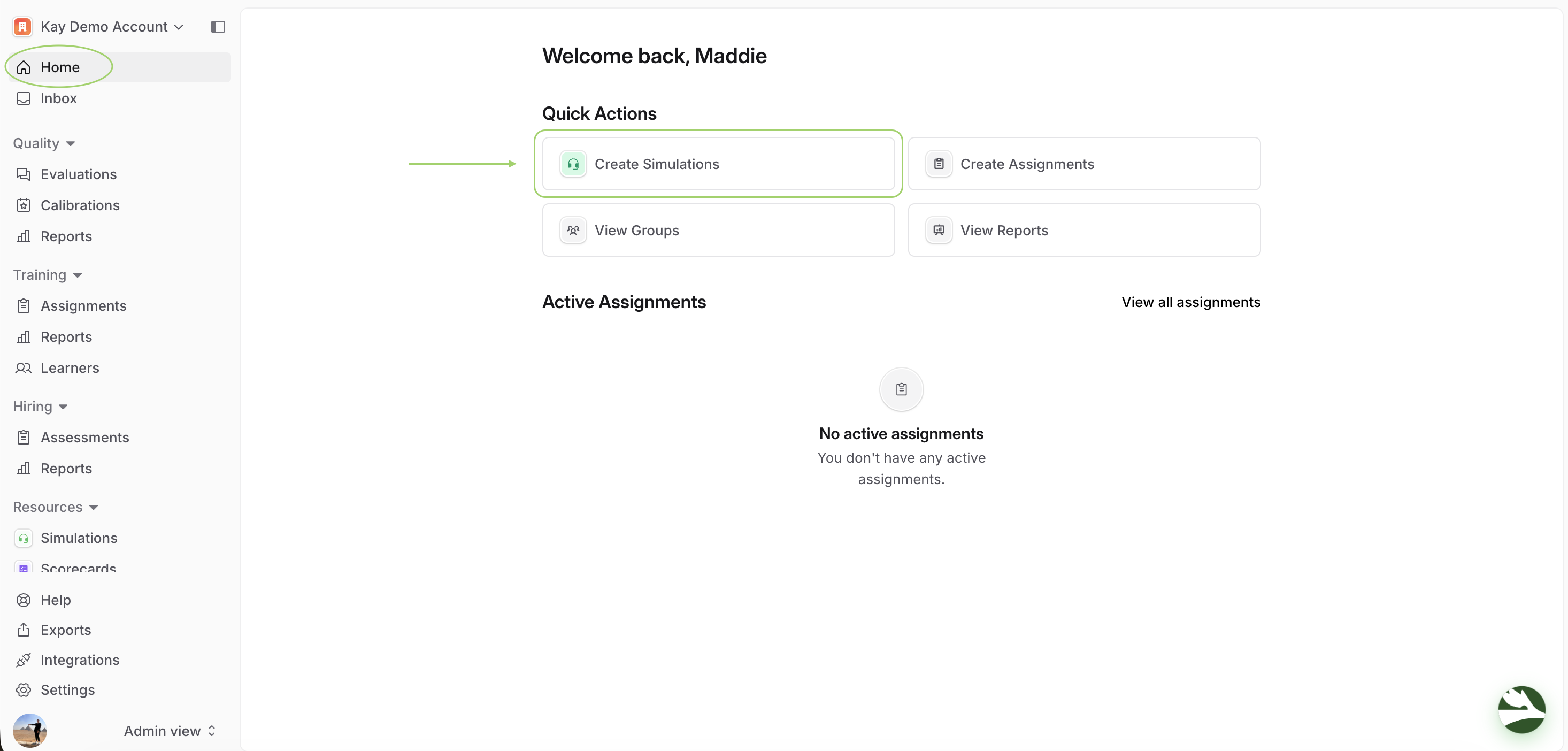
Log in to your admin account.
From the Home page, click Create Simulation. Or go to Resources → Simulations and click New Simulation.
Step 2: Create a New Simulation
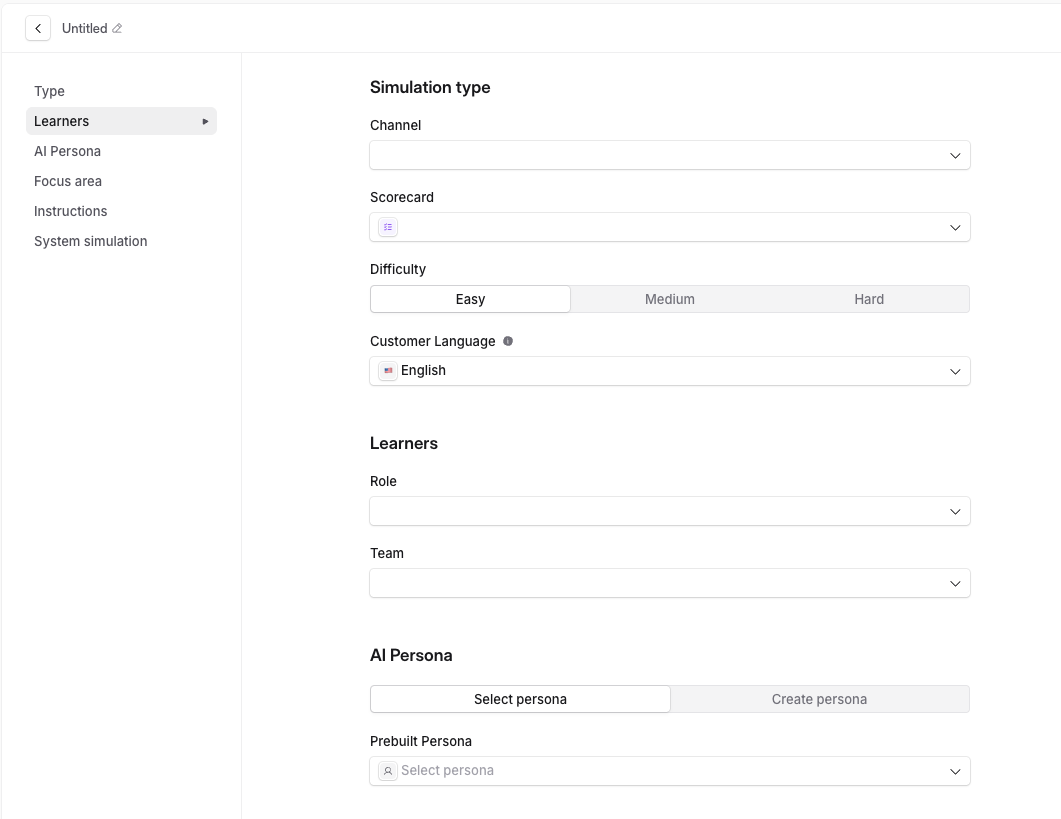
Click New Simulation to open the simulation builder. Work through each field:
Title (optional) - give your simulation a name, or leave it blank and one will be auto-generated from the scenario you write in Step 3.
Channel - select Email, Phone, Chat, or Video. Choose the format your learners actually work in, it shapes how the persona responds.
Scorecard - select a universal scorecard or a role-specific one you created in Resources → Scorecards.
Difficulty - Easy, Medium, or Hard. This changes how much the persona cooperates and how much it hides, not just a label on the simulation, see Best practices for prompting a persona for how to make the difficulty real in your prompt.
Language - select from the language library.
Learner Role - select from the roles you created in Settings → Training → Learner Roles.
Learner Team - select from the teams you created in Settings → Training → Teams.
AI Customer (Persona) - select the persona the learner will interact with. Choose from the personas you built in Resources → Personas.
Note - the Persona needs to be created in the desired language
Step 3: Write the Scenario
Prompt the AI with the training scenario you want to create under the Focus Area section. You have two options: Simulation prompt or Pick a Skill!
Simulation Prompt - write a short role-play prompt describing the situation. The more specific it is, the more realistically the AI plays it.
For example: "A customer calls asking to cancel their subscription because a competitor's cheaper plan just launched. They're not angry, just price-sensitive, and will stay if offered a 20% loyalty discount."
Pick a Skill - select up to 3 skills you want the learner to focus on and develop during the simulation.
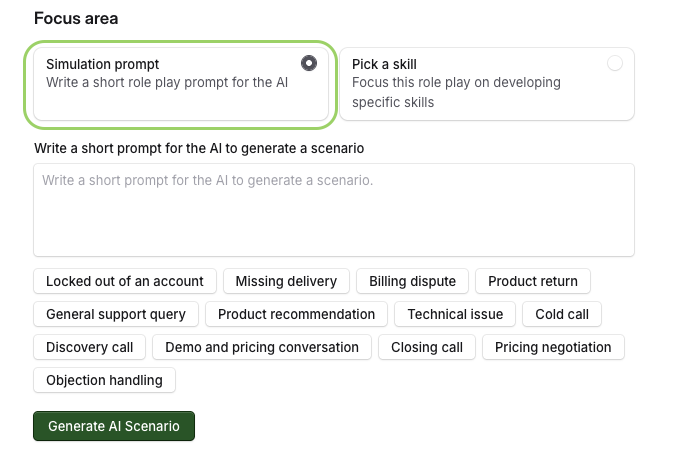
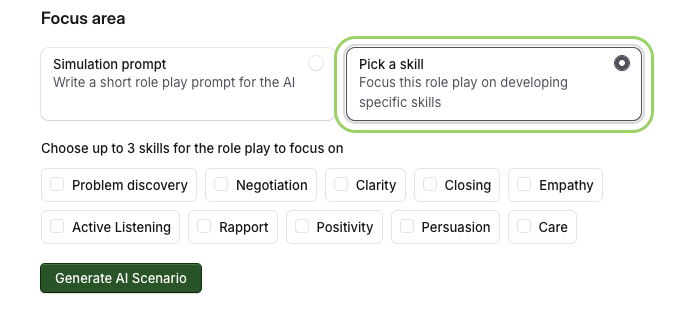
Click Generate AI Scenario. The result appears in the Instructions box, read it over before saving, a vague prompt produces a vague scenario just as easily as a vague persona does.
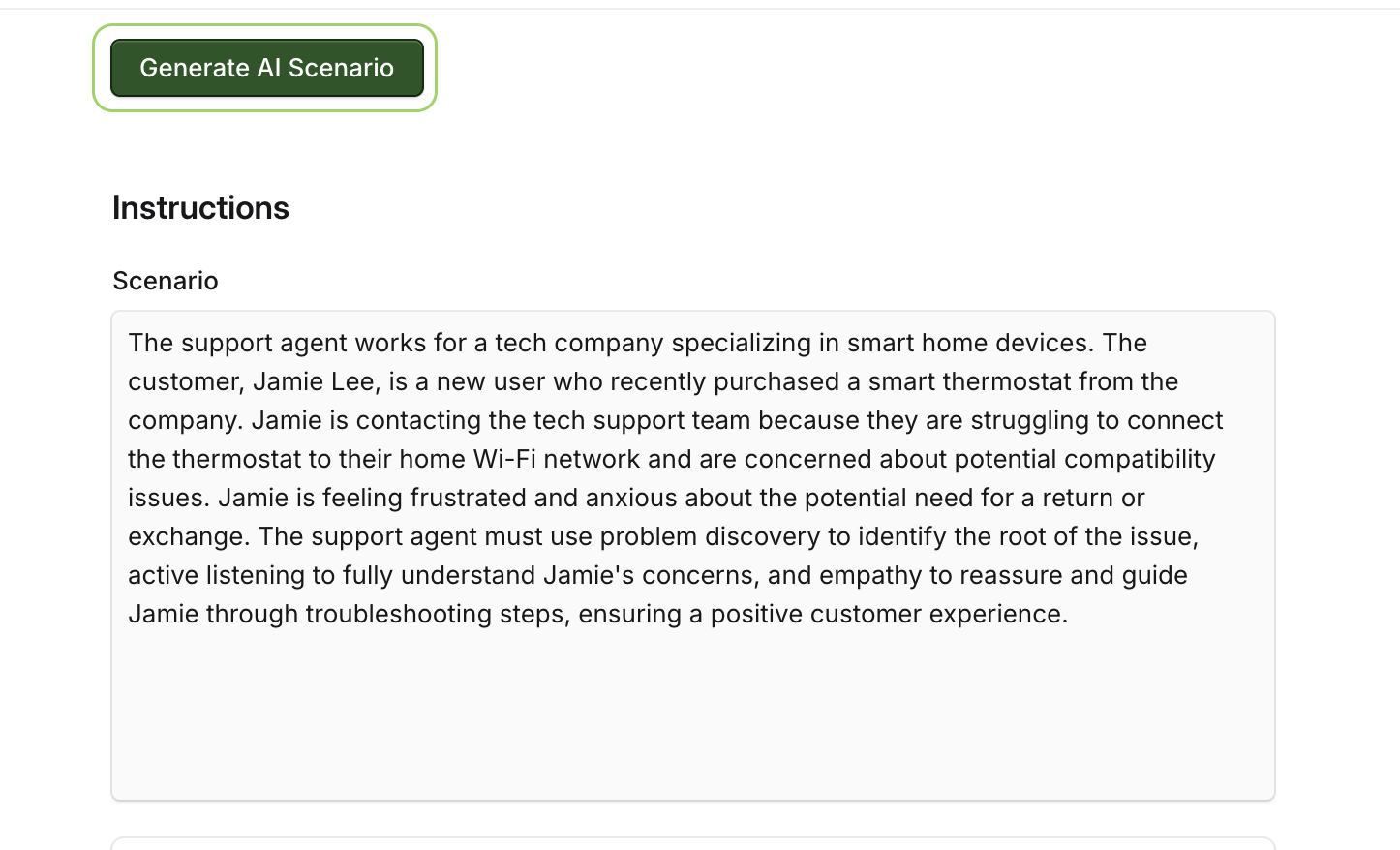
Once the scenario has been generated, you have two additional options:
Learner Controls - click Add Learner Instructions to provide guidance shown to the learner before they begin. Toggle Learner Speaks First if you want the learner to initiate the conversation rather than the AI persona.
Backend Systems - click Add Backend System to simulate data the learner might need to reference during the call (e.g. CRM fields, account details). Add a system name, attribute, and value. You can add multiple backend systems.
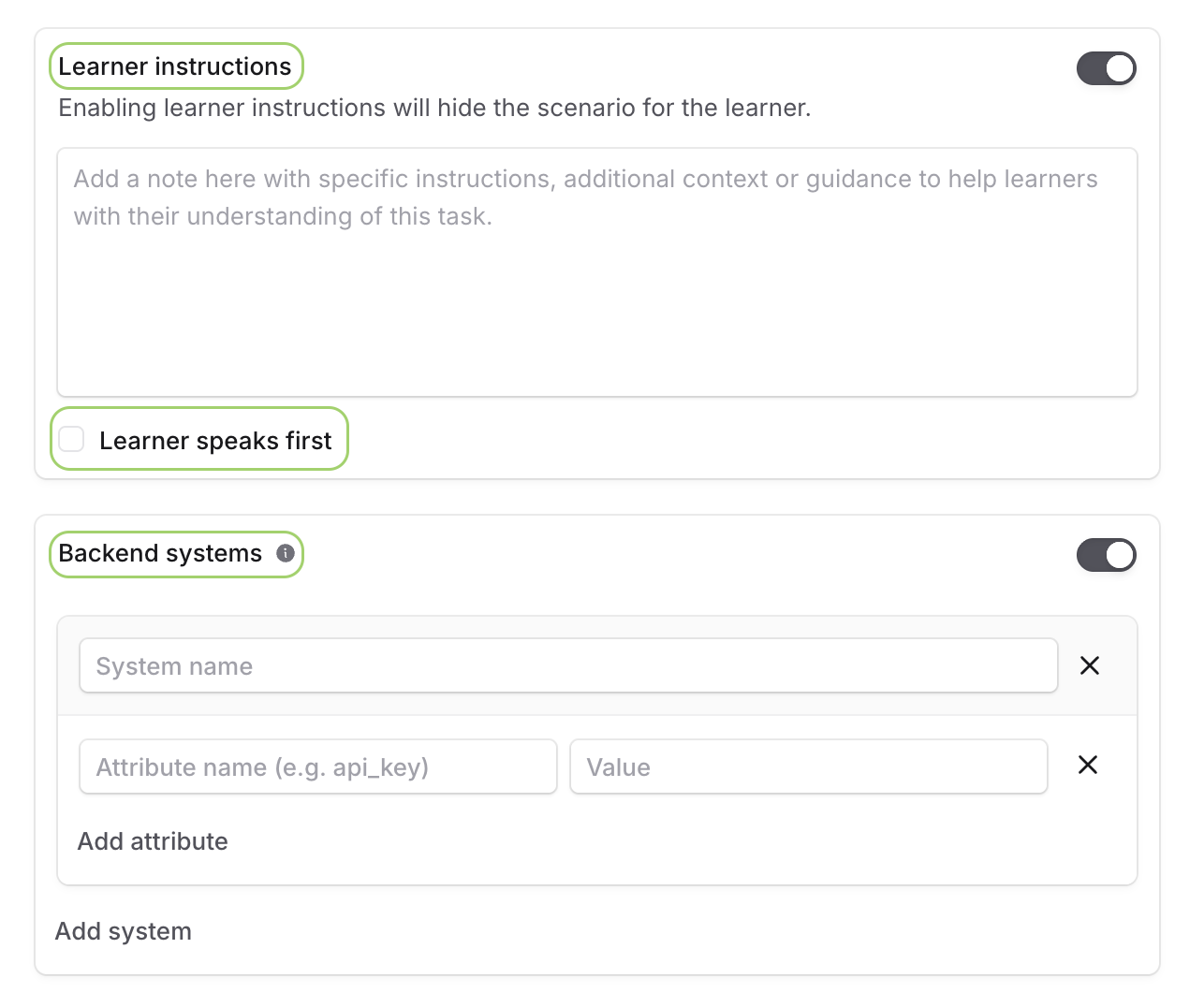
Step 4: Save and preview
Click Save. Your simulation is saved to Resources → Simulations.
Run it yourself once before assigning it to learners. Check that the persona stays in character, the difficulty feels right, and the scorecard scores what you'd expect, the same check you'd run on a persona before launch.
Related articles:
If you have any further questions, contact the Solidroad team via the Help tab in the platform.