Persona settings
Last updated: October 28, 2026
A persona is the person your learners talk to in a simulation. This covers every field in the persona editor, what each one changes in how the persona sounds and behaves, and what happens when several simulations use the same persona.
To open the editor, go to Resources, then Personas. Select a persona and edit it, or create a new one.
What goes on the persona and what goes on the simulation
The persona is who the learner talks to, and it is the same in every simulation that uses it. The simulation is one conversation with that person.
On the persona | On the simulation |
|---|---|
Name, job title, company, backstory | The situation and the persona's goal on this call |
Traits, Levels, Often says, Never says | Difficulty and Patience |
Language, voice and appearance | Facts true on this call only |
Facts true on every call | Stages, reactions and the scorecard |
About
Field | Required | Limit | What it does |
|---|---|---|---|
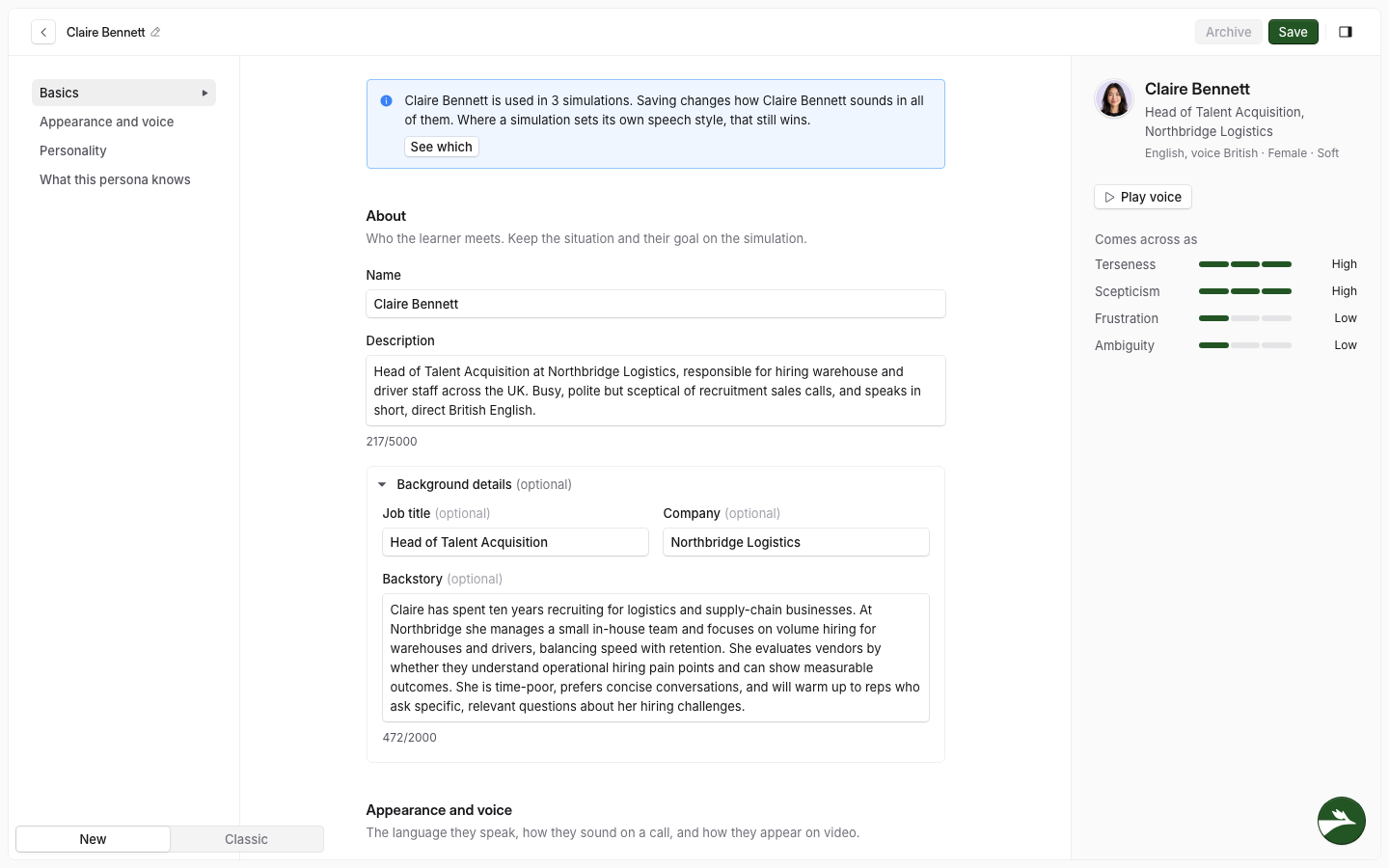
Name | Yes | No set limit | The name the persona uses on the call. |
Description | Yes | 5,000 characters | Who the persona is. The AI reads it on every call. |
Job title | No | No set limit | Shown on the persona card as "job title at company". |
Company | No | No set limit | Shown on the persona card as "job title at company". |
Backstory | No | 2,000 characters | Their history and what they care about. |
Job title, Company and Backstory are under Background details. Open it to see them. The AI brings up the Backstory only when the learner asks about the persona or their past.
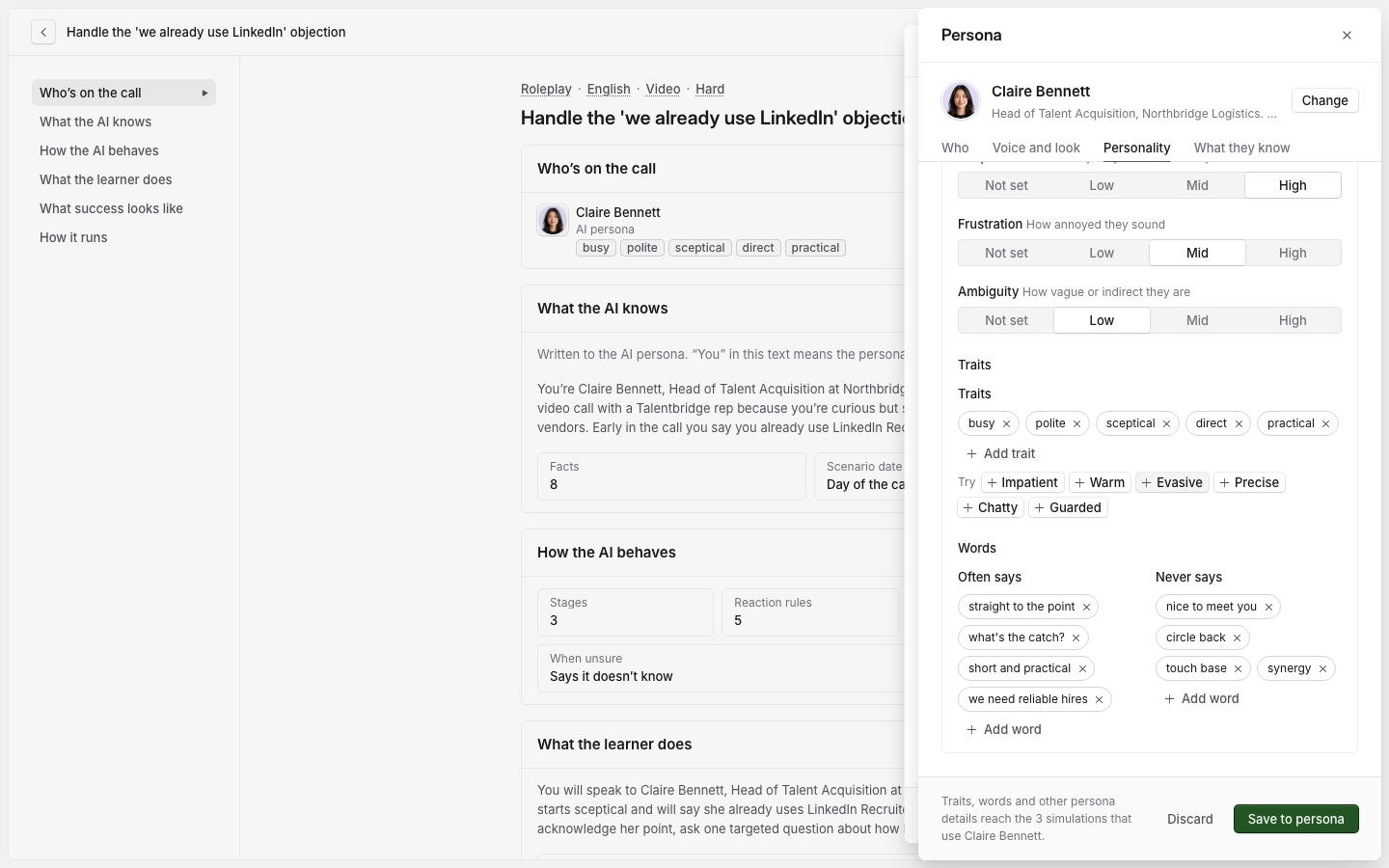
Claire Bennett's description in the screenshot above reads: "Head of Talent Acquisition at Northbridge Logistics, responsible for hiring warehouse and driver staff across the UK. Busy, polite but sceptical of recruitment sales calls, and speaks in short, direct British English."
Appearance and voice
Avatar
The picture of the persona, which is required. Select Change avatar to pick a built-in picture, or Upload custom to use your own image. A built-in picture also sets the persona's gender, and an uploaded image does not.
Language
The language the persona speaks. Every simulation that uses the persona runs in this language. The list shows regional dialects under their language, for example Spanish (Mexican) or French (Canadian), and the editor picks a voice to match whatever you choose.
Voice
How the persona sounds on voice and video calls.
Select Change voice. The Voices drawer opens.
Filter the list by accent or gender, or search by name, accent or style. Turn on Expressive to see only voices that can act out cues.
Select the play button on a voice to hear it.
Select the voice, then Use this voice.
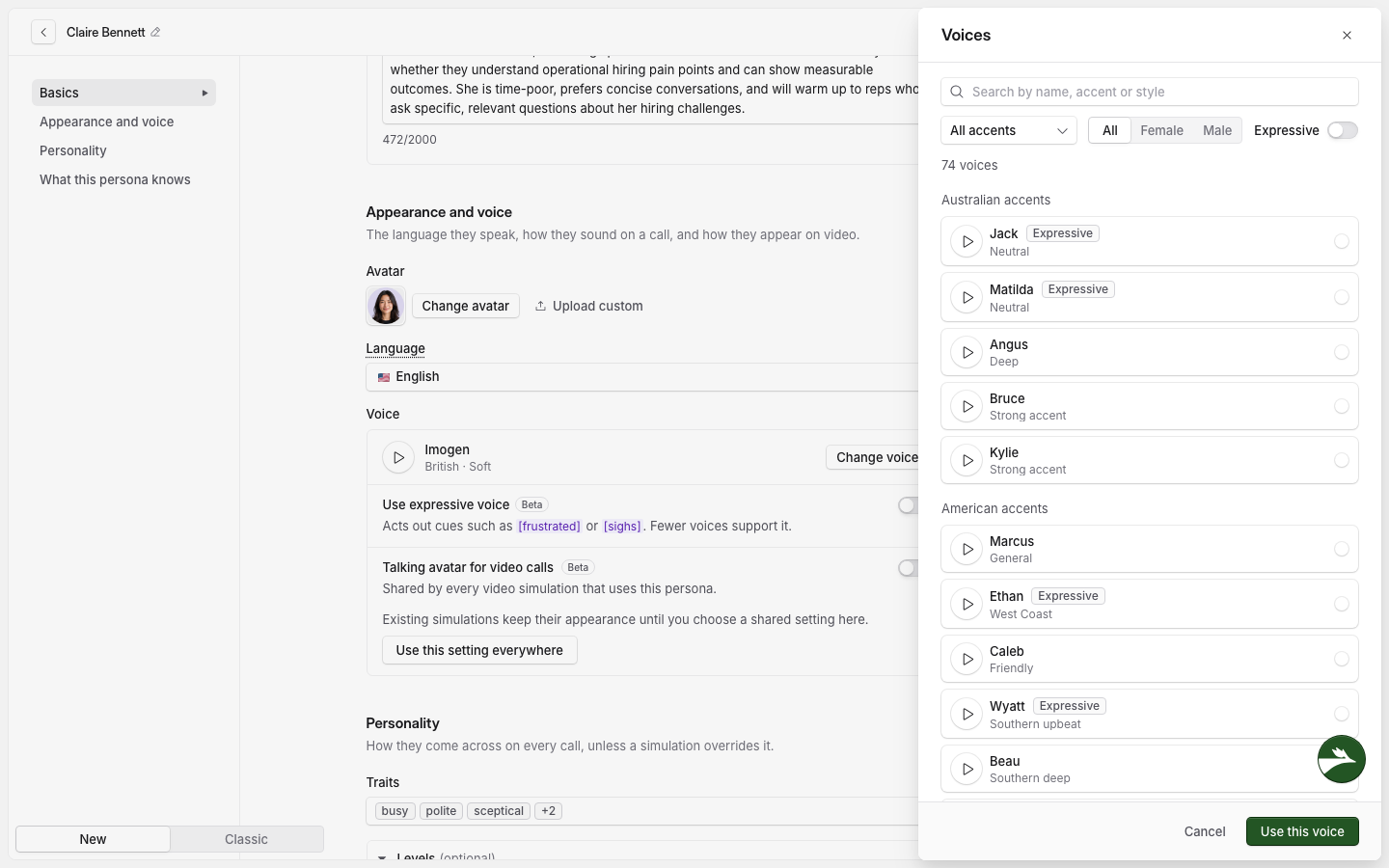
The persona's gender follows the voice you choose. To hear the chosen voice later, select Play voice in the preview panel.
Use expressive voice (Beta)
When this is on, the voice acts out cues such as [frustrated] or [sighs]. Fewer voices support it. If no voice for the language can do this, the switch is off and says "No voice for this language can speak expressively yet." If you do not see the switch at all, ask your Solidroad contact.
Talking avatar for video calls (Beta)
When this is on, the persona appears as a speaking video avatar in video simulations. The setting is shared by every video simulation that uses the persona, and existing simulations keep their current appearance until you select Use this setting everywhere.
Talking avatars depend on your plan, and a workspace admin accepts a data processing addendum the first time anyone turns one on. See Talking avatars explained and How to turn on a talking avatar for a persona.
Personality
Traits are short words that describe the persona, for example "Guarded" or "Precise". Open the list and pick several, or type your own and select Add. You can have up to 10 traits, each up to 80 characters.
Often says holds words or expressions the persona uses, and Never says holds ones they never use. For Claire: "straight to the point" and "what's the catch?" against "circle back" and "synergy". Type a word or expression and press Enter. Each list takes up to 15 entries, of up to 40 characters each.
Levels
Four scales that control how the persona talks. Each one is Not set, Low, Mid or High. Not set adds nothing, and each other level adds one fixed sentence to what the AI is told.
Level | What it controls | Low | Mid | High |
|---|---|---|---|---|
Terseness | How short their answers are | Talks at length and takes time to get to the point. | Answers in a few sentences. | Keeps answers short, often to a few words. |
Scepticism | How readily they doubt what they hear | Takes what they are told at face value. | Accepts most things, but asks for detail when it matters. | Doubts what they are told until given a reason to believe it. |
Frustration | How annoyed they sound | Stays even-tempered, whatever happens. | Shows irritation when something is not working, then lets it go. | Is already annoyed when the call starts, and it shows. |
Ambiguity | How vague or indirect they are | Says exactly what they mean. | Clear about the main point, vague about the rest. | Puts things loosely, so the learner may have to ask what they mean. |
Levels change how the persona talks. They do not change how much the persona tells the learner, which comes from the facts and from the simulation's difficulty.
Claire is on Terseness High, Scepticism High, Frustration Low and Ambiguity Low. She gives short answers and wants proof before she believes a claim, but she stays calm.
Speech habits
Often says holds words or expressions the persona uses, and Never says holds ones they never use. For Claire: "straight to the point" and "what's the catch?" against "circle back" and "synergy".
Type a word or expression and press Enter. Each list takes up to 15 entries, of up to 40 characters each.
What this persona knows
Facts that are true in every simulation that uses the persona. The section hint is "True in every simulation. Facts about one call belong on that simulation."
You can add up to 10 facts. Write each fact on one line, as "label: value", for example "Job title: Head of Talent Acquisition". A fact label can have up to 120 characters, and a value up to 200.
Each fact has one of four options for how the persona uses it:
Option in the editor | Shown elsewhere as | What the persona does |
|---|---|---|
says it exactly | Says exactly | Says it word for word, when it is relevant. |
says when asked | Only if asked | Holds it back until the learner asks. |
can make up details | Can make up | Invents details if the learner pushes. |
won't say | Won't say | Refuses to share it, however the learner asks. |
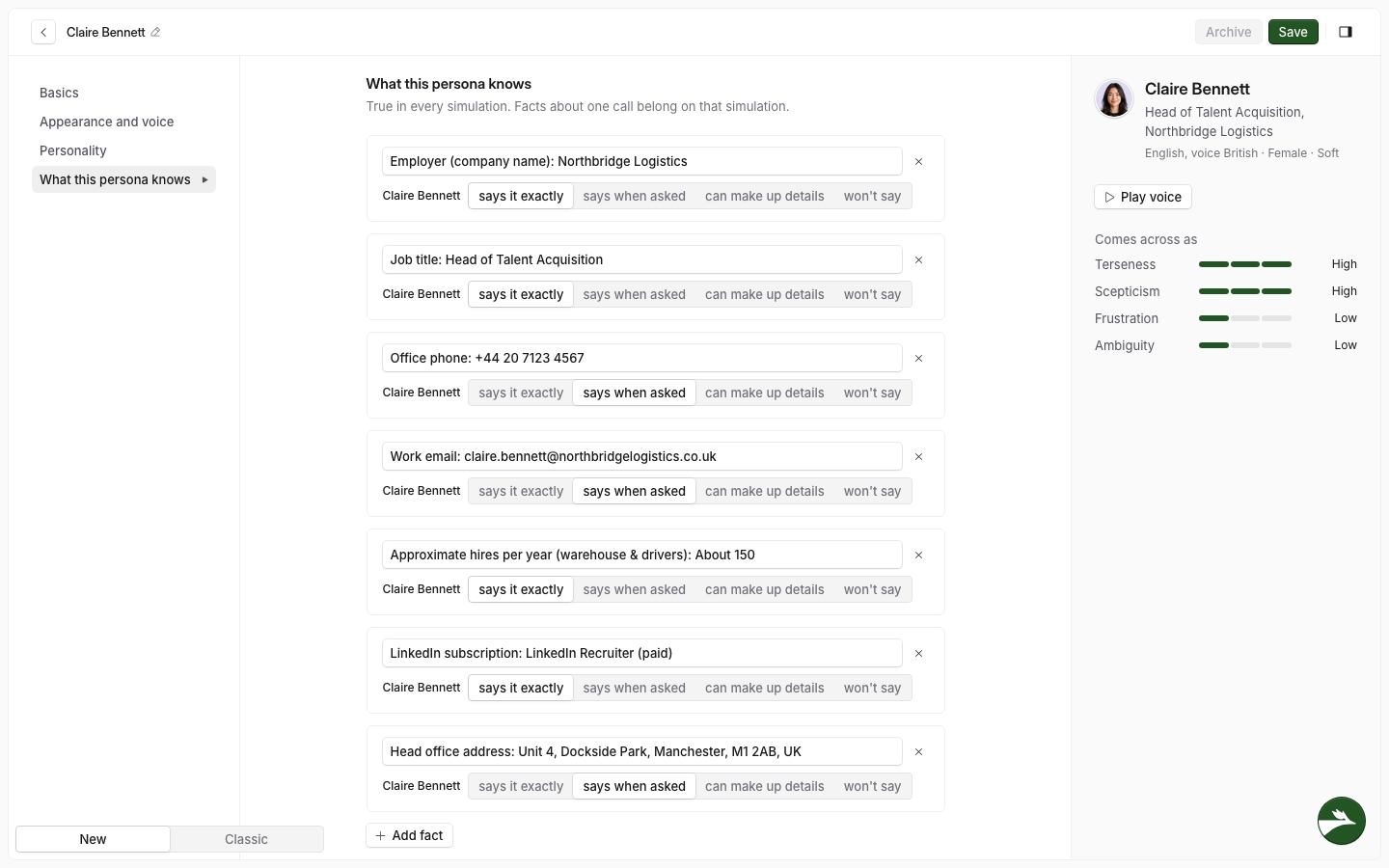
For Claire, "LinkedIn subscription: LinkedIn Recruiter (paid)" is set to says it exactly and "Name of her current agency contact" to won't say.
When several simulations use the persona
When you save a change, every simulation that uses the persona picks it up on its next call.
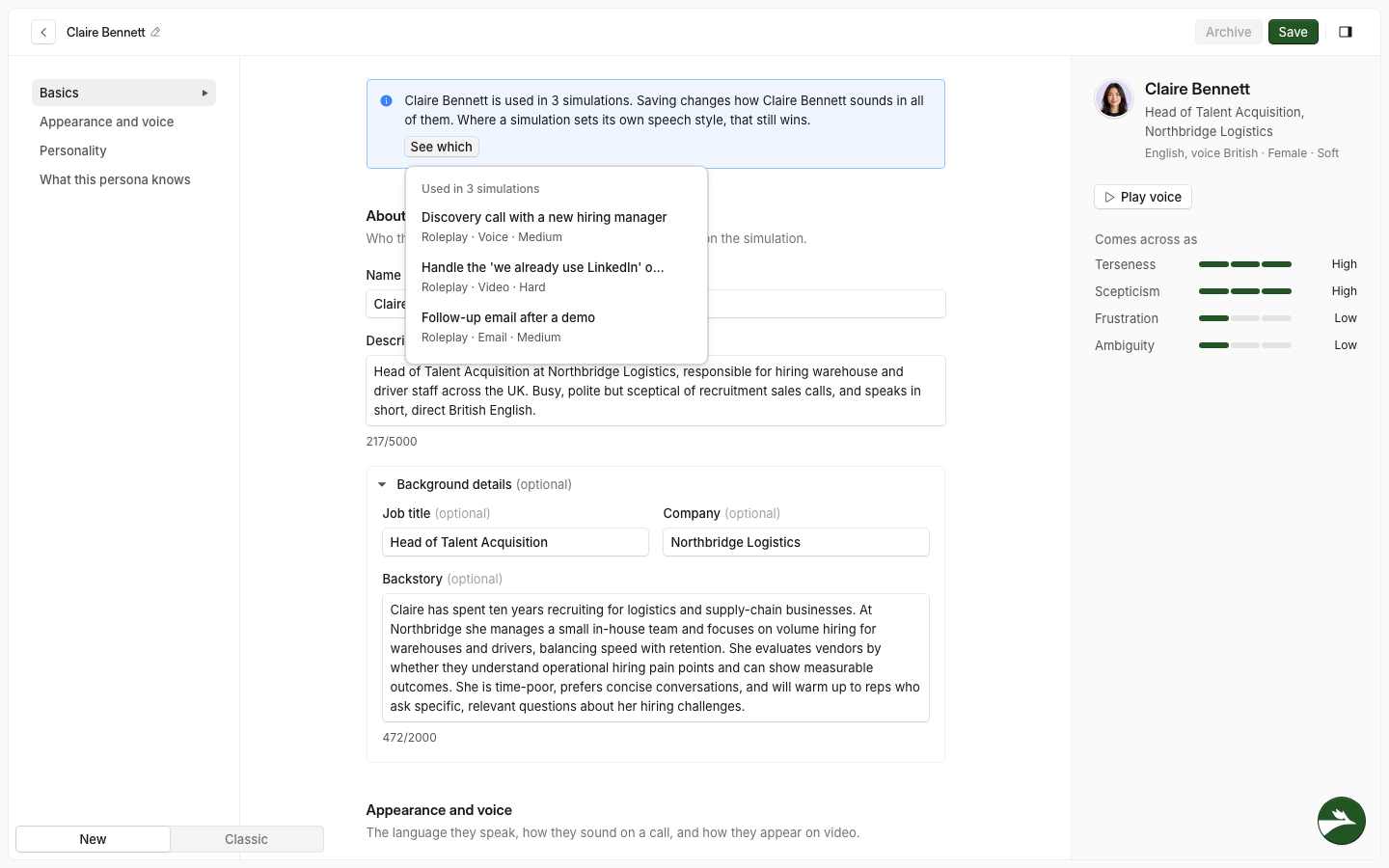
The editor tells you before you save. A message at the top reads "Claire Bennett is used in 3 simulations. Saving changes how Claire Bennett sounds in all of them. Where a simulation sets its own speech style, that still wins." Select See which to list them with the type, channel and difficulty of each, and check the change is true for the persona in every one. If it applies to one call only, change that simulation instead.
Editing a persona from a simulation
In the simulation editor, the persona card in Who's on the call has an Edit button. It opens the persona in a drawer, with the tabs Who, Voice and look, Personality and What they know. A Shared persona box says how many simulations use it, and the footer says how many your edit reaches.
If more than one simulation uses the persona, Save to persona asks you to confirm: "Save changes to Claire Bennett? 3 simulations use Claire Bennett. Every one of them picks up these edits on its next call." Select Save to 3 simulations to save, or Keep editing to go back. Discard closes the drawer without a change.
Save the persona
Select Save. If simulations already use the persona, a message at the top of the editor tells you how many, and your changes reach all of them.
A save can be refused if the change makes a simulation's instructions too long. See Persona save refused because the prompt is too long.
Archive a persona
Select Archive at the top of the editor. You cannot archive a persona that a simulation uses: Archive is not available and shows "Used in 3 simulations. Move them to another persona before archiving." Change the persona on each simulation first, then archive. Deleting a persona in use is refused in the same way.