How to ask for a simulation score to be reviewed
Last updated: October 28, 2026
If you think a simulation scored you wrongly, you can ask a trainer to look at it. You explain why, they either change the score or tell you why they are leaving it, and you are emailed either way.
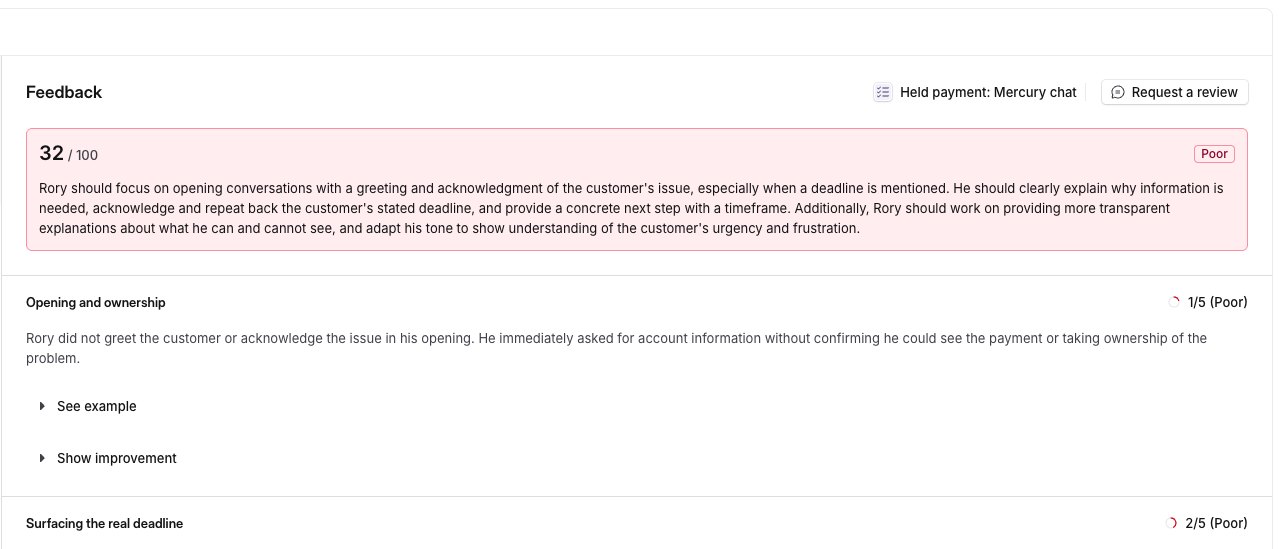
Step 1: Open the request
Open your completed simulation and select Request a review in the feedback header.
Step 2: Explain why
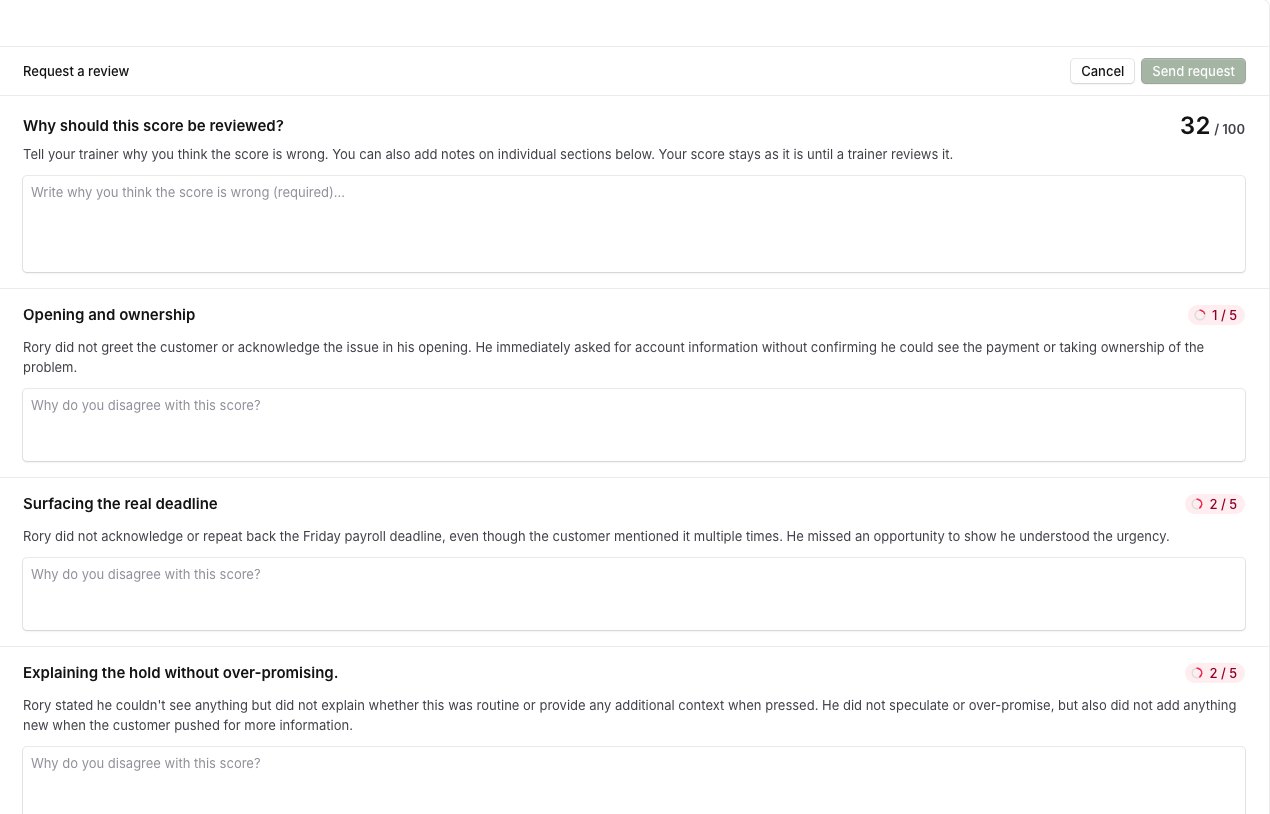
Write why you think the score should be reviewed. This is required, and Send request stays unavailable until you fill it in.
Under each section there is a box asking why you disagree with that score. Fill in only the sections you disagree with, and leave the rest blank.
Step 3: Send it
Select Send request. Your request goes to your group lead, or to the admins and trainers in your workspace if you do not have one.
While your request is open
A Review requested label shows on your feedback. Your score does not change until a trainer acts on it.
To take the request back, open the ⋯ menu on that label and withdraw it. Nobody is emailed when you withdraw.
You can have one open request for each attempt. Once it has been answered or withdrawn, you can ask again.
When a trainer replies
If they change the score, you see a Score corrected label, the trainer's note, and the new score with a line saying who corrected it. You see the corrected score rather than the one the AI gave.
If they leave the score as it is, you see a Review declined label and their note explaining why. Request a review becomes available again.
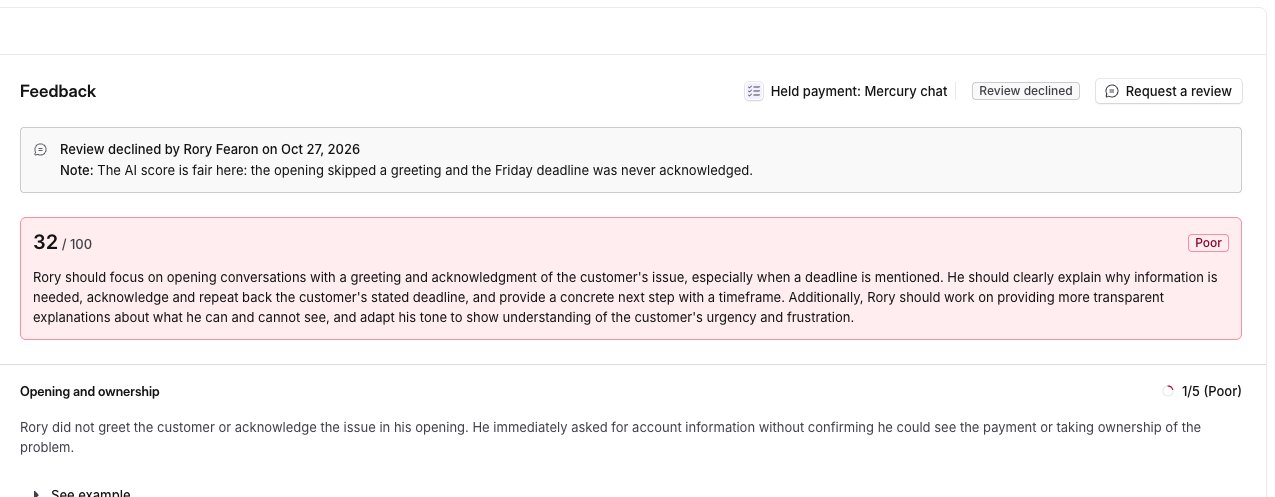
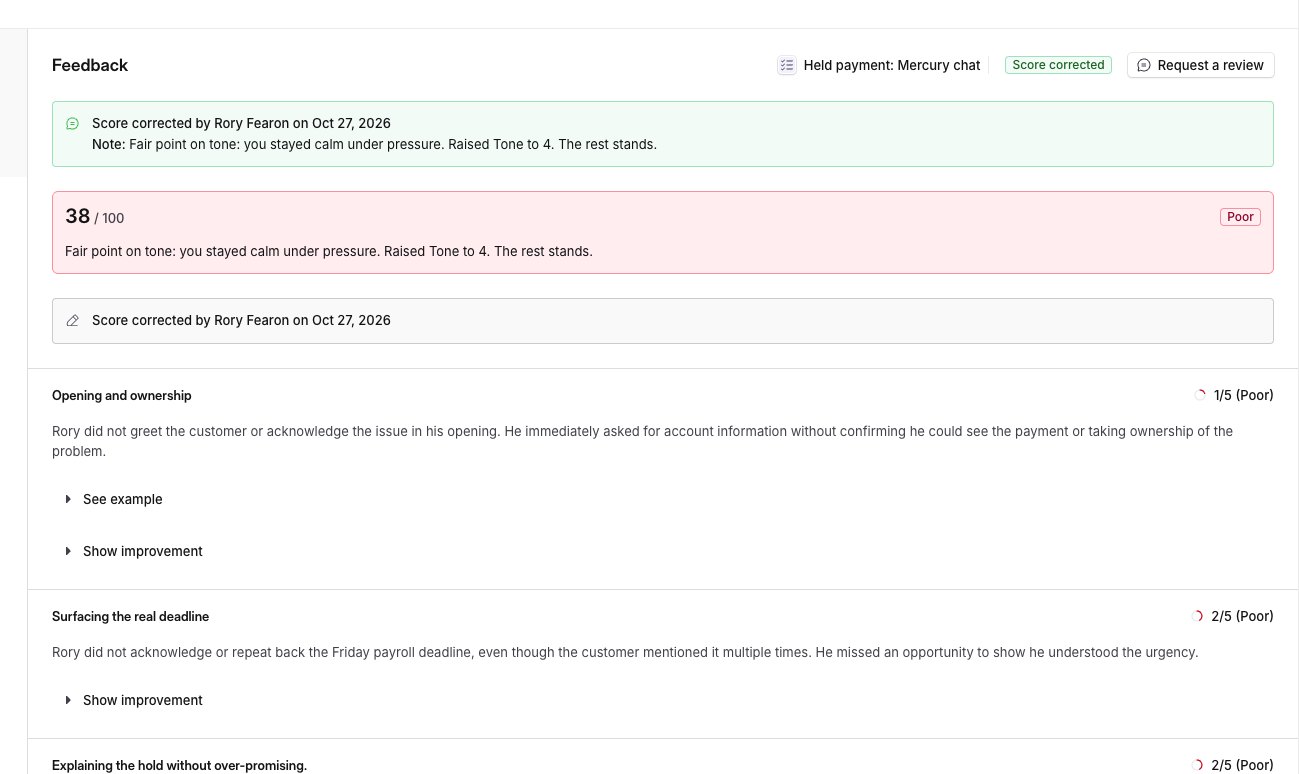
You are emailed either way.
When you cannot ask for a review
Simulations scored with a language proficiency (CEFR) scorecard cannot be reviewed, and the Request a review button does not appear on them.
Related articles
If you have any further questions, contact the Solidroad team via the Help tab in the platform.