How to complete assignments
Last updated: October 5, 2026
Assignments in Solidroad are interactive, AI-powered training tasks designed to help you build real-world skills through practice. This guide walks you through how to find, start, and complete your assignments, so you can earn certificates, track your progress, and grow your confidence.
Step 1: Log In and Access Your Assignments
Log in to your Solidroad account and go to the Home tab. This is where all of your assigned simulations will appear.
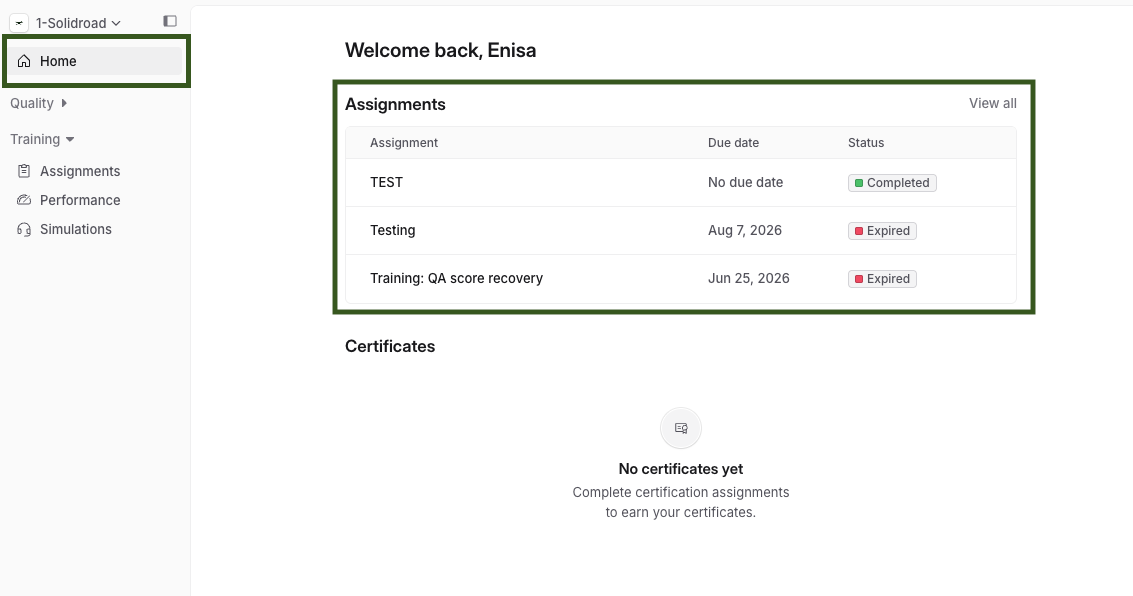
What to Know About Assignments
Each assignment is built on a simulation where an AI plays the role of a customer, based on real-world scenarios created by your admin or trainer. Assignments may vary depending on:
Due dates
Attempt limits
Passing score requirements
Certificate availability
Communication channel (Chat, Email, Phone, or Video)
Simulation-specific instructions
Once an assignment is completed or expires, it cannot be redone, but you can still view your results under the My Performance tab.
Step 2: Start Your Assignment
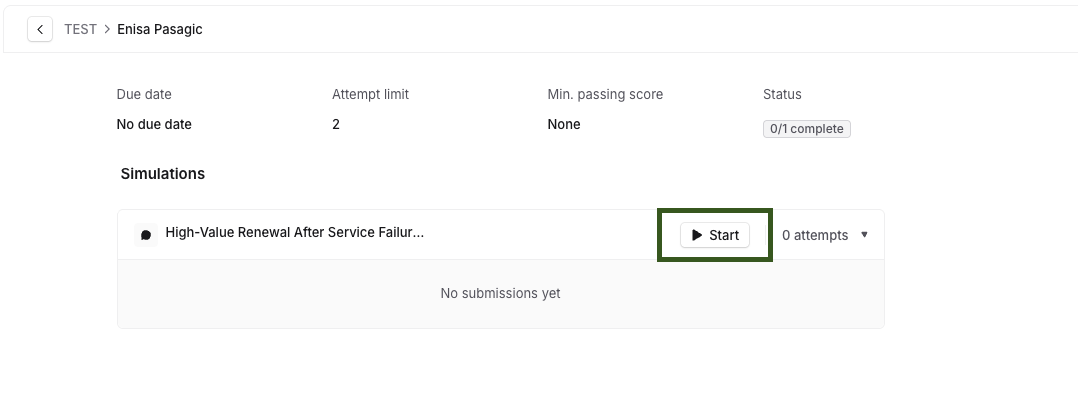
To begin, click on any In Progress assignment listed in your Home tab. Carefully read the instructions before you start as this helps you prepare for the scenario.
Simulation Types by Channel
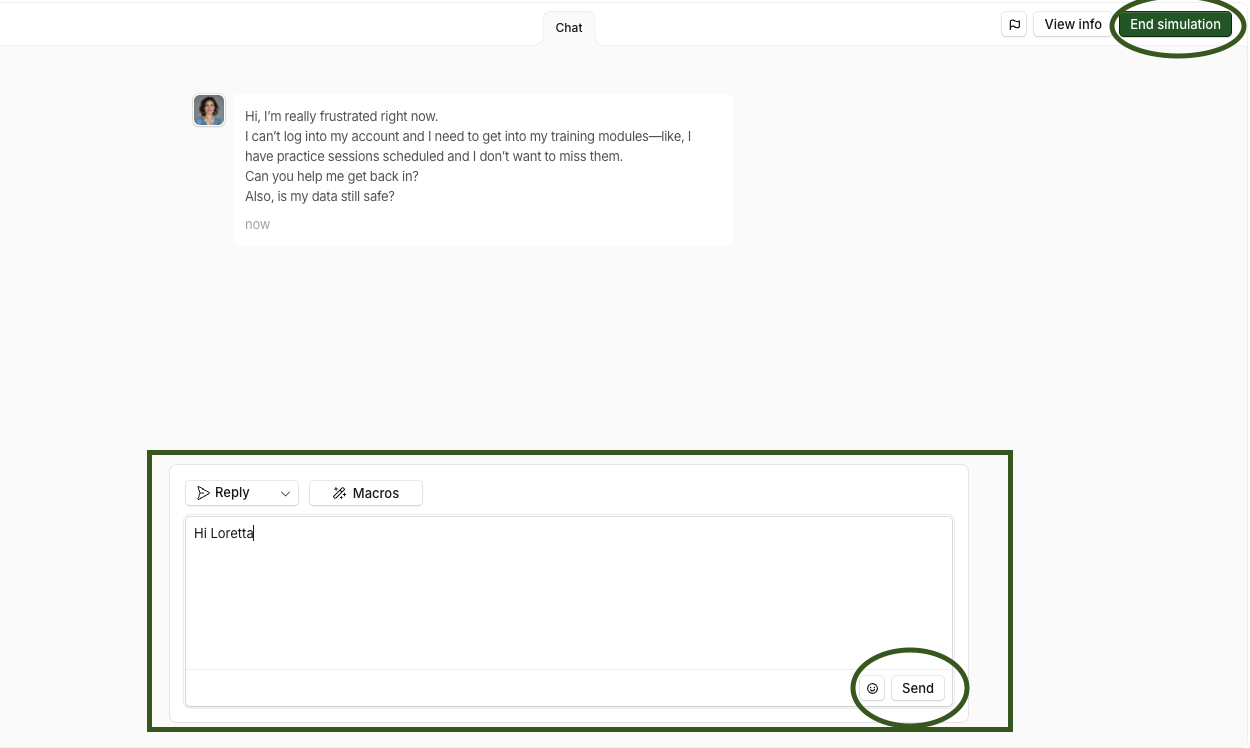
Chat Simulation
The AI customer will begin the conversation. Their messages appear on the left side. Type your response and click Send, your replies will appear on the right.
When finished, click End Simulation, then Finish to save and view your results.
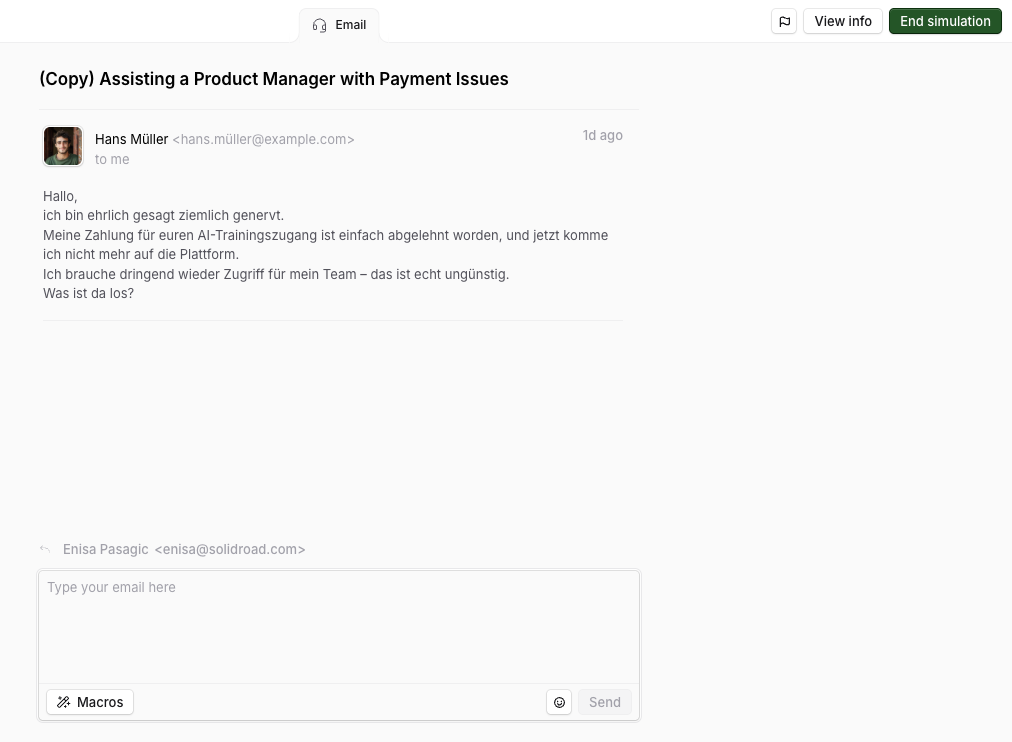
Email Simulation
The simulation begins with an AI-generated email. Write your response, and click Send. Once complete, click End Simulation to finish and review your feedback.
Phone Simulation
Before starting, make sure your microphone and speakers are working (a headset is recommended). Review the scenario, complete the call, and click End Simulation when done.
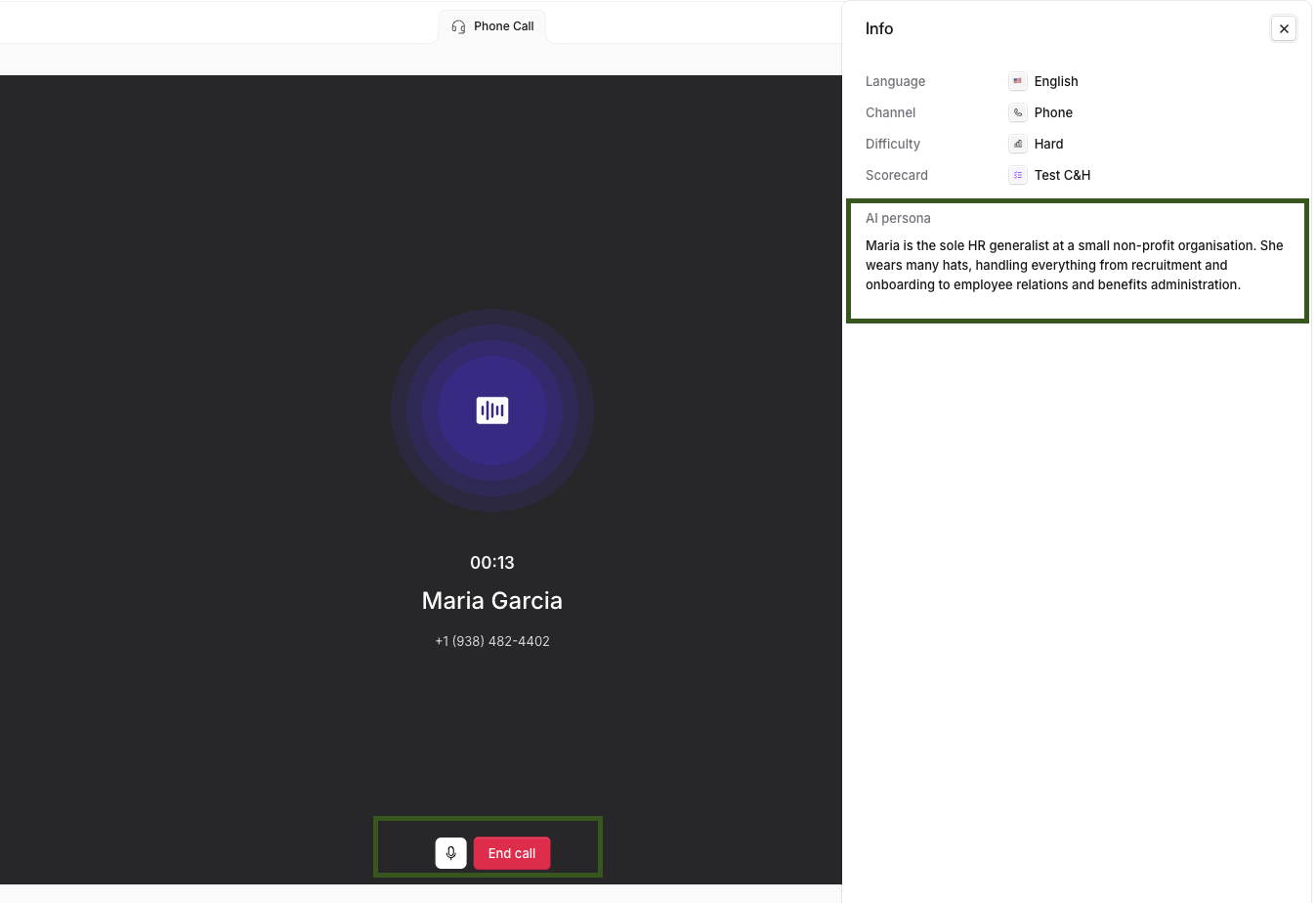
A live transcript appears under the caller while you talk. It shows the last few lines from the customer and from you (labelled You) and updates as each of you speaks. Use it to catch a name, number or detail you missed without asking the customer to repeat it. The full transcript and the call recording are on your feedback page after the call.
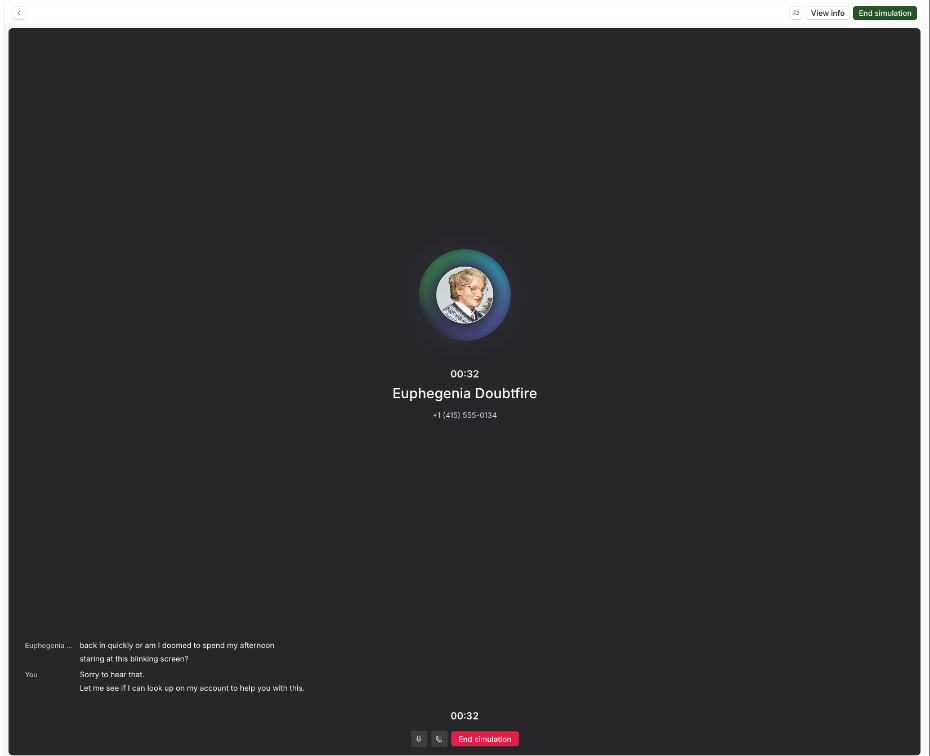
Video Simulation
A webcam, microphone, and speaker or headset are required. You’ll see yourself on screen and can access mute or screen share tools if needed. Click End Simulation to complete and view your results.
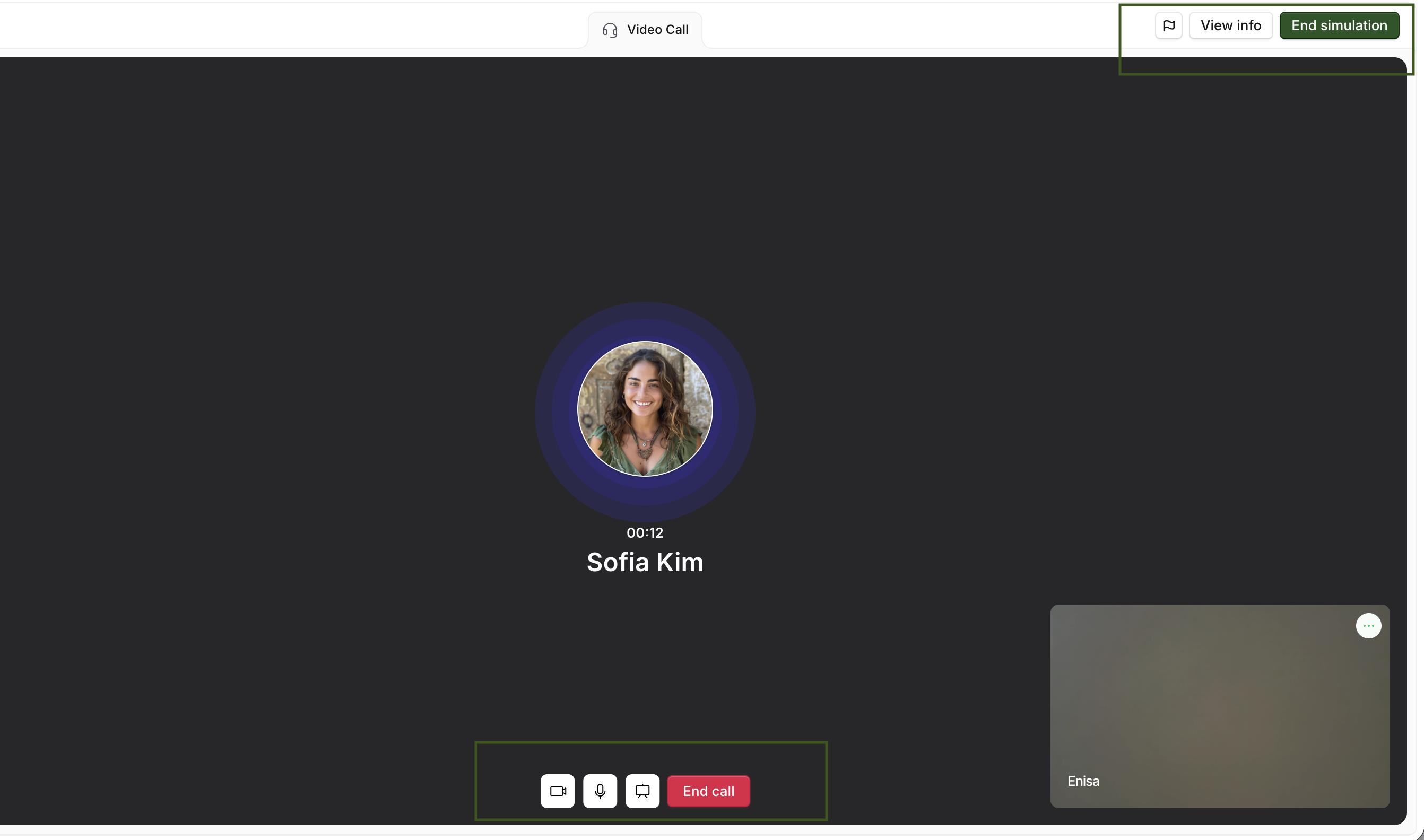
After Simulation: Understanding Your Feedback
Each simulation ends with a detailed feedback page that helps you reflect and improve:
Chat Feedback
Left panel: Score, rating, sample responses, improvement tips
Right panel: Handling time, first response time, CSAT, full chat thread
Email Feedback
Similar layout to Chat
Includes email thread and writing feedback
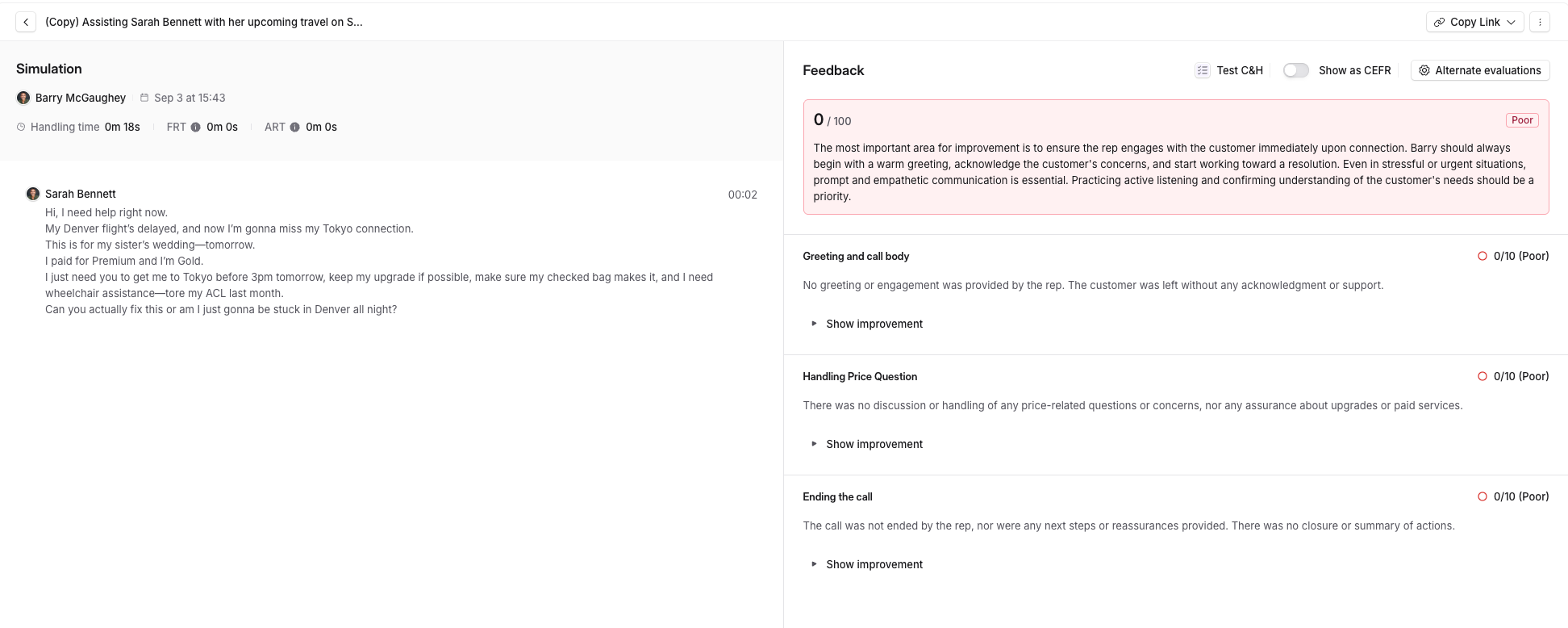
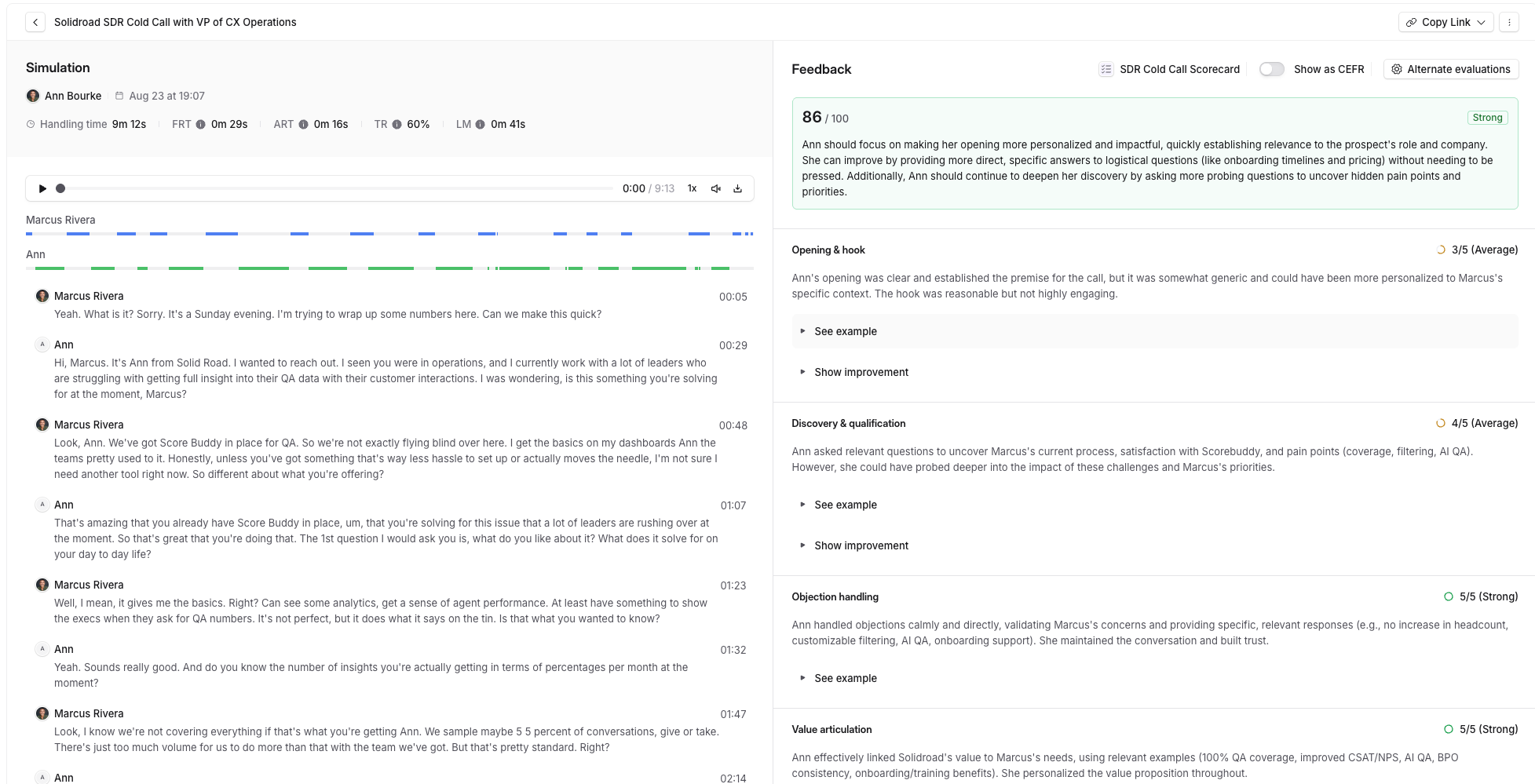
Phone Feedback
Left panel: Score, suggestions, improvement insights
Right panel: Talk ratio, longest monologue, call recording, transcript
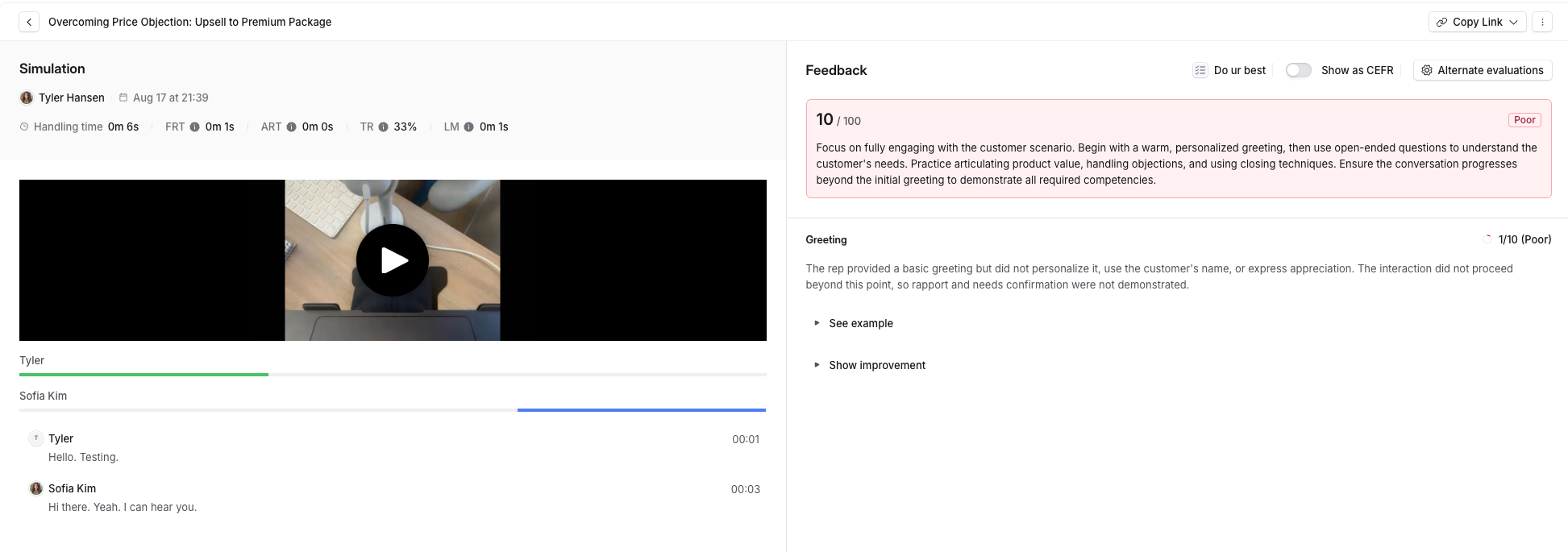
Video Feedback
Same as Phone layout
Displays the recorded video and screen share (if used)
Related articles
If you have any further questions, contact the Solidroad team via the Help tab in the platform.