Camera or microphone blocked in your browser (Chrome, Edge, Firefox, Safari)
Last updated: September 14, 2026
If you start a voice or video simulation on a laptop or desktop and Solidroad cannot use your camera or microphone, your browser or your operating system has blocked access. This article shows you where to unblock it in Chrome, Edge, Firefox and Safari, and in macOS and Windows settings. If you are on a phone or tablet, see Unblock your camera/microphone on mobile (Android and iOS) instead.
Symptoms
Solidroad asks you to grant camera or microphone access, but the browser does not prompt you, or the prompt was dismissed earlier.
The simulation starts, but the persona cannot hear you or the video is black.
The camera icon in the browser address bar shows the camera or microphone as blocked.
Why it happens
Browsers remember a “block” decision for a site. If access to app.solidroad.com was declined once, the browser keeps blocking it until you change the site permission. On macOS and Windows, the operating system can also block the browser itself from using the camera or microphone, and another program can hold the camera open so the browser cannot use it.
Chrome and Edge
While in the simulation, click the camera icon in the address bar.
Make sure Always allow is selected, then click Done.
Refresh the page. If that does not work, fully quit the browser, reopen it and rejoin the simulation.
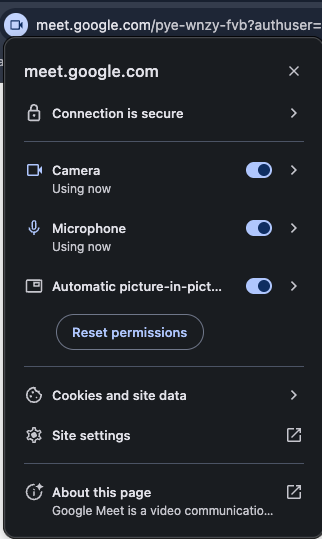
If Chrome still blocks access:
Click the three-dot menu in the top right of the Chrome window and open Settings.
Go to Site Settings, then Camera, and then Microphone.
Under both, make sure app.solidroad.com is not on the blocked list.
Save your changes and rejoin the simulation.
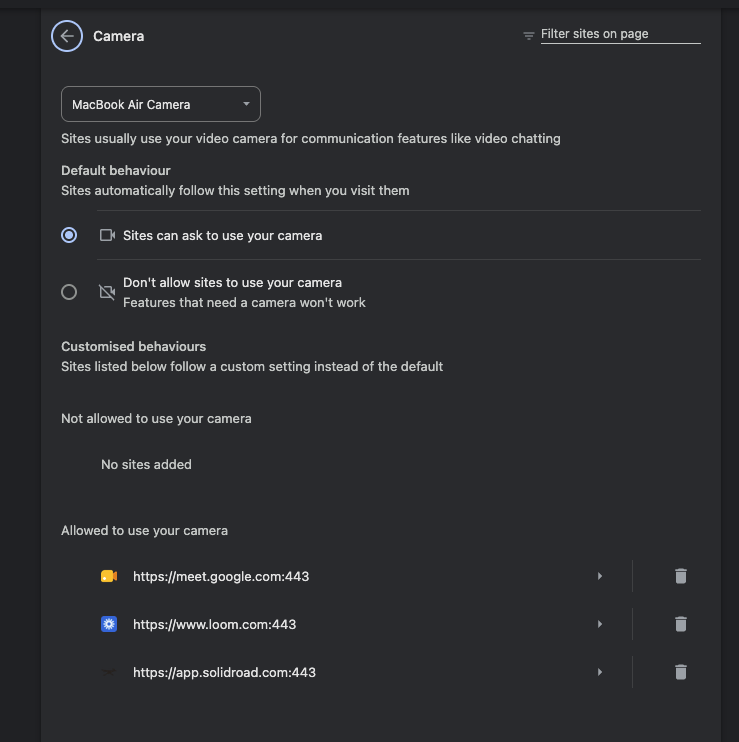
In Edge on Windows, you can also click the lock icon on the left of the address bar, select Site permissions, and allow the camera and microphone from there.
Firefox
While in the simulation, click the camera or microphone icon in the address bar.
Click the x next to the blocked permission to turn off blocking.
Leave and rejoin the simulation. Click Allow when asked.
Safari
Select Safari in the menu bar at the top left of your screen.
Select Preferences and go to Websites.
Click Camera and then Microphone in the list on the left and set app.solidroad.com to allow access.
Leave and rejoin the simulation. Click Allow when asked.
macOS system permissions
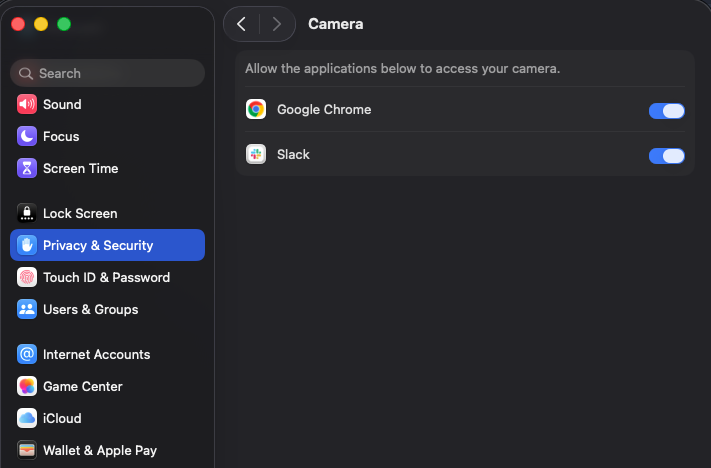
macOS can block every browser from using the camera or microphone, regardless of the browser’s own setting
Click the Apple menu in the top left of your screen and select System Preferences.
Open Security & Privacy and select the Privacy tab.
Click Camera, then Microphone, in the list of options and tick the box next to your browser.
Rejoin the simulation.
Windows: another program is using the camera
If you have a program that opens automatically at startup and uses your camera, it may still hold the camera even after you close it. We have reproduced this with one popular program that does not close cleanly when it auto-starts.
Turn off the program’s option to open automatically at startup.
Restart your computer and rejoin the simulation.
If that doesn’t work
Run Google’s WebRTC test at https://test.webrtc.org and click the green button. This page is made by Google, not by Solidroad. If it cannot see your camera and microphone, the problem is with your browser or device rather than with Solidroad.
If the test passes but the simulation still fails, the problem may be your network rather than permissions. See Network allowlist guide.
Related articles
If you have any further questions, contact the Solidroad team via the Help tab in the platform.