I finished a simulation but my assignment still shows as not complete
Last updated: September 21, 2026
You did the simulation, you got a score, and the assignment has not moved. The usual reason is where you started the simulation from. This explains what happened and how to make it count.
What happened
There are two ways to open a simulation. You can start it from inside the assignment, or you can open the same simulation on its own, from your simulation library or from a link someone sent you.
Both give you a real conversation and a real score, and both show up in your own results. Only the one you start from inside the assignment counts towards it. Nothing on screen tells you which of the two you are in, which is why this is easy to do without realising.
What to do now
Go back to your assignments, open the one that is still showing as incomplete, and start the simulation from there. It will count this time.
The attempt you already did is not lost. It stays in your results and in your average score, it just does not move the assignment along, and it cannot be transferred across to it afterwards.
If you did start it from the assignment
If you are sure you opened it from inside the assignment or the home page and it still shows as incomplete, please follow the steps above and try again. If the issue persists, it is worth reporting. Tell whoever assigned the training to you, and include the name of the simulation and roughly the times when you completed it. How to get help, report a bug or request a feature covers the quickest way to reach us.
Check whether the assignment has more than one simulation
An assignment can include several simulations, and it stays open until you have done all of them. Finishing the one you were sent a link to is not always the whole assignment.
Open the assignment and you will see what it contains and which parts you have finished. If any are still outstanding, work through them from there.
Some assignments ask for more than one attempt
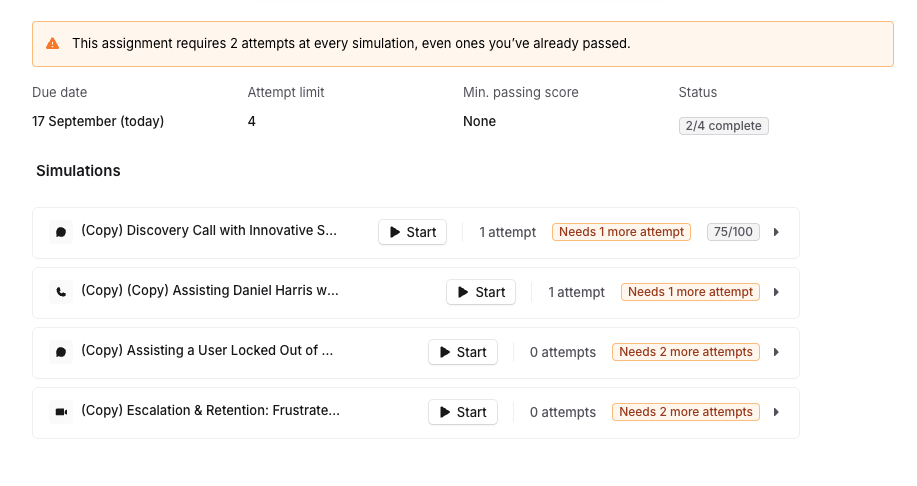
Not every assignment is finished after one go. Some are set up to need the simulation done more than once, and until you have done it that many times the assignment stays open, even though each attempt was completed and scored properly.
Open the assignment and you will see how many attempts are expected and how many you have done. If there are more to do, run them from inside the assignment the same way.
Related articles
If you have any further questions, contact the Solidroad team via the Help tab in the platform.