Getting started with Solidroad: Onboarding guide for learners
Last updated: September 14, 2026
This guide is for anyone joining Solidroad as a learner. It covers accepting your invitation, finding the simulations assigned to you, checking your results and getting help. By the end you will know where everything lives in the left navigation panel and how to make sure your completed simulations count toward your training.
Accept your invitation and access your account
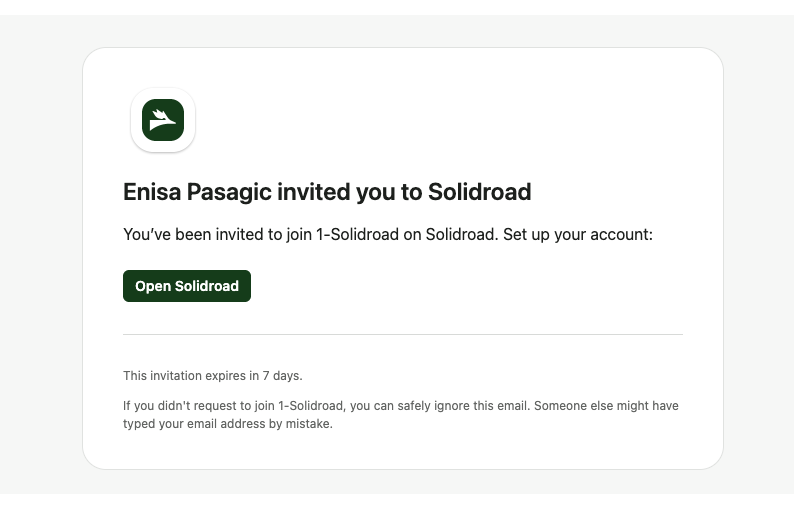
Before you can log in, you need to activate your account from the invitation email Solidroad sent you.
Check your inbox for an invitation email from Solidroad.
Click Accept Invitation. If the button does not work, use the click here link in the same email.
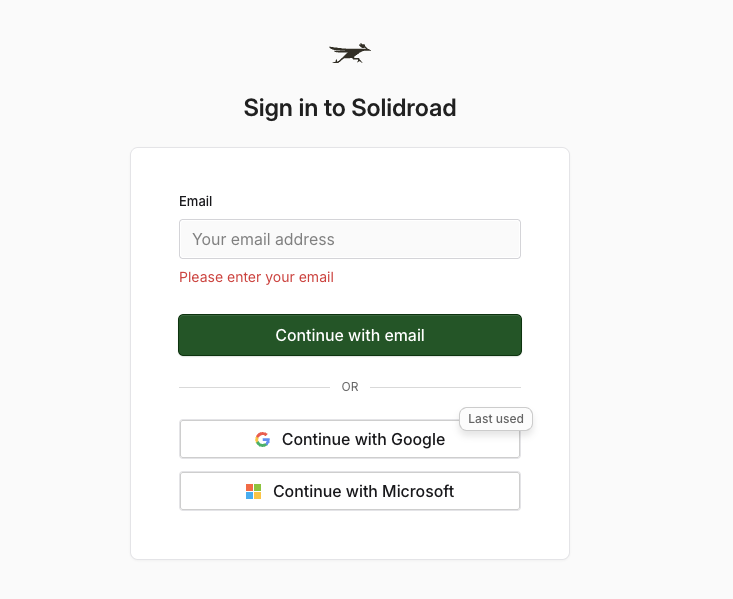
Accepting the invite links your account to your organisation’s workspace, so your assigned simulations and progress show up once you log in. If you have already accepted, go straight to https://app.solidroad.com/login and log in with your registered email and password.
Find your assignments on the Home page
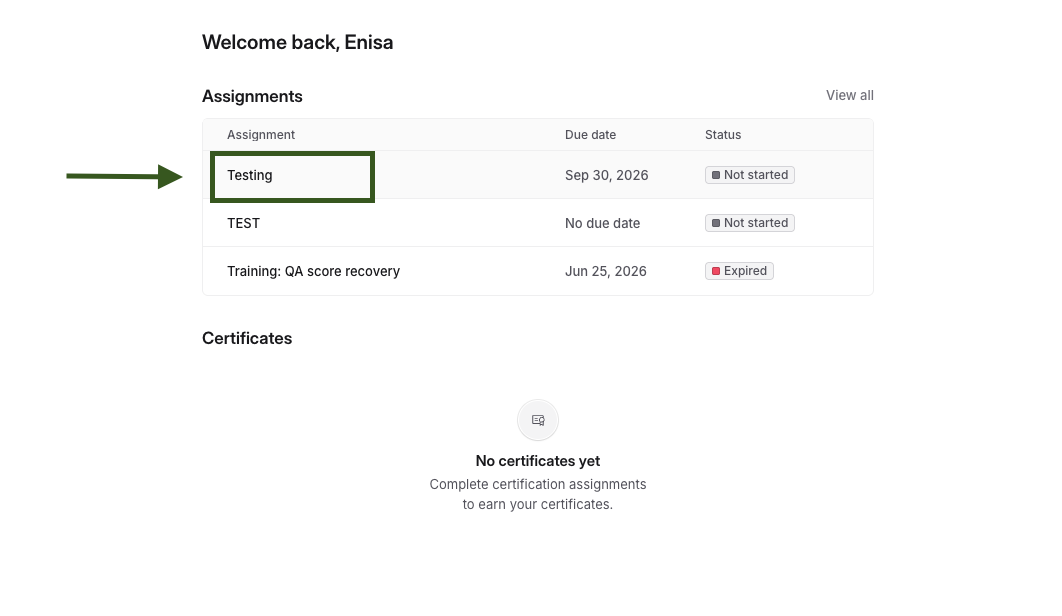
After logging in you land on the Home page, where any simulations assigned to you by your admins appear. A simulation is an interactive training scenario built by your admins, a practice conversation or role-play that you complete at your own pace. Depending on your organisation’s settings, you may earn a certificate once all assigned simulations are complete.
Always start an assigned simulation from inside the assignment itself. If you open the same simulation from the Simulations library or from a direct link instead, your attempt is saved as practice and does not count toward the assignment, and nothing on screen will warn you at the time. For the full walkthrough, see How to complete assignments.
Track your progress
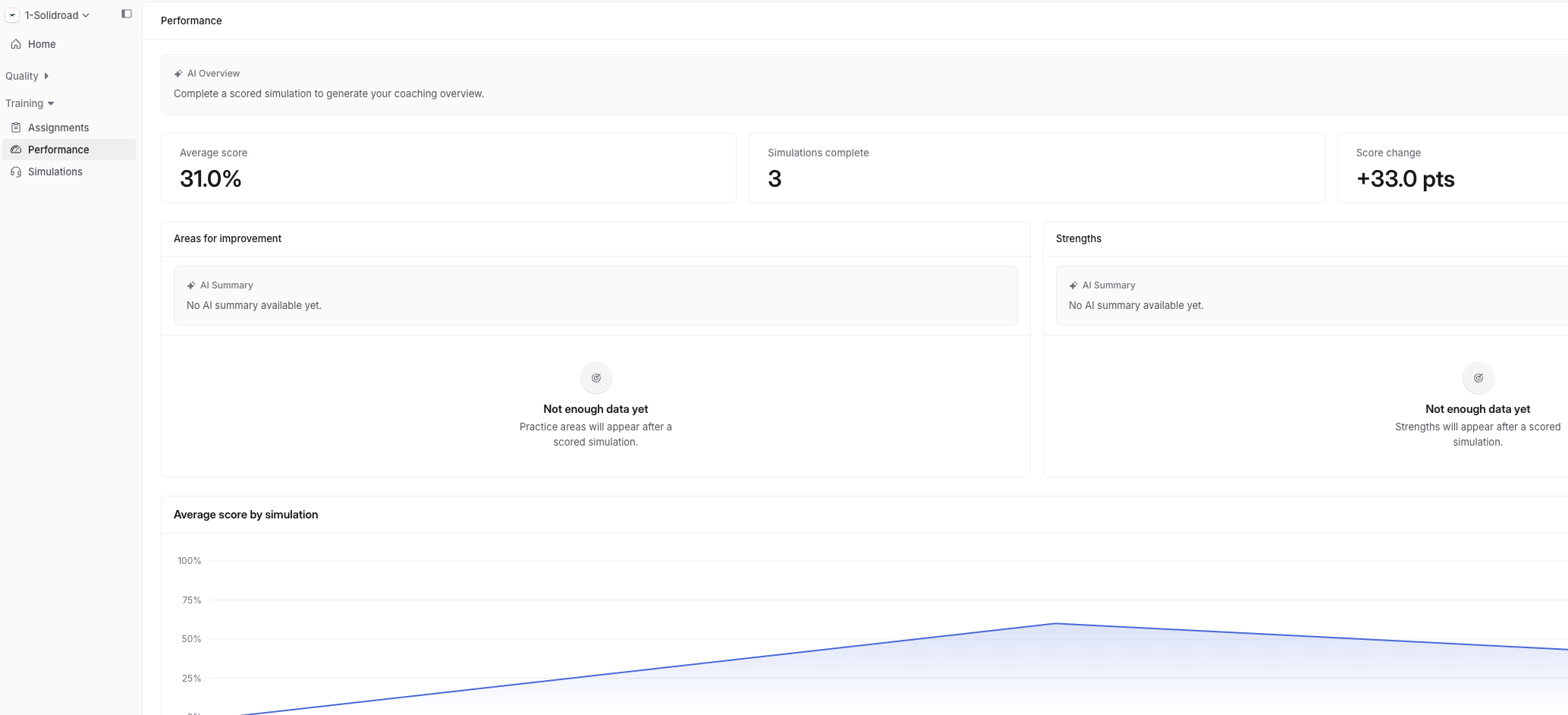
Open My Performance in the left navigation panel to review the simulations you have completed, your scores and results, and how your performance has changed over time.
Practise beyond your assignments
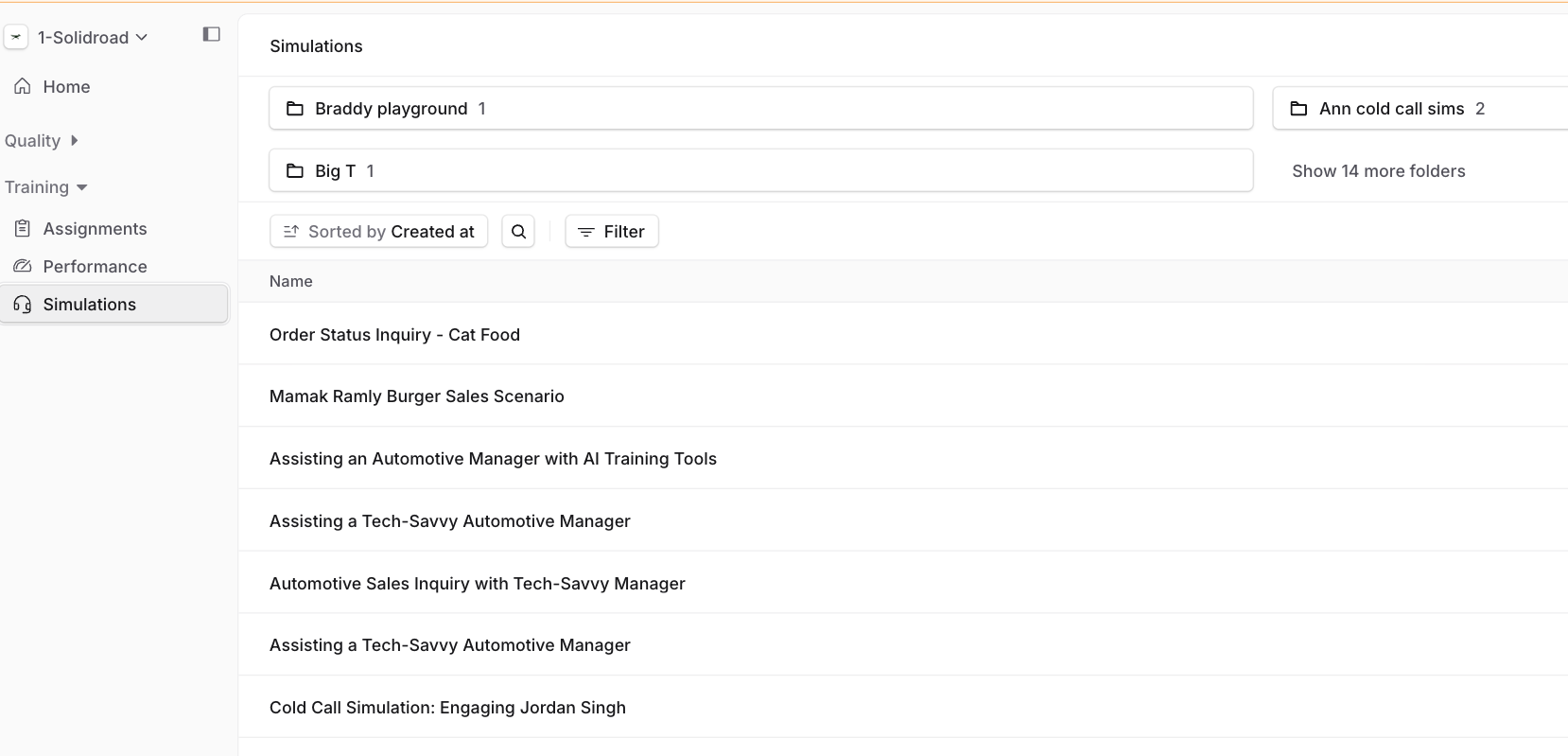
The Simulations section in the left navigation panel lists every scenario available to you, not only the ones assigned. Use it to practise additional skills or repeat a scenario. Attempts started here are practice and will not move your progress on an assignment. If you do not see the Simulations section, your admin may have hidden the library for your workspace.
Get help
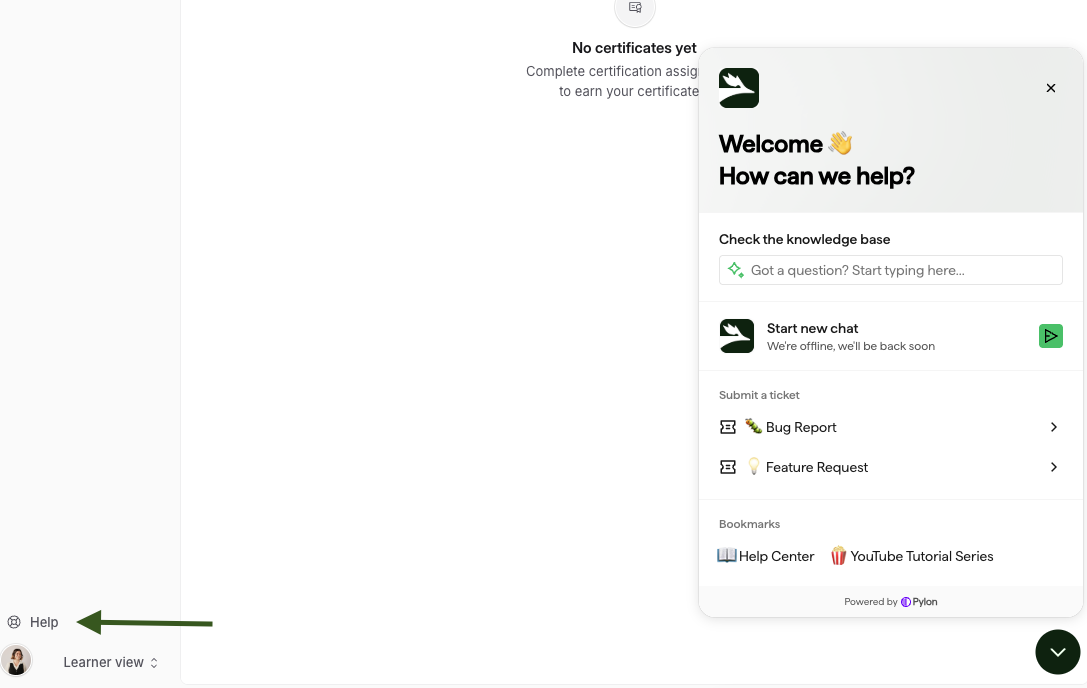
Click Help in the bottom left corner to open the Solidroad support chatbox. From there you can start a live chat with support, browse help articles and onboarding guides, submit a bug report or request a feature.
Update your account or switch roles
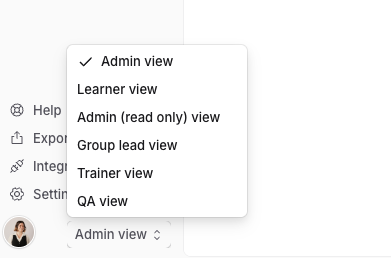
Click your profile icon in the bottom left corner to update your account settings or sign out. If you have been given more than one role, click your role name next to the profile icon to switch views, so you see the right set of simulations and permissions for what you are doing.
Related articles
If you have any further questions, contact the Solidroad team via the Help tab in the platform.