How to correct a candidate's simulation score
Last updated: October 28, 2026
When the AI scores a candidate's simulation wrongly, you can change the section scores and the feedback yourself. The corrected score then replaces the AI's wherever the score is used, including the candidate's average for the assessment. Candidates cannot ask for a review, so a correction in hiring always starts with you.
Step 1: Open the correction
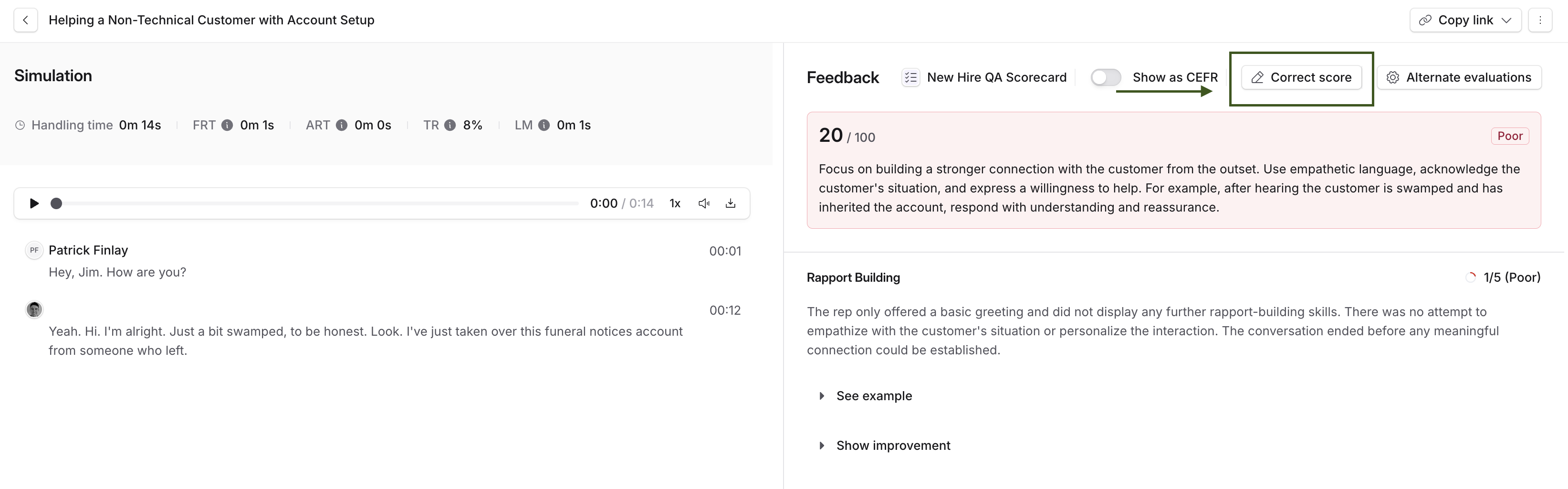
Open the assessment, open the candidate, and open the simulation you want to change. Select Correct score in the feedback header, next to Alternate evaluations.
Step 2: Change the section scores
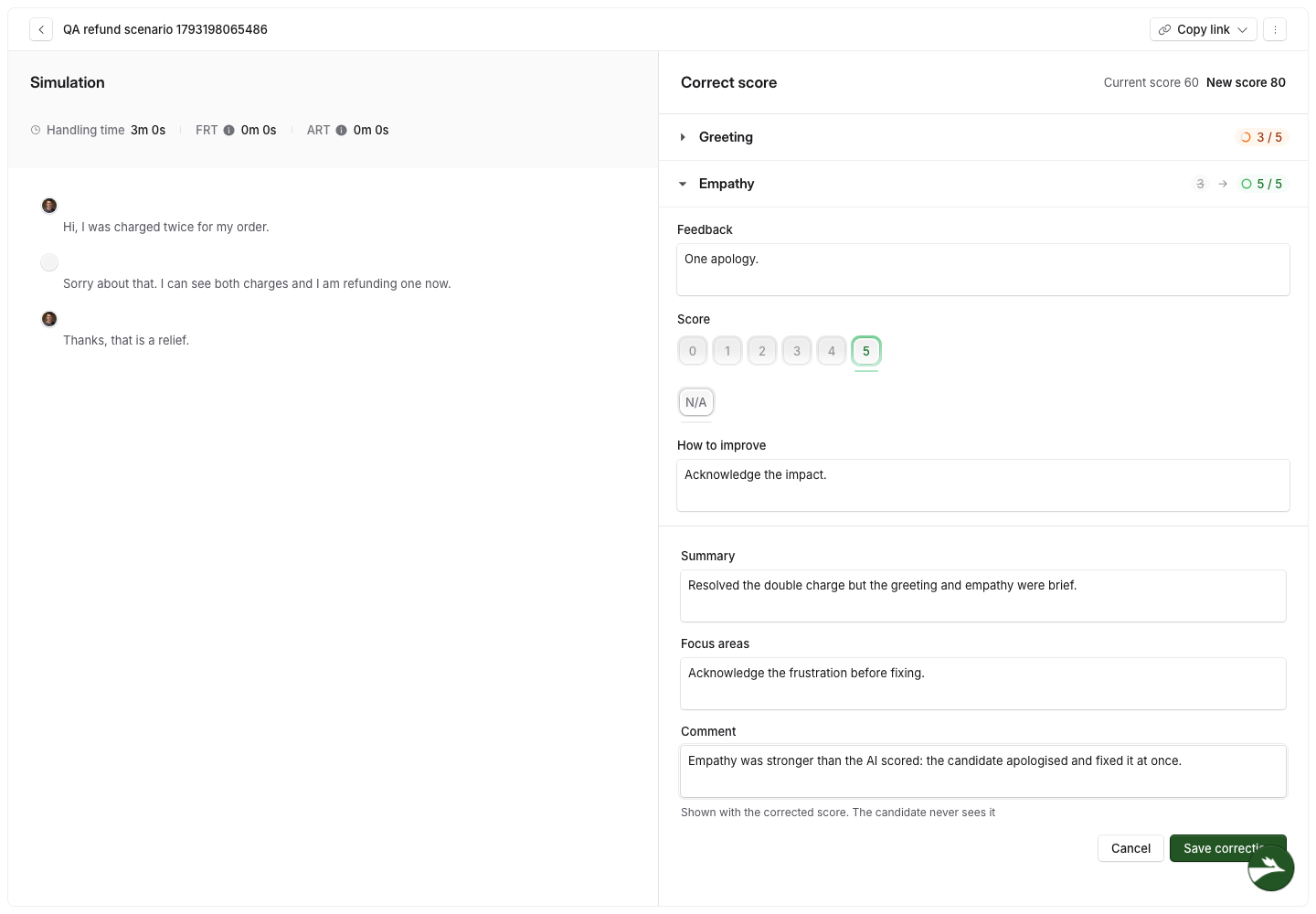
Open a section and pick its new score, anywhere from zero to the section's top score. Select N/A to leave the section out of the total altogether.
In the same panel you can rewrite that section's Feedback and its How to improve text. The header shows Current score and New score, which update as you change each section, and a changed section shows its old score beside its new one.
Step 3: Add a comment and save
Below the sections you can edit the Summary and the Focus areas, and add a Comment.
The Comment is for whoever looks at this candidate next. It is shown alongside the corrected score in your workspace, and the candidate never sees it. Use it to say what you changed and why, so the next reviewer is not left guessing why the score moved.
Select Save correction.
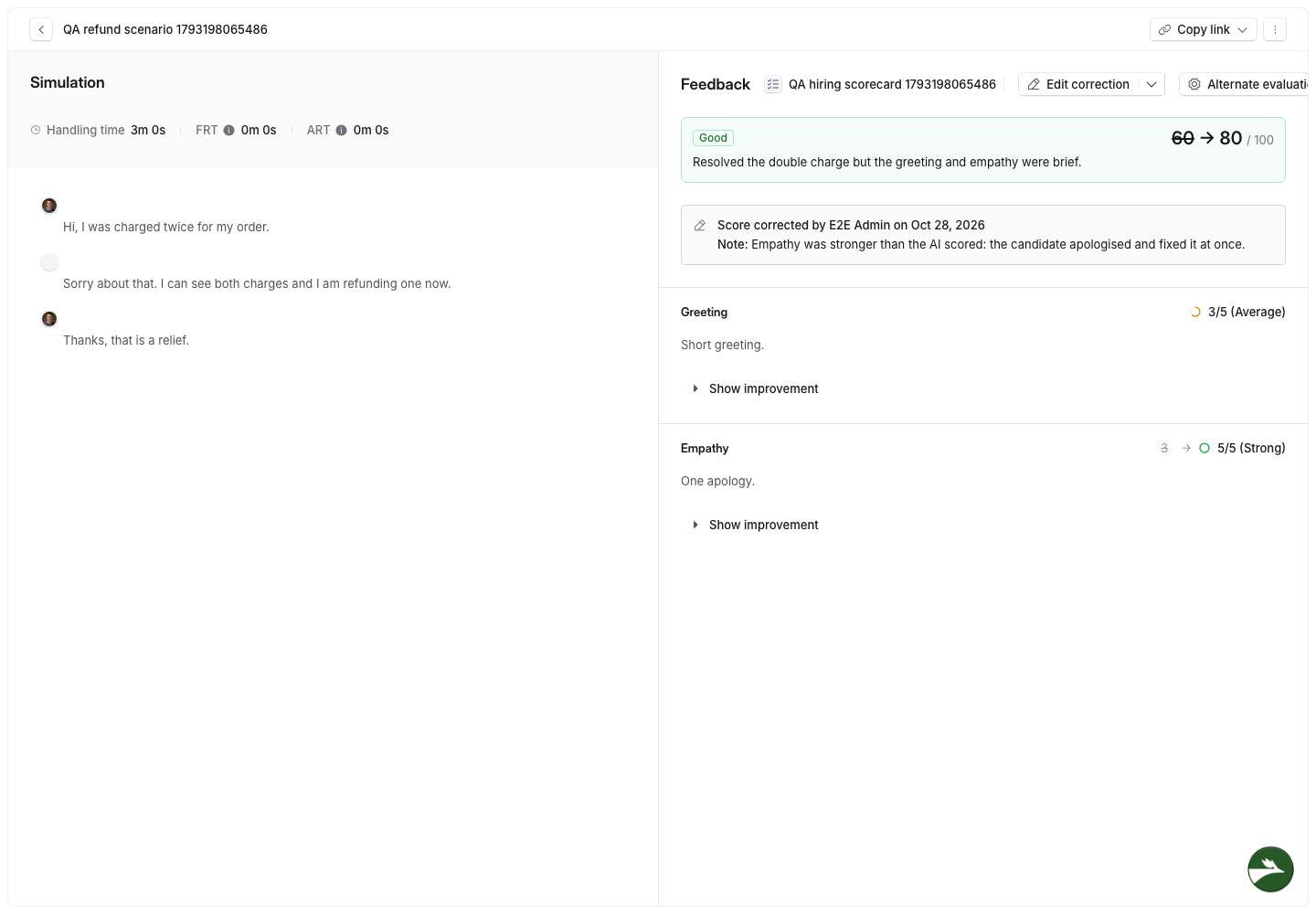
The old total then shows struck through beside the new one, each changed section shows its old and new score, and a line records who corrected it and when, with your comment underneath as Note. The button becomes Edit correction.
Edit or remove a correction
Edit correction reopens the panel with your previous values.
The arrow beside it opens a menu with Remove correction, which puts the AI's score and feedback back.
What a corrected score changes
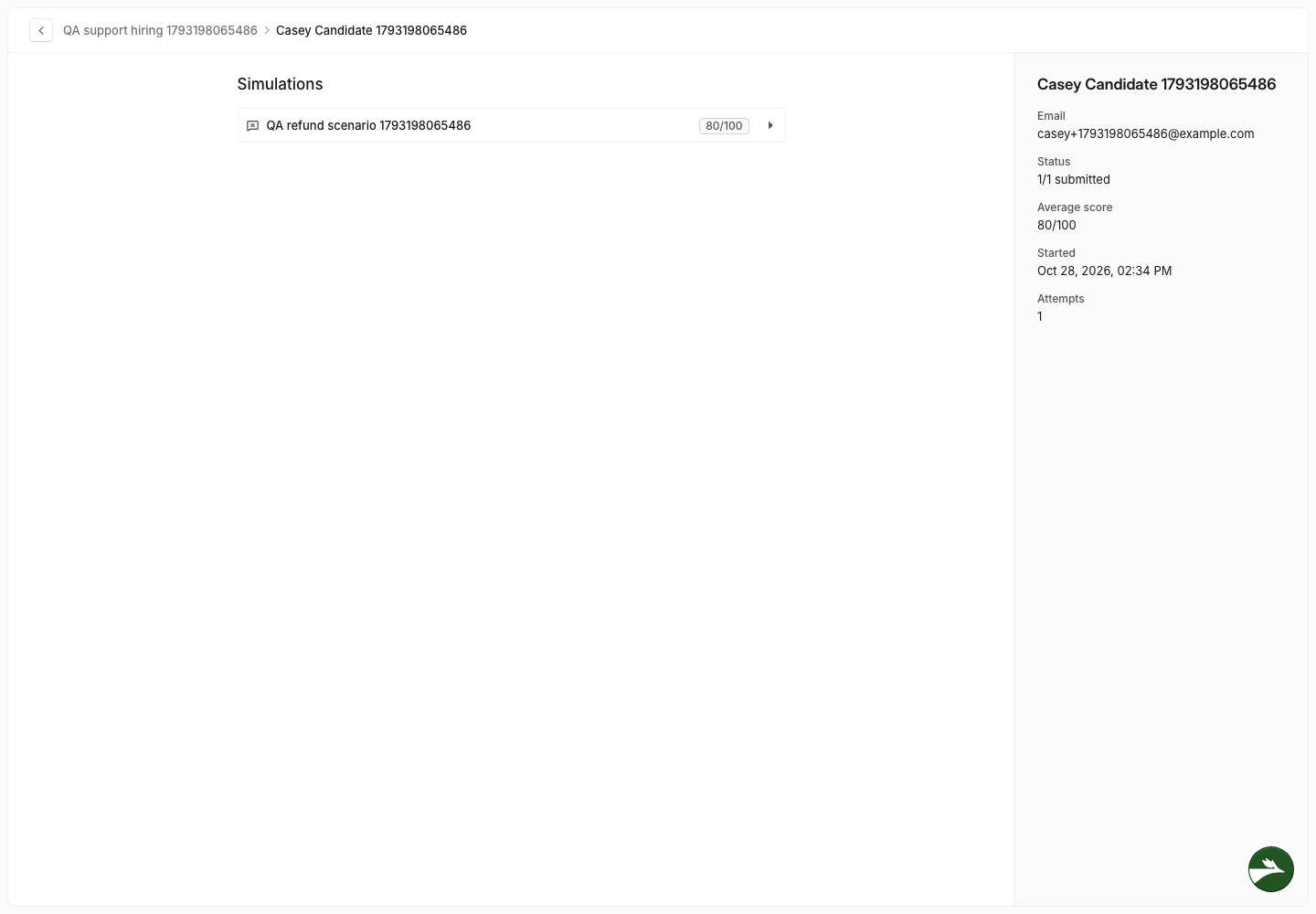
The corrected score is the one that counts. The candidate's record shows it against that simulation, and their Average score for the assessment is worked out from it rather than from what the AI gave.
Related articles
If you have any further questions, contact the Solidroad team via the Help tab in the platform.