How to export candidate data
Last updated: November 16, 2026
You can export the candidates on Assessment reporting as a file, covering the period and the filters the page is set to. This covers running the export, choosing what goes into it, and where the file ends up.
Export the results
Go to Hiring → Reports.
Set the date range and any filters you want.
Select Export above the Assessments table.
In Export options, check Time period and turn on what you want to include.
Select Export data. A message confirms Export in progress and says Solidroad will email you when the file is ready.
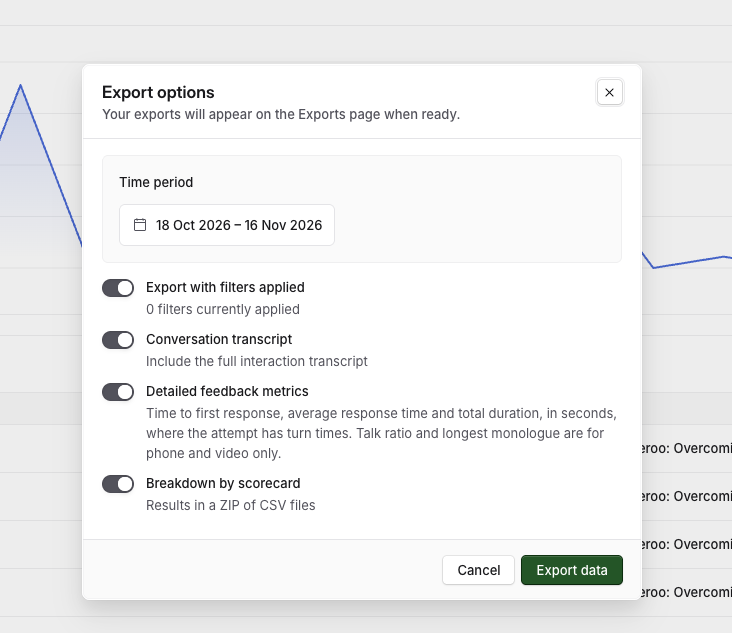
What you can include
Option | What it does |
|---|---|
Export with filters applied | Limits the file to the candidates the page is showing. The line underneath counts the filters currently on. |
Conversation transcript | Adds the full interaction transcript for each attempt. |
Detailed feedback metrics | Adds time to first response, average response time and total duration, in seconds, for attempts that have turn times. Talk ratio and longest monologue are filled in for phone and video attempts only. |
Breakdown by scorecard | Splits the results by scorecard, so you get a ZIP of CSV files instead of one file. |
Where the file goes
Solidroad emails you when the export is ready. The file also appears in Exports in the left sidebar, which holds the files you have generated in the last 30 days.
If you cannot export
Some roles cannot export. Export is turned off for them, with a tooltip saying why. See Default roles and permissions explained.
Related articles
If you have any further questions, contact the Solidroad team via the Help tab in the platform.