Completion guide for candidates
Last updated: September 14, 2026
A company you have applied to has asked you to complete a Solidroad simulation as part of its hiring process. This article shows you how to get into your assessment, check your sound and microphone, and complete the simulation. Set aside a quiet space with a stable internet connection before you start.
Accept your invitation and access your account
Check your inbox for the email from the company you applied to. It contains your assessment link.
Click Accept Invitation, or the link in the email.
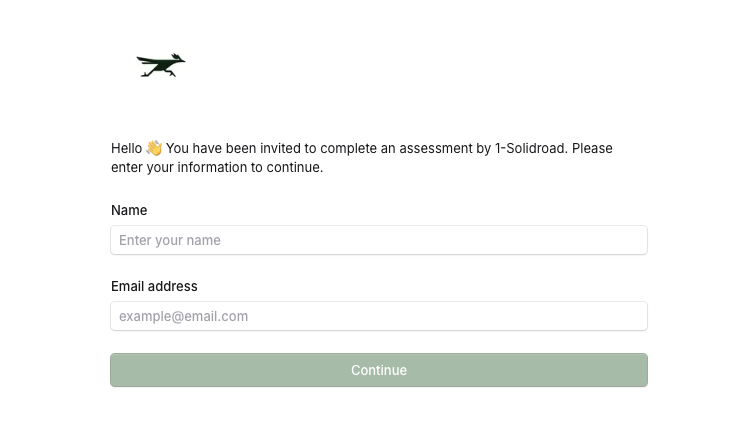
Enter your name and the email address the email was sent to. Signing up with a different email address can stop your account linking to the assessment, so use the same one.
Complete the assessment
Select the simulation you have been asked to complete.
Read the assessment instructions, then select Start Assessment.
Use the setup tools to check that your sound and microphone are working, then select Start. Do this somewhere quiet so nothing interrupts the simulation.
Complete the simulation conversation.
Select End Assessment when you have finished.
Return to the landing page to see your completed assessment.
Related articles
If you have any further questions, contact the Solidroad team via the Help tab in the platform.