How to search Solidroad
Last updated: October 30, 2026
Search opens from anywhere in the app and looks through your simulations, scorecards and personas at once, so you do not need to know which kind of thing you are after or go to its page first. It matches what something is about as well as what it is called.
Open search
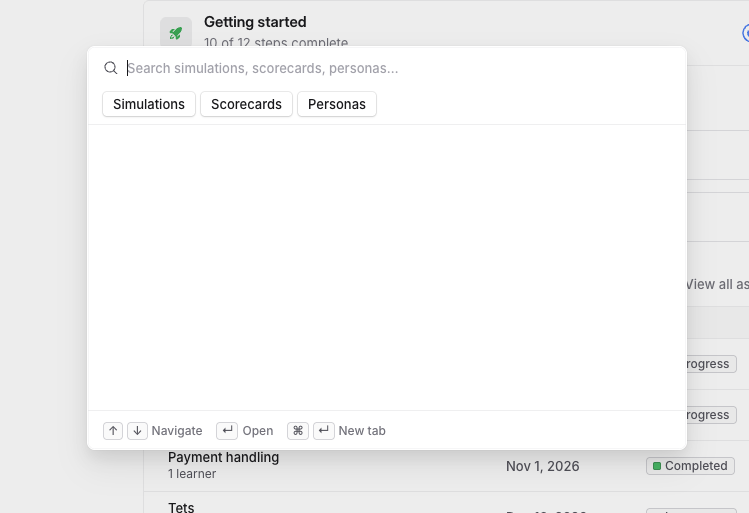
Press ⌘K on a Mac or Ctrl K on Windows, or select Search at the top of the sidebar. This works on any page, including while you are typing into a field. The box opens with the placeholder Search simulations, scorecards, personas...
If there is no Search in your sidebar and the keys do nothing, ask your Solidroad contact to turn global search on for your workspace.
Before you type
An empty box shows the three type chips, Simulations, Scorecards and Personas. Once you have opened things from search, Recent lists the last few of them above the chips. Recent items are kept in this browser, so they do not follow you to another device.
What comes back
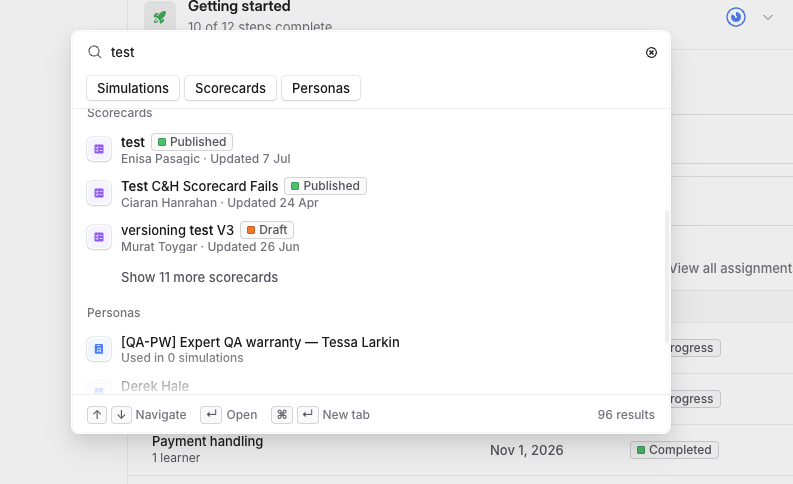
Results are grouped by type, three of each, with a link under any group that has more, such as Show 11 more scorecards. The total number of matches shows at the bottom right of the box.
Inside a group the order matches that type's own list page, so search and the list agree on what comes first. An exact match on the name goes to the top. Putting a minus in front of a word leaves out results that contain it, as in refund -annual.
Search also reads a thing's content, so a result can match on words that are nowhere in its name. A search for billing finds a simulation called "Duplicate annual renewal charge".
You see only what your role already lets you read. A type you have no access to returns no results, no count and no chip.
What each type matches
Type | What is searched | What each result shows |
|---|---|---|
Simulations | The name and the learner instructions. If you manage simulations, also the brief, hidden context, opening line, persona and scorecard | The channel, such as Voice, Chat or Email |
Scorecards | The name, and the names of its sections and criteria | Whether it is Published or Draft, who last updated it and when |
Personas | The name, title, company and description | How many simulations use it |
Opening a simulation takes you to the editor if you manage simulations, and to the simulation on the Simulations page if you do not. A persona opens on the Personas page.
Archived scorecards and CEFR template scorecards are left out, because neither has a page to open.
Search one type at a time
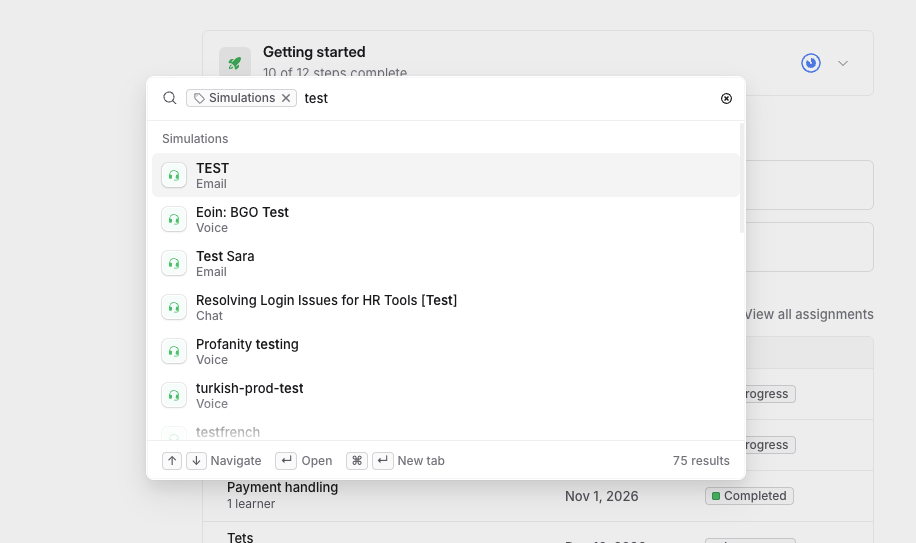
Select a type chip, or one of the Show N more links, to search inside that type alone. The chip then sits in the box in front of what you typed, and the results are the full ranked list, loading more as you scroll.
To go back to searching everything, select the × on the chip.
When nothing matches
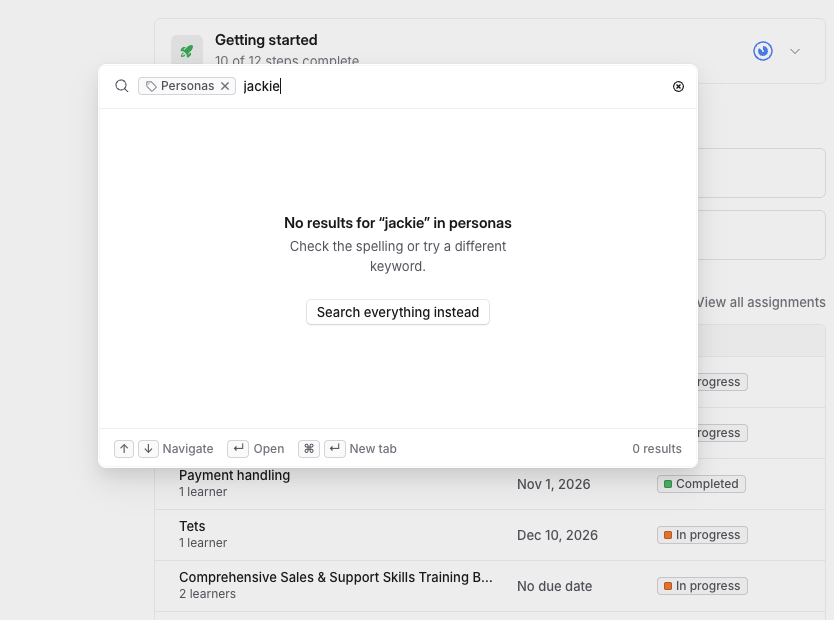
A search that finds nothing says No results for "jackie" in personas, followed by Check the spelling or try a different keyword. Select Search everything instead to run what you typed across all three types.
Keyboard
The box lists these along the bottom while it is open.
Key | What it does |
|---|---|
⌘K or Ctrl K | Opens and closes search, from any page |
/ | Opens search, unless your cursor is in a field |
↑ and ↓ | Moves through the results |
↵ | Opens the result you are on |
⌘↵ or ⌘-click | Opens the result in a new tab and leaves search open, so you can open several in a row |
⌫ in an empty box | Goes back to searching everything |
What is not searchable yet
Search covers simulations, scorecards and personas. These are not included:
Assignments
Learners
Candidates
System simulations
Processes
Results always stay in their groups, so there is no single combined list. Matching is on wording, which means a result has to share words with what you typed.
Related articles
If you have any further questions, contact the Solidroad team via the Help tab in the platform.