How to create and manage collections
Last updated: October 4, 2026
Collections group the items on a page so a large library stays navigable. This covers creating one, putting items in it, nesting it under another, renaming it and deleting it, along with what to do when an action is refused.
Step 1: Create a collection
Open the page you want to organise, for example Simulations.
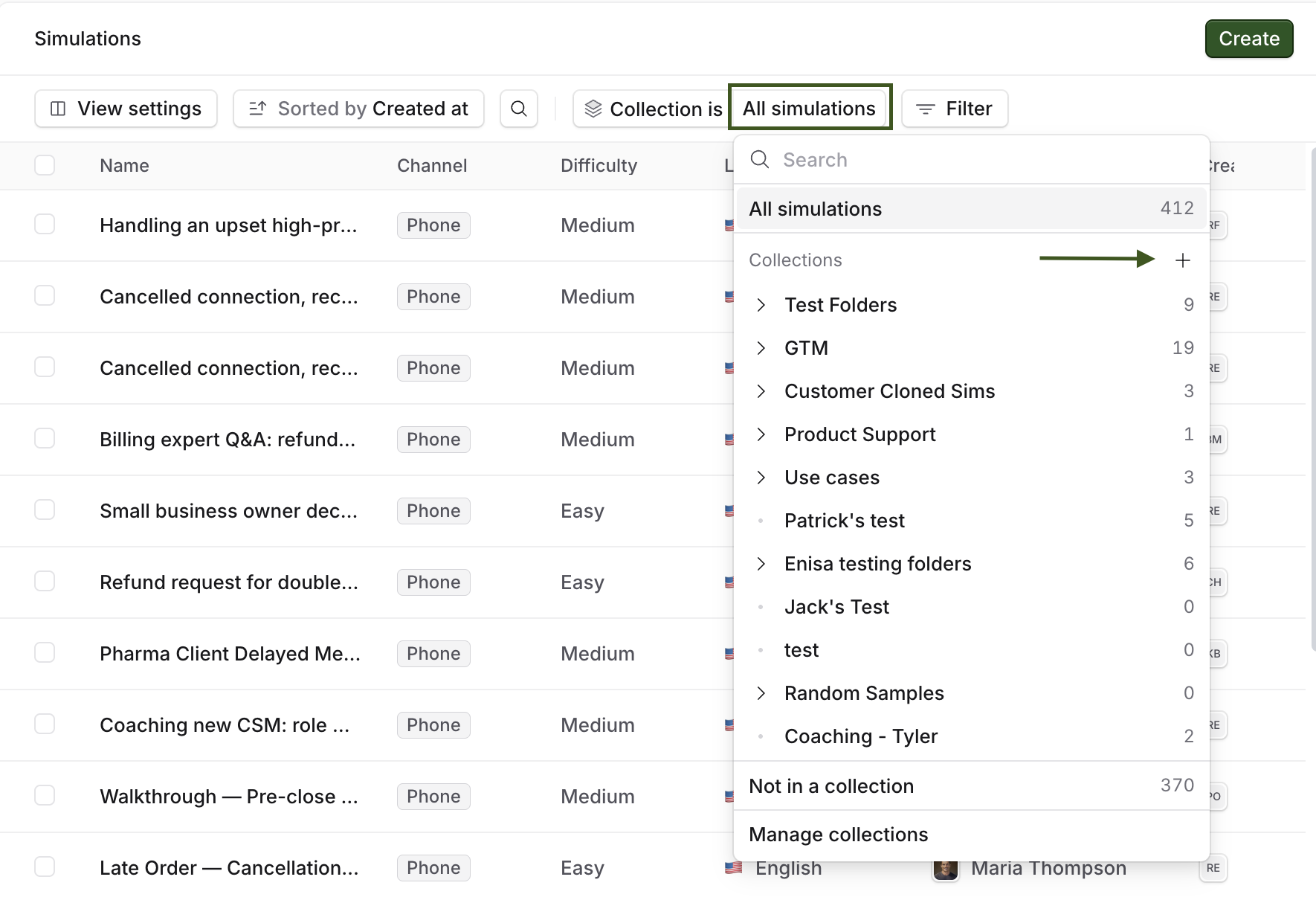
Open the collection picker in the top bar and use the + button. You can also use New collection while you are organising items, which saves going back and forth.
Give it a name of up to 100 characters and save it. The new collection appears in the picker straight away.
A name has to be unique among the collections in that same place, and capital letters do not make it different. Two collections called Onboarding and onboarding side by side count as the same name.
Step 2: Put items into it
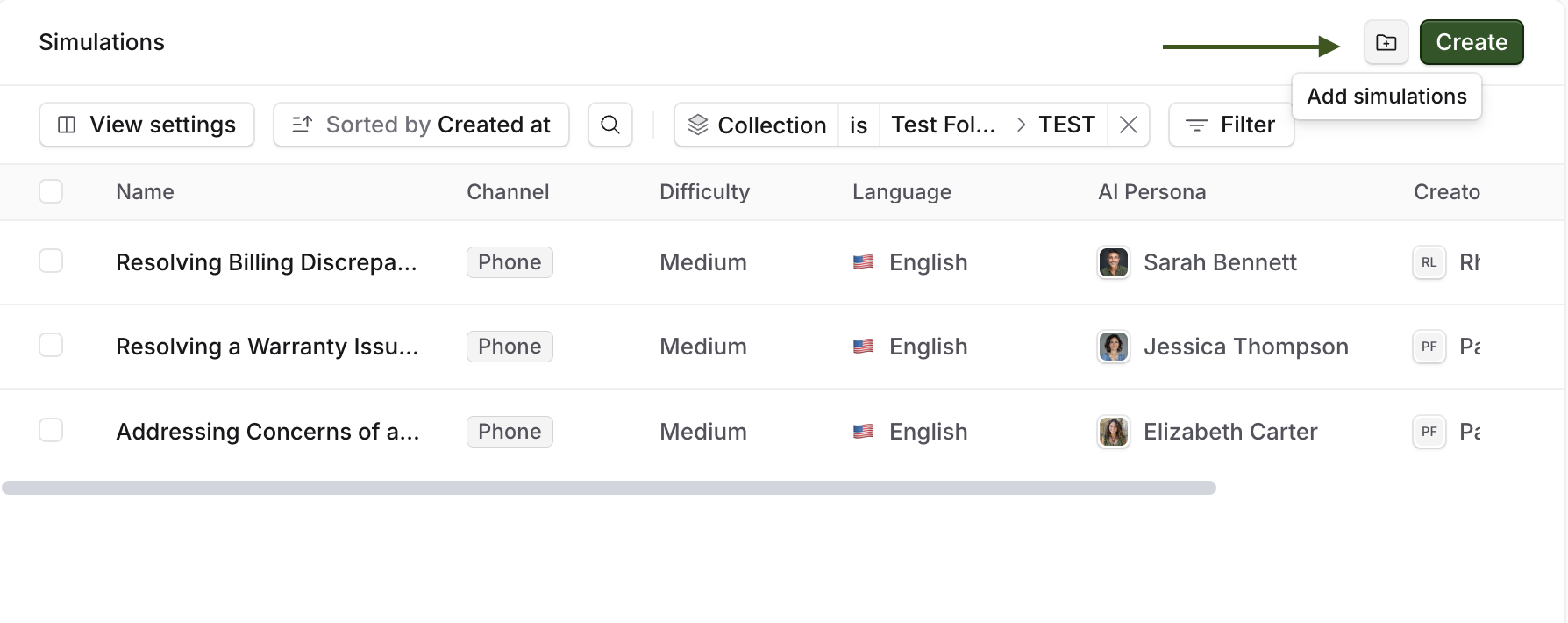
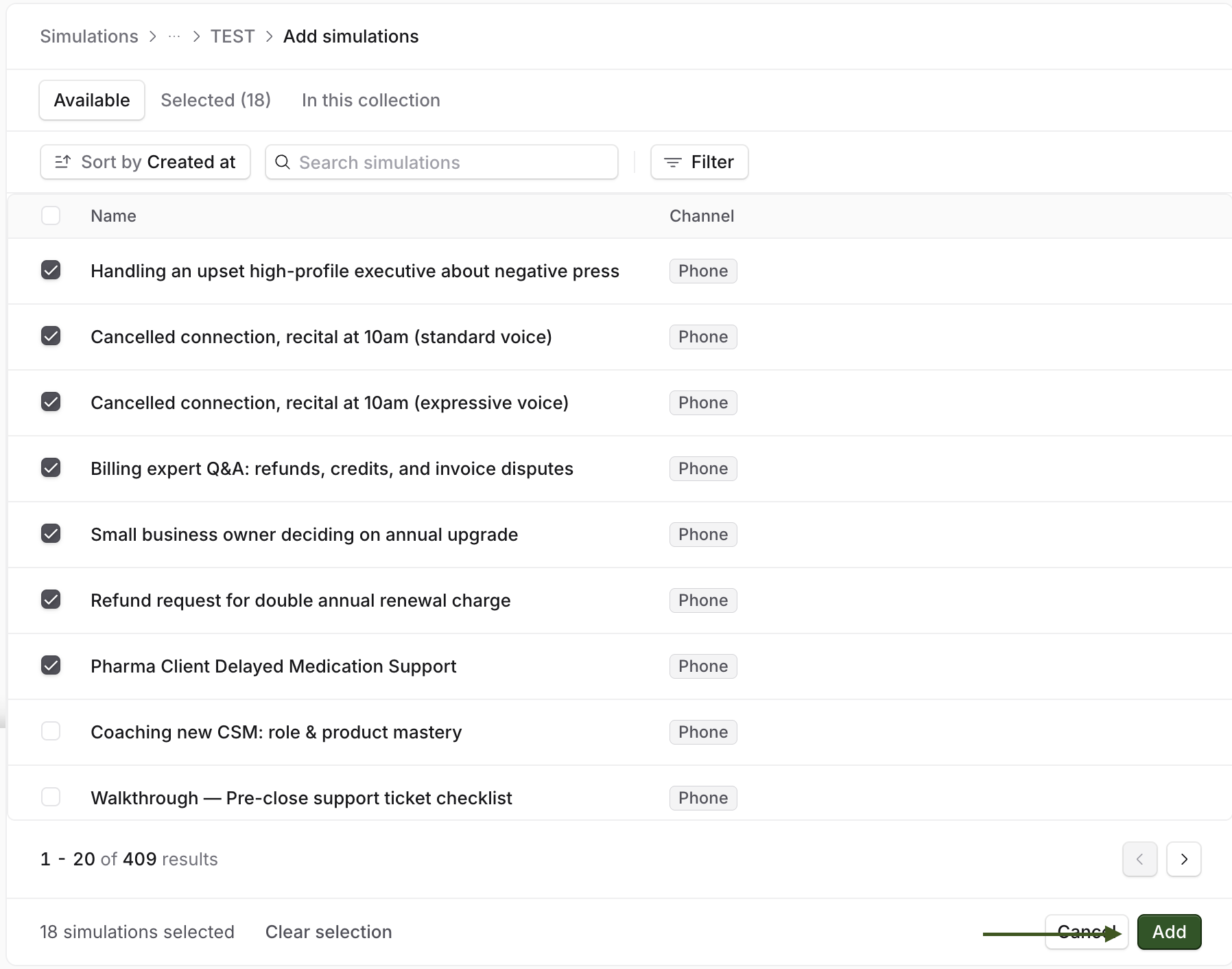
On the Simulations page, use the Add simulations page to pick existing simulations and file them in one go.
On every other page, select the rows you want using the checkboxes, then use Add to collection in the bulk bar at the bottom. The row menu on a single item does the same job for one item at a time.
You can move up to 500 items, into up to 50 collections, in a single action. Larger jobs need splitting into batches.
An item can belong to several collections at once, so adding it somewhere new does not take it out of where it already is.
Step 3: Nest collections
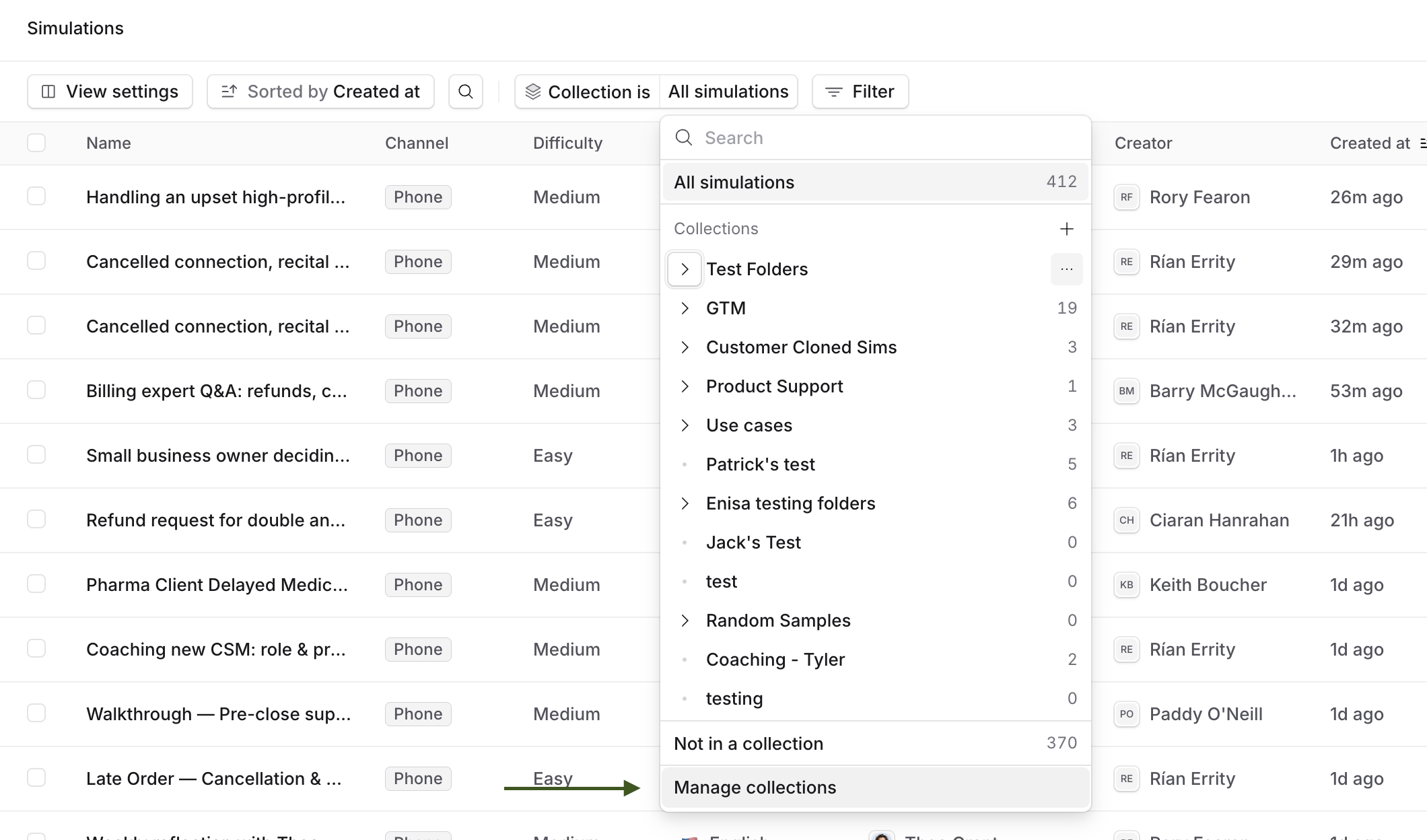
Click on "manage collections" to reach the collections editor.
A collection can be moved under another one, up to five levels deep. Use this to put Tier 1 and Tier 2 inside Support onboarding rather than leaving all three at the top level. Simply drag and drop by dragging from the drag handle on the right hand of the screen.
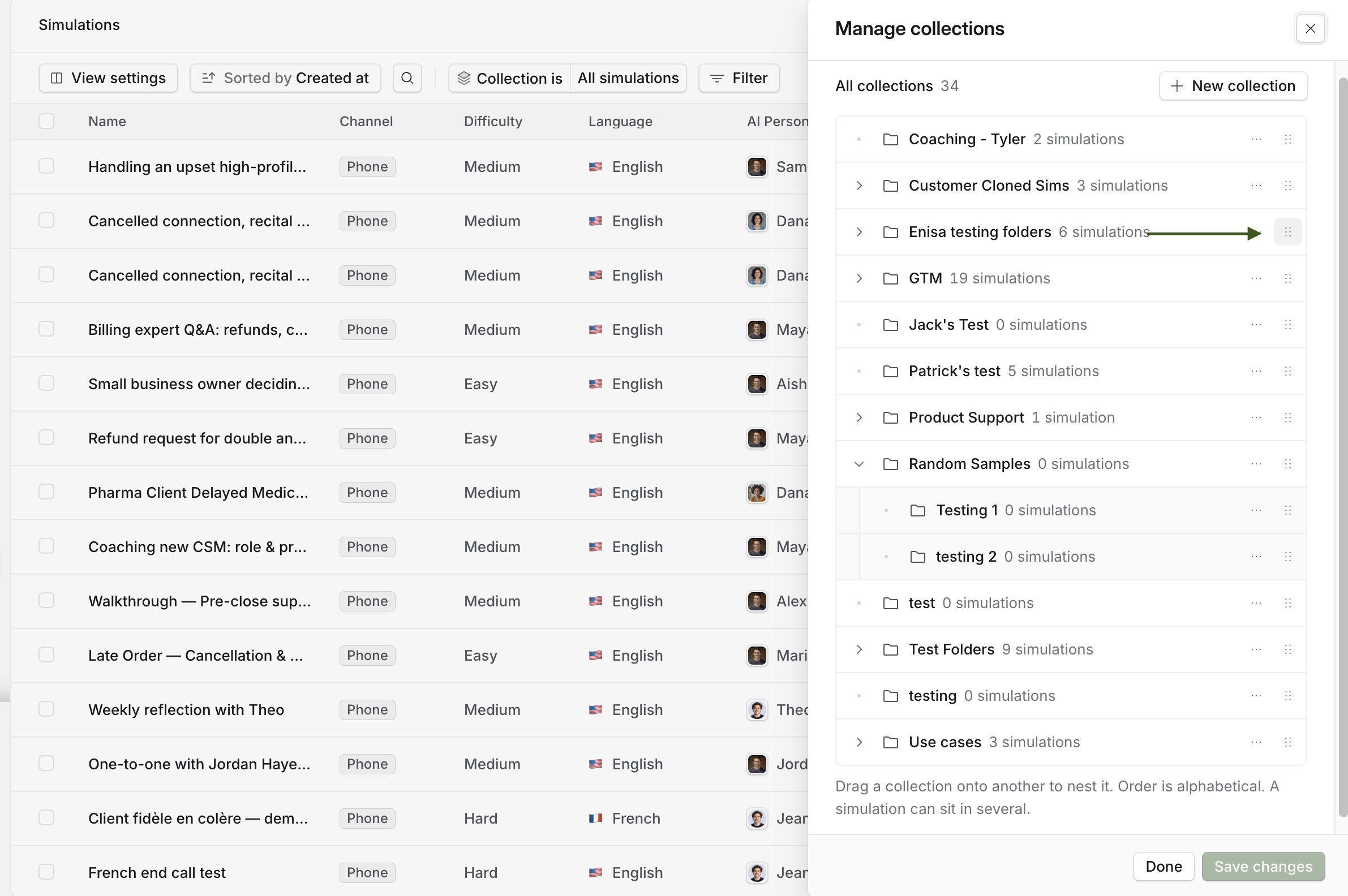
Filtering on the parent then shows everything underneath it, so you do not have to check each child separately. A collection cannot be moved inside itself, or inside a collection that already sits within it.
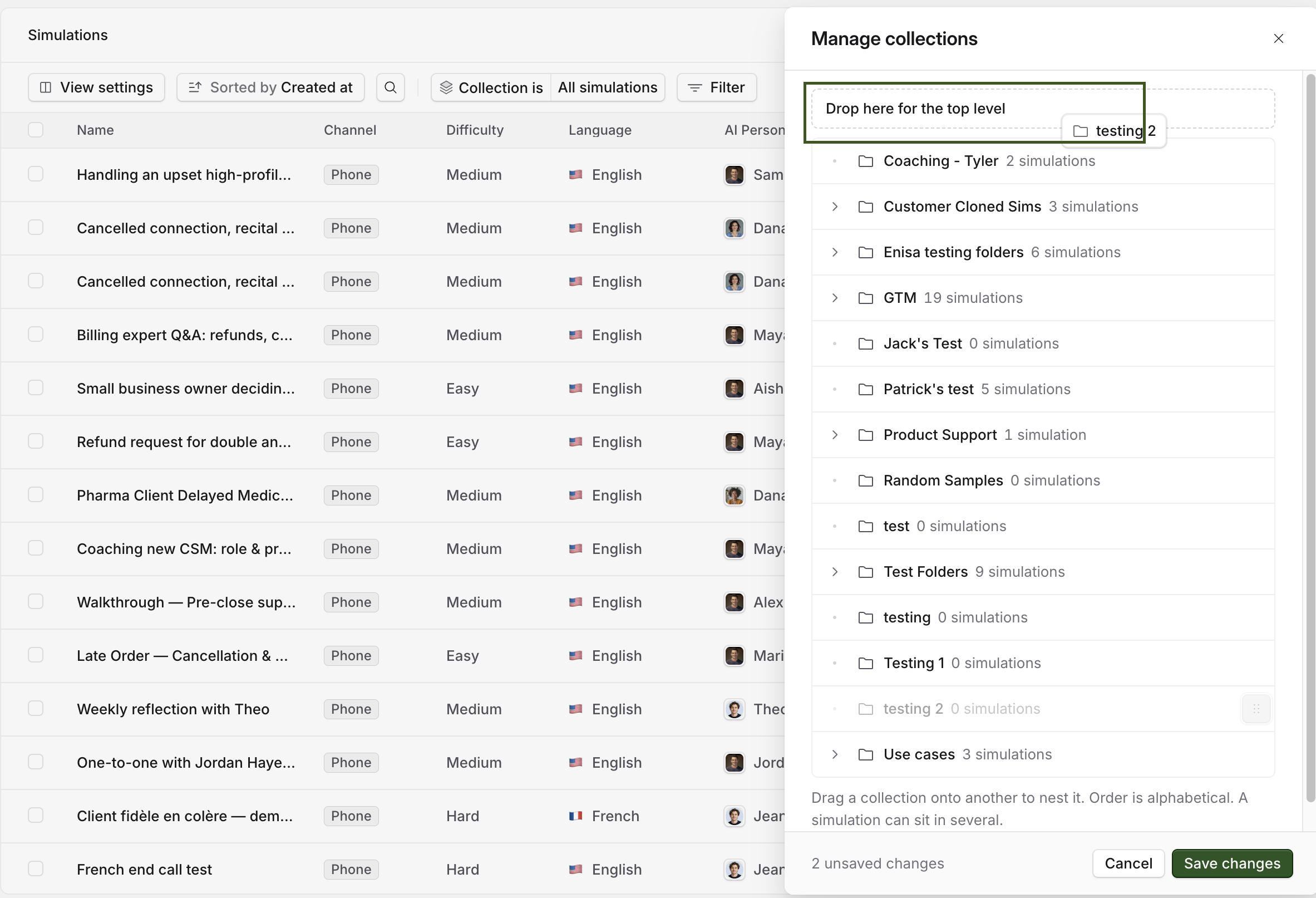
If you drag the main collection into one of the nested folders by accident, simply drag and drop it to the top of the screen to bring it back into the main section.
Step 4: Rename or remove
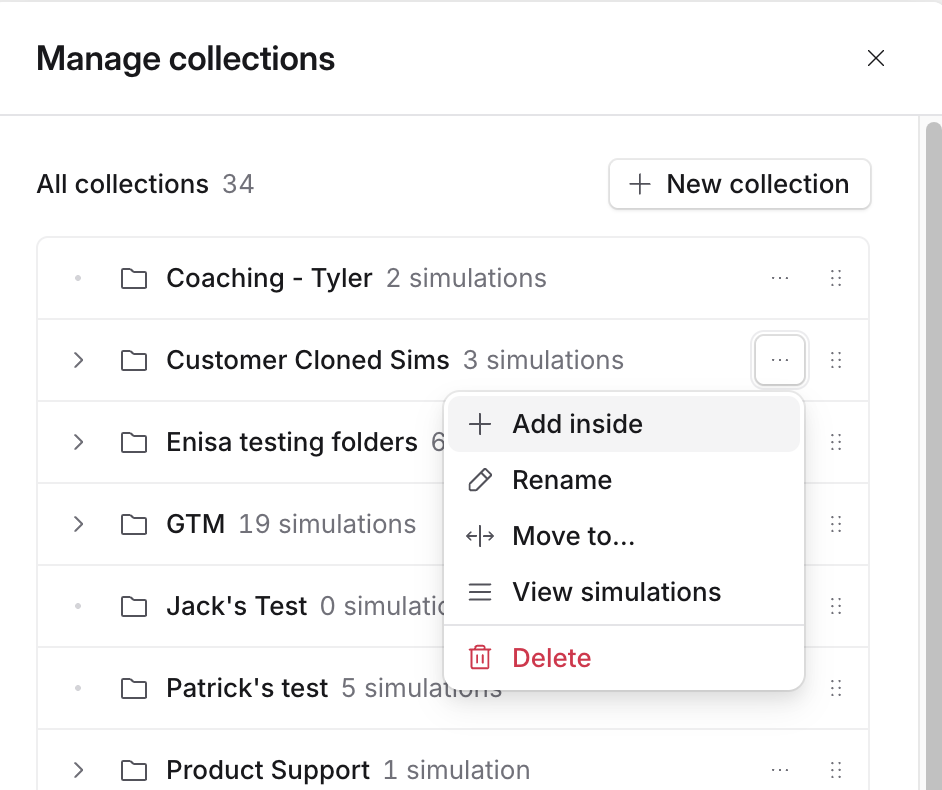
Renaming is done in the Manage collections drawer. Your changes in the drawer are held until you save them, so nothing takes effect while you are still editing.
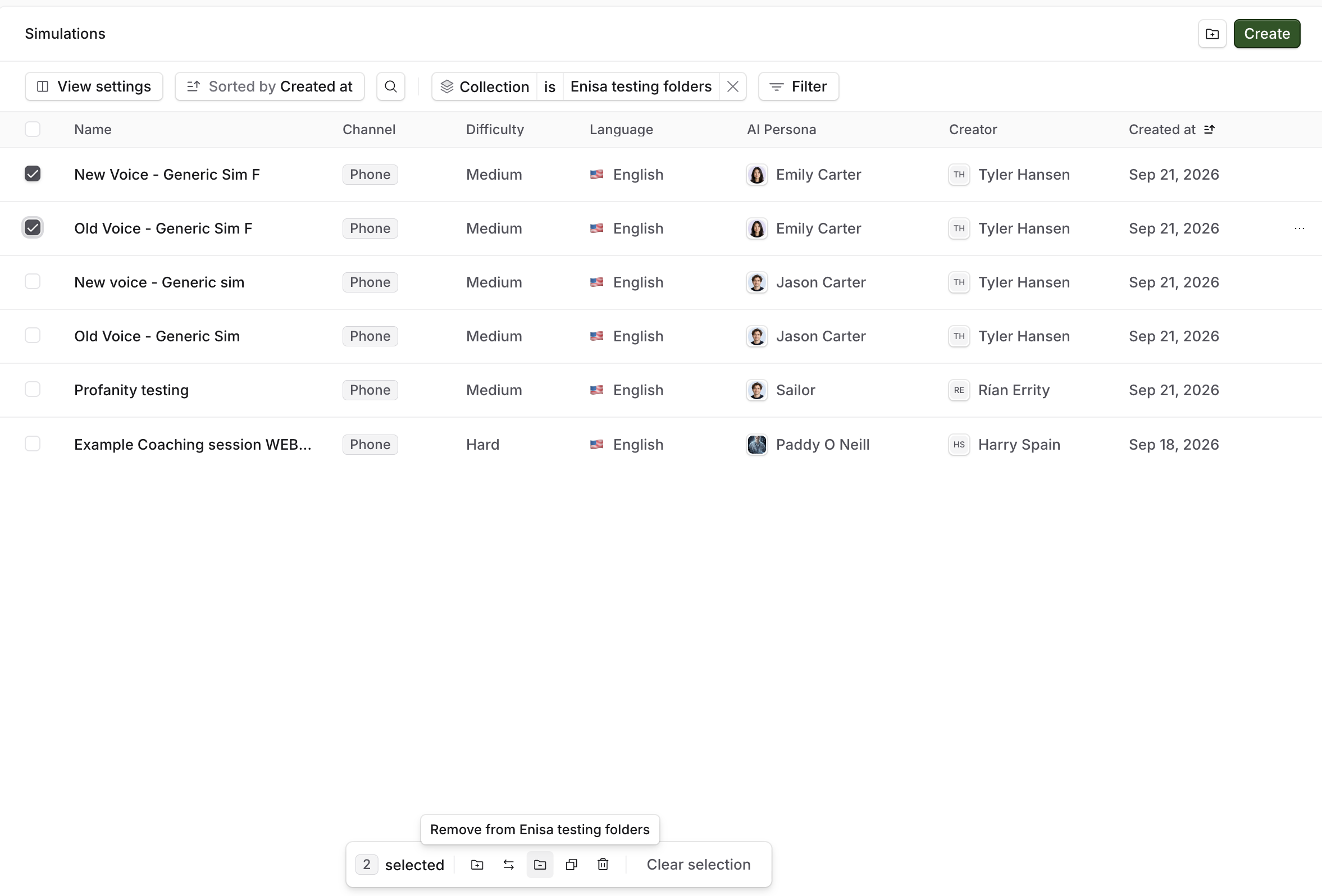
To take items out, select them and use the bulk bar or the row menu. The item stays in your library and keeps any other collections it belongs to.
Deleting a collection never deletes its items. They stay in the library, keep their other collections, and any that are left with none appear under Not in a collection. Collections that were inside the one you deleted move up a level rather than disappearing with it.
If an action is refused
These messages mean the action was stopped on purpose and nothing was changed.
Message | What to do |
|---|---|
A collection named "X" already exists here | Another collection in the same place has that name, capitals ignored. Choose a different name, or put it somewhere else. |
Rename or move "X" first. A collection with that name already exists where it would move. | Deleting this one would move a collection inside it up next to one with the same name. Rename or move that inner collection, then delete again. |
Collections can nest up to 5 levels | The place you are moving it to is already too deep. Move it somewhere higher up. |
A collection cannot move inside itself | The destination is the collection itself or something already inside it. Pick a different place. |
This collection was changed by someone else. Refresh and try again. | Someone edited it while you had the page open. Refresh and repeat what you were doing. |
This item's collections were changed by someone else. Refresh and try again. | The same thing, for an item's collections. Refresh and try again. |
Some items no longer exist | Something was deleted after your page loaded. Refresh the page. |
Some items are not directly in this collection | You are trying to remove items that sit in a collection inside this one. Open that inner collection and remove them there. |
Select up to 500 at a time (or 50 for collections) | Work through the selection in smaller batches. |
Enter a name or Use 100 characters or fewer | Fix the name and save again. |
Collection not found | The collection was deleted, or you followed a link to one that no longer exists. Refresh, or clear the collection filter from the address. |
Related articles
If you have any further questions, contact the Solidroad team via the Help tab in the platform.