Collections explained
Last updated: October 9, 2026
Collections are how you group simulations, assignments, assessments, scorecards and personas in Solidroad. They replace folders, and unlike folders they can sit inside each other, so a large library can be organised by team, programme or region rather than as one long list. This covers how they work and what changed from folders.
What happened to your folders
Every folder you had is now a collection with the same name and the same items. Nothing was renamed, moved or lost.
What has gone is the grid of folders that used to sit above the list. Each page now has a collection picker in the top bar instead. The first time you open one of these pages you will see a note saying Folders are now collections. Your folders live here now. Pick one to filter the list. It appears once.
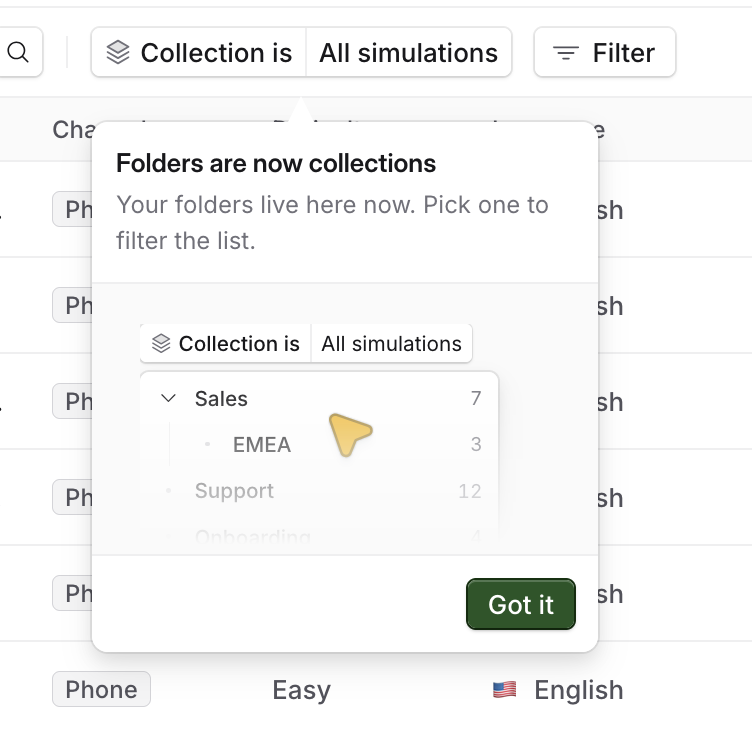
Picking a collection filters the list
A collection is a filter on the page you are already on rather than somewhere you go into. Pick one and the list narrows to it. Clear it and the full list comes back.
The picker offers every collection on that page, plus All simulations (or all assignments, all scorecards, and so on) and Not in a collection, which is useful for finding items nobody has filed yet. You can also set a collection to is not, so you can look at everything except one team's material.
Your choice is kept in the page address, so copying the link and sending it to a colleague shows them the same filtered view.
Collections can hold other collections
A collection can sit inside another, up to five levels deep. Filtering on one shows its own items and the items in every collection inside it, so filtering on a parent is the way to see a whole programme at once without visiting each part of it.
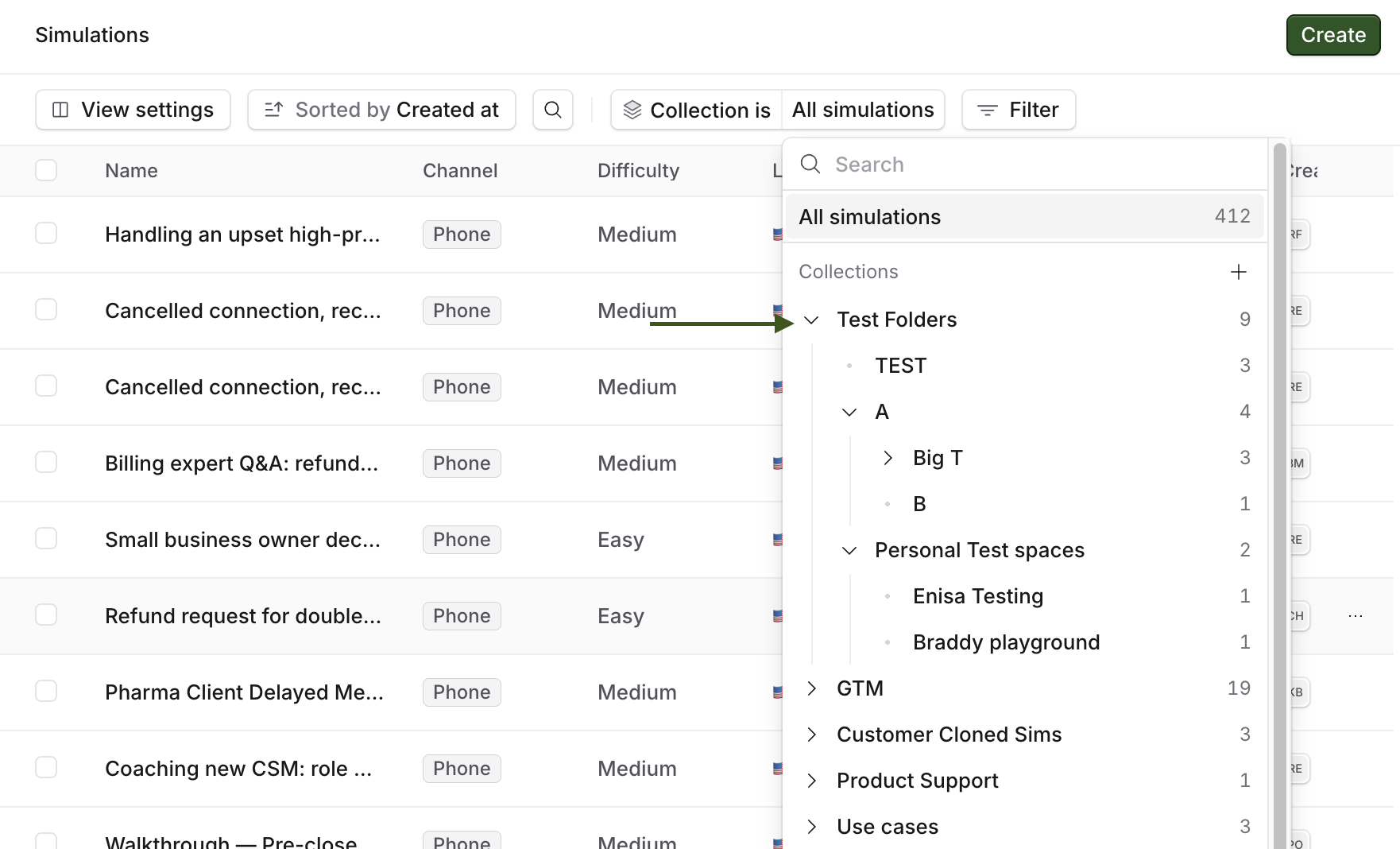
An item can be in more than one collection
The same simulation can sit in Onboarding and in Billing, which folders never allowed. Taking it out of one leaves it in the other, and the item itself is untouched either way.
Each page keeps its own collections
Simulation collections, assignment collections and scorecard collections are separate sets. A collection you create on the Simulations page does not appear on the Assignments page, even if you give it the same name. Organising one page does not organise the others.
Where collections appear, and who can use them
Collections follow the permissions you already have for that page's content, so there is no separate permission to grant.
Page | See and filter | Create and organise | Delete a collection |
|---|---|---|---|
Simulations | View simulations | Manage simulations | Delete simulations |
Assignments | View assignments | Manage assignments | Delete assignments |
Assessments | View hiring | Manage hiring | Manage hiring |
Scorecards | View scorecards | Manage scorecards | Manage scorecards |
Personas | View personas | Manage personas | Manage personas |
Systems > Interactive | View simulations | Manage simulations | Delete simulations |
You can also choose a collection while you are creating a simulation or an assignment, so new material can be filed as you go rather than afterwards.
Roles and permissions explained covers what each role can do.
Two things worth knowing
If your workspace had two folders with the same name, you now have two collections with the same name sitting next to each other. Both work normally. Renaming one of them to anything else clears up the confusion, and you cannot give it a name another collection in that same place already uses.
When simulations are copied into another workspace, their collections come across as a flat list. The names and the items are kept, and the nesting is not, so a copied library needs its structure rebuilt.
Related articles
If you have any further questions, contact the Solidroad team via the Help tab in the platform.