How to create a scorecard
Last updated: September 14, 2026
Scorecards define how Solidroad evaluates a simulation: which areas it scores, how much each is worth, and what poor, average and strong performance look like. This guide walks you through building one, from naming it to publishing it, and how to edit or archive it later.
Before you start: set your scorecards up before your simulations, because you attach a scorecard when you build a simulation.
Step 1: Create and name a new scorecard
Go to Resources → Scorecards and click New Scorecard in the top-right corner.
Click the Untitled field at the top of the page and type a name, for example “Customer Experience Evaluation”. A descriptive name makes the scorecard easy to find when you attach it to a simulation later.
Step 2: Set up your first section
Each scorecard is made up of sections, the individual areas you want to score, such as Opening, Accuracy of Resolution or Close.
In the section header, click the name field and type a name, for example “Opening”.
Optionally, use the Skill dropdown to link the section to a skill.
Set the Top score, the maximum number of points this section can earn (for example, 10). Sections with a higher top score count for more of the overall scorecard, so use it to reflect what matters most in the interaction.
Choose how the section is scored: Graded (anywhere between 0 and the top score) or Pass/fail (the full top score or 0).
Review the score bands (Poor, Average, Strong). They are set automatically from your top score, so a top score of 10 gives Poor 0-3, Average 4-6, Strong 7-10.
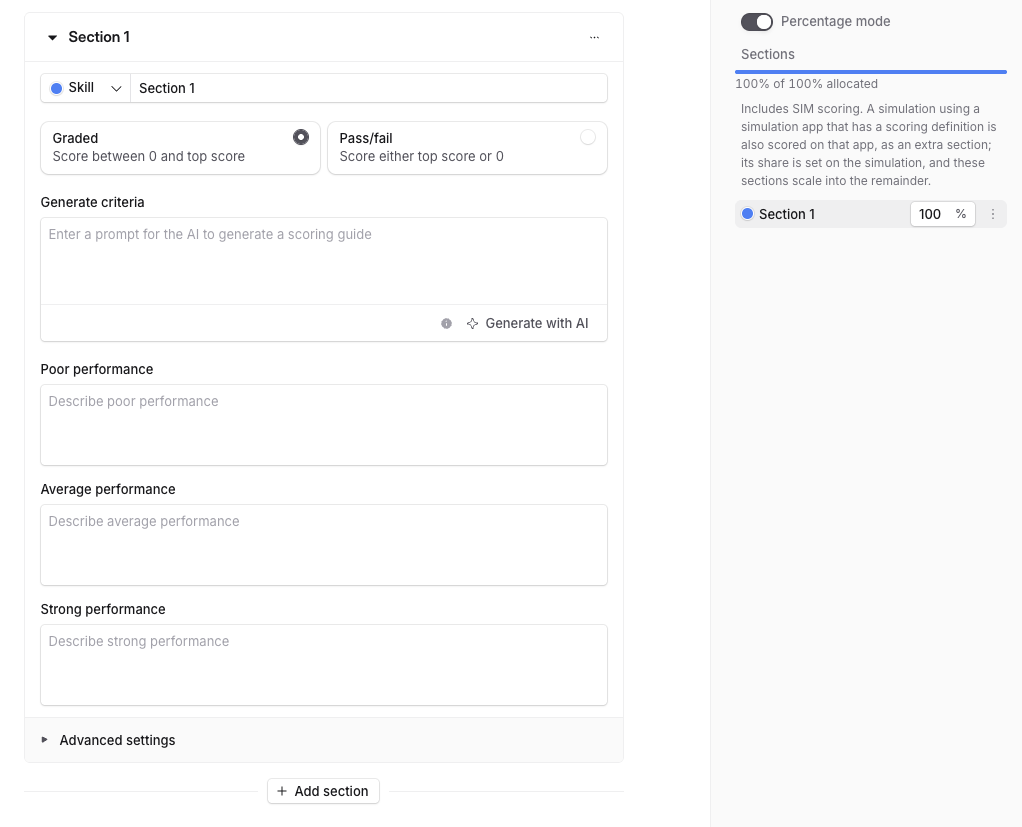
Step 3: Write or generate the scoring criteria
The criteria are the scoring guide the AI follows on every evaluation, so the clearer they are, the more consistent the scoring.
In the Generate criteria box, describe what a great response looks like for this section, for example “Agent greets the customer warmly, states their name, and verifies the customer’s identity before discussing account specifics.”
Click Generate with AI. Solidroad fills in the Poor, Average and Strong descriptions, each tied to its points range.
Edit any of the three descriptions directly if you want to fine-tune the wording.
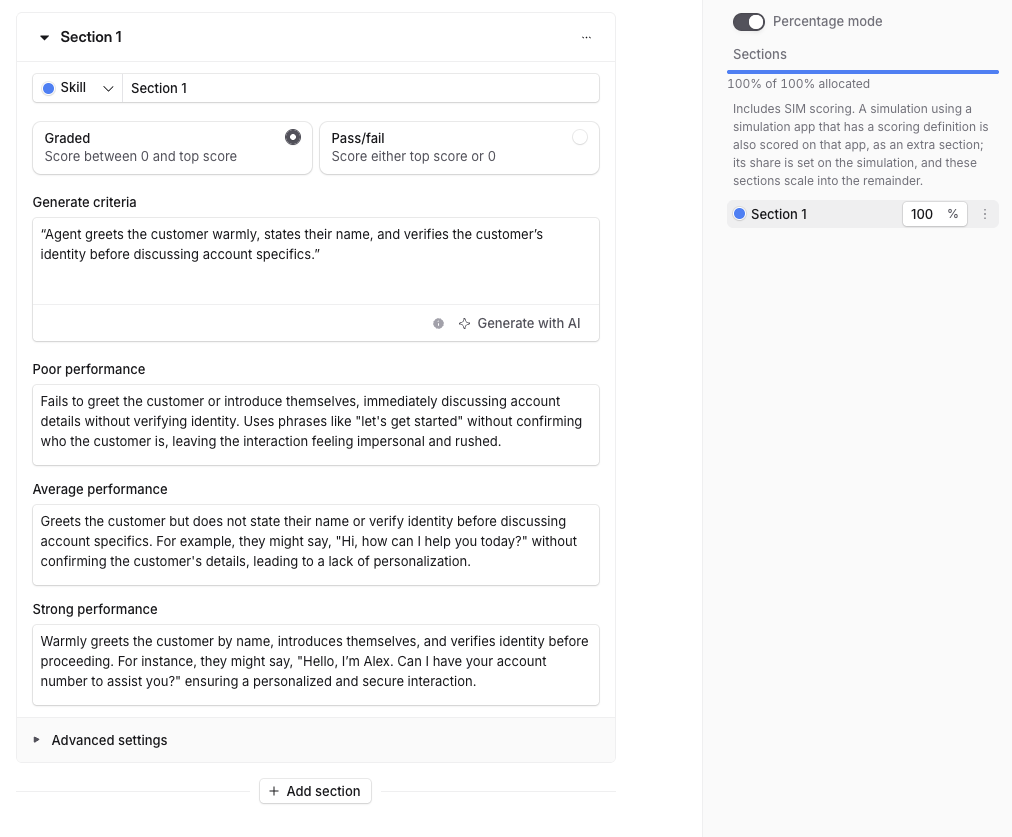
Step 4: Fine-tune with advanced settings (optional)
Click Advanced settings to expand the section.
Under Conversation parts to score, tick the parts you want included: Transcript and/or Notes.
Turn on any override rules and describe when each should trigger. Exclusion criteria ignores the section so it doesn’t affect the score (e.g. “customer was not the decision-maker”). Section fail scores this section 0 and leaves the others alone (e.g. “agent did not greet the customer”). Scorecard fail invalidates the whole scorecard to 0 (e.g. “agent used offensive language”), so keep it for serious breaches only.
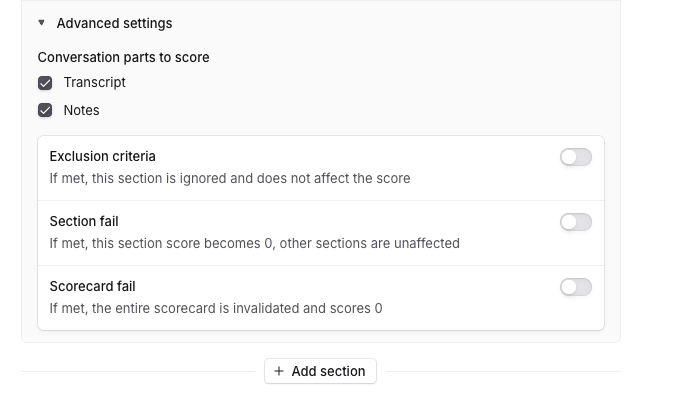
Step 5: Add more sections
At the bottom of the scorecard, click Add section.
Name it, set its top score and scoring type, and add its criteria (Steps 2 to 4).
Repeat for each area you want to score, for example Opening, Accuracy of Resolution and Close.
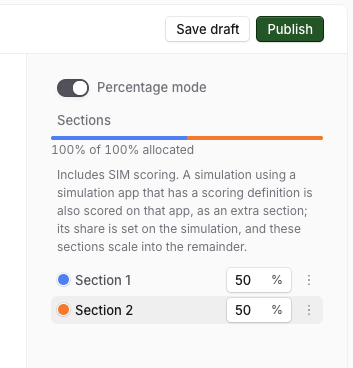
Check the percentage beside each section in the Sections list. Weights always add up to 100%, so lowering one section’s top score reduces its share and raises the others’.
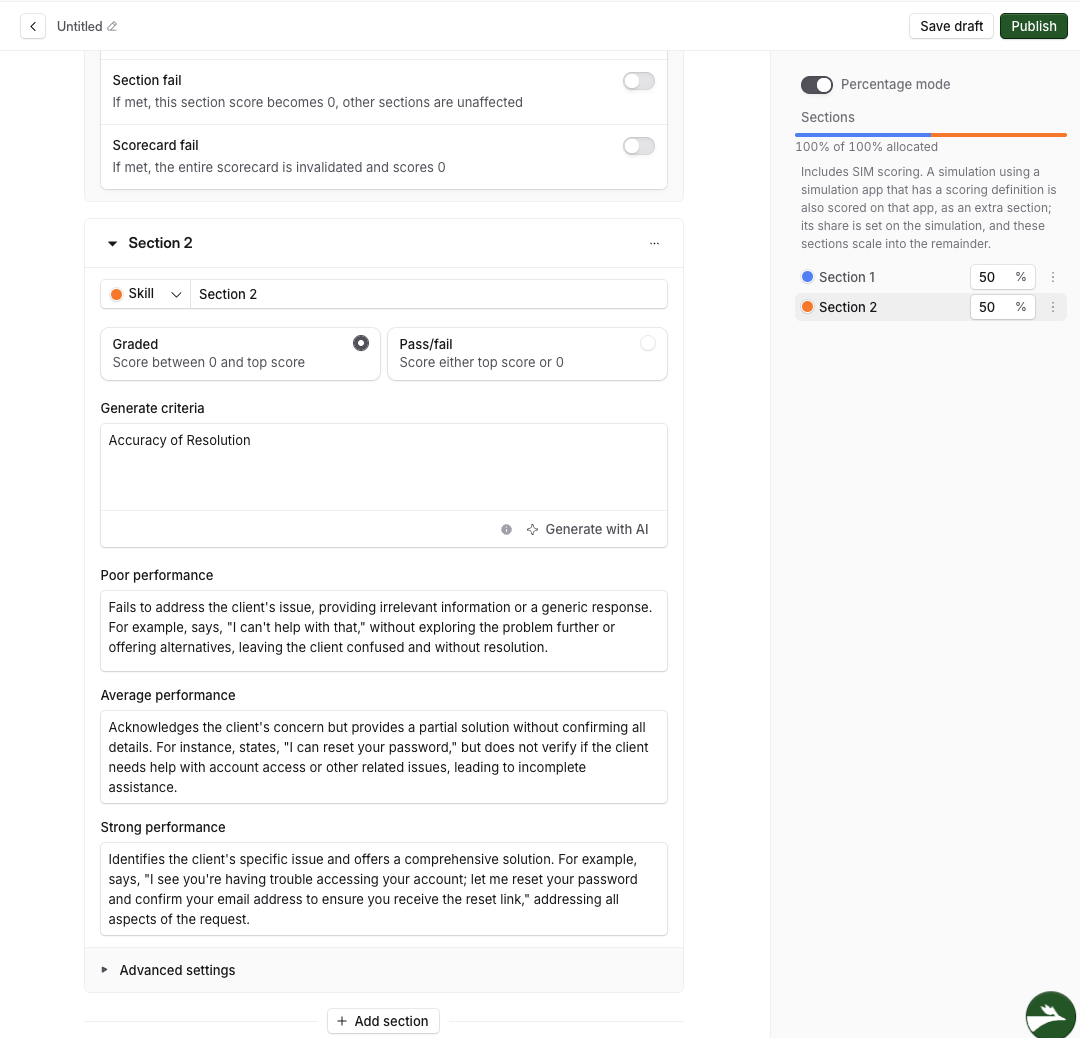
Step 6: Save your draft
Click Save draft in the top-right corner. A banner confirms the scorecard has an unpublished draft. Nothing in a draft affects live scoring until you publish.
Use View changes to see what changed, or Discard draft to roll back.
Step 7: Publish your scorecard
Click Publish in the top-right corner.
In the Publish window, review the summary of what changed (Modified, Added and Removed) and what those changes affect.
Optionally add a version note, for example “Updated per Q3 compliance review”, so your team can see what changed and when. Each publish creates a new version.
Click Publish to confirm. A Published v1 confirmation appears and the scorecard shows in your Scorecards list.
Step 8: Edit or archive a scorecard
Go to Resources → Scorecards and click the scorecard you want to change.
Edit it directly, or archive it once you no longer need it.
To put a published scorecard to work, attach it when you build a simulation. See How to create a simulation for how the Scorecard field works.

Related articles
If you have any further questions, contact the Solidroad team via the Help tab in the platform.