Audit logs
Last updated: November 24, 2026
Audit logs record what happens in your workspace: the action, who did it and when. Admins use them to answer questions like who changed a setting, who corrected a score, or why someone lost access. You can read them on screen or export them.
Go to Settings, then Audit logs under Workspace.
What gets recorded
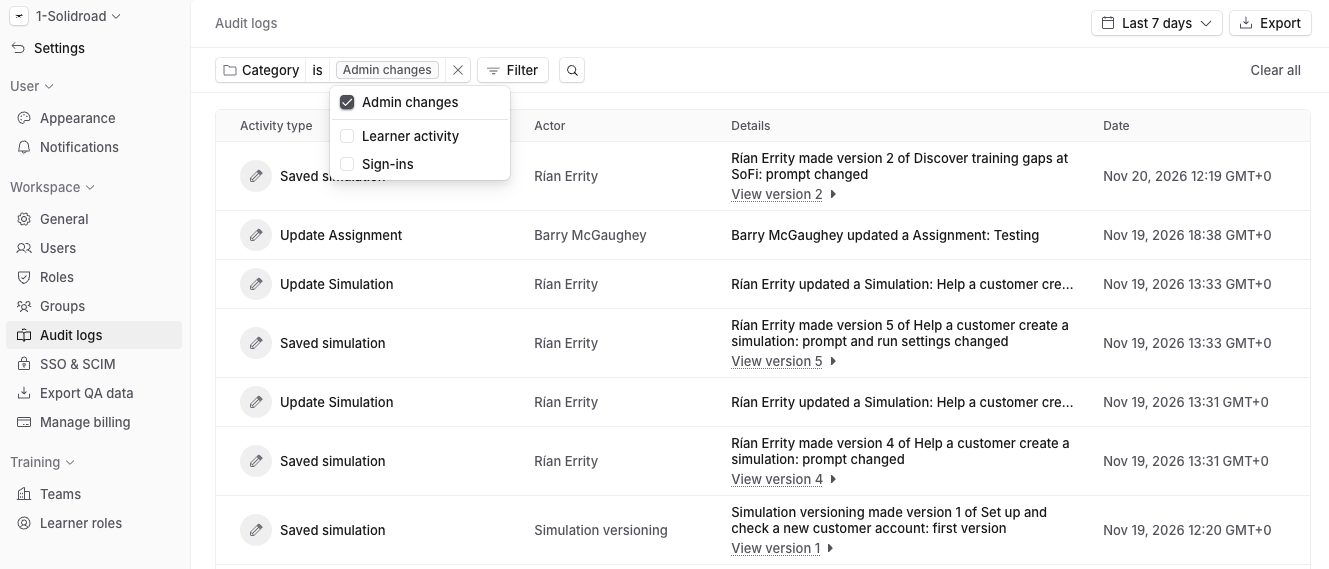
Entries fall into three categories, and you can show any combination of them:
Admin changes, such as creating a user, editing an assignment or deleting a simulation.
Learner activity.
Sign-ins.
Each entry records one of four actions: create, update, delete or read. Reads are included, so opening someone's user record is logged alongside changing it.
A corrected score is recorded with the scores before and after the change, who made it, and any reason they gave. Editing or restoring a correction is recorded the same way.
Most entries name the person who acted. Some name a part of Solidroad instead, such as Simulation versioning, for the things the product records itself.
Reading the table
Column | What it holds |
|---|---|
Activity type | The action and what it was done to, for example Create Interview or Delete User |
Actor | Who did it |
Details | A sentence naming the person, the action and the item, for example "Enisa deleted Test User 1" |
Date | When it happened, with the timezone |
A simulation save also carries a View version link, which opens the simulation at that version. See The simulation editor.
The table shows 25 entries at a time. Narrow the list before you start reading it.
Narrowing the list
The date control at the top right has Last 7 days, Last 14 days and Last 30 days. For anything older, pick your own start and end dates from the calendar beside those presets.
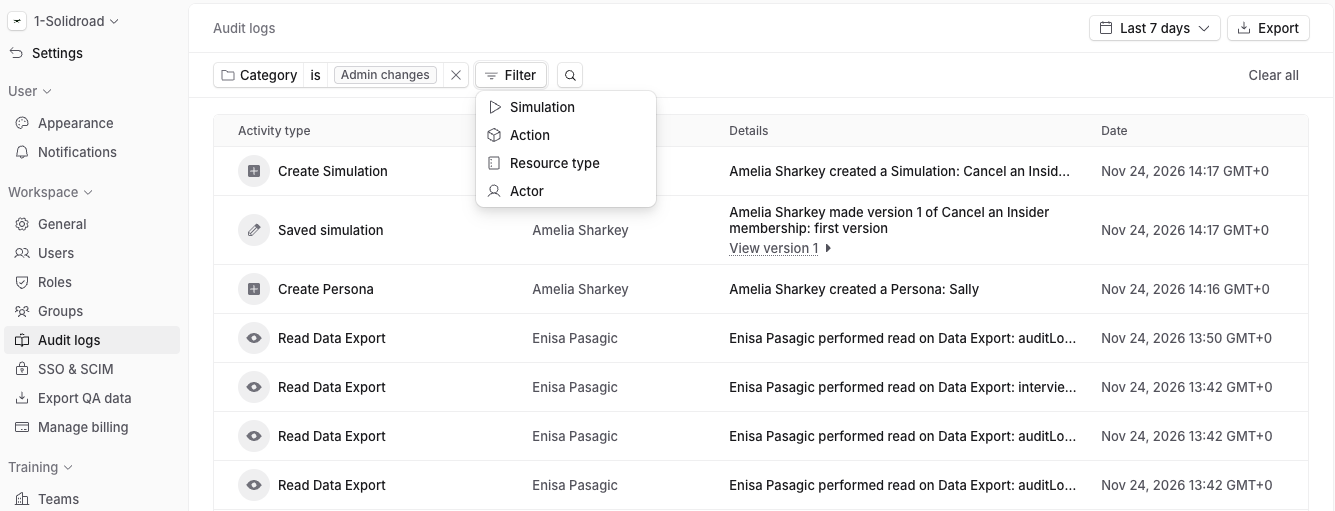
Filter adds conditions on Simulation, Action, Resource type and Actor, alongside the Category filter. Each condition appears as a chip you can remove with its ×, and Clear all removes them together. A search icon sits beside the filters.
Exporting
Export at the top right takes whatever you are currently looking at. The dialog confirms the time period and lists the filters it will apply, so check both before you continue. The file appears in the exports view when it is ready.
The export is a CSV, and it provides additional data:
Column | What it holds |
|---|---|
| The entry's identifier |
| When it happened, to the millisecond |
| create, update, delete or read |
| What kind of thing was affected |
| Which one |
| Whether a person or Solidroad itself did it |
| Who |
| The address and browser the action came from, where known |
The last two are not shown on the Audit log page. Treat an exported file as you would any file holding personal data.
Finding one change
Some of these changes also appear in two smaller logs, associated with the action completed.
A person's own log sits on their record in Settings → Users, and covers the changes that affected them, including role changes. A role's own history sits on the role in Settings → Roles, and covers what changed about it and who changed it.
Start from the person when one person is affected, and from the role when several people lost the same thing at once. See How to manage users and Custom roles explained.
Related articles
If you have any further questions, contact the Solidroad team via the Help tab in the platform.