Using more than one workspace
Last updated: October 13, 2026
Some organisations run several Solidroad workspaces, usually to keep separate brands or clients apart. This covers how to decide whether you need more than one, and what that separation means for your content and your reporting.
Moving between the workspaces you have access to is covered in How to switch between workspaces.
One person can belong to several workspaces
You are given access to one workspace at a time, and the same person can hold access to as many as they need. Their role is held per workspace too, so someone can be an admin in one and a learner in another.
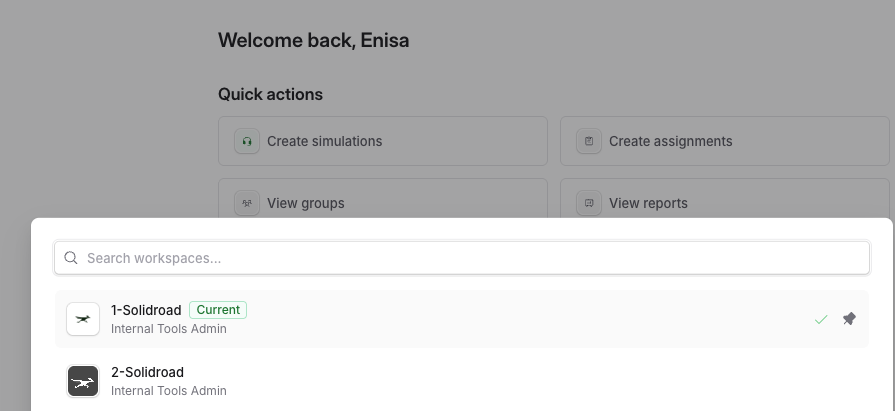
Choosing between one workspace and several
Most organisations need one. Within a single workspace you can separate teams using groups and custom roles, which keeps your content in one place while still controlling who sees and does what. How to create learner roles and teams covers how that works.
A second workspace makes sense when the separation has to be complete. Running training for different companies or clients is the clearest case, because nothing from one should be visible or reusable in another.
That separation comes at a cost. Everything described below has to be built and maintained once per workspace, and there is no view that spans all of them.
Content does not move between workspaces
Simulations, personas and scorecards belong to the workspace they were created in. They cannot be copied or moved into another one, and there is no way to export one as a file and import it elsewhere. Workspaces are built so that nothing crosses between them, which is what makes them suitable for separate clients and brands.
If you want similar training in two workspaces, build it in each. Copying the text of a scenario or a persona's brief from one and pasting it into the other saves time on the writing. To make this easier, simply login to one workspace in an incognito mode and the other in your main browser.
Results stay in the workspace where the work was done
A learner's attempts, scores and completions belong to the workspace where they took the simulation. They do not follow the person into another workspace, even when it is the same person with access to both.
That applies to reporting as well. Each workspace reports on its own activity, so there is no combined view across workspaces and no way to compare results between them, either in the product or through the API.
If you need figures covering several workspaces, export from each and combine them outside Solidroad.
Settings are configured per workspace
Branding, language and integrations are all set within a workspace and apply only there. Connecting a knowledge base in one workspace does not connect it in another, and the same goes for anything else you configure in workspace settings. Workspace settings: general covers what those settings are.
Workspaces cannot be merged
Two existing workspaces cannot be combined into one, and their content and results cannot be brought together after the fact. If you are weighing up whether to split your training across workspaces, settle it before you build, because the decision is not easy to reverse.
Related articles
If you have any further questions, contact the Solidroad team via the Help tab in the platform.