How to switch between workspaces
Last updated: October 30, 2026
Some organisations run more than one Solidroad workspace, for example one per region, brand or client. Each workspace keeps its own users, content and reporting, and you move between the ones you have access to from the top of the left sidebar. If your organisation has a single workspace there is nothing to switch between, and the rest of this article does not apply to you.
You can be apart of multiple workspaces. Below is steps to switch between those workspaces.
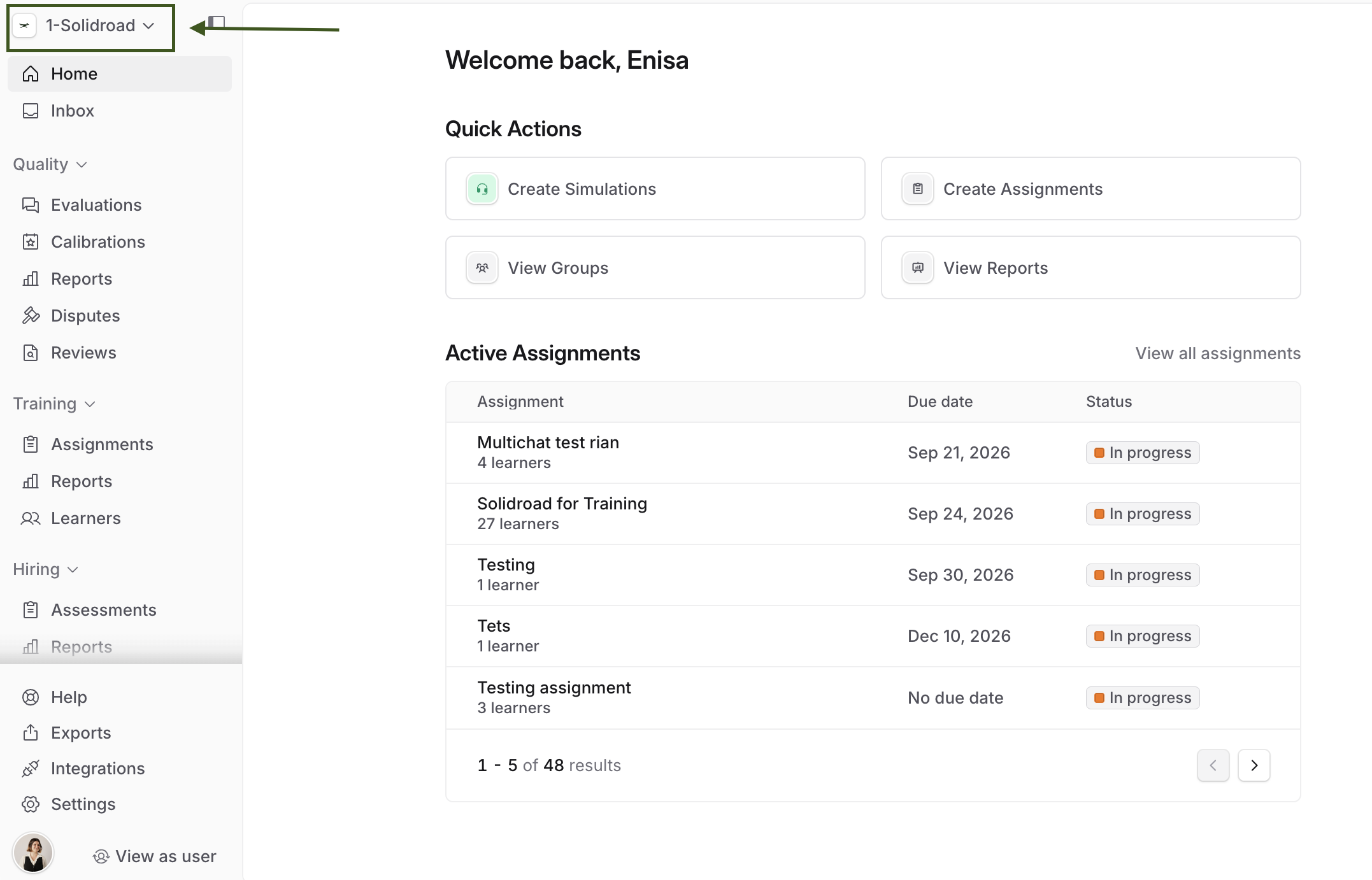
Step 1: Open the workspace switcher
Click the workspace name at the top left of the sidebar. A panel opens listing every workspace you have access to.
Type into Search workspaces to narrow the list quickly if there are more than a few.
Step 2: Choose a workspace
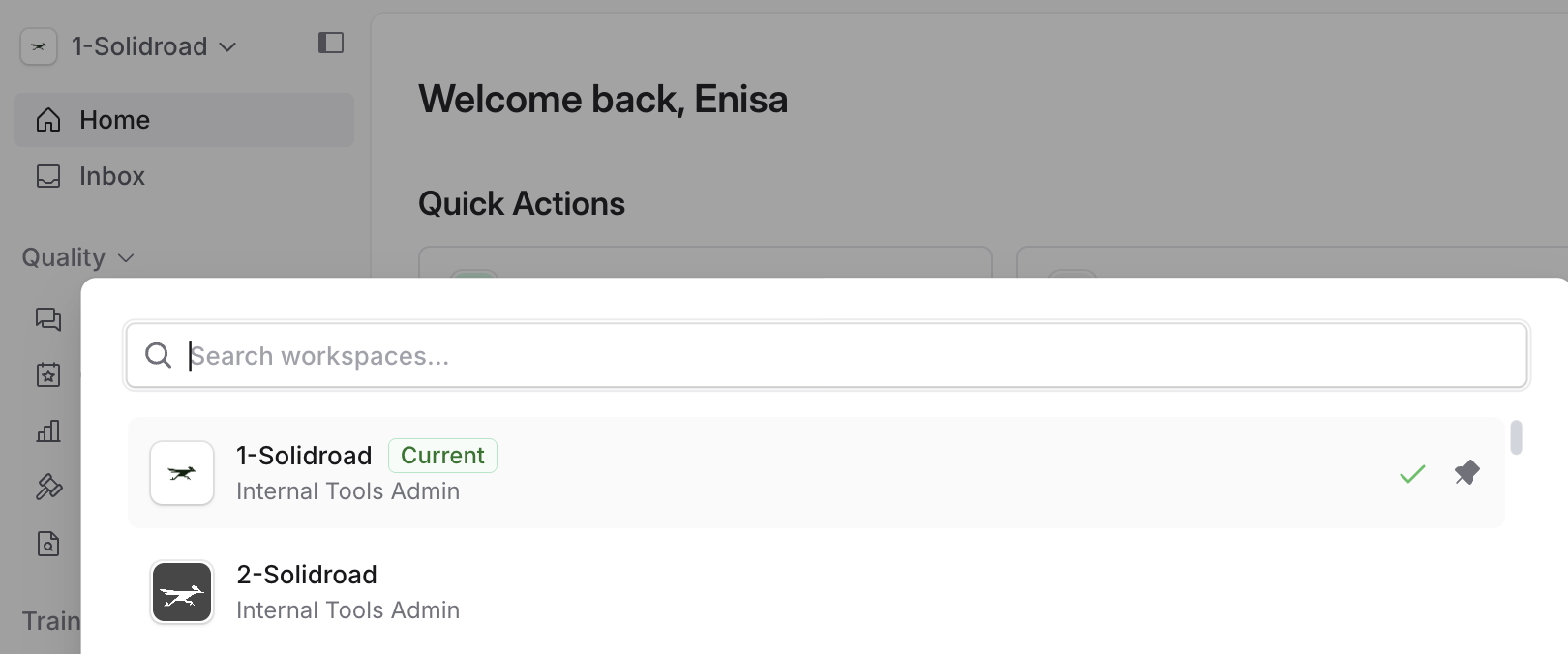
Each row in the list tells you three things:
The workspace name and its logo, so two workspaces with similar names are easier to tell apart.
Current, with a tick, on the workspace you are in now.
The role you hold in that workspace, underneath the name. This can differ from one workspace to the next.
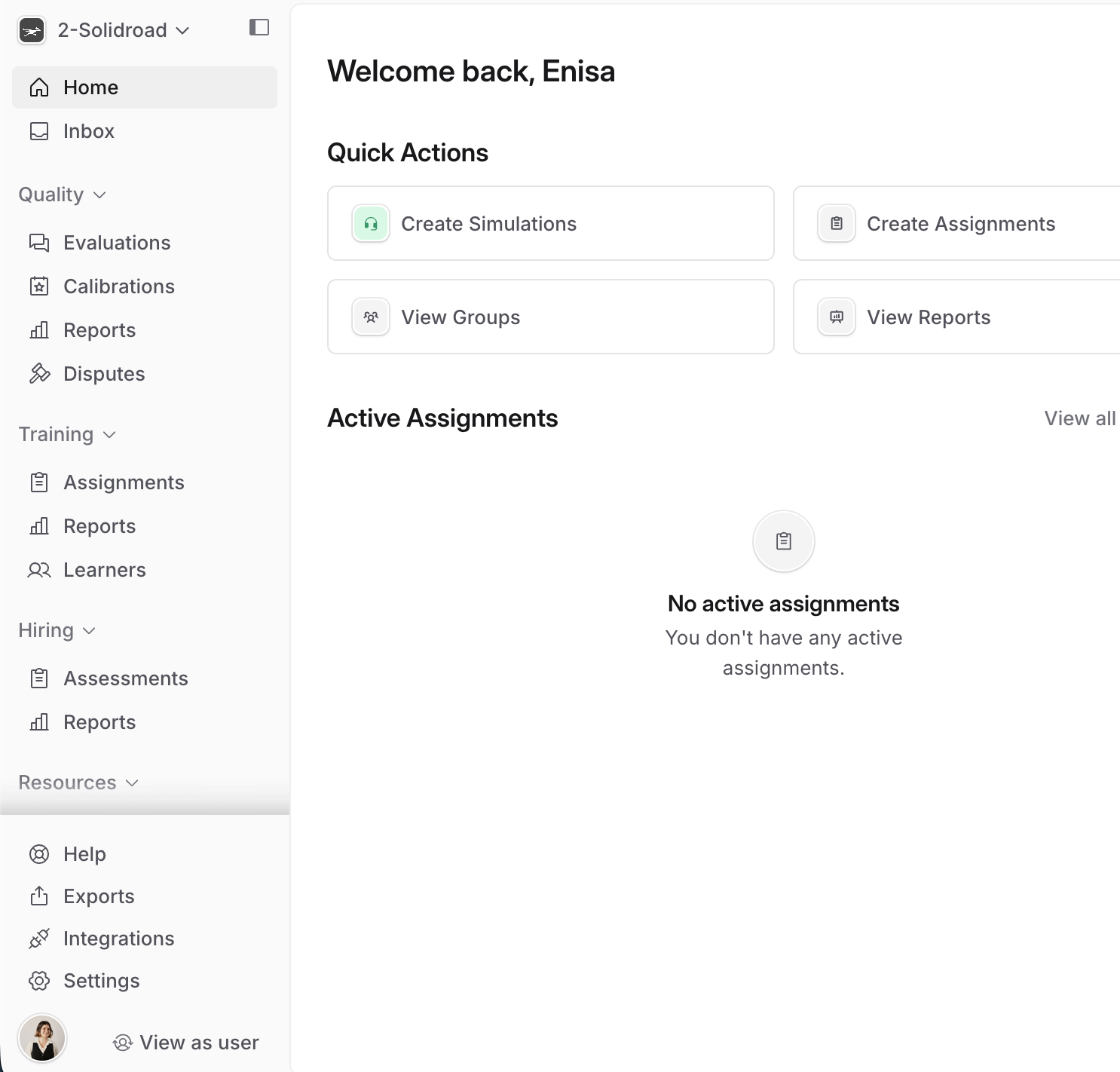
Click the workspace you want. The name at the top of the sidebar changes to the one you picked, and the page reloads with that workspace's data, so the home page now shows its assignments rather than the ones you were looking at a moment ago.
What changes when you switch
Everything is scoped to one workspace at a time: users and groups, simulations, scorecards, assignments and reporting. Nothing is shared between workspaces, so a simulation built in one is not available in another, and a learner who exists in one is not automatically in the other. A workspace you have only just set up looks empty for that reason, rather than because something has gone wrong.
Your role is held per workspace too, so you can be an admin in one and have a narrower role in another, and what you can do changes as you switch. Roles and permissions explained covers what each role can do.
If you cannot find an assignment or a simulation
Being in the wrong workspace is the most common reason something appears to be missing. Before you assume an assignment has been deleted or a simulation was never created, check the workspace name at the top left of the sidebar and make sure it is the one that content belongs to.
Searching for an assignment by name in the wrong workspace returns nothing at all, which reads as though it does not exist rather than as though you are in the wrong place.
It is worth checking the workspace first when:
An assignment, simulation, scorecard or persona you created recently is not in the list.
A colleague tells you something is there and you cannot see it.
A learner is not in the Learners tab, or their results are missing from reporting.
Your reporting numbers look far lower than you expected.
If a link you are sent to by a colleague opens an empty page, although they can see content, is a clear indicator that you're in a wrong workspace.
If you have checked every workspace you can see and the content is still not there, it may sit in one you have not been given access to, which is covered in the next section.
If a workspace is missing from the list
The switcher only lists workspaces you have access to, and access is granted per workspace. Being an admin in one does not give you anything in another.
How that access arrives depends on how your organisation is set up. If you use single sign-on, it can be granted through your identity provider, which is covered in Provisioning roles, groups and workspace access with SSO and SCIM. Otherwise someone with admin access in that workspace invites you to it, the same way any other user is added.
If you sign in and always reach the same workspace even when you meant to work in another, that is normal rather than a fault. Sign in as usual and switch from the sidebar.
Related articles
If you have any further questions, contact the Solidroad team via the Help tab in the platform.