How to invite and add new users
Last updated: September 14, 2026
Admins can invite new people to a workspace directly from Settings, and track or manage invitations that are already pending. This guide covers sending an invitation, checking its status, and what happens once someone accepts.
Step 1: Open the Users page
Go to Settings → Users.
Step 2: Send the invitation
Click Invite in the upper-right corner.
Enter the person’s email address.
Select their role. See Roles and Permissions Explained if you’re unsure which one fits.
Click Send Invitation. You’ll see a confirmation that it went through.
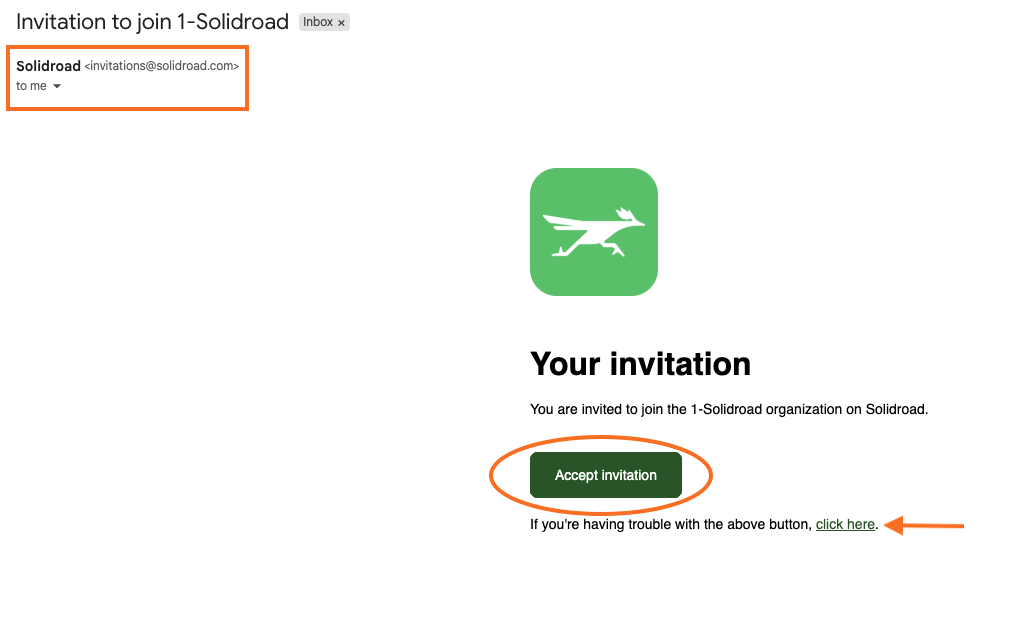
New users need to click Accept Invitation in the email they receive to gain access, if they instead go to solidroad.com and try to sign in directly, they’ll be blocked until they’ve accepted.
Track pending invitations
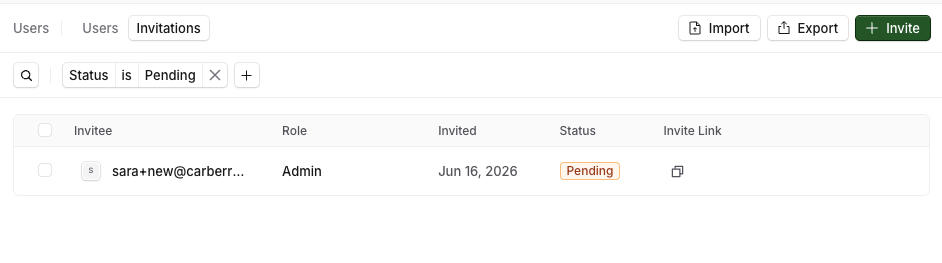
Go to Users → Invitations to see who hasn’t accepted yet. The list shows each person’s email, the role they were assigned, how long ago the invitation was sent, and its status (Pending or Accepted). Click the ellipsis icon (…) next to an invitation to revoke it.
View active users
Once someone accepts, they move to the Users tab. From there you can see their name, email, role, group, and the date they accepted, and change their role or revoke their access at any time using the ellipsis icon.
Related articles
If you have any further questions, contact the Solidroad team via the Help tab in the platform.