Provisioning roles, groups and workspace access with SSO and SCIM
Last updated: September 15, 2026
Once your SSO or SCIM connection is active, your identity provider can set each user’s Solidroad role, add them to groups and grant them access to linked workspaces on every login or sync. This article explains the Advanced Settings on an SSO or SCIM connection, what each option reads from your identity provider, and how the values map to Solidroad. It assumes you have already set up SSO (and SCIM, if you use it) in your workspace.
How values are read
Role assignment and group membership are two independent settings in the connection’s Advanced Settings. You can enable either, both or neither. Each can read its value in one of these ways:
Via SAML Attribute: the value comes from a claim in the SAML assertion when the user signs in.
Via SCIM Attribute: the value comes from a user attribute synced from your directory.
Via SCIM Groups: the value is created from SCIM group creation and membership.
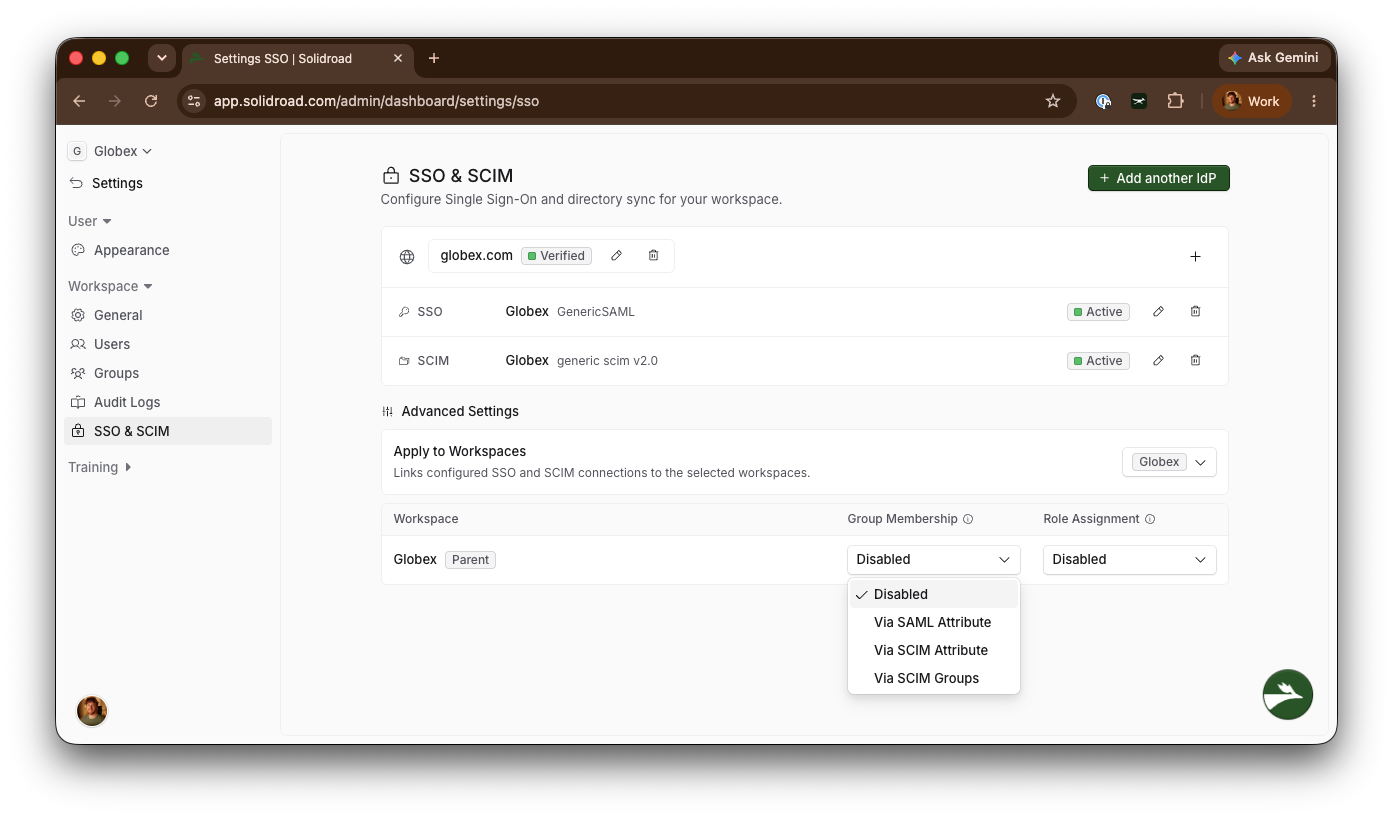
Solidroad groups and SCIM groups are different concepts. You can provision Solidroad groups from SCIM groups, but the terms are not interchangeable.
Role assignment
Solidroad sets each user’s role from a single-valued role claim sent by your identity provider. Standard roles are matched by display name, so a role value of Admin assigns the Admin role. The role names are listed in Roles and Permissions Explained. If the value is unknown or empty, the user’s current role is left unchanged.
Group membership
Solidroad adds users to groups from a multi-valued groups claim. Assignment is additive, and existing groups are reused by name.
A single value such as Support adds the user to the Support group.
Multiple values such as Support and Sales add the user to both groups.
Use / to nest groups. Support/Tier 2 creates Tier 2 under Support and adds the user to the leaf group (Tier 2) only.
Alternative emails
Some users sign in to an external system with a different email from their Solidroad login. For example, Alice signs in to Solidroad as alice@example.com but to Zendesk as alice@internal.example.com. To make sure Alice is matched with her Zendesk conversations in Solidroad, you can supply a list of her other emails via a SAML or SCIM attribute.
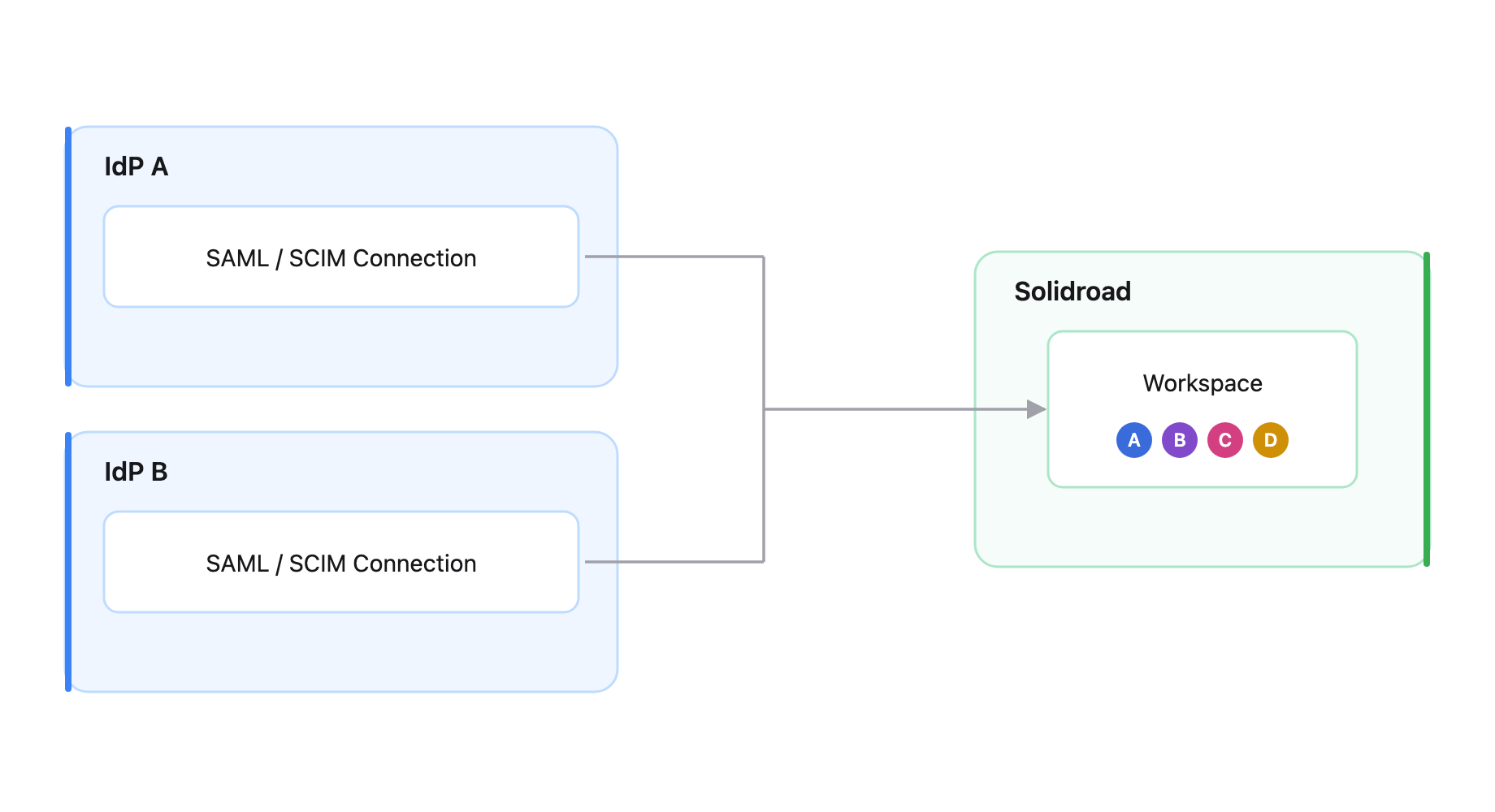
Multiple identity providers
Click + Add another IdP to add another SSO connection to the workspace. The setup process is the same as for the first identity provider.
Linked workspaces and workspace access
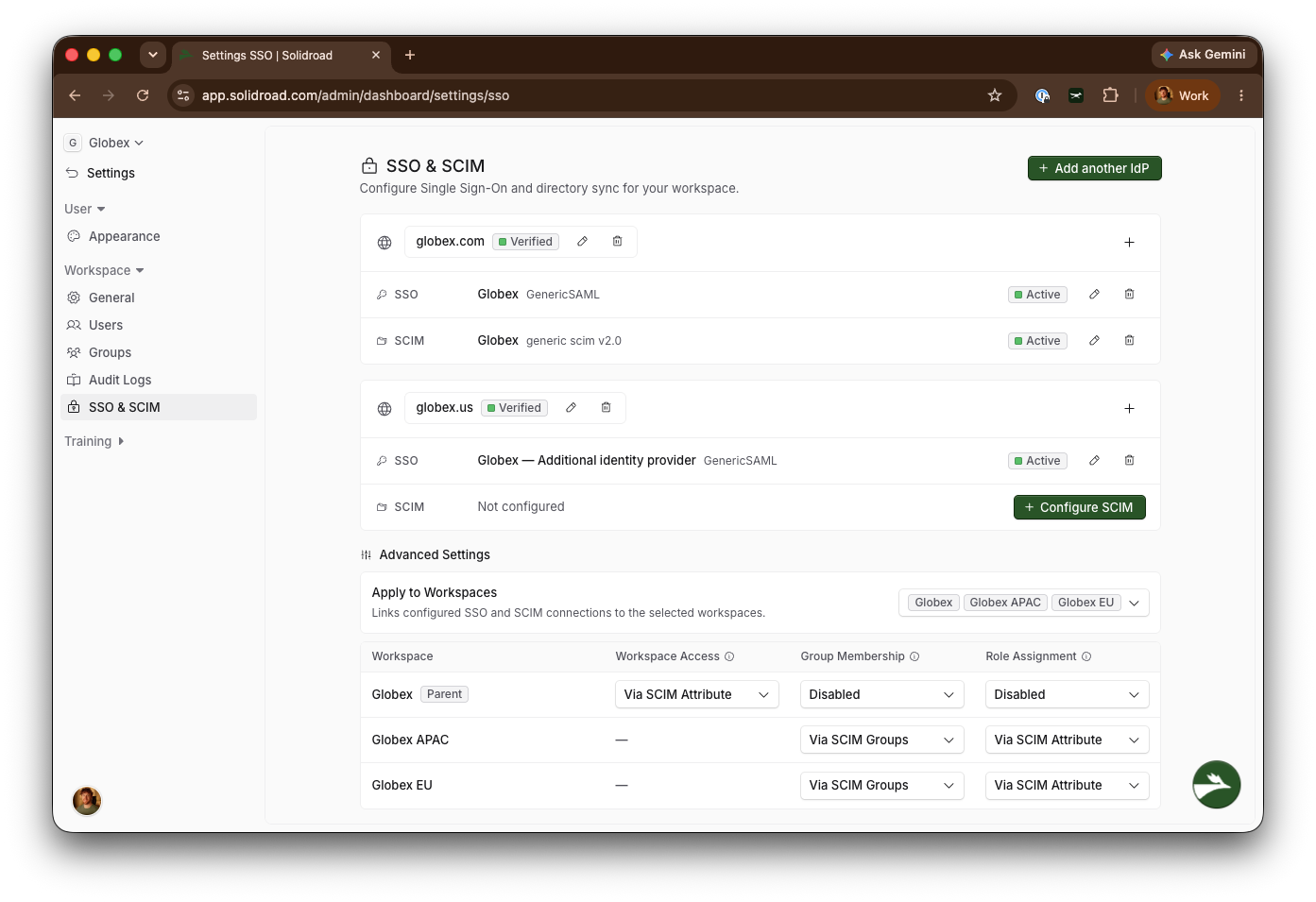
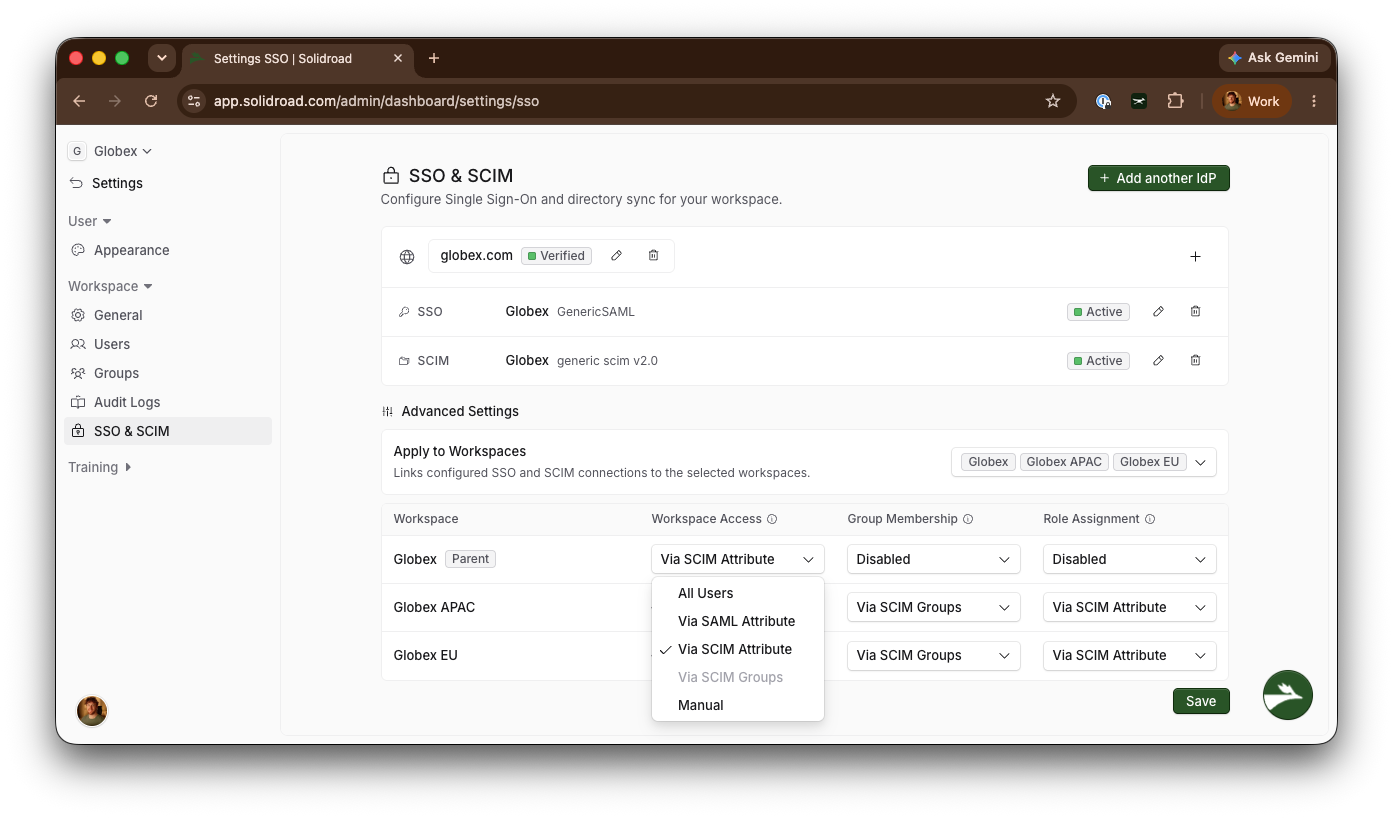
If you are an Admin of more than one workspace, you can apply your configured SSO and SCIM connections to those other workspaces with the Apply to Workspaces advanced setting.
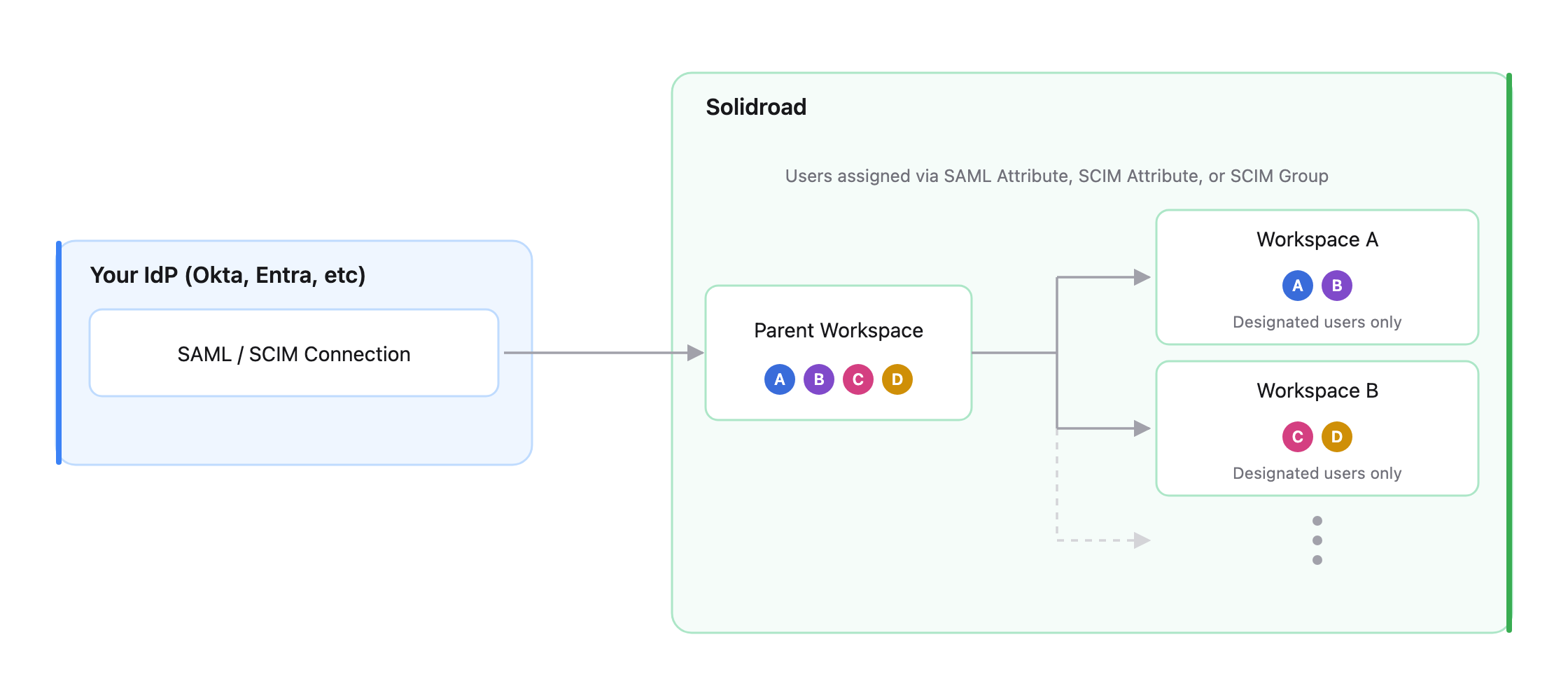
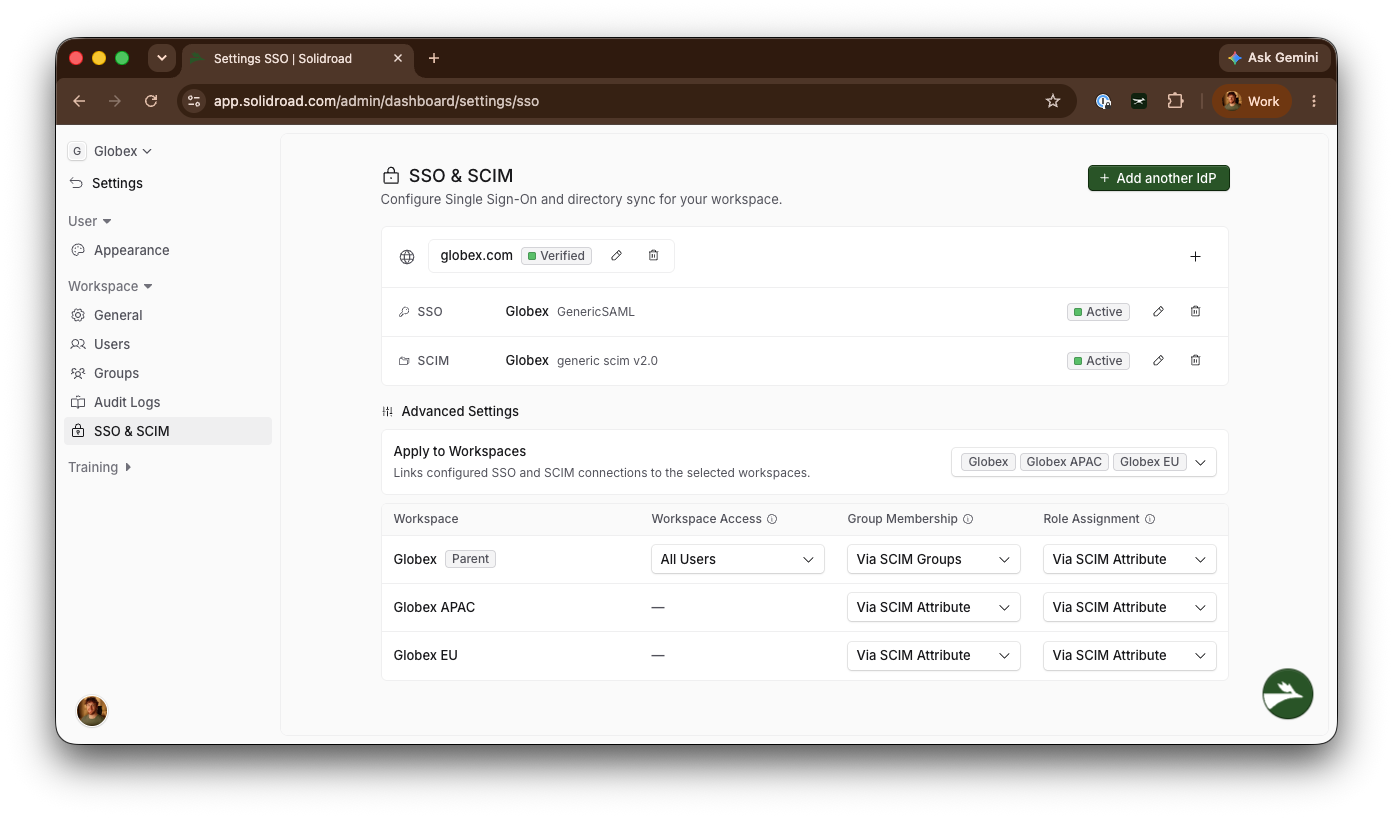
Option | What it does |
|---|---|
All Users | Every user gets access to every linked workspace. |
Via SAML Attribute | Access is granted per user from a SAML attribute. The value must exactly match the workspace name; multiple values are accepted. |
Via SCIM Attribute | Access is granted per user from a SCIM attribute. The value must exactly match the workspace name; multiple values are accepted. |
Via SCIM Groups | Access is granted through SCIM group membership. |
Manual | Users must still be invited to each linked workspace within the app. |
Related articles
Roles and Permissions Explained
How to Create Groups, Teams, and Learner Roles
If you have any further questions, contact the Solidroad team via the Help tab in the platform.