How to set advanced settings for an assignment
Last updated: October 28, 2026
Learn how to set start dates, attempt limits, scores, and more to customize your assignment with advanced settings.
To fine-tune your assignment with specific parameters, follow these steps:
Log into your Solidroad admin account and create an Assignment.
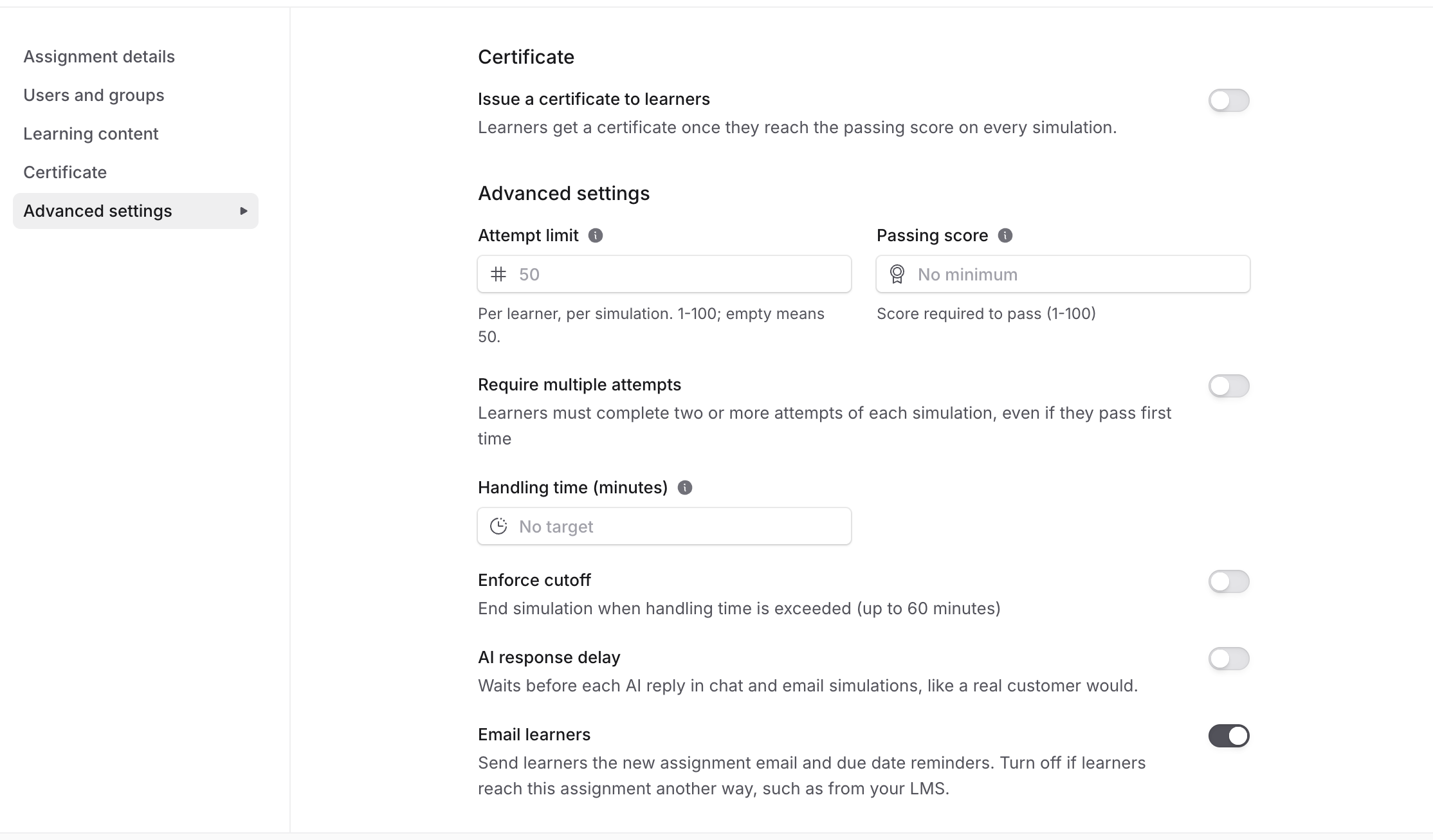
Once you are on the assignment creation page, scroll down to find ‘Advanced Settings’, and you can add more configuration to your assignment settings.
Setting | What it does |
|---|---|
Attempt limit | Sets how many times a learner can attempt the assignment. Leave the box empty for unlimited attempts. |
Start date | Click the calendar icon and pick a date. Use a date in the future so the assignment opens on that day and learners are notified then. |
Passing score | The score a learner needs to pass the assignment. |
Handling time | The time allowed, in minutes, for each simulation in the assignment. |
Enforce cutoff | Ends the simulation automatically when the handling time is reached. The system records where the conversation stopped and scores the simulation up to that point. |
Require multiple attempts | Learners must complete at least two attempts of every simulation in the assignment, even if they pass the first one. Turn this on when repetition is the point rather than the result, such as a script you want internalised, or a call type where one good run is not proof of consistency. |
Multichat | Lets learners handle several conversations at once, as they would in a live chat queue. Use it when managing parallel conversations is part of the skill you are training. The toggle stays greyed out unless every simulation in the assignment is a chat simulation, and hovering it shows "All scenarios must be chat type to enable multichat." |
AI response delay | Adds a pause between the AI customer's replies so the pacing feels like a real conversation rather than instant responses. Worth turning on for chat and email simulations, where instant replies let learners move faster than they ever would on a live queue. The toggle stays greyed out until the assignment includes at least one chat or email simulation, and hovering it shows "At least one chat or email scenario is required." |
Email learners | On by default. Turn it off to assign something without emailing anyone: no new-assignment email, no reminder before the due date and no overdue reminder for this assignment. Learners still see it on their dashboard. The setting also covers learners who join a linked group later, scheduled assignments when they open, and copies made with Duplicate. Turn it back on before the due date and the reminders send as normal. |
3. After configuring advanced settings, you can finalise the assignment by choosing to Save as Draft, Save and Schedule, or Save and Set Live.
Related articles
If you have any further questions, contact the Solidroad team via the Help tab in the platform.