Assignments and notifications: group membership, scoring, and completion emails
Last updated: September 15, 2026
This article answers the three questions teams ask most often about assignments: what happens when you add a new person to a group that already has an assignment, why a simulation sometimes does not count toward an assignment, and how to handle the completion emails you receive. It is written for Admins, Trainers, and anyone who manages assignments and groups.
Before you start: some of the controls described below depend on your role. If you don't see Assignments or the buttons mentioned here, check your permissions with your account owner.
Adding a new person to a group: do they get the group's assignments?
Yes. When you add someone to a group, Solidroad automatically gives them every active assignment tied to that group. You do not need to assign anything by hand.
This covers assignments that are live now, scheduled to start later, or still in draft, as long as they have not expired or been deleted. The new member receives an assignment record for each of them.
How to add a member to a group
Go to Settings → Workspace → Groups and open the group.
Click Add member. This opens the Add Members dialog (the title also shows the group name).
Select the people you want to add.
Click Add Members to confirm.
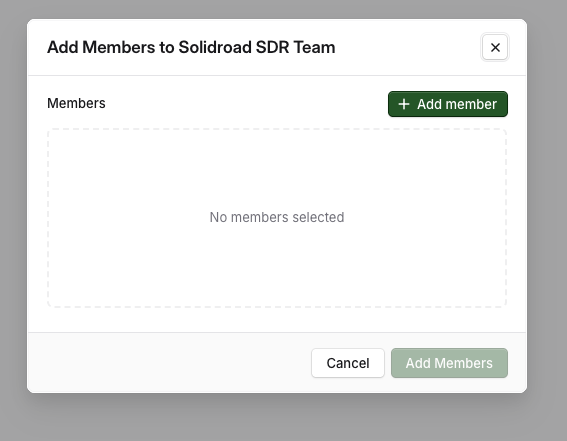
The new members are enrolled in the group's active assignments automatically. This usually happens right away. In some cases there can be a short delay before the assignment appears for the learner, so if it is not there immediately, give it a little time and refresh.
Auto-adding members by email rule
You can also have people join a group automatically based on their email address. This enrolls them in the group's active assignments in the same way.
Go to Settings → Workspace → Groups and open the group.
Under Assignment rule, click + Add Enrolment rule.
Set the email condition.
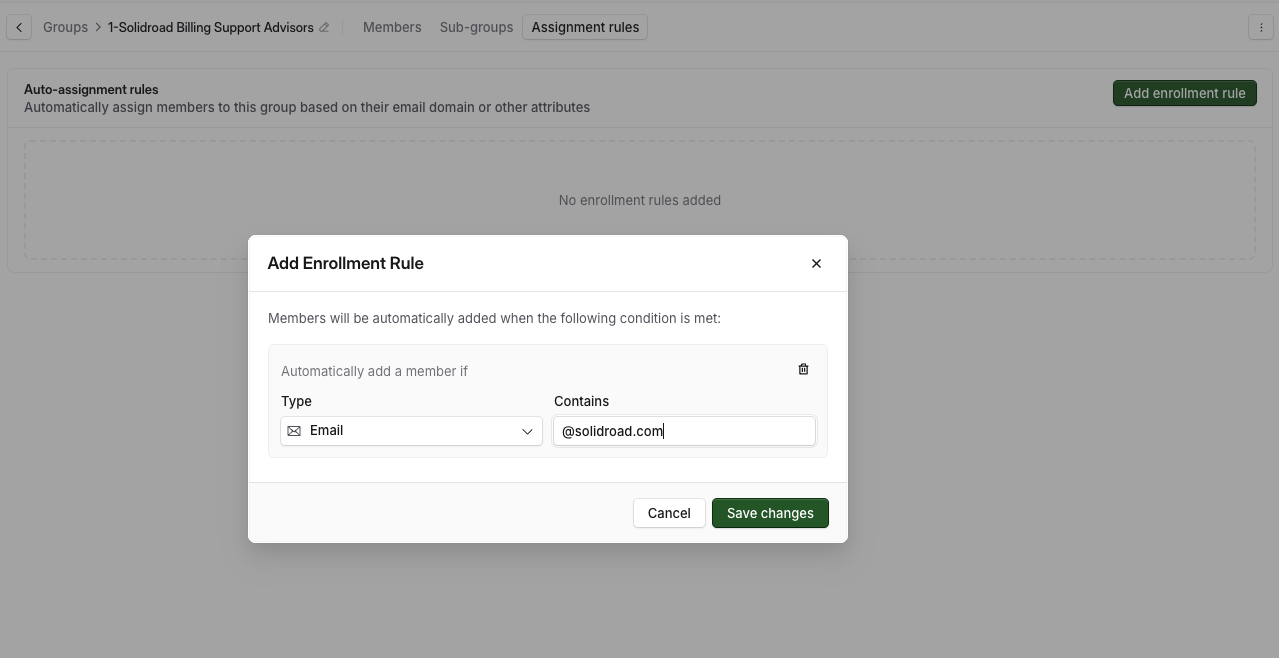
When someone's email matches the rule, they are added to the group and receive the group's active assignments, exactly as if you had added them by hand.
If you need one specific person enrolled immediately
If you want a particular person on an assignment right away without relying on group membership, add them directly to the assignment instead:
Go to Assignments (under the Training tab) and open the assignment.
Open the Learners step and find the Users and Groups section.
Add the person under Users. You can target individual users, groups, or both.
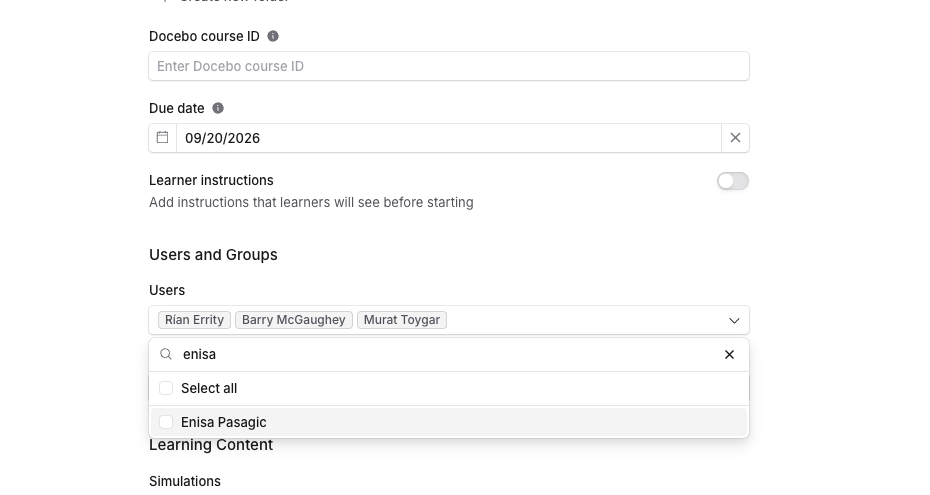
An assignment needs at least one user or group. Adding a person directly is the fastest way to enrol one specific learner.
A note on SSO-created groups
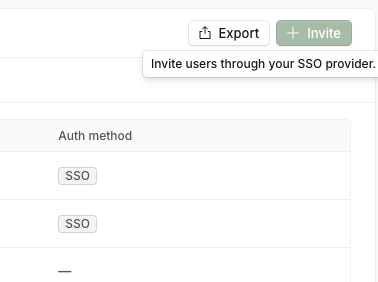
If a group was created by your single sign-on (SSO) provider, you manage its membership through that provider, not in Solidroad. The Add member button is turned off for those groups, and hovering it shows "Invite users through your SSO provider." Add or remove people in your identity provider instead.
Why a simulation sometimes does not count toward an assignment
A simulation only counts toward an assignment when the learner launches it from inside the assignment. If a learner opens a practice or library link instead, that attempt is saved as practice and does not credit the assignment.
The learners should follow these steps:
Open My Assignments in the left-hand navigation.
Open the assignment.
Click Start next to a scenario to launch it.
The Start button inside an assignment is what links the attempt to the assignment, so the score is recorded against it. A standalone or practice link will not move the learner's progress on the assignment, even if they complete the scenario.
Notifications: what gets sent and to whom
Learners receive a "new assignment" email
When a learner is added to an assignment that is live now, they receive an email so they know they have something to do:
Heading: You have a new assignment
Body: "There's a new assignment waiting for you in Solidroad. It's due on [date]."
A View assignment button takes them straight to it
Assignments that are scheduled or still in draft do not send this email. The learner is enrolled quietly, and they will see the assignment when it becomes live.
Admins receive a completion email for each learner
When a learner finishes every scenario in an assignment, Solidroad emails the person who created the assignment. The subject is "Assignment Completed: [assignment name]".
This email is sent once per learner per completed assignment. If many people complete the same assignment, the creator receives one email for each of them.
Related articles
If you have any further questions, contact the Solidroad team via the Help tab in the platform.