How to make learners take simulations in order
Last updated: November 5, 2026
By default, learners work through the simulations in an assignment in whatever order they like. Setting an assignment to In order locks each one until they have cleared the one before it. This covers setting that up, what learners see, and what counts as clearing a step.
Step 1: Choose how learners take them
Create or edit the assignment and open Learning content.
Under How learners take them, choose one:
Any order lets learners start any simulation at any time. This is the default.
In order locks each simulation until the one before it is cleared.
All at once gives learners several chat conversations at the same time. This was previously the Multichat setting.
With In order chosen, set Unlock the next one to either after finishing a simulation with any score, or after reaching the passing score.
If you chose to unlock after passing, set Passing score under Advanced settings. Saving without one stops on the field and says Add a passing score, or unlock after finishing.
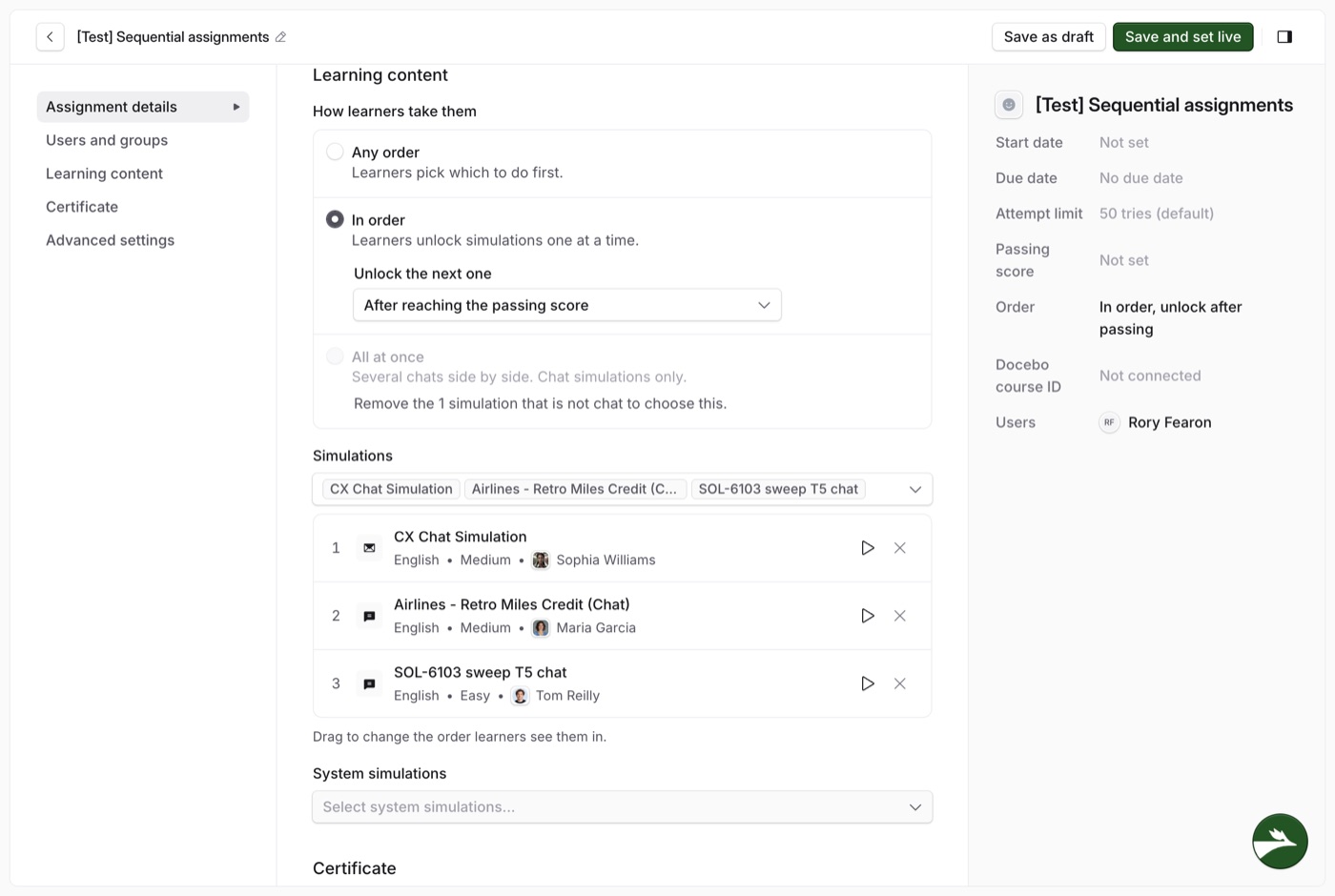
Step 2: Put the simulations in order
Drag the simulations into the order you want. The list is numbered as you arrange it, and that is the order learners follow.
What learners see
The assignment shows one numbered list with a progress header, such as 1/3 complete. A step they can reach shows Start, and one they have already done shows Passed or Try again.
A locked step is greyed out, shows a lock icon and has no Start button. They can only start the first step they have not cleared.
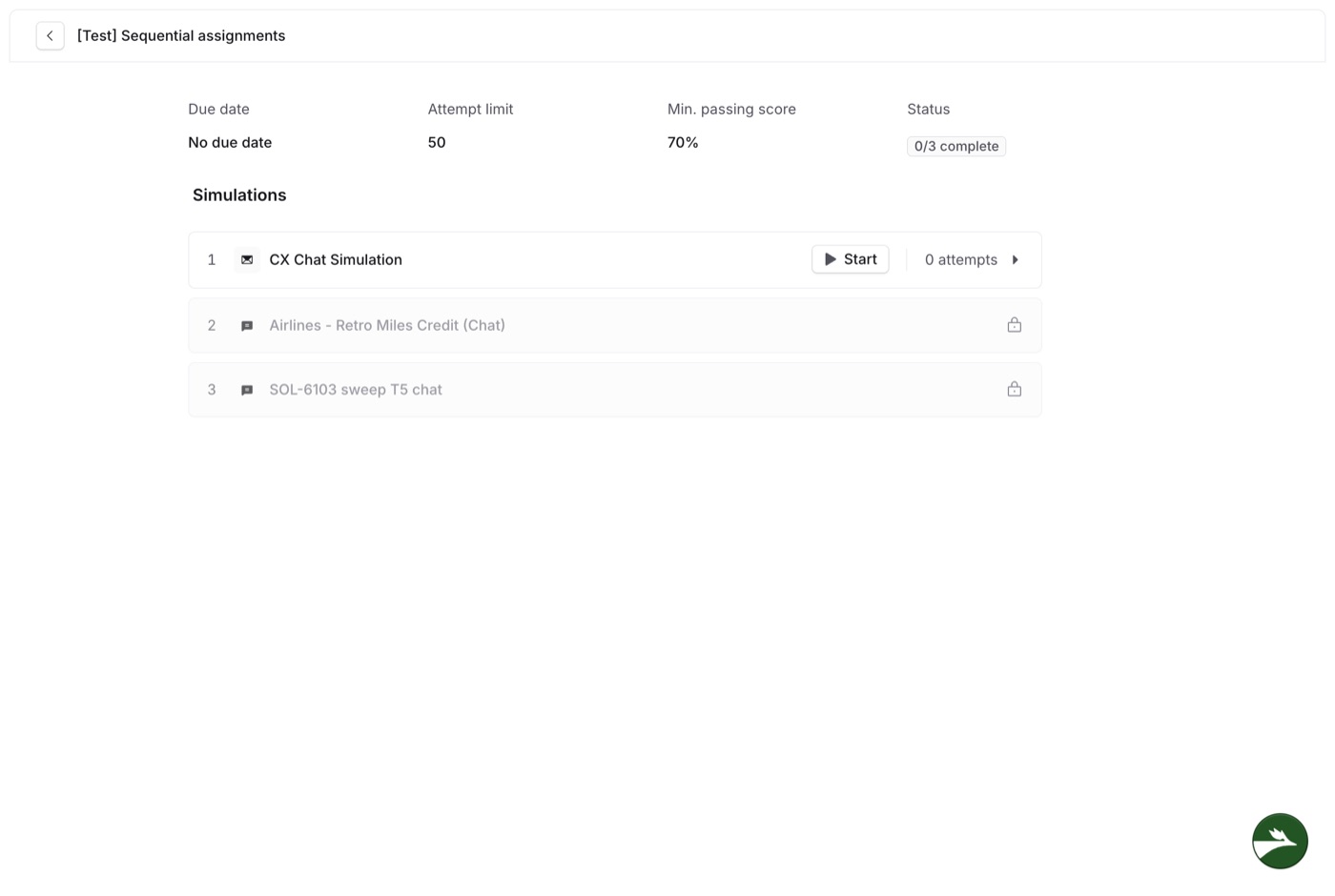
What clears a step
Step | Unlock after finishing | Unlock after passing |
|---|---|---|
A scored simulation | Any finished attempt | An attempt at or above the passing score |
An unscored simulation | Any finished attempt | Any finished attempt |
A required system simulation | A completed attempt | A completed attempt |
An optional system simulation | Always cleared | Always cleared |
An attempt that is already running still counts, even if the step locks part way through, and nothing the learner does during it is blocked.
Checking where learners are
Expand a learner in the assignment's learners table to see their steps in order, with the ones they have not reached marked Locked. The assignment summary carries an Order row, for example In order, unlock after passing.
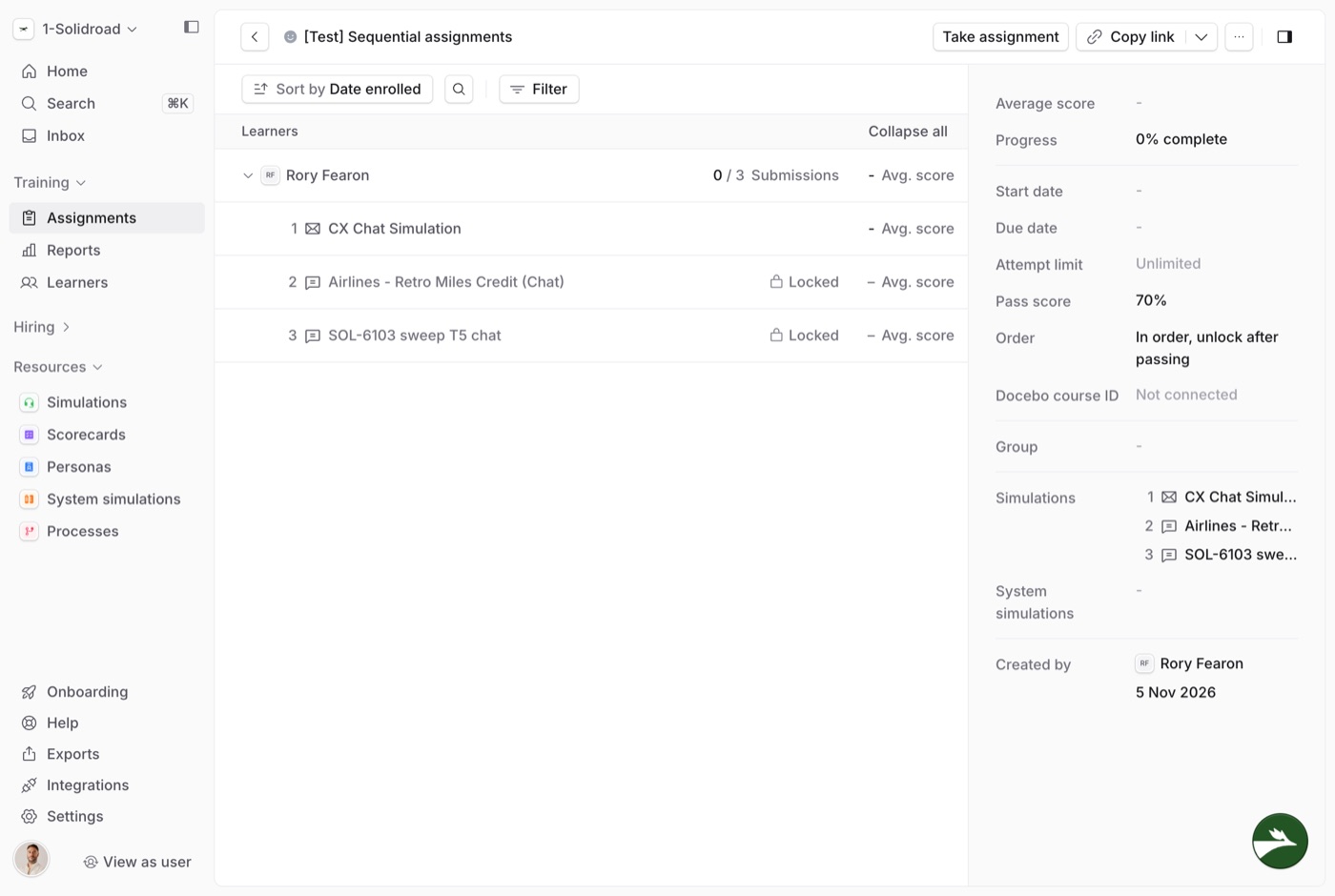
If you change an assignment that is already live
Reordering the simulations does not take away a step a learner has already cleared.
A step cleared out of order stays cleared, but it does not open the one after it. The learner clears that one in the usual way.
What is not locked
Assignments set to Any order or All at once.
A simulation opened from the Simulations library or from a direct link. The order applies inside the assignment only.
Hiring assessments.
Related articles
If you have any further questions, contact the Solidroad team via the Help tab in the platform.