Understanding the assignment view
Last updated: September 17, 2026
Opening an assignment shows you everyone it was given to, how far each person has got, and what they scored. This is where you check progress partway through, find the people who have not started, and read an individual attempt. The settings the assignment was built with sit in a panel on the right, so you can see the due date and the pass score without leaving the page.
What the list shows
Each row is one learner. Next to the name you get:
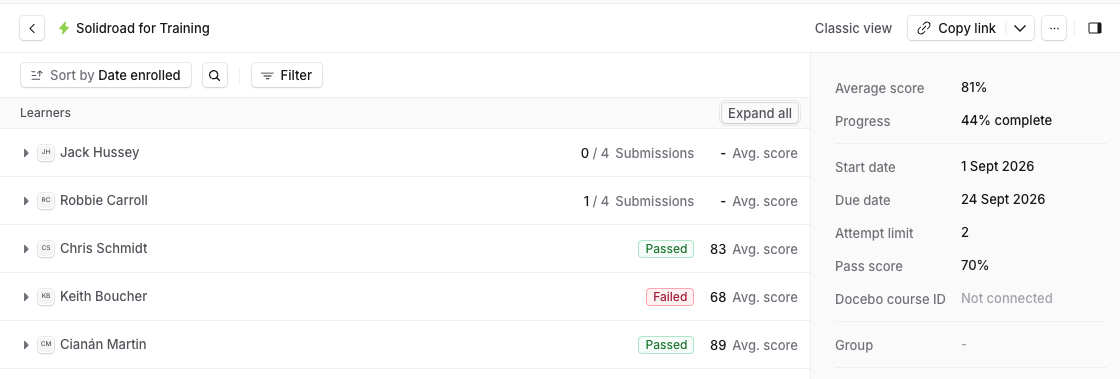
Submissions, shown as a count out of the number of simulations in the assignment, so 1 / 4 Submissions means one of the four is done.
Avg. score, their average across what they have submitted. A dash means they didn't submit enough simulations yet, so there is nothing to average.
A Passed or Failed badge once they have finished, worked out against the pass score in the details panel.
A learner can have submissions and still show no badge. That means they are partway through and the assignment has not been judged yet.
Opening a learner's attempts
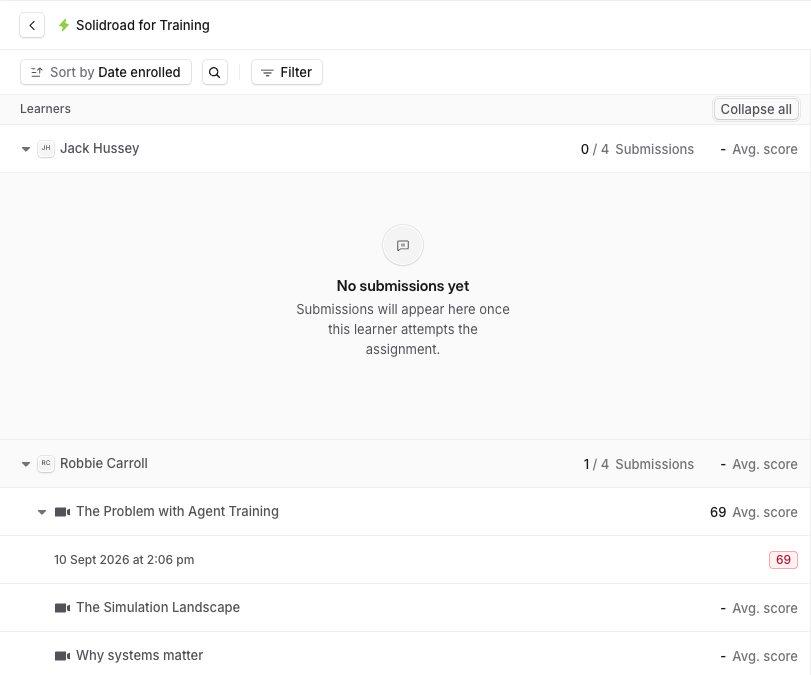
Click the arrow beside a name to expand that learner, and you get the simulations in the assignment listed underneath with their score on each. Expand a simulation and you get each individual attempt, with the date and time it was taken and the score it got, so you can see whether a second attempt improved on the first.
Expand all opens every learner at once and turns into Collapse all.
If a learner has done nothing, expanding them shows No submissions yet and Submissions will appear here once this learner attempts the assignment. That is the quickest confirmation that the problem is a learner who has not started rather than a result that has gone missing.
Narrowing the list with filters
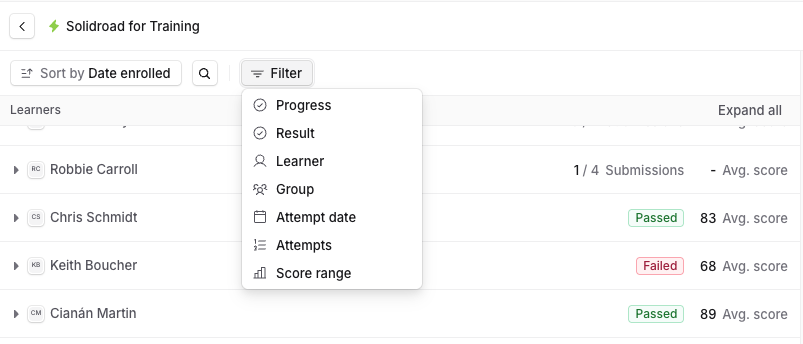
Filter opens a list of seven things you can filter by.
Filter | What it narrows by |
|---|---|
Progress | Submitted, In progress or Not started. You can tick more than one. |
Result | Passed or Failed. |
Learner | Named people. |
Group | A group, rather than picking people one by one. |
Attempt date | When the attempt was made. |
Attempts | How many attempts someone has made, as a Range, or using >, <, Any of or None of. |
Score range | A minimum and maximum score. |
Each filter you add becomes a chip above the list. The X on a chip removes it, and + adds another, so you can stack them: Progress set to Not started with a Group filter gives you the people on one team to chase. The filters that take numbers, Attempts and Score range, need Apply before they take effect.
Filtering to Not started a few days before the due date is the usual way to work out who needs a reminder.
Sorting and searching
Sort by changes the order of the list and starts on Date enrolled. The search icon beside it finds one person by name, which is faster than filtering when you already know who you are looking for.
The details panel
The panel on the right holds the assignment's own settings and a summary of how it is going.
Field | What it shows |
|---|---|
Average score | The average across everyone who has submitted. |
Progress | How much of the assignment has been completed across the group. |
Start date and Due date | When the assignment opened and when it is due. |
Attempt limit | How many attempts each learner gets at a simulation. |
Pass score | The score needed to pass, which is what decides the Passed and Failed badges. |
Docebo course ID | The linked course if you use the Docebo integration, and Not connected if you do not. |
Group | The group the assignment was given to, if it was given to one rather than to named people. |
System Simulations | The system simulations included in the assignment. |
Created by | Who set the assignment up. |
These are set when the assignment is created, covered in How to create an assignment and How to set advanced settings for an assignment.
Classic view
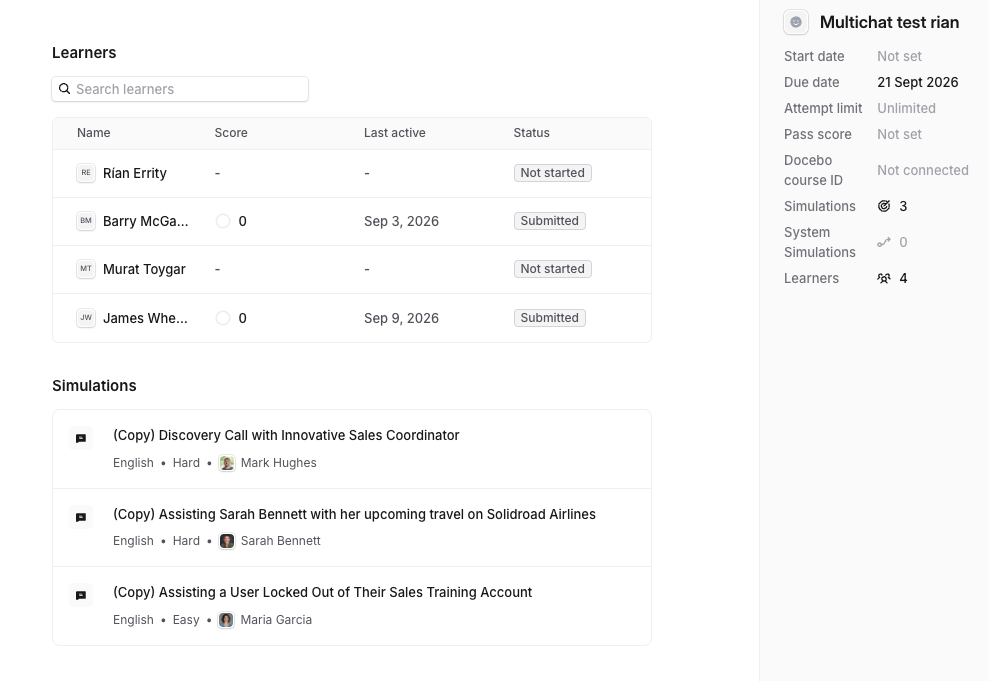
Classic view switches back to the previous layout, which is still there while people get used to the new one. It lists learners in a flat table with Name, Score, Last active, Status and Passed columns, pages through them with Rows per page, and puts the learner instructions and the list of simulations on the same page. There is no expanding a learner to their individual attempts, and none of the filters above.
The icon at the far right of the new view hides and shows the details panel, which is worth doing when you are reading a long list of learners.
Other controls at the top
Copy link copies a link to the assignment that you can send to the people taking it. The icon at the far right hides and shows the details panel, which is worth doing when you are reading a long list of learners.
Related articles
If you have any further questions, contact the Solidroad team via the Help tab in the platform.