How to add a system simulation to a simulation
Last updated: November 5, 2026
A system simulation reaches learners by being attached to a simulation, so they work in the tool while they talk to the customer. What they do in the tool counts towards the simulation's score. This covers attaching one, setting how much it counts, and what learners then see.
Before you start, the system simulation has to be published, and a simulation can hold only one.
Attach it
Go to Simulations and open the simulation.
Select Open in editor.
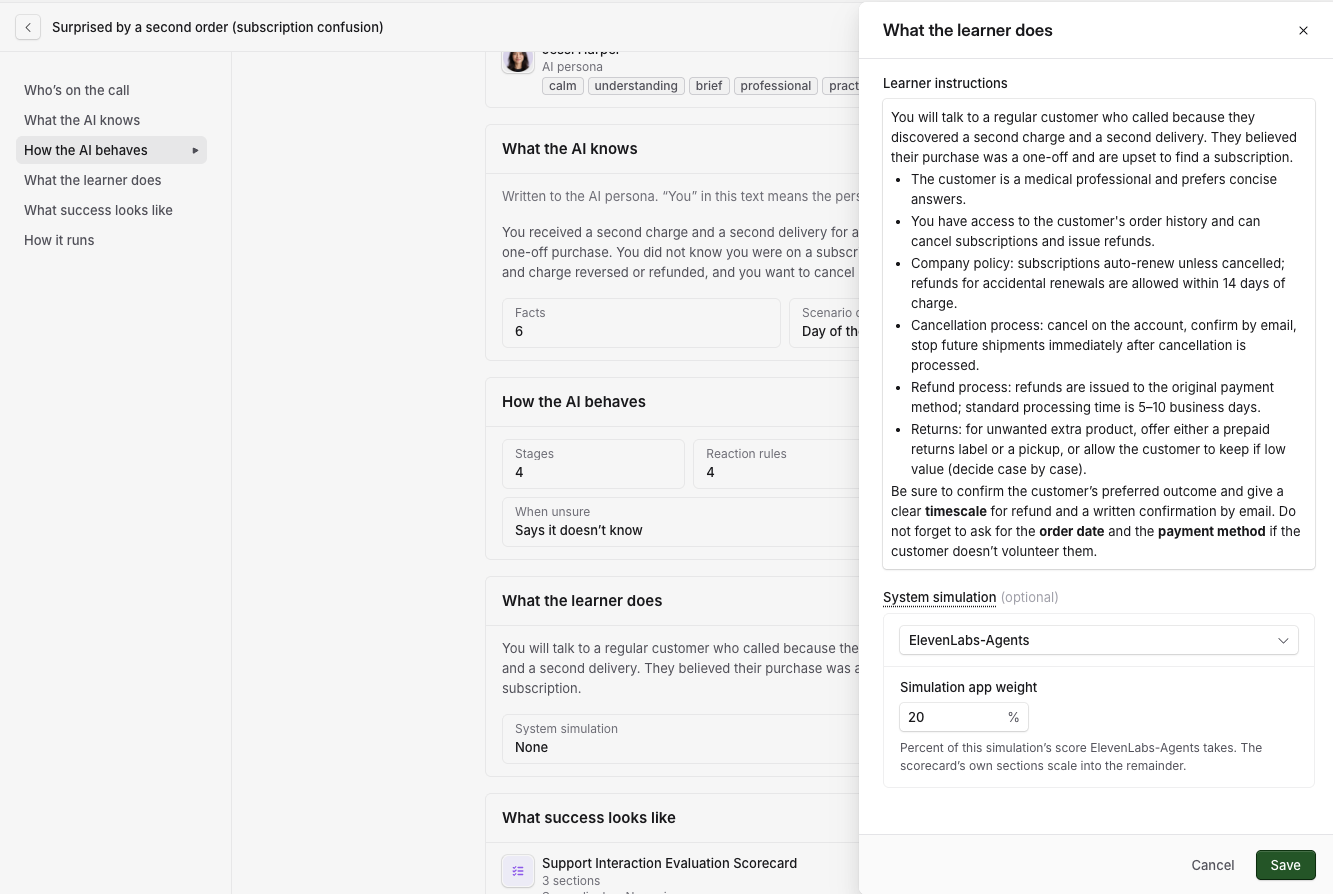
On What the learner does, select Edit.
Under System simulation, select Choose a system simulation, then pick the one you want. Each shows the collection it is in.
Set Simulation app weight, covered below.
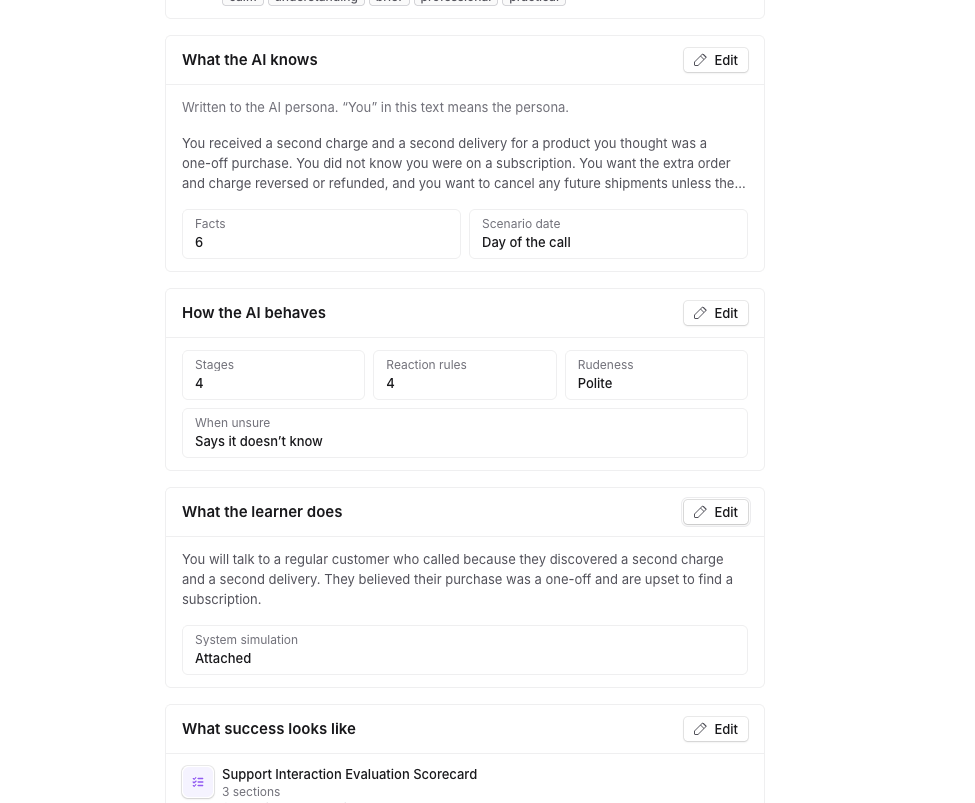
Select Save. A message confirms What the learner does saved.
The card then reads System simulation: Attached. Duplicating a simulation keeps its system simulation.
How much it counts
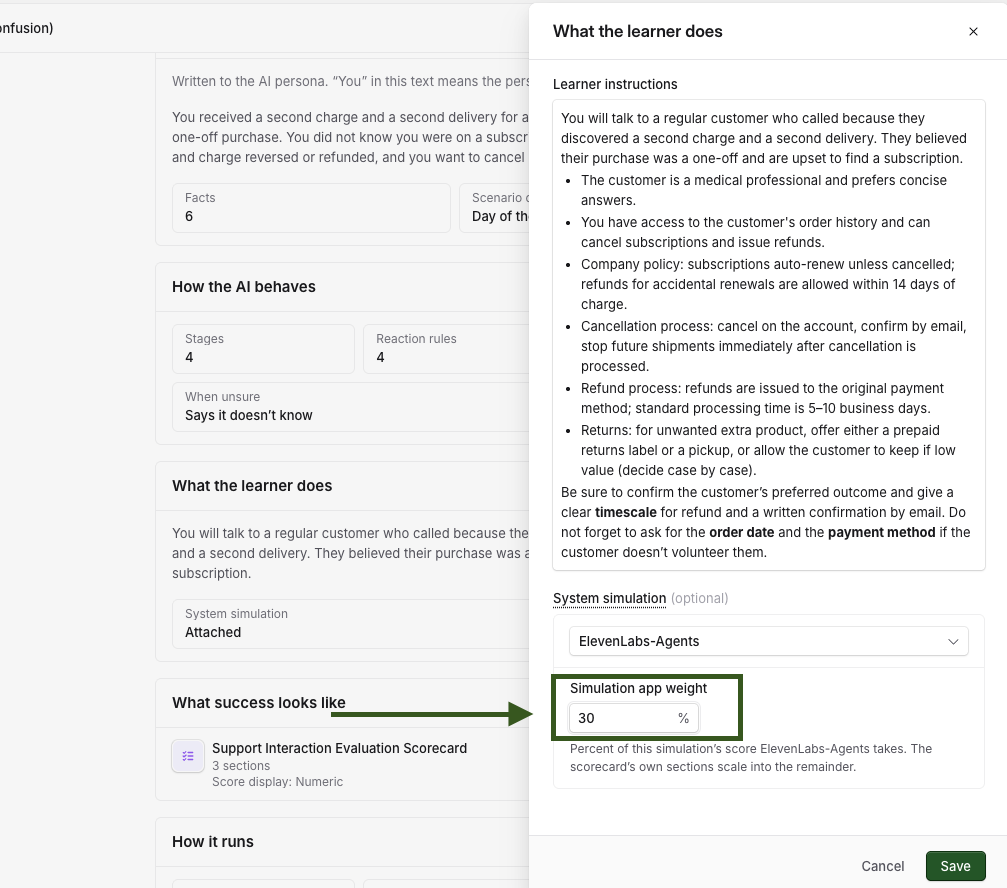
Simulation app weight is the percentage of the simulation's score the system simulation takes, and it starts at 20%. The scorecard's own sections share the rest. At 30%, the Talentbridge CRM section is 30% of the score and the five scorecard sections share the other 70%.
If the system simulation has no scoring definition, a message tells you it does not count towards the score. Add success criteria on its Scoring tab.
What learners see
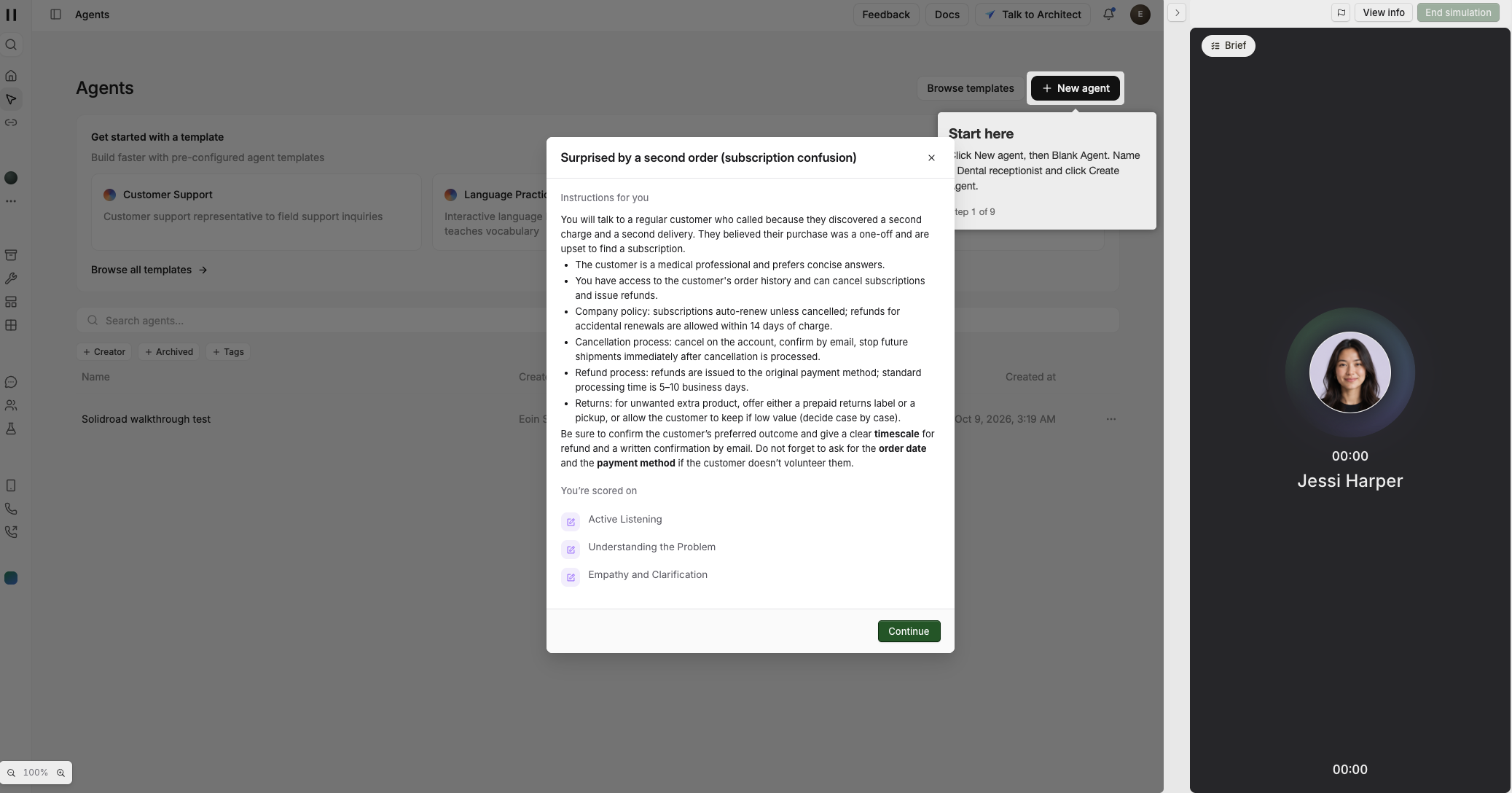
The learner opens the simulation as usual, and the start window shows their instructions and what they are scored on, with the tool already open behind it. Say in Learner instructions what you want them to do in the tool, for example "Log the call on her account and open an opportunity for the right package."
During the conversation the tool sits on the left and the conversation on the right, and learners click, type and move between screens as they would in the real one. Hide conversation panel gives the tool the full width, and the zoom buttons at the bottom left make it bigger or smaller. On a small screen the tool opens in its own tab. When the simulation runs as practice and the system simulation has a tour, tips appear on top of the tool.
End simulation saves the attempt and scores both the conversation and the work in the tool. Learners see the tool's section in their own results, with each success criterion marked met or not met.
If the tool stops loading
The link to the tool lasts an hour. A learner who leaves an attempt open for longer sees Authorization expired, please start again, and has to start the simulation again.
To remove it
Open What the learner does, select None under System simulation, then select Save.
If the system simulation has been deleted, the editor says This system simulation is no longer available. Choose another, or choose None to remove it.
Using it in an assignment
You cannot add an Interactive system simulation to an assignment on its own. Add the simulation it is attached to, and learners reach the tool inside that simulation.
Related articles
If you have any further questions, contact the Solidroad team via the Help tab in the platform.