How to test and publish a system simulation
Last updated: November 5, 2026
Learners only ever see the published version of a system simulation, so your edits sit in a draft until you publish them. A test run lets you use that draft the way a learner would, and score it against your success criteria first. This covers both, and what to do when a publish fails.
Step 1: Start a test run
Open the system simulation and select Edit.
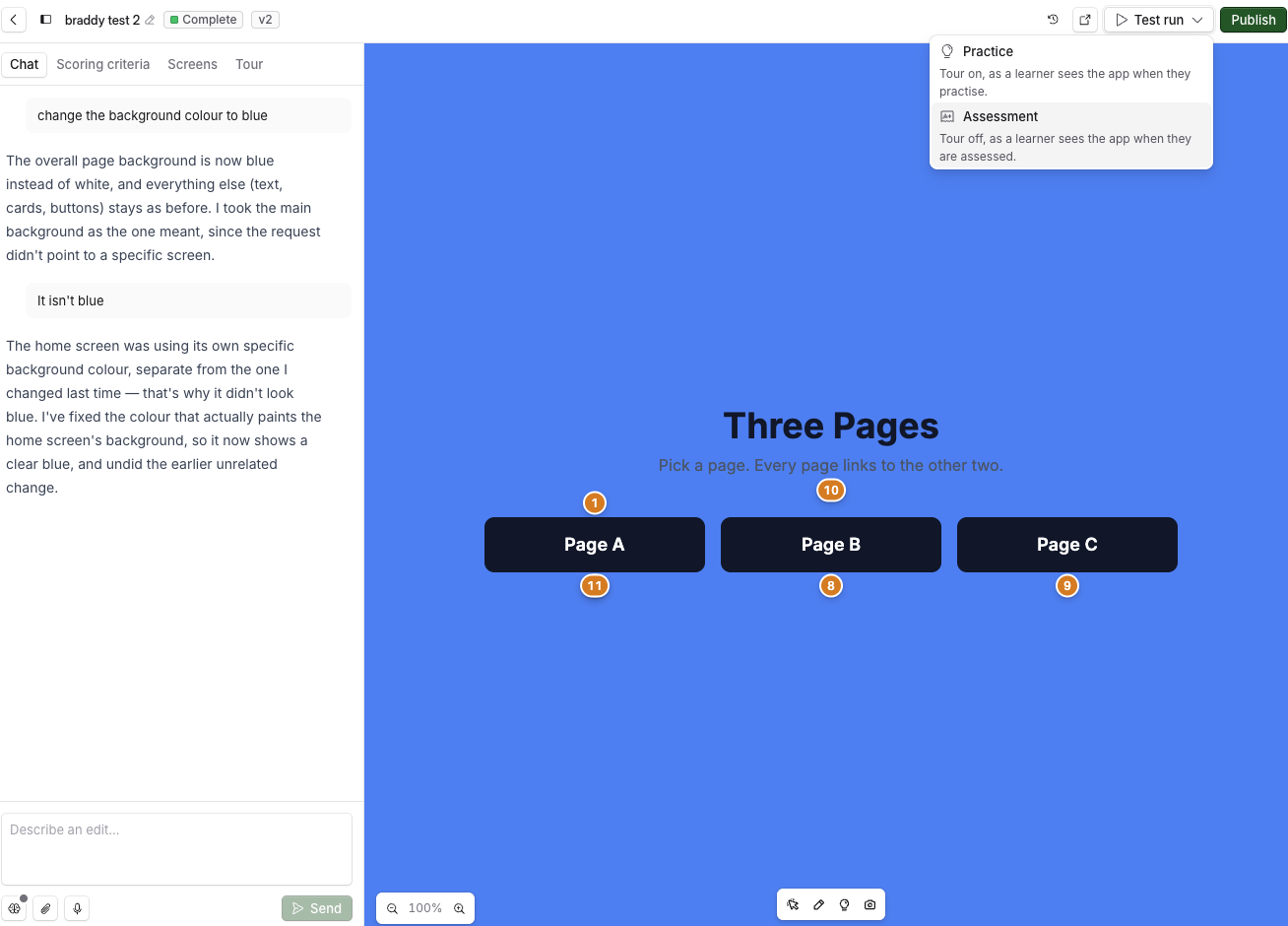
Select Test run, then Practice (Tour on, as a learner sees the app when they practise.) or Assessment (Tour off, as a learner sees the app when they are assessed.).
The bar at the top reads Test run · Practice or Test run · Assessment.
Practice is greyed out until the system simulation has a tour. Test run is greyed out while the chat is making a change, and opens again once the change is done.
Step 2: Use the app and score it
Work through the task in the app, as a learner would.
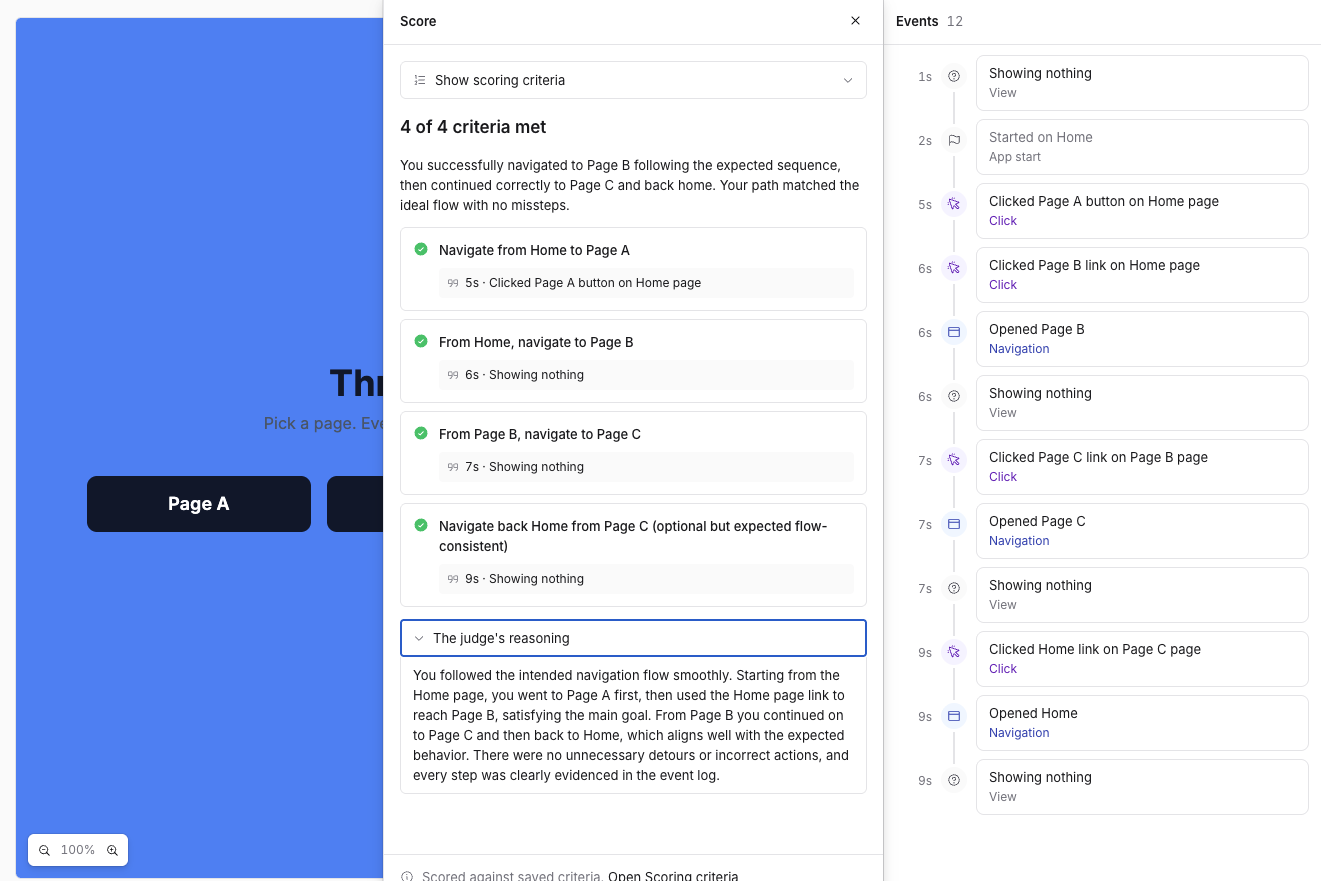
Turn on Show the events to see what the app recorded. Each click, text entry, selection and screen change appears in a list.
Select Score.
The score panel lists each success criterion as Met or Not met. Show scoring criteria puts the definition beside the result.
A criterion you did meet but that comes back Not met usually needs rewriting, so that it names the screen or the value more exactly.
Restart begins the run again, and is called New run once you have scored. Exit goes back to the editor.
Test runs are not saved as attempts and do not appear in any report.
Step 3: Publish
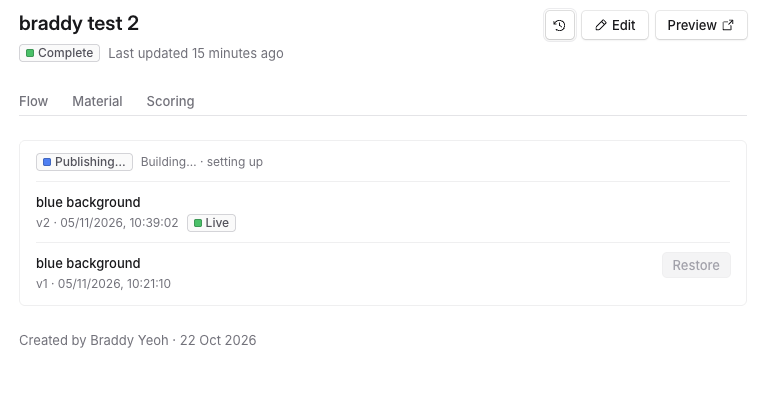
In the editor, select Publish. The panel shows the version that is live, or Never published.
In What changed in this version?, describe the change. Your team sees this in the version history.
Select Publish.
Publishing takes a few minutes and carries on if you leave the page. The panel shows where it has got to.
Status | What it means |
|---|---|
Queued | Waiting to start. |
Getting things ready… | Setting up. |
Building… | Checking and packaging the app. |
Publishing… | Making the new version live. |
Published | The new version is live. |
Open published app opens the live version. The first time you publish, the system simulation also becomes available to attach to a simulation.
What learners see after you publish
Every simulation that uses this system simulation shows the new version from the next attempt. An attempt already in progress keeps the version it started with.
If publishing fails
The panel shows The build found problems, Publish conflict or Publish failed. Select Retry publish, and contact the Solidroad team if it fails again. The live version stays as it was either way.
Preview the live version
On the system simulation's page, Preview opens the live version in a new tab. It is greyed out until you have published once. The Live app link in the Published column of the System simulations page does the same thing.
Related articles
If you have any further questions, contact the Solidroad team via the Help tab in the platform.