The system simulation editor
Last updated: November 5, 2026
The editor is where you change a system simulation after it has been built. You describe a change in a chat and the editor makes it, with a live preview beside you. Nothing you do here reaches learners until you publish.
Open the editor
Open the system simulation and select Edit. The button is greyed out until the build shows Complete, and on a locked system simulation, which says This app is locked. Unlock it to make changes.
The first time, the editor takes a few minutes to set up and shows Preparing your editor for the first time. After that it opens faster, with Opening your editor. If the setup fails, select Retry.
The editor has the Chat, Scoring criteria, Screens and Tour tabs down the left, and a live preview of your draft on the right.
Ask for a change
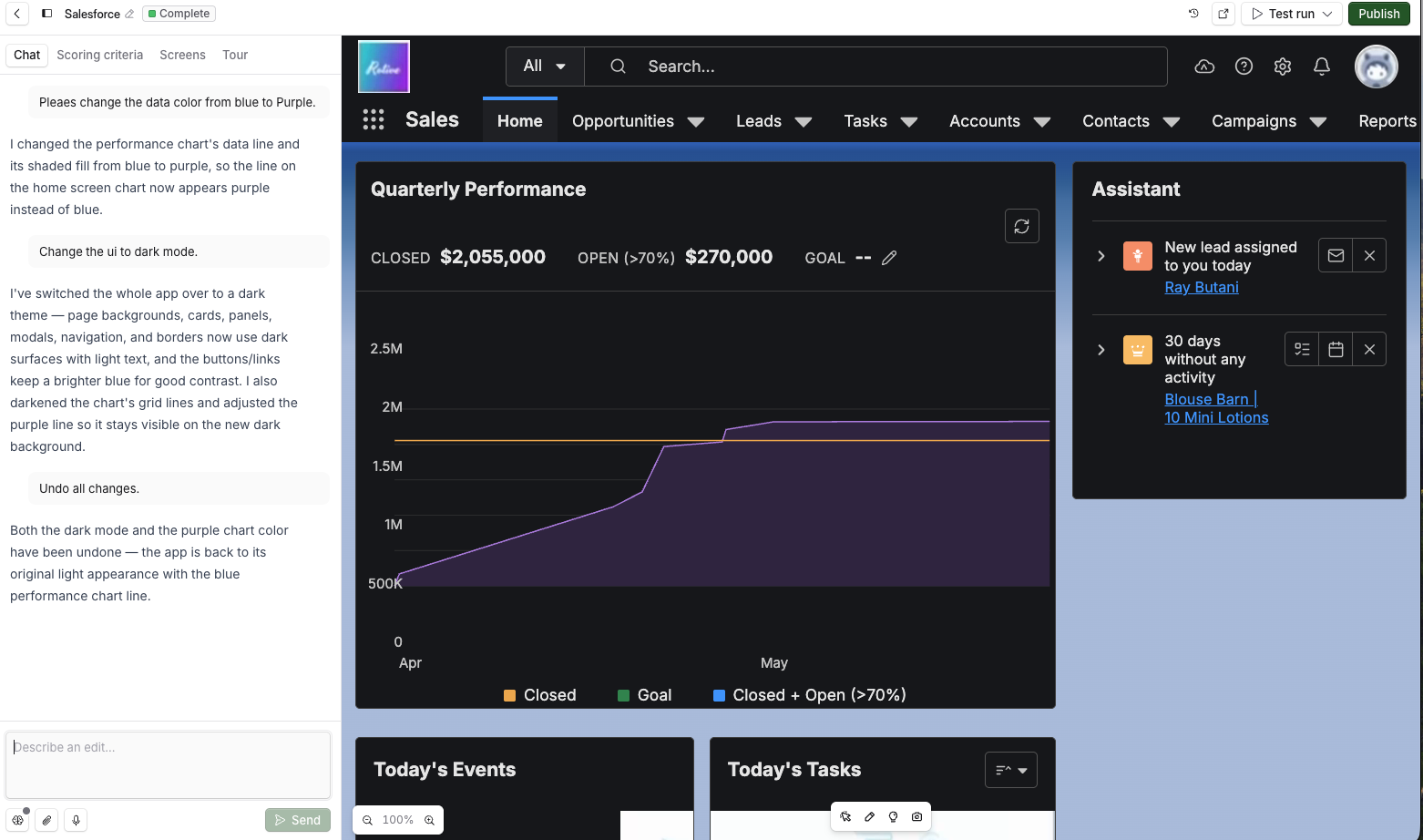
On the Chat tab, type what you want in Describe an edit…, for example "Add a Lost stage to the Stage list on New opportunity".
To point at part of the screen, select it in the preview first. The editor uses it as context for your request.
Attach an image, or use voice input, to show what you mean.
Send the message.
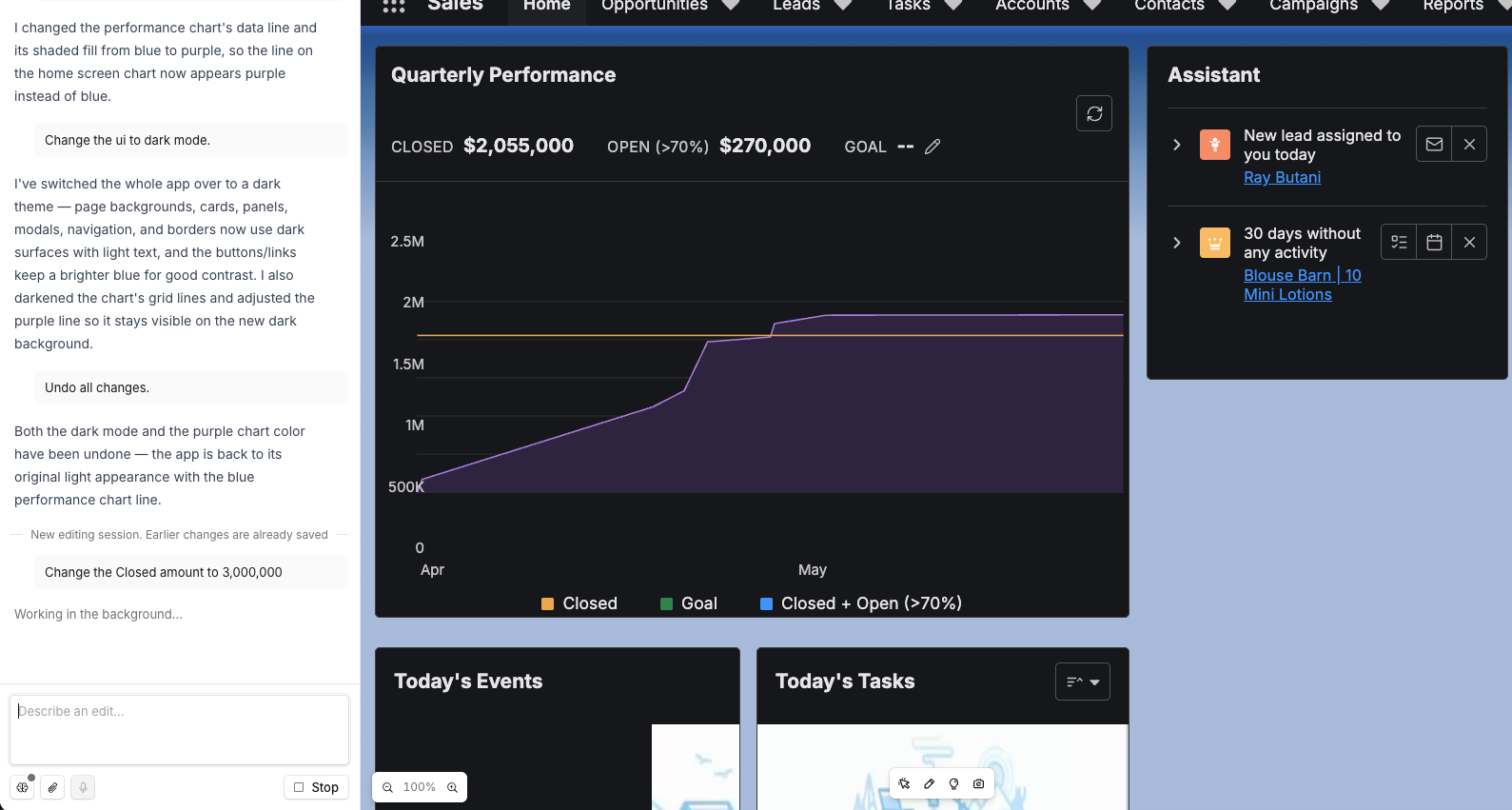
The editor shows Working on it… while it runs, and the change appears in the preview when it is done. Stop cancels it.
Changes save as you go, and learners carry on seeing the published version until you publish again.
Edit effort sets how hard the editor thinks about a request. Low is Fastest, for small obvious edits, and High Thinks hardest, for involved edits.
Check every screen and control
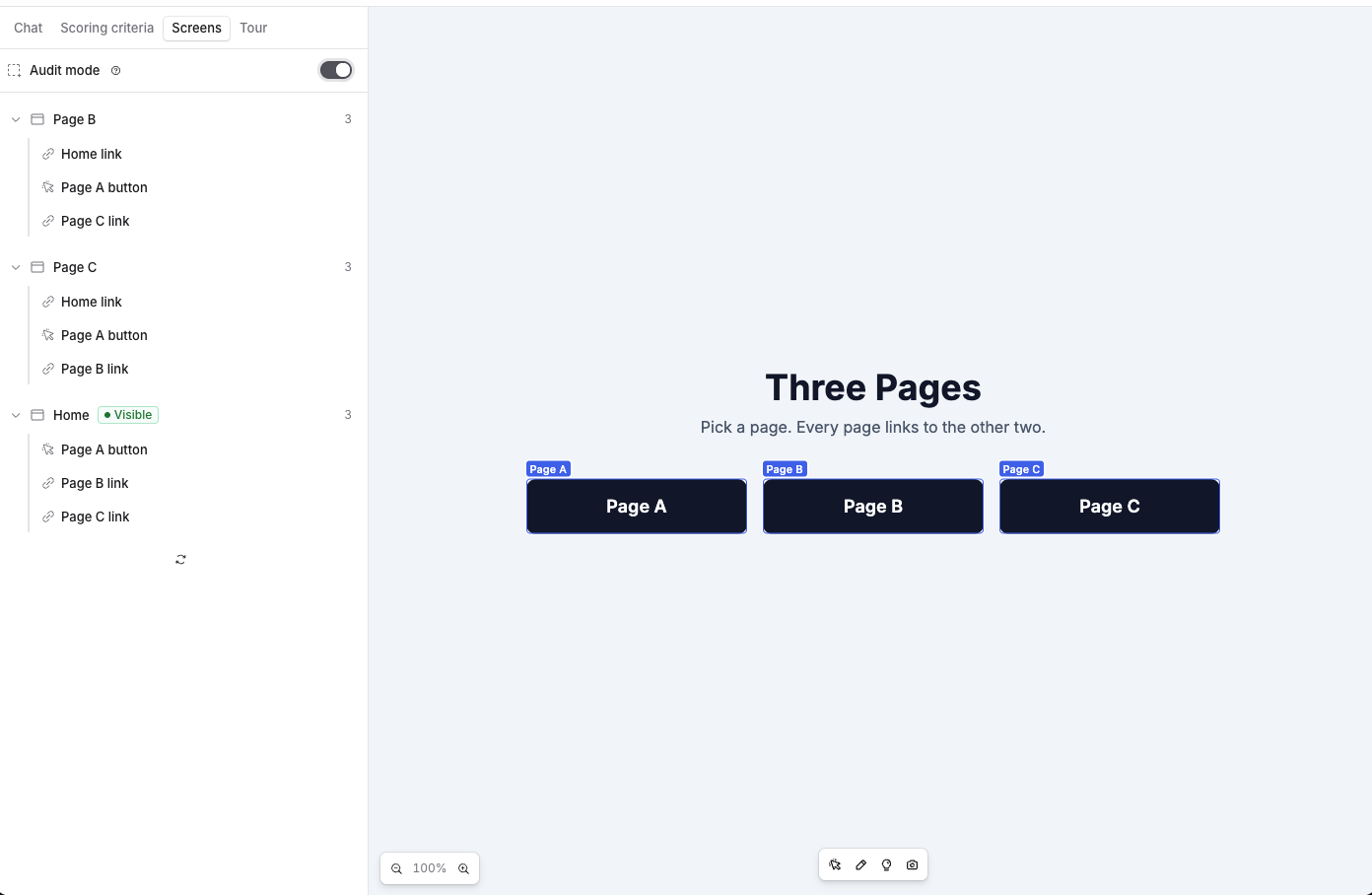
The Screens tab lists every screen in the copy, with the controls on each one. Controls that appear everywhere sit under Shared on every screen.
Point at a control in the list to outline it in the preview, or turn on the outline switch to show them all at once.
Add a guided tour
A guided tour puts short tips on top of the tool, one step at a time, so you can show learners where to click and why. Learners see it when the simulation runs as practice, and not in an assessment.
Select the Tour tab.
In the preview, go to the screen where the step belongs.
Select Add step in the preview toolbar.
Choose what the step points at: a control, an area of the screen, or the background for a step about the whole screen.
Type a heading, and the tip itself in What should the learner be told here?.
Under Continue when, choose Next is pressed so the learner reads the tip and selects Next, or The learner clicks it so the tour waits for them to click the control.
Choose where the tip sits next to the control.
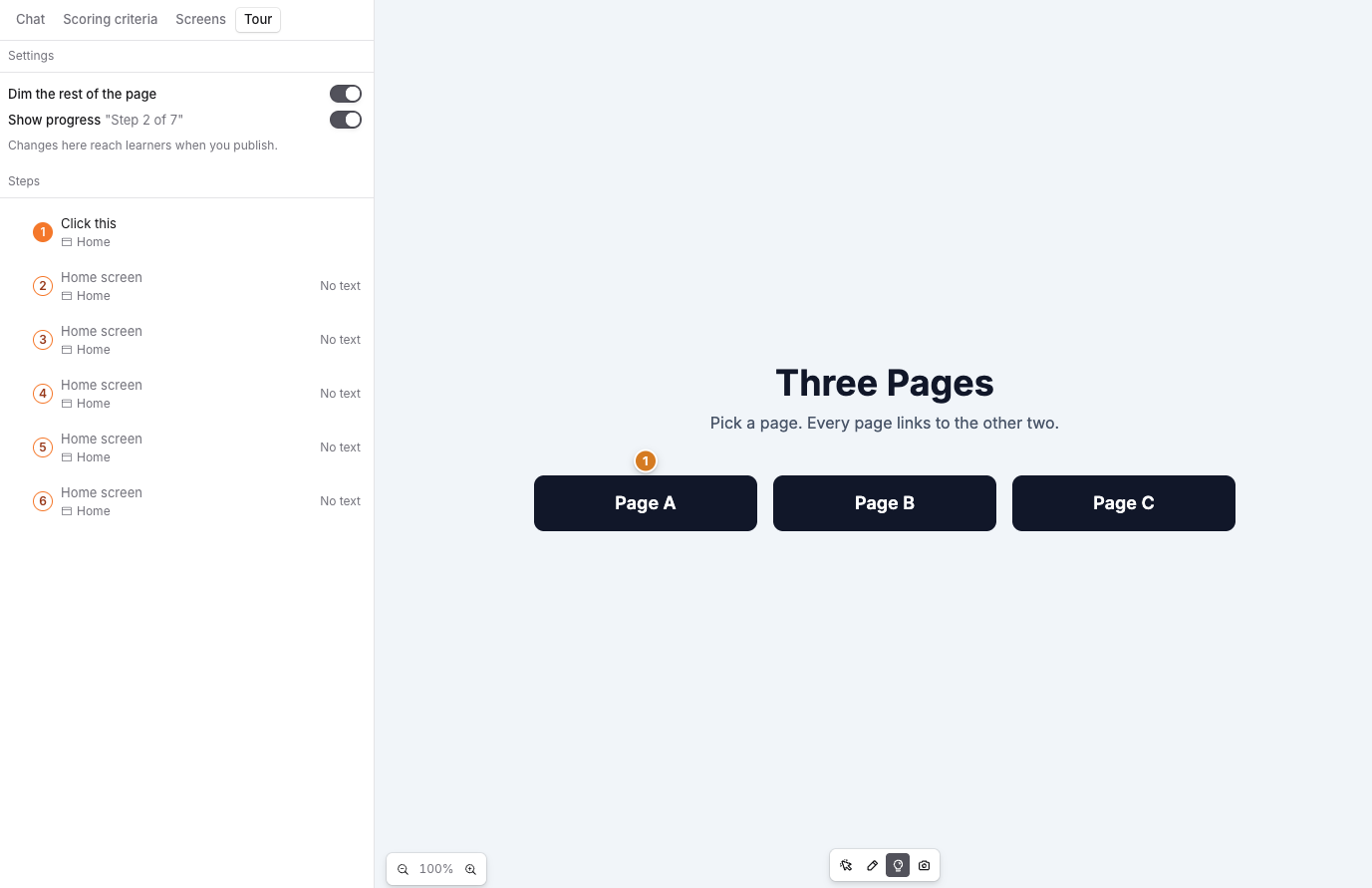
Steps save as you go, and a step with no text is skipped.
On the Northbridge Logistics account you might point a step at Log a call, headed "Log the call first", reading "Log every discovery call before you open an opportunity", set to continue when the learner clicks it.
To see the tour the way a learner does, start a test run in practice.
Change a tour step
Drag a step up or down to reorder it. Rename gives it a name you can pick out in the list, which learners never see. Preview this step shows it in the preview, and Stop previewing goes back. Delete removes it after a confirmation. Dim the rest of the page, in the tour settings, darkens everything except the control the step points at.
A step reading This step points at something that's no longer in the app. was aimed at a control that a later edit removed. Point it at something else, or delete it.
Versions
The version chip in the editor, for example v3, shows which version is live.
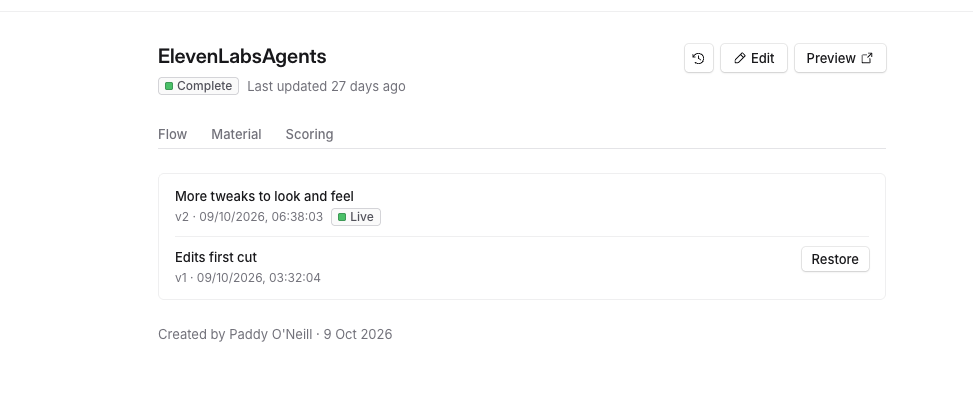
Version history, next to Edit on the system simulation page, lists every published version newest first, with its note and date. The live one is marked Live.
To put an earlier version back:
Select Restore on the version you want.
Read the message, then select Restore version and the number.
Restoring publishes that version again under a new number, so restoring version 1 while version 2 is live creates version 3, built from version 1. It goes live in a minute or two. Keep the current version backs out without changing anything.
The editor's draft resets to match the restored version, so anything you had edited but not published leaves the editor. Solidroad keeps it, so contact the Solidroad team if you need it back.
If the connection drops
Can't reach the server. means the page has lost its connection, and your edit carries on regardless. Refresh the page or check your internet connection. You see Connected again once it is back.
Related articles
If you have any further questions, contact the Solidroad team via the Help tab in the platform.