How to create a system simulation
Last updated: November 5, 2026
Solidroad builds a system simulation from screen recordings of the tool you want learners to practise in, so what you need is recordings of it rather than access to it. This covers what to record, how to upload it, and what happens while the build runs.
Step 1: Record what the learner will do
Record someone doing the real task from start to finish, the way a good agent does it. Every screen the learner needs has to appear somewhere in a recording, including the ones they reach by mistake, such as a wrong tab. A screen that is in no recordings will not be in the copy.
Work at a normal pace, and pause on each screen for a moment so every state is clear.
Fill in forms with realistic example data, never real customer data.
Record each path separately when the task branches.
Leave out passwords, API keys and any screen nobody needs for the task.
A short process document gives Solidroad the rules a recording cannot show, such as "Pick the Starter package for fewer than 6 roles a year, Growth for 6 to 20, Enterprise for more than 20". Write the steps in order using the names on screen, the rule behind each choice, and the mistakes people commonly make.
Type | Formats | Size limit |
|---|---|---|
Screen recordings | mp4, mov | 500 MB each |
Process documents | pdf, docx, md, txt | 25 MB each |
You need at least one recording. Documents are optional.
Step 2: Create the system simulation
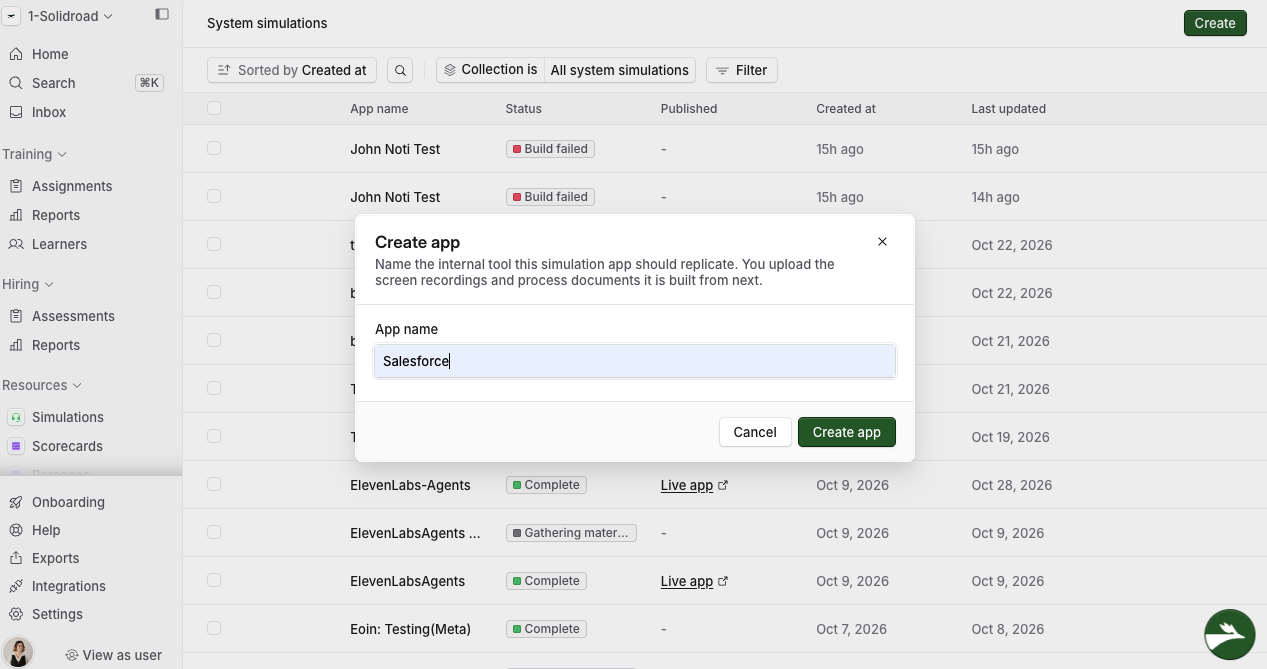
Go to Resources → System simulations.
Select Create. The Create app window opens.
In App name, type the name of the tool, for example Talentbridge CRM.
Select Create app.
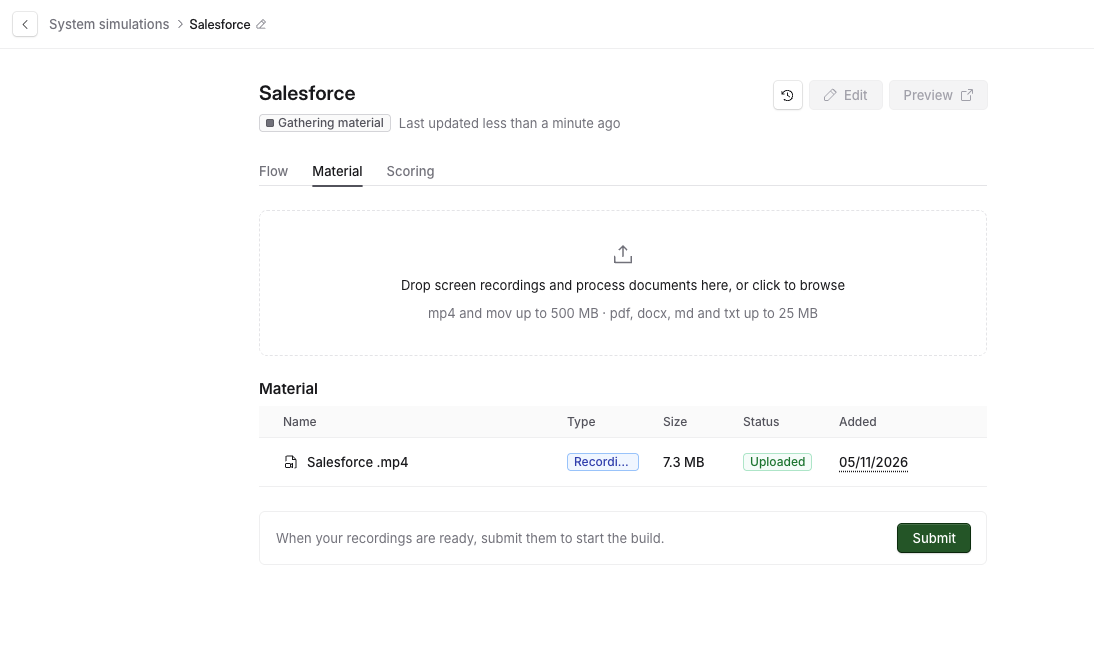
The new system simulation opens on its Material tab with the status Gathering material. On a workspace that has none yet, the page reads No simulation apps yet.
Step 3: Upload your material
Drag your files onto the upload area, or select it to browse.
Wait until every file shows Uploaded in the Status column.
To check or remove a file, select the ... button on its row, then Open or Remove. A file that is too big is refused with a message such as Recordings are limited to 500 MB.
Step 4: Start the build
Once at least one recording has uploaded, a card appears under the list reading When your recordings are ready, submit them to start the build. Documents on their own will not start one.
You cannot add or remove files after this, so check you have uploaded everything. Then select Submit.
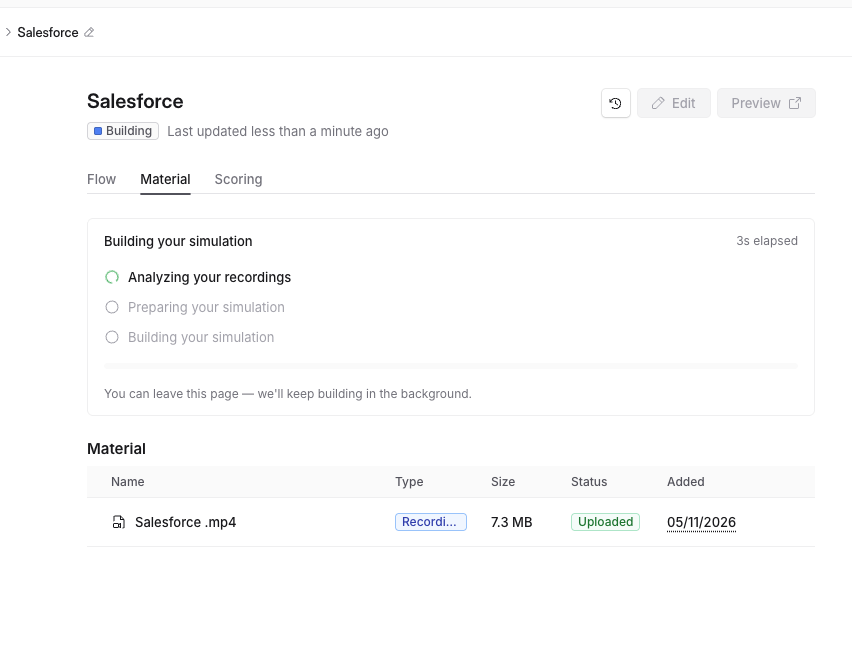
The status changes to Building, and the whole build usually takes one to two hours. You can leave the page or close your browser, and it carries on without you.
While the build runs
The build card on the Material tab shows which of three stages it is on, and how long it has been going.
Stage | What happens |
|---|---|
Analyzing your recordings | Solidroad finds each screen in your recordings and the paths between them. A few minutes. |
Preparing your simulation | Solidroad checks the analysis, then sets the build up. |
Building your simulation | The clickable copy is built. Usually an hour or more. |
A build can sit on Preparing your simulation for a while, because Solidroad reviews the analysis before the copy is built. That is normal, and the stage moves on by itself.
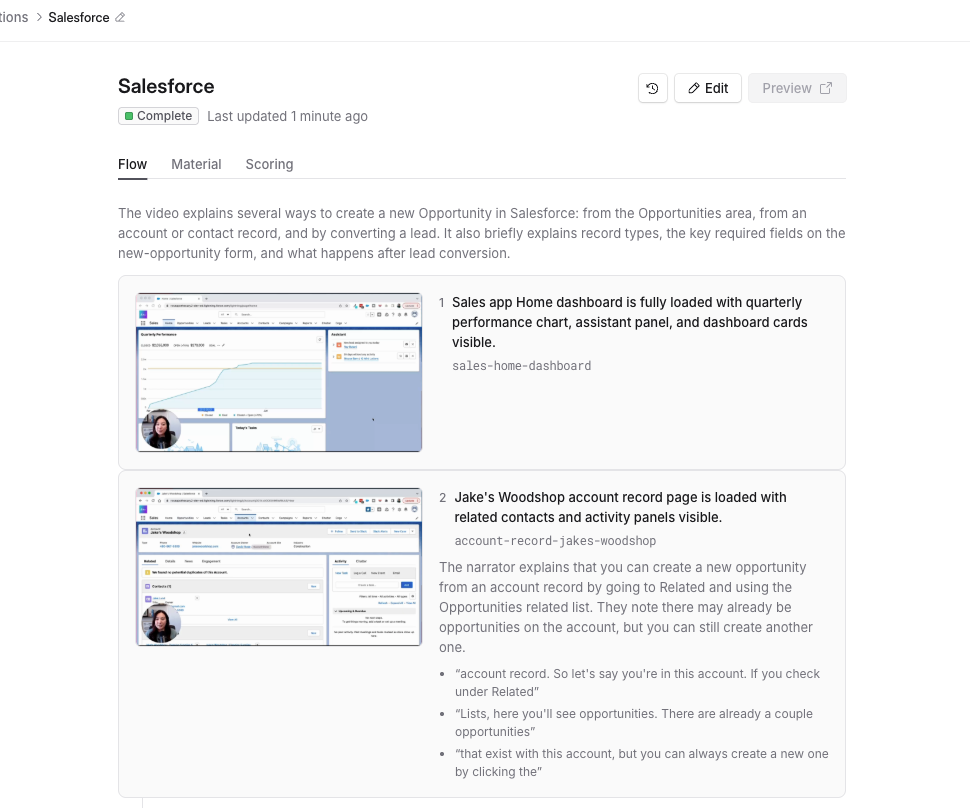
Once the analysis is done, the Flow tab lists every screen Solidroad found, in the order the recording walked through them, with a short description of each. Check that every screen the learner needs is there. Select one to see it larger, and use the arrow keys to move between them. While the tab still reads Nothing built from your material yet, the analysis has not finished.
You can write the scoring definition on the Scoring tab while you wait.
When the build is done
The status changes to Complete, Edit becomes available, and the card reads Your simulation has been built and is ready to use.
Learners cannot use it until you publish it.
Rename a system simulation
Select the name at the top of the page, next to System simulations, and type the new one. You cannot rename a locked system simulation.
Related articles
If you have any further questions, contact the Solidroad team via the Help tab in the platform.