How system simulations are scored
Last updated: November 5, 2026
A system simulation is scored on what the learner did in the tool, against criteria you write. That score becomes one section of the simulation's results, alongside the scorecard that covers the conversation. This covers writing the criteria and reading the result.
Write the scoring definition
Open the system simulation and select the Scoring tab.
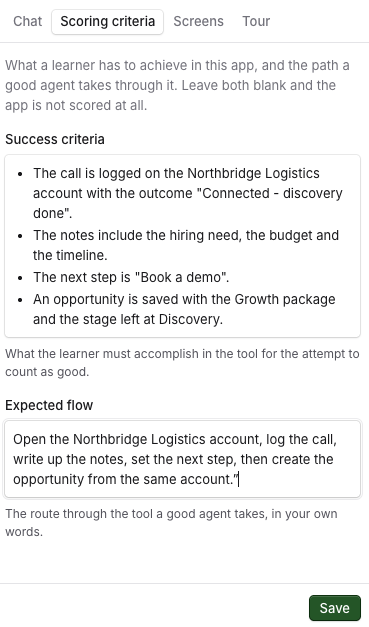
In Success criteria, list what the learner has to achieve in the tool, one result per line.
In Expected flow, describe the route a good agent takes through the tool, in your own words.
Select Save. A message confirms Scoring definition saved.
You can write this at any time, including while the build is still running, and change it later in the editor on the Scoring criteria tab.
For Talentbridge CRM the criteria might be:
The call is logged on the Northbridge Logistics account with the outcome "Connected - discovery done".
The notes include the hiring need, the budget and the timeline.
The next step is "Book a demo".
An opportunity is saved with the Growth package and the stage left at Discovery.
Write criteria that can be checked
Solidroad decides met or not met from what the learner did in the tool, so write each criterion so that someone watching the screen could answer yes or no.
Name the screen, field or value. "The next step is Book a demo", not "The rep moves the deal forward".
Keep one result per line.
Leave out anything that happens only in the conversation. The simulation's scorecard covers that.
How the score is worked out
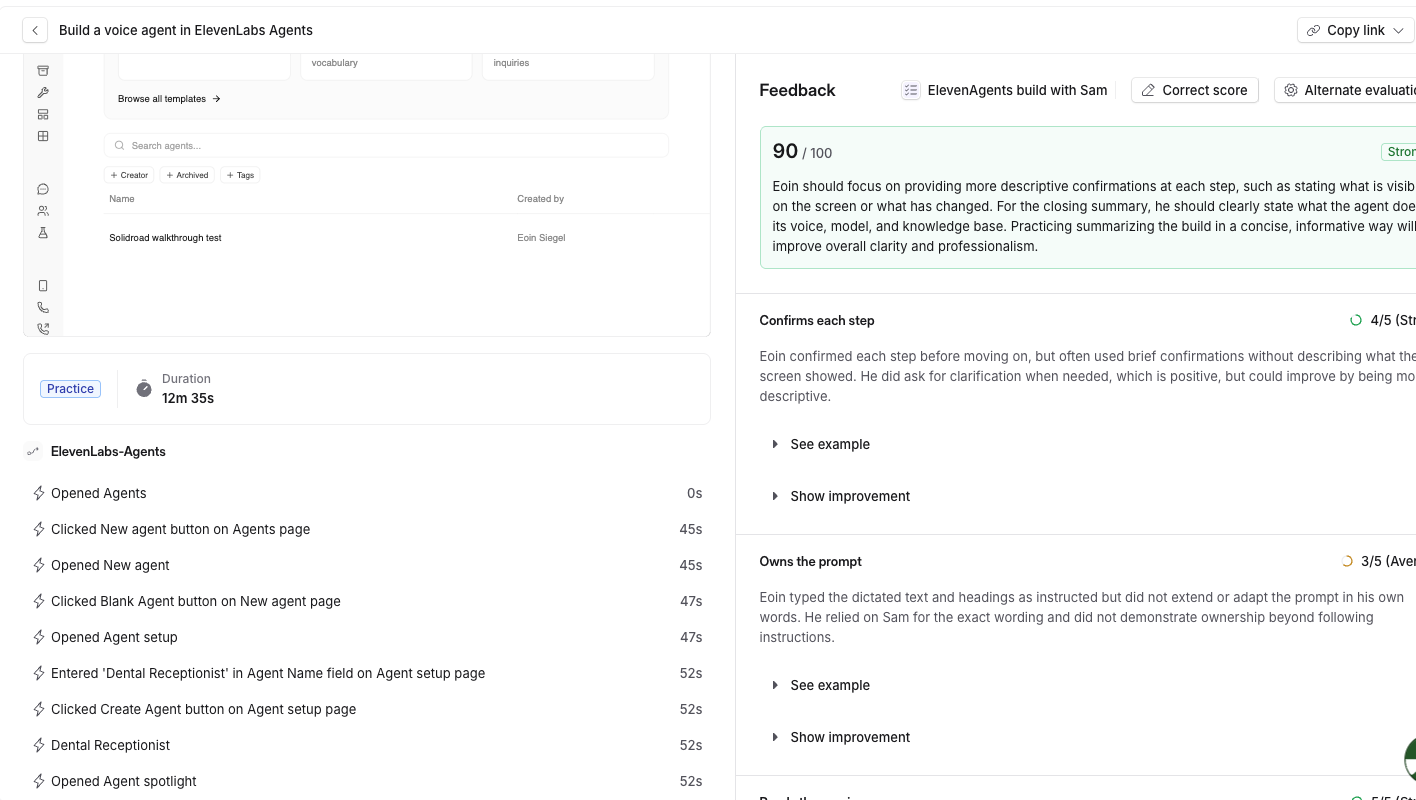
The system simulation adds one section to the simulation's results, named after the app, and that section's score is the share of criteria the learner met.
The section counts towards the simulation's total by the weight you set when you attach the system simulation, which starts at 20%.
Every simulation that uses this system simulation is scored against the same definition.
Leave both boxes blank and the system simulation is not scored at all, and the simulation is scored on its scorecard alone.
Where the score shows up
Open the completed simulation the way you would any other, from the learner's assignment or from your reports.
In Feedback on the right, the system simulation has its own section, named after the app. Each criterion is listed with a tick if the learner met it or a cross if not, with a short comment. What the learner did in the app opens a list of every click and entry, with its time.
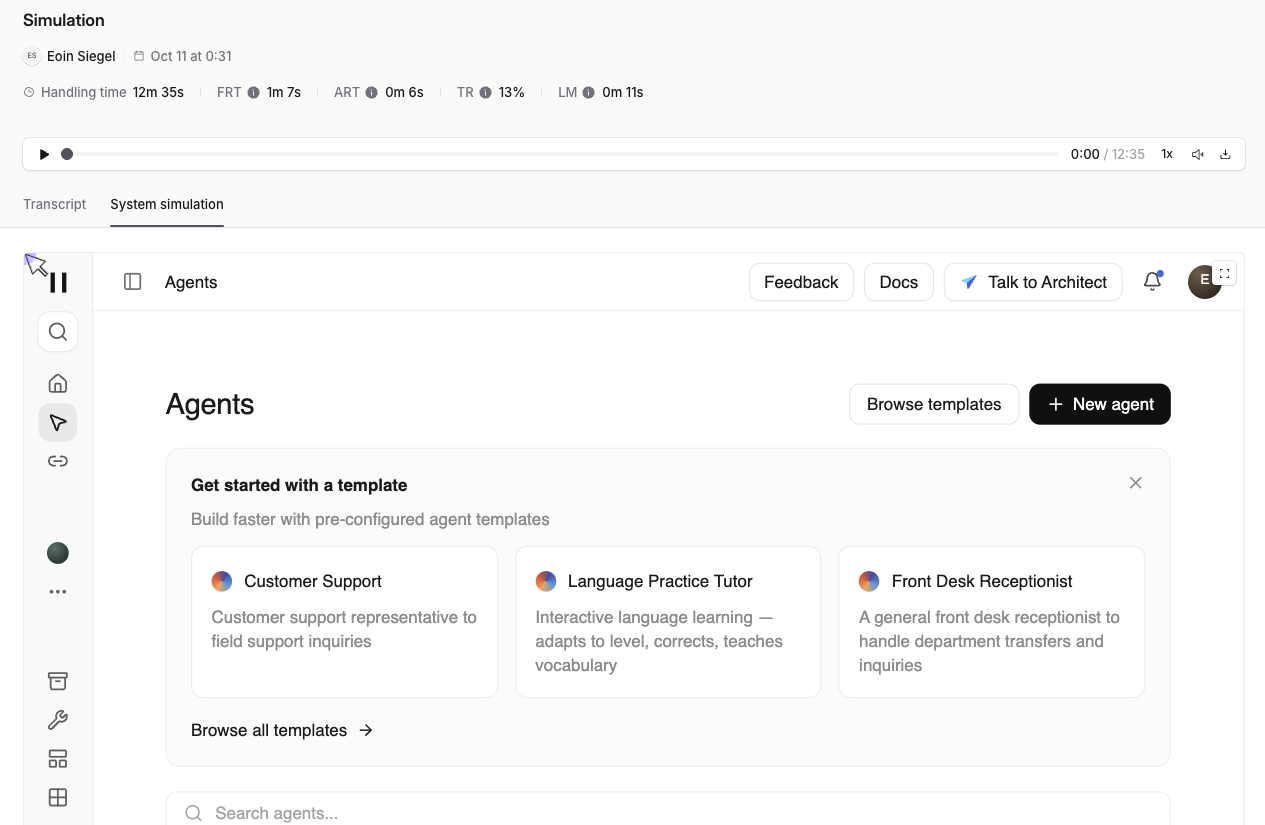
Next to Transcript on the left, the System simulation tab holds:
Completed, whether the learner finished.
Traps hit, wrong clicks the tool caught.
Duration, how long they spent in the tool.
A replay of their session in the tool.
If there is no section for the system simulation at all, either the attempt recorded no activity in the tool, or the system simulation has no scoring definition.
Related articles
If you have any further questions, contact the Solidroad team via the Help tab in the platform.