How to Change the Language of a Simulation
Last updated: June 12, 2026
Who this is for: Solidroad admins and trainers updating the language setting on an existing simulation.
Changing Language on an Existing Simulation
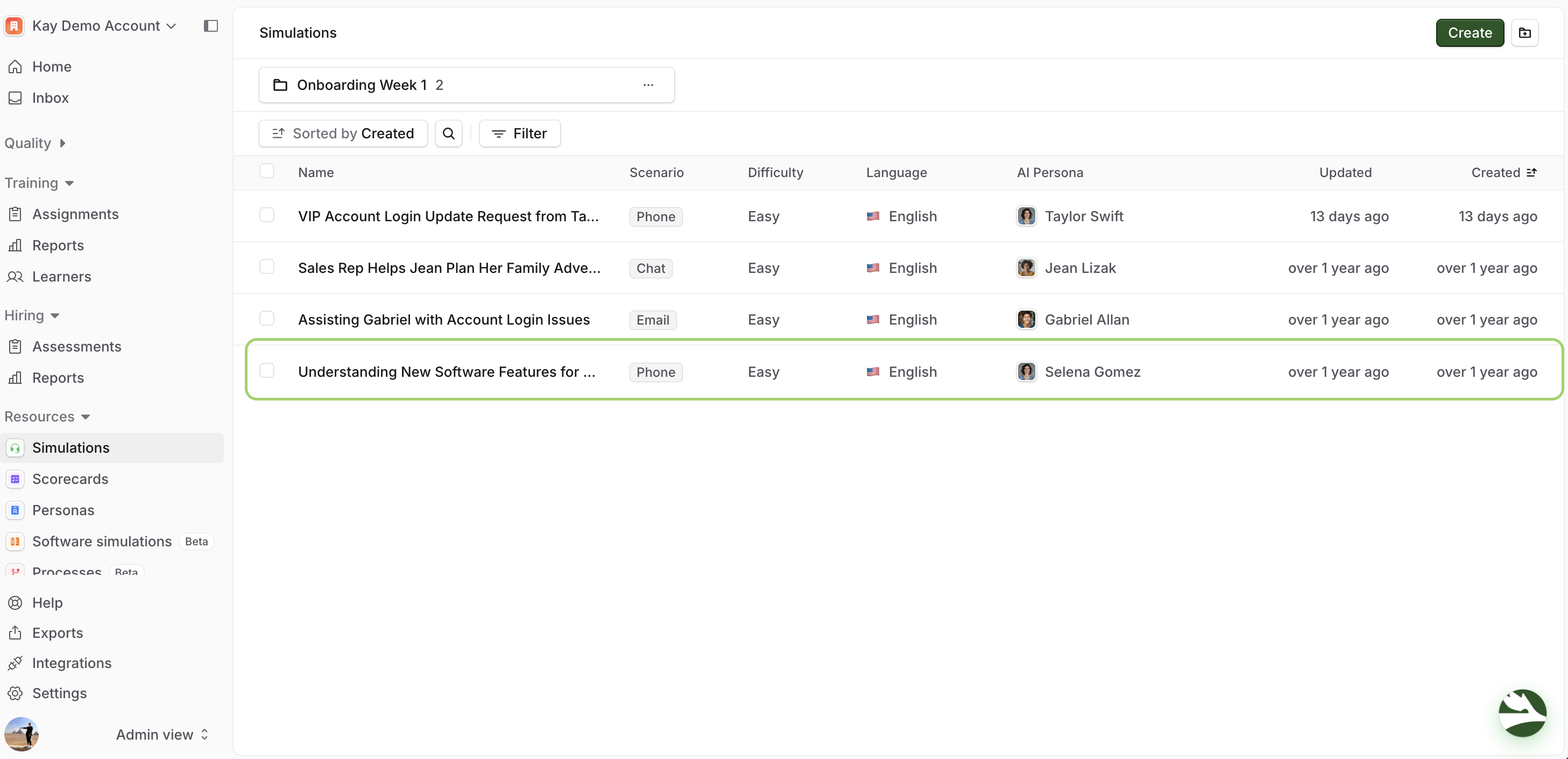
Navigate to Resources → Simulations
Find the simulation you want to update and click on it
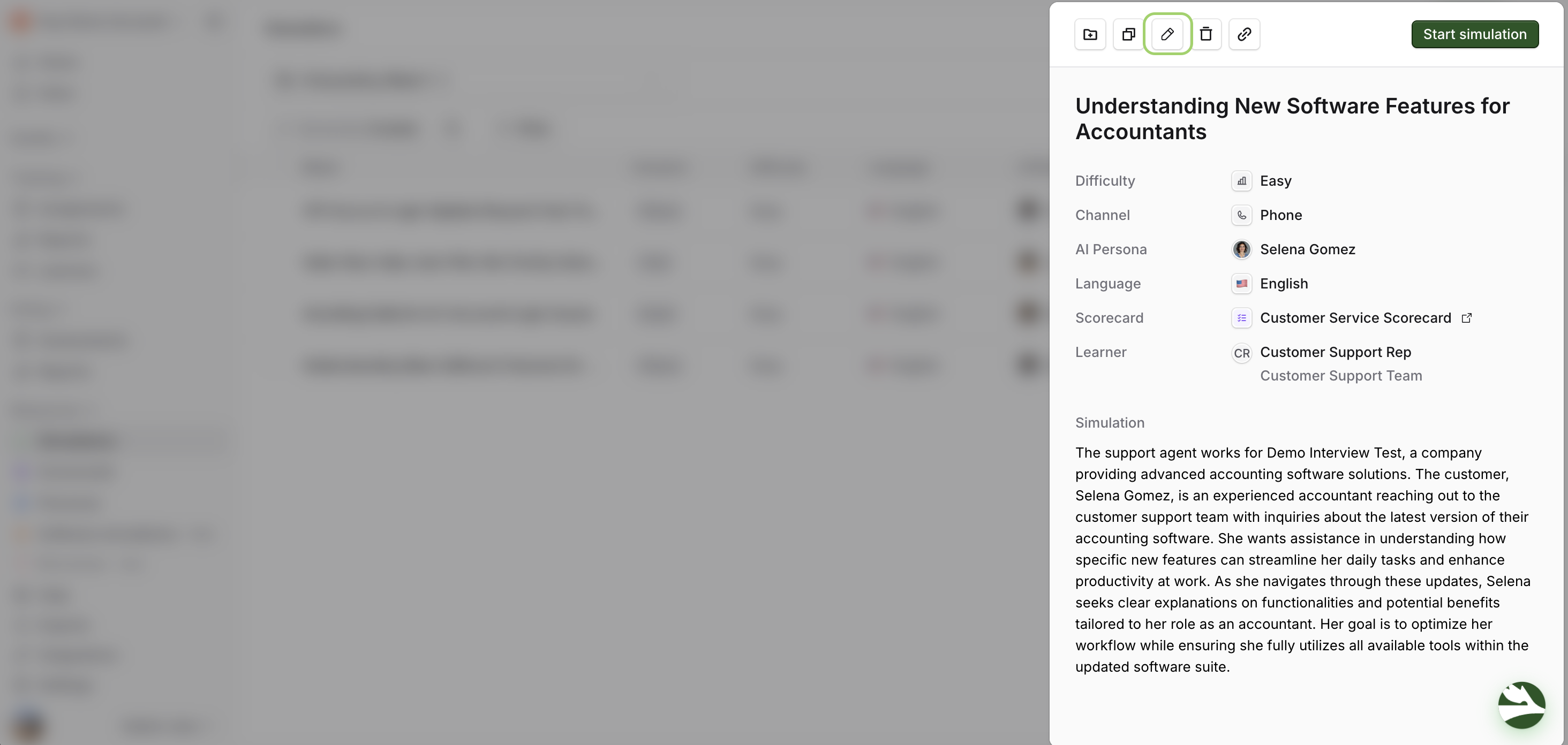
In the panel that appears, click the pencil (edit) icon
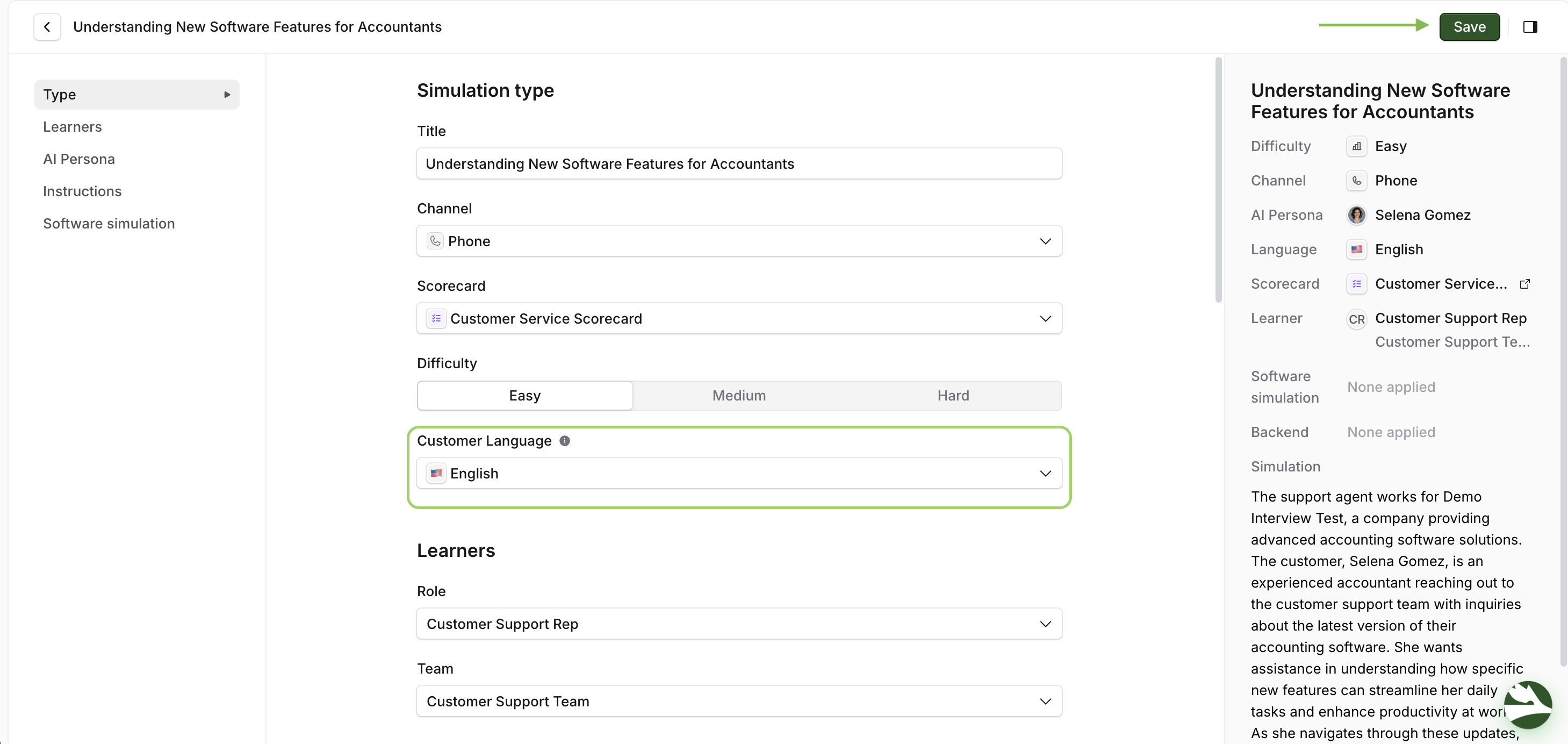
In the simulation builder, locate the Language dropdown and select the new language
Click Save to apply the change
The language setting applies to the entire simulation. Make sure to review the simulation content after changing the language to confirm everything appears as expected!
What's Next?
→ How to change the difficulty of a simulation
→ How to configure simulation attempts for learners
→ How to build personas for simulations
Need help? Click the Get Help tab in the left panel to access live chat and additional guides.