How to create software simulations
Last updated: September 22, 2026
A system simulation, also called a software simulation, is a recorded walkthrough of a support tool, such as a CRM or helpdesk, that learners work through screen by screen. This guide shows how to record one with the Solidroad Chrome extension, make it interactive, and add it to an assignment or conversation simulation. When paired with a conversation, learners practise using the tool and responding to the customer on the same screen. You need Google Chrome and access to the tool you want to record.
Install and sign in to the Chrome extension
Install the Solidroad Recorder extension from the Chrome Web Store.
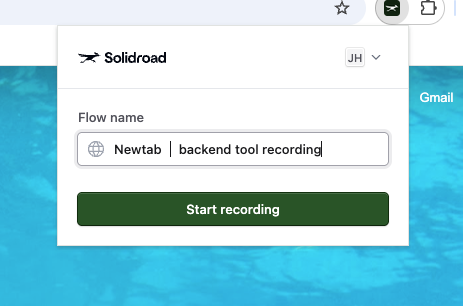
Click the Chrome Extensions icon in your toolbar and pin the Solidroad extension so it is always visible.
Open the extension and check that you are signed in. Recordings do not save correctly if you are signed out.
Record the process
Open the tool you want to record. Make your browser window smaller than full screen first. A smaller recording displays better across different screen sizes when learners play it back.
Click the Solidroad extension icon. A 3-2-1 countdown runs, then recording starts.
Work through the process exactly as you would in a real workflow: click, type and navigate as normal.
When you have finished, click the extension icon again and select Stop and Save.
The Solidroad app opens automatically with your recording loaded in the Flow Editor.
Tidy up the recorded steps
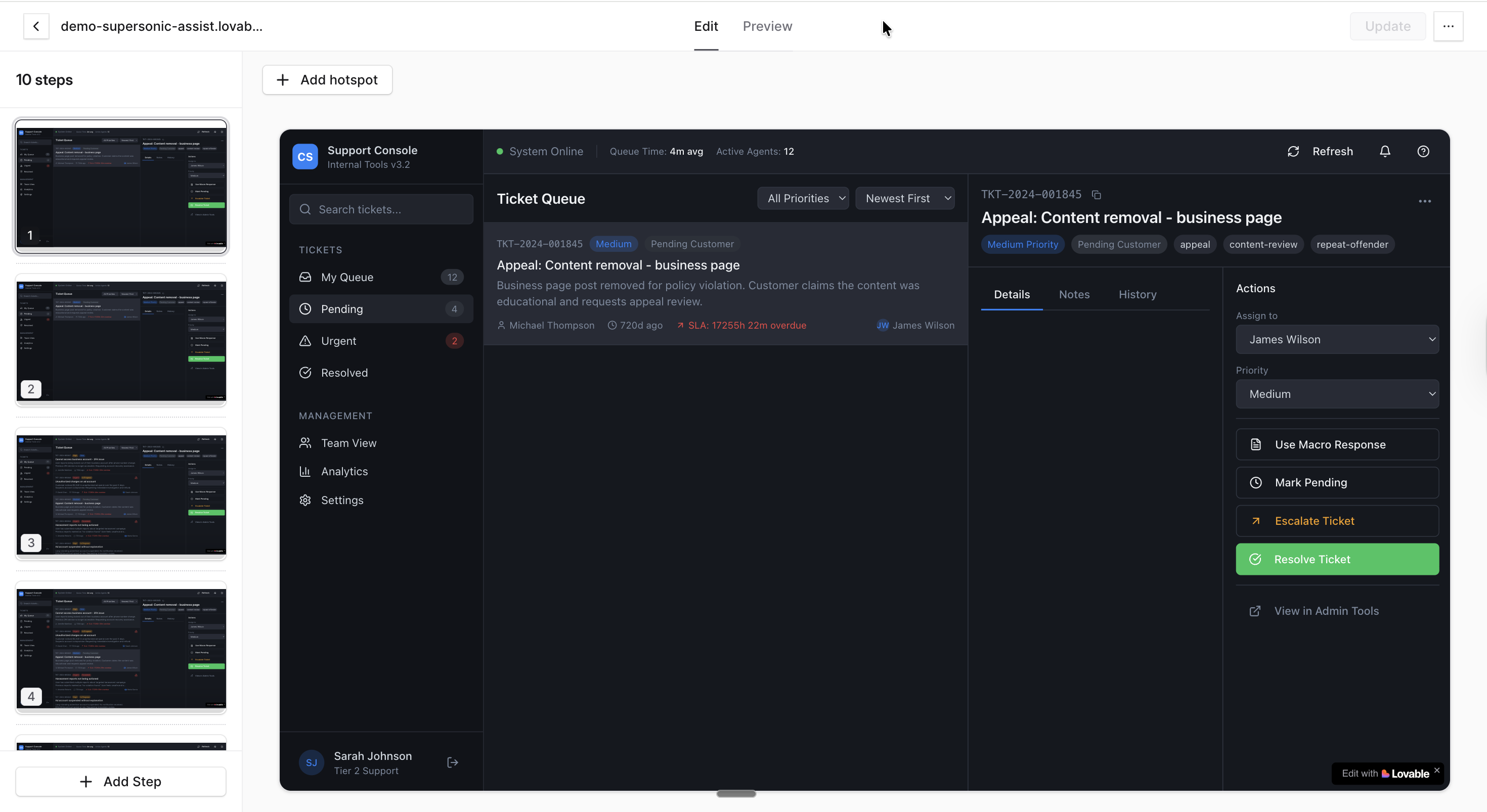
The Flow Editor has three areas:
The left panel lists every screenshot captured during the recording, one per step.
The middle panel shows a full preview of the selected screen.
The Edit and Preview tabs at the top switch between building the flow and testing it as a learner would see it.
Before you add any hotspots, clean up the step list. You will refer to step names constantly while configuring hotspots, so this saves time later.
Delete steps you do not need, such as duplicates or accidental clicks.
Rename each step with a short description of what happens on it, for example “Open customer profile” or “Update shipping address”.
Drag steps into the order you want learners to follow.
Add hotspots
In the Edit tab, select a screen and click Add Hotspot.
Place the hotspot on the part of the screen the learner should interact with.
Set the hotspot’s behaviour. Next moves the learner to the next step. Trap blocks an incorrect click and keeps the learner on the intended path.
Repeat for every screen in the flow.
Switch to the Preview tab at any point to test the flow and confirm it behaves the way you expect.
Save or Publish
Click Save to keep the flow as a draft, or Publish to make it available for use. Published flows appear in the System Simulations list and can be reused across assignments and simulations.
Add the software simulation to an assignment or a simulation
You can use a software simulation in two ways.
To let learners practise the system process on its own, add the published software simulation to an assignment as learning content. See How to create an assignment.
To pair it with a conversation simulation so learners handle the conversation and the system at the same time:
Open the conversation simulation you want to update and click Edit.
Go to the final page of the simulation setup.
Under System Simulation, choose the published system simulation you want to pair with the conversation.
Click Save.
What Learners See
When a learner starts a chat or phone simulation with a system simulation attached, the conversation and support tool appear on the same screen. They can respond to the customer while working through the tool. Teams already using avatar video can also use this with video simulations.
Related articles
If you have any further questions, contact the Solidroad team via the Help tab in the platform.