How to Build Personas for Simulations
Last updated: July 14, 2026
Who this is for: Solidroad admins and trainers creating customer characters for use in training simulations.
Learn how to create and manage customers, or personas by setting details, attributes, voice, and avatar for your simulations.
Getting Started
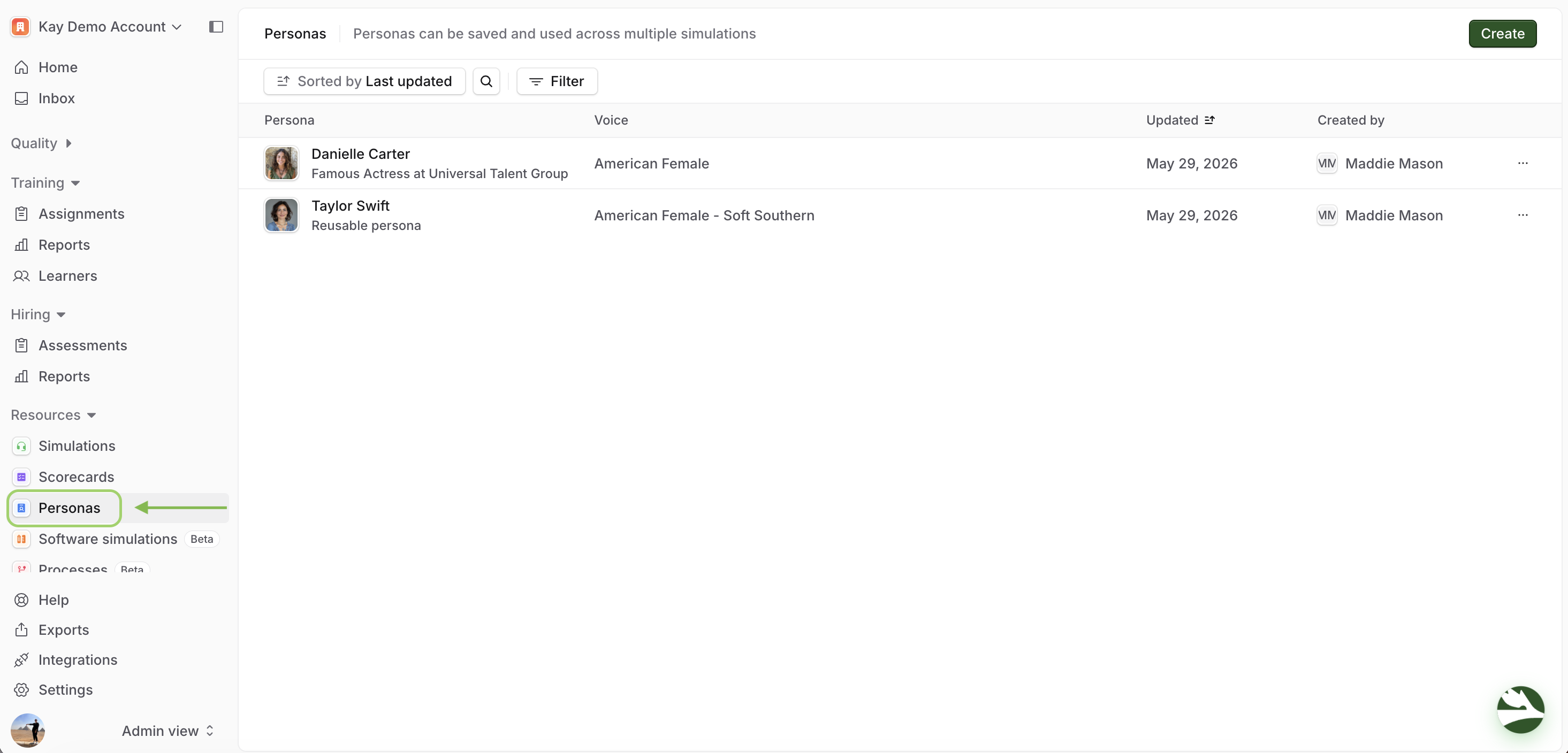
Log in to your Solidroad account. Navigate to the Resources tab in the left menu and select Personas. Here you'll see a list of all existing personas in your workspace.
Step 1: Create a New Persona
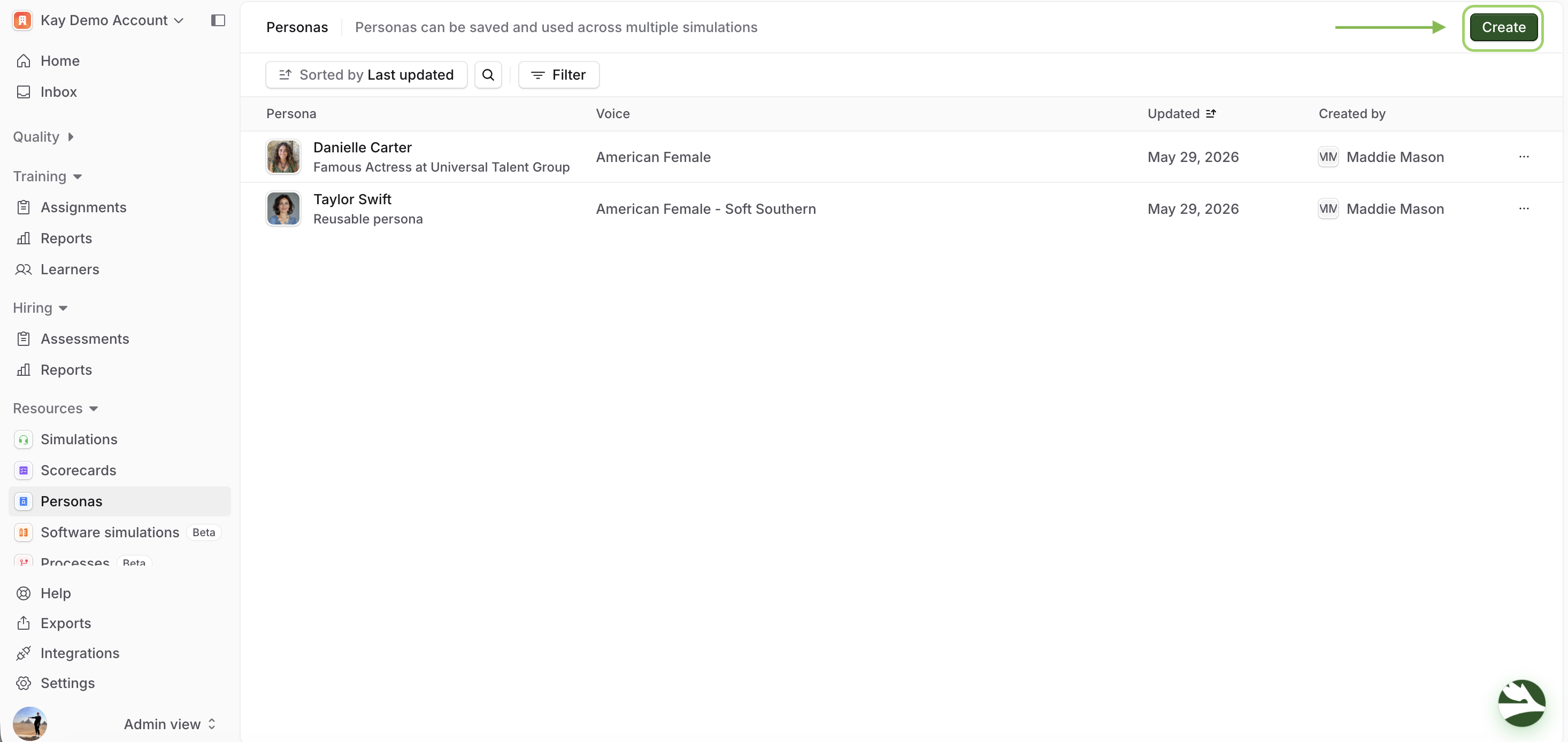
Click Create in the upper-right corner to open the persona builder.
Step 2: Generate the Persona Manually
Select how you would like to create the persona - for the first few personas, create them manually so you understand each field. Use AI generation later once you have the rhythm!
Upload an avatar image — We recommend having fun with this (Disney characters, Greek mythology, anything that makes it memorable for agents)!
Give the persona an AI name (creative fake names are always fun!).
Write a Description: who they are, what they care about, and why they choose your company.
Job Title and Company Name — you can leave this blank for direct-to-consumer use cases; if your use case is B2B personas, feel free to fill this in.
Select a voice from the voice library.
Fill in Context: are they patient, kind, angry, irate, difficult to please? This is what makes the persona feel real. The richer the persona, the more realistic the simulation! Have fun with names, avatars, and traits — memorable personas land better with learners and make training more engaging.
Once you have filled in the persona details, click Create persona. The persona will now appear in your Personas list and will be available to select when building simulations.
Why it matters: The persona has agency. The richer the persona, the more realistic the edge cases. Have fun with these. Real-life inspired personas land better with agents and make demos memorable!
Step 3: Generate the Persona with AI
At the top of the Create Persona page, select Generate with AI
Enter a short description of the persona you want to create in the Generation Prompt box - for example, "an impatient enterprise software buyer who has been waiting 3 weeks for a resolution."
Click Generate. Solidroad will automatically populate the persona's name, description, job title, company, and traits based on your prompt. You can edit any of these fields before saving.
Managing Existing Personas
All saved personas appear in the Personas list. You can edit or delete any persona at any time.
To edit a persona:
Navigate to Personas under the Resources tab, and click on the persona you wish to edit.
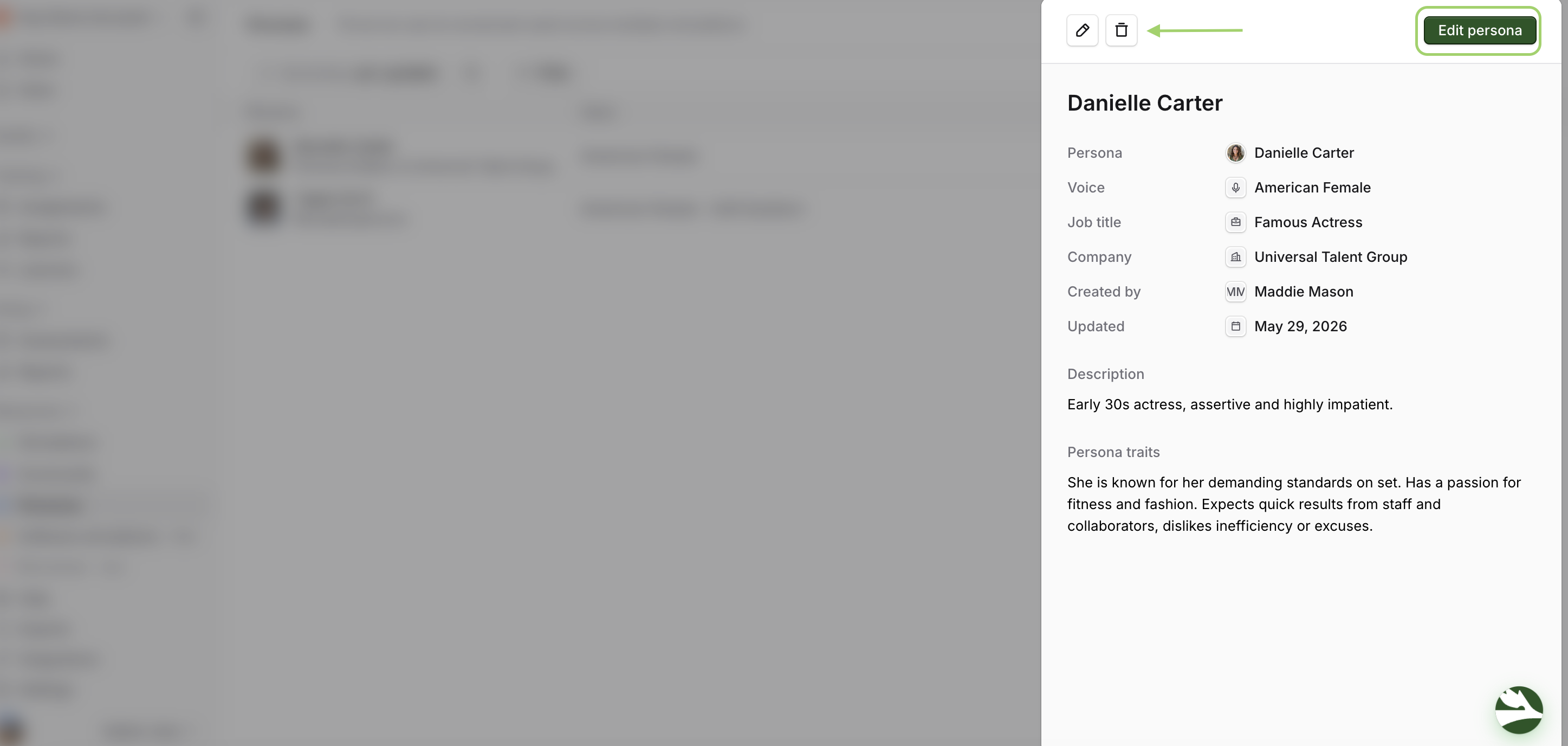
In the panel that appears, click Edit persona.
Make your changes and click Update to save.
To delete a persona:
Click the persona you wish to delete from the Personas the list.
In the panel that appears, click the trash can icon.
Note: Deleting a persona is permanent. There is no way to restore a persona once it has been deleted.
What's Next?
Now that your personas are set up, you're ready to use them in simulations.
Need help? Click the Get Help tab in the left panel to access live chat and additional guides.