How to Create and Manage Roles for Simulations
Last updated: June 12, 2026
Roles define a user's responsibilities in a simulation, ensuring a tailored and relevant training experience.
Create a Role:
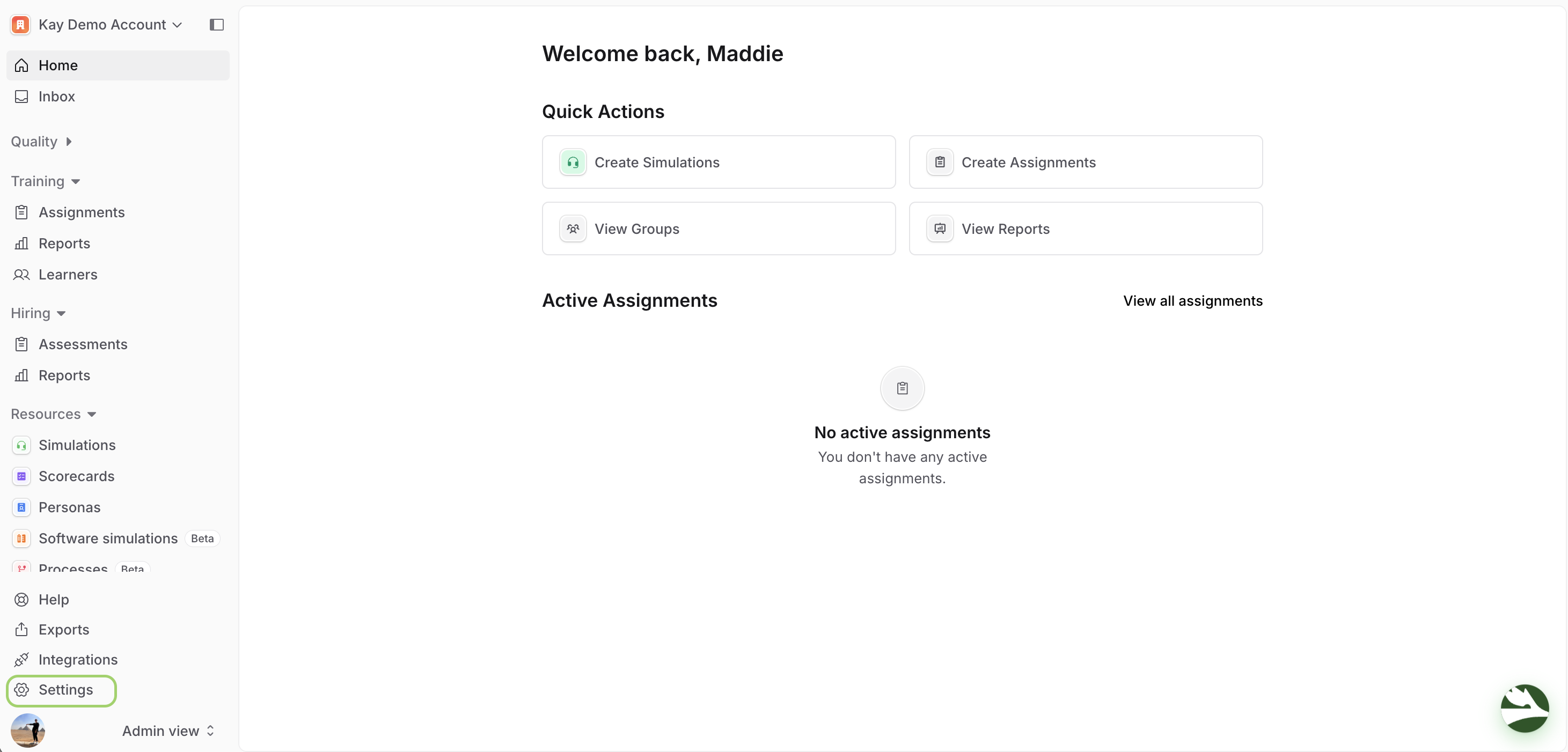
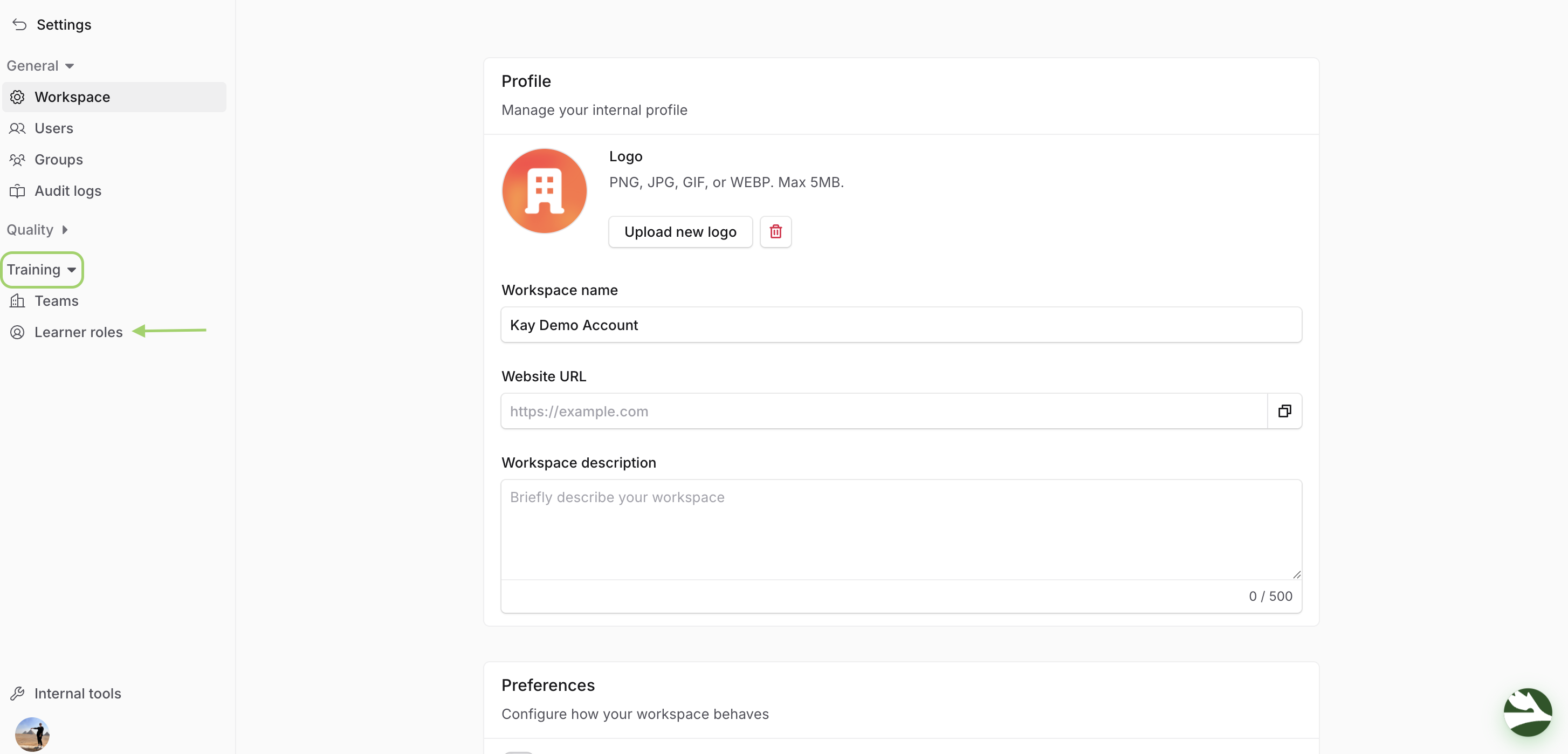
Log in to your Solidroad account. Once logged in, go to the Settings tab and select Learners roles.
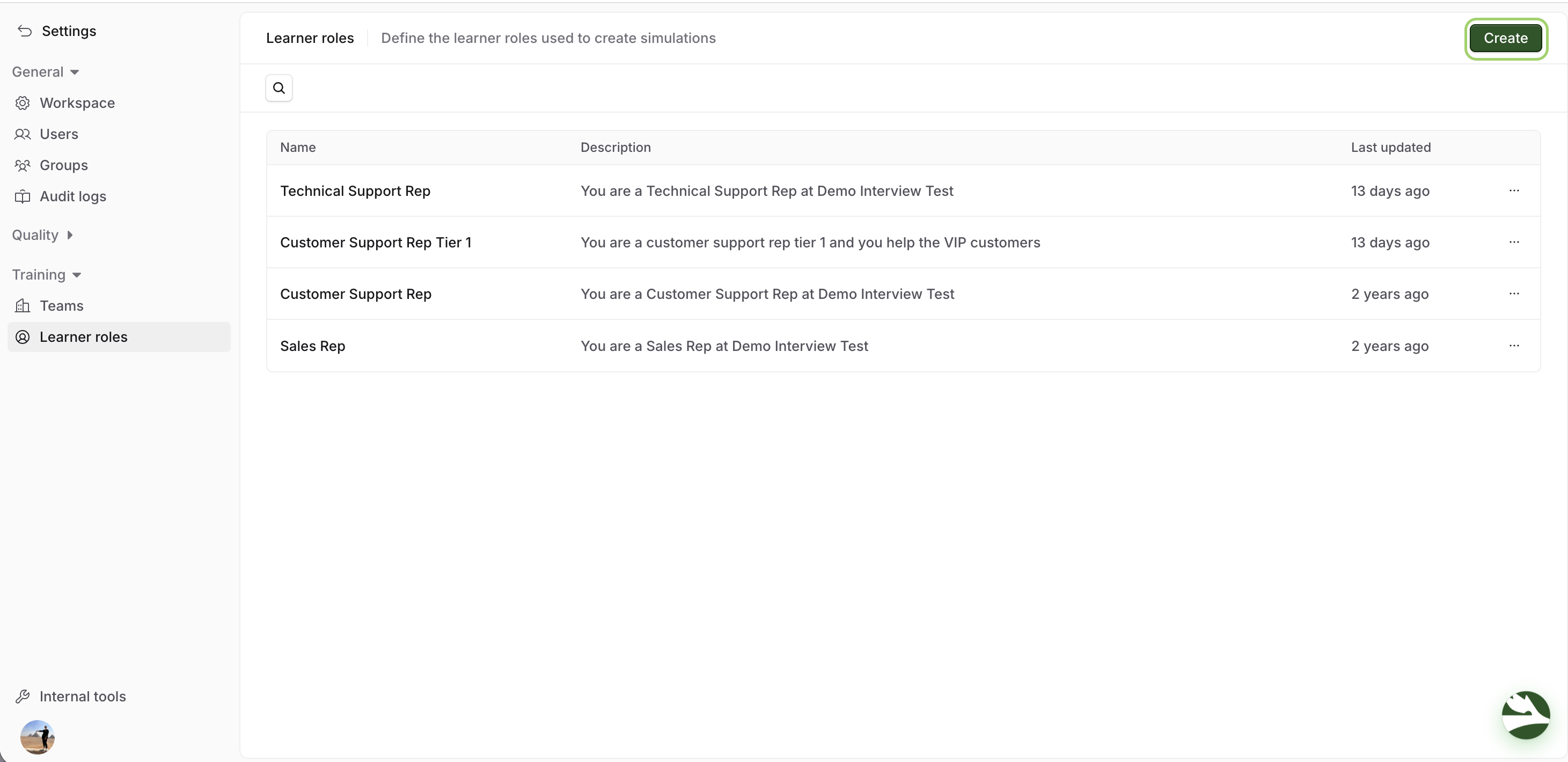
2. Click the Create button to start a new role.
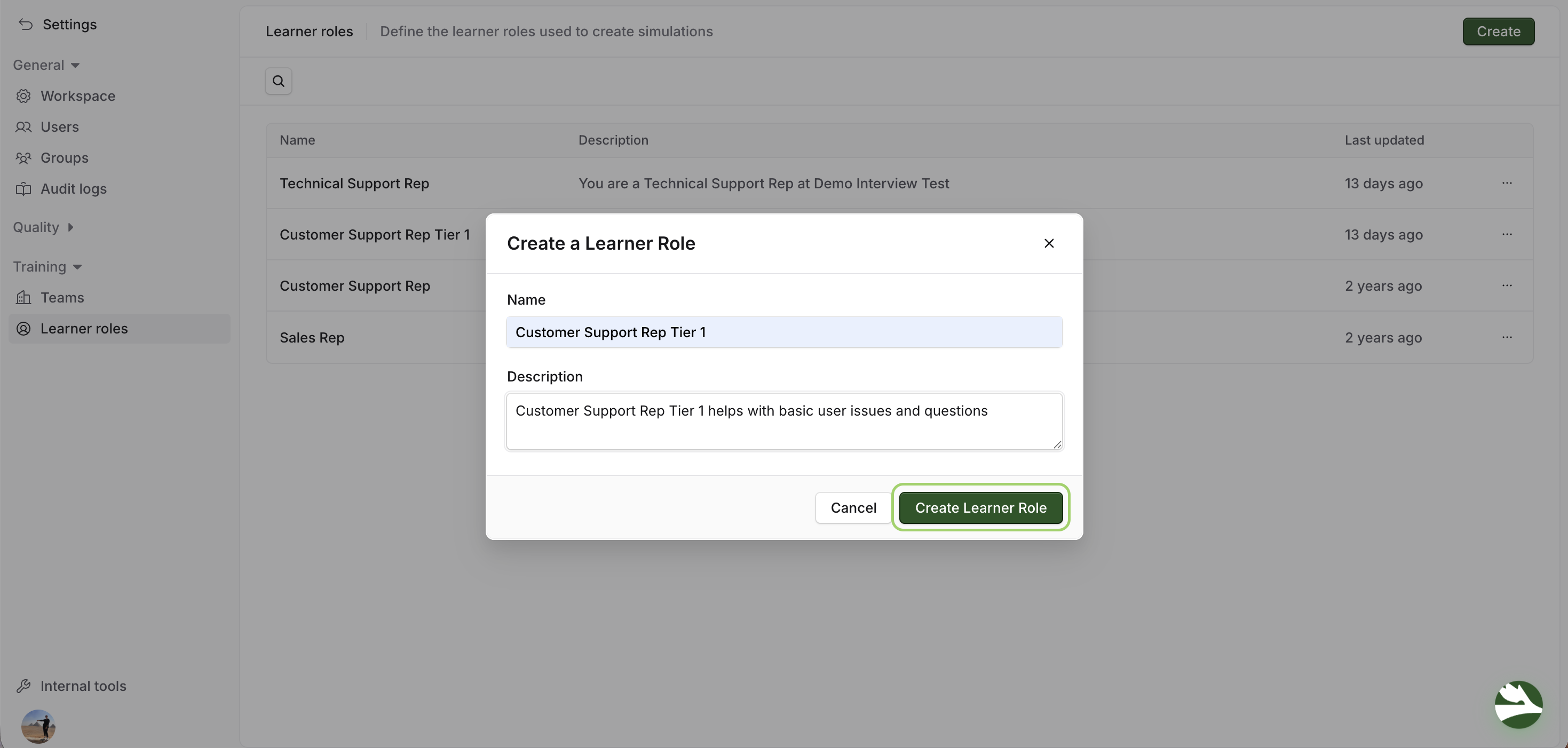
Enter the necessary information, such as the role name and description, and click Create Learner Role to store the role.
3. Assign Role to a Simulation
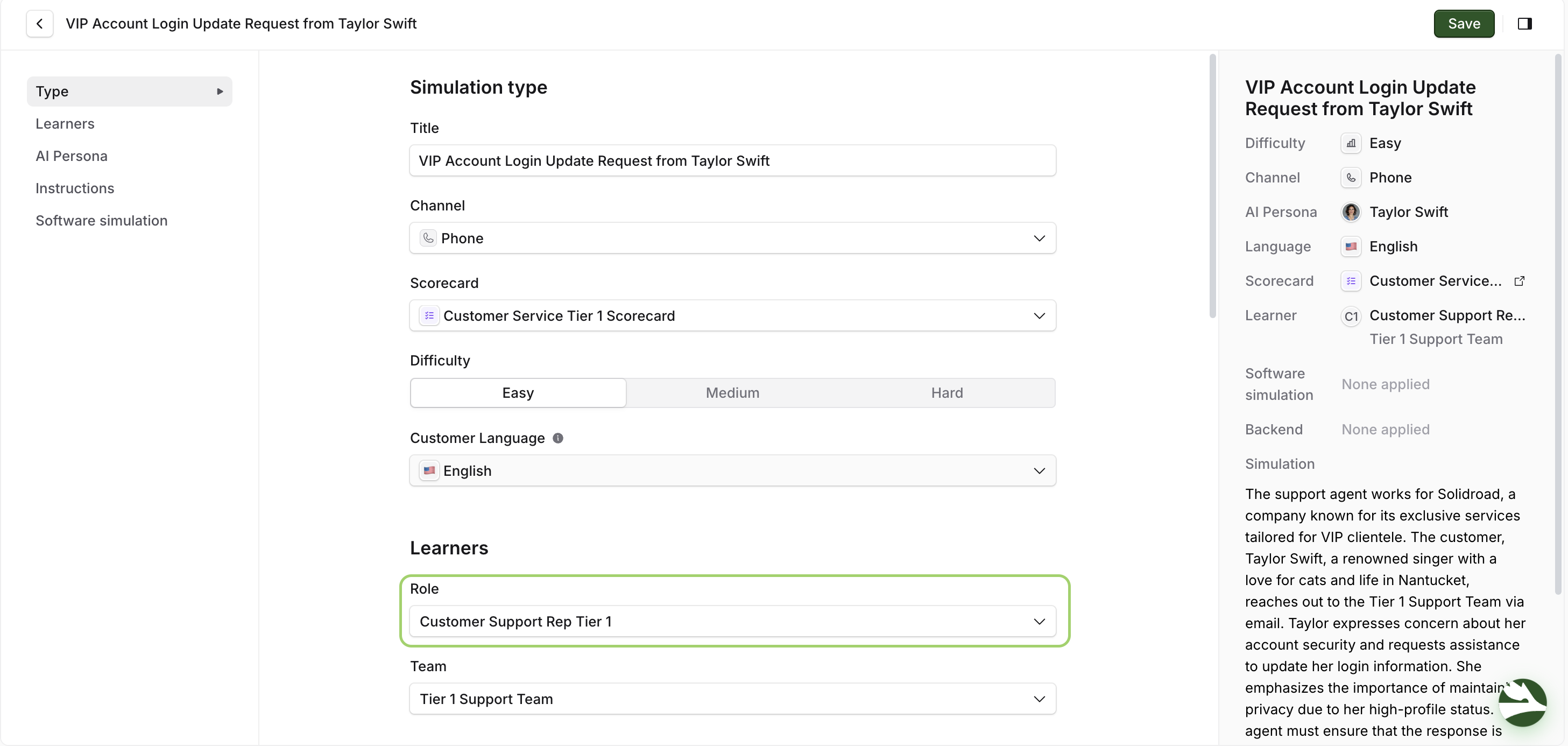
Go to the Learners section of any simulation and select the role you’ve created from the dropdown menu. You can edit the role anytime by clicking on Manage Roles.
Edit or Delete a Role
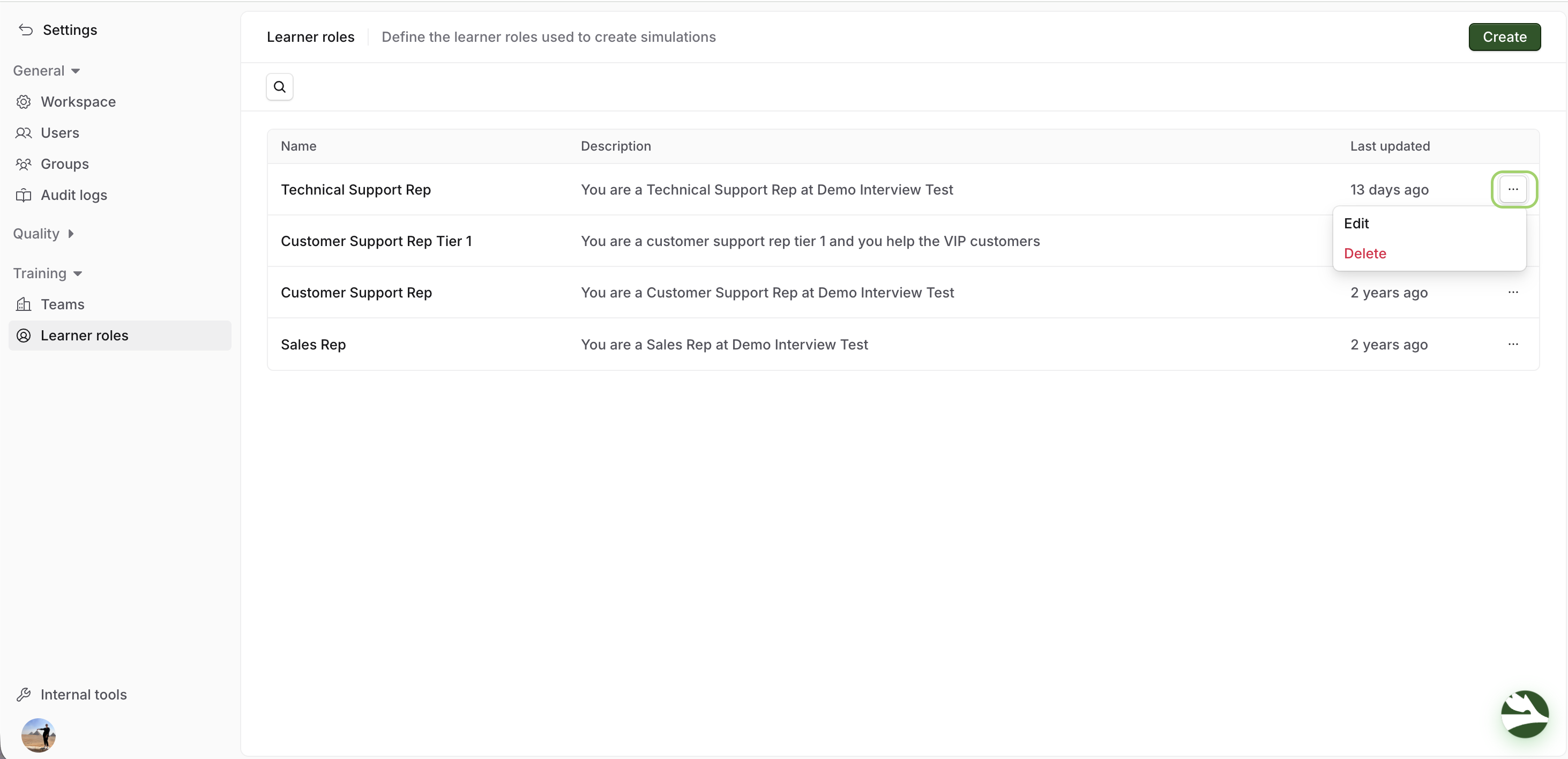
To edit or delete a role, return to the Settings tab and select Learners roles located under the Training tab.
Click the three dots on the right of the role to make changes, or hit Delete if no longer needed.
What's Next?
→ How to change the difficulty of a simulation
→ How to build personas for simulations
Need help? Click the Get Help tab in the left panel to access live chat and additional guides.