Learner instructions and AI instructions explained
Last updated: October 19, 2026
A simulation holds two separate pieces of instruction text, and they go to different readers. This covers what each one is for and who can see it, so you know which field to write something in.
What each field is for
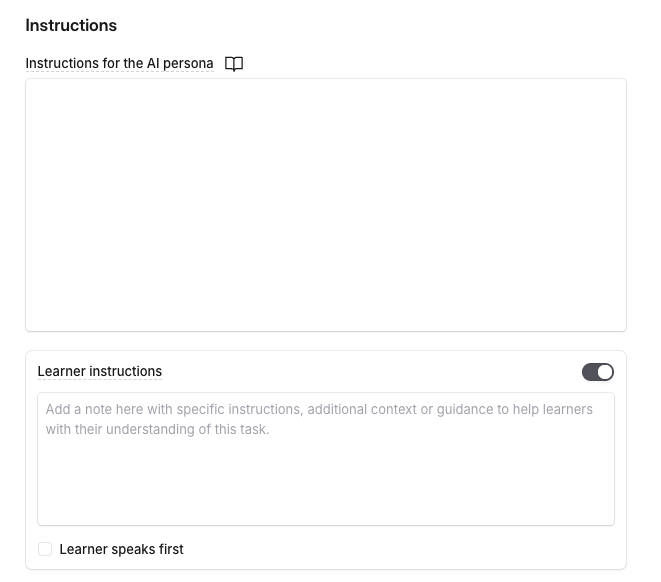
Instructions for the AI persona are the prompt sent to the AI. Describe the situation and how the customer behaves in it, including how much the persona resists and what would change its mind. This is where you should add all the details needed for the scenario.
Learner instructions are the briefing for the person taking the simulation. Write what you want them to know before they start: the situation they are walking into, who they are meant to be, and what a good outcome looks like. You can add it by enabling Learner Instructions in the simulation builder.
Who sees what
What you write | Who it is written for | Who can see it |
|---|---|---|
Learner instructions | The person taking the simulation | Everyone, including the learner. This text is written to be read by them. |
Instructions for the AI persona | The AI persona | You and anyone else who can edit the simulation. The learner never sees it. |
The AI persona's instructions stay hidden from learners whether or not you write learner instructions. You can set out exactly how the persona should behave and what it should concede without any of that reaching the person being assessed.
Writing the learner's briefing
The learner only ever reads the learner instructions, so anything they need has to be written there. A detail that exists only in the persona prompt will not reach them, however clearly it is written.
Write each field for its own reader instead of writing one and reusing it. The persona prompt describes the customer. The learner instructions describe the job in front of the learner.
Before you assign a simulation, open it as a learner would and check the briefing reads the way you intended. How to create simulations covers the preview step.
Related articles
If you have any further questions, contact the Solidroad team via the Help tab in the platform.