Understanding the Learners tab
Last updated: September 16, 2026
Learners lists everyone training in your workspace with their overall activity next to their name, and opens into a profile for each person. Where Reports answers how a team or a scenario is performing, Learners answers how one person is doing and what they still have pending. You will find it under Training > Learners in the left sidebar.
What the list shows
One row per learner, with figures covering their entire Solidroad history rather than a date range.
Column | What it shows |
|---|---|
Learner | The person's name. Click it to open their profile. |
Avg. Score | Their mean score across every scored simulation, out of 100. |
Simulations | How many simulations they have completed. |
Total Time | How long they have spent in simulations. |
Last Active | How recently they were last active, shown as 5 days ago or Yesterday. |
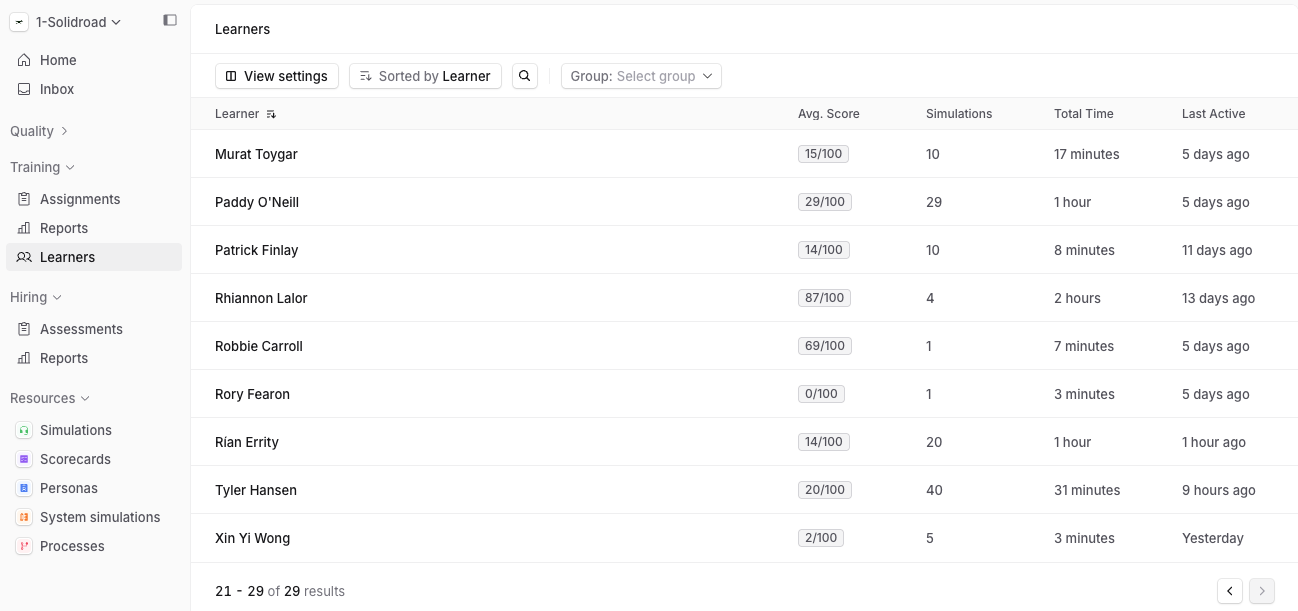
Four controls sit above the table. Sorted by changes the order of the rows, the search icon finds one person by name, and Group: Select group narrows the list to a single group, which is the fastest way to get from a whole workspace to one team.
The count at the bottom left tells you how many learners are in the list, with arrows to page through them.
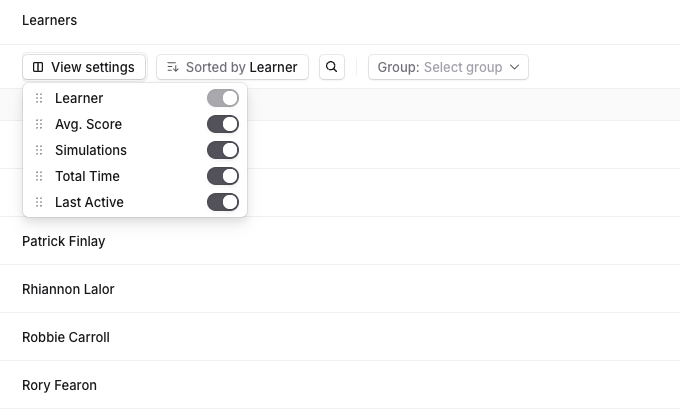
View settings controls the columns. It opens a list of the five columns with a toggle on each, so you can switch off anything you do not use and keep the table to what you actually read. Learner is the exception and cannot be turned off.
Drag a row by the handle on its left to move a column, and the table reorders to match, so you can put the number you care about next to the name instead of at the far right. Your choices are saved against your own account, so they are still there the next time you open the tab and nobody else's view changes.
Your role decides who appears here. Group leads see the groups they lead rather than the full workspace, which is covered in Roles and permissions explained.
The learner profile
Click a name to open that person's profile. The breadcrumb at the top left takes you back to the list.
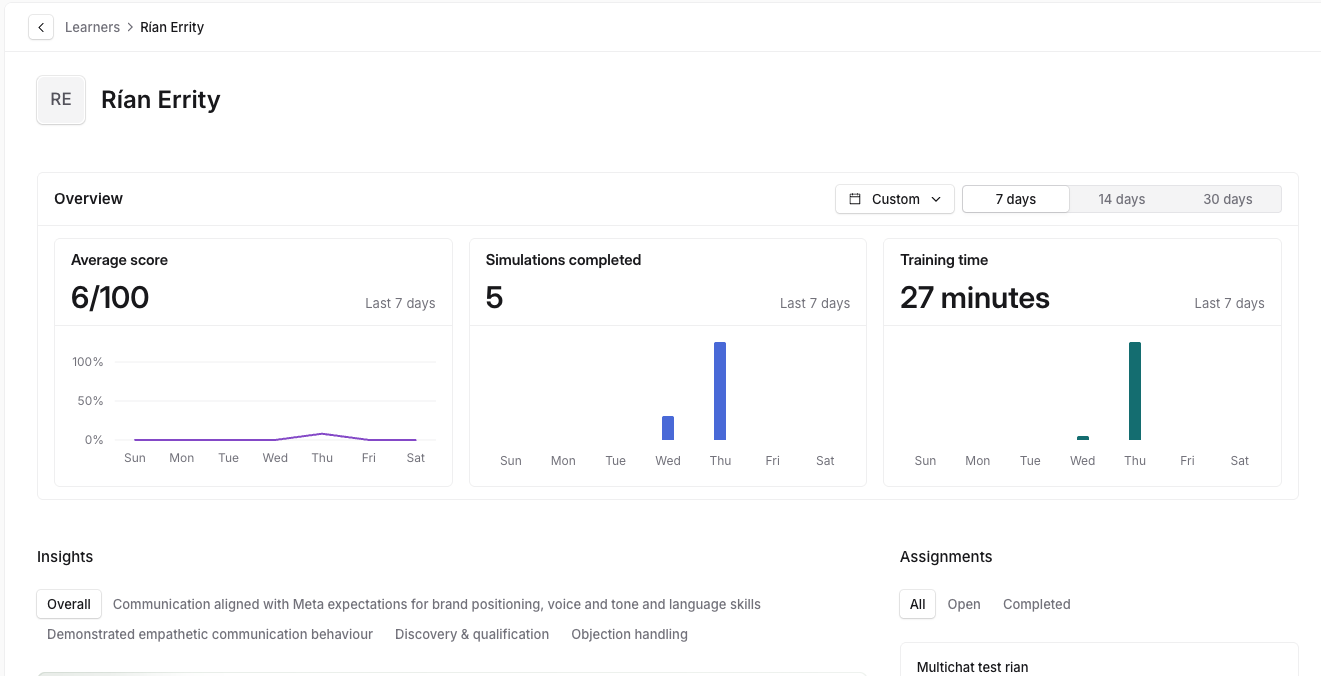
Overview holds three cards: Average score, Simulations completed and Training time, each with a chart of the last seven days underneath. The buttons at the top right of the card set the window: 7 days, 14 days or 30 days, or Custom for your own start and end dates.
The figures here are scoped to that window, which is why a learner's average score on their profile often differs from the all-time figure in the list.
Insights
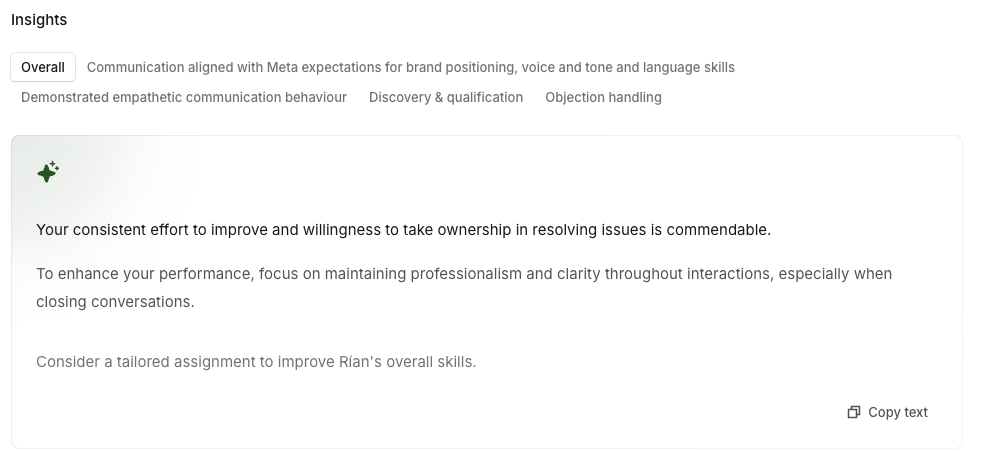
Below Overview, Insights is a written summary of how the learner is performing, generated from their scored simulations.
Overall covers their performance as a whole, and the tabs beside it break it down by the areas being scored, so you can see that someone handles discovery well but loses points on objection handling.
Copy text at the bottom right of the panel copies the summary, which saves retyping it into a coaching note or a one-to-one agenda.
Read it as a starting point rather than a verdict. A learner with two completed simulations will produce a less reliable summary, and the underlying scores are worth examining further before any action is taken.
Assignments
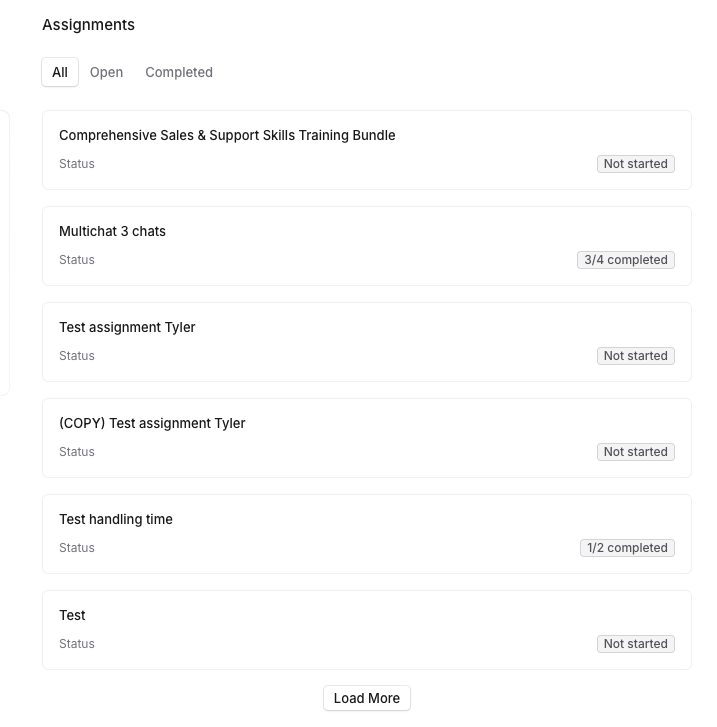
The Assignments panel on the right is the part to check before a one-to-one. It lists the assignments given to that learner, with the due date and a status such as Not started. The tabs above it filter the list: All, Open for anything still outstanding, and Completed for work they have finished.
This is where you find out whether a low average score is a performance problem or a person who has not started yet.
For what the statuses mean and how the assignment was set up in the first place, see How to create an assignment.
All simulations
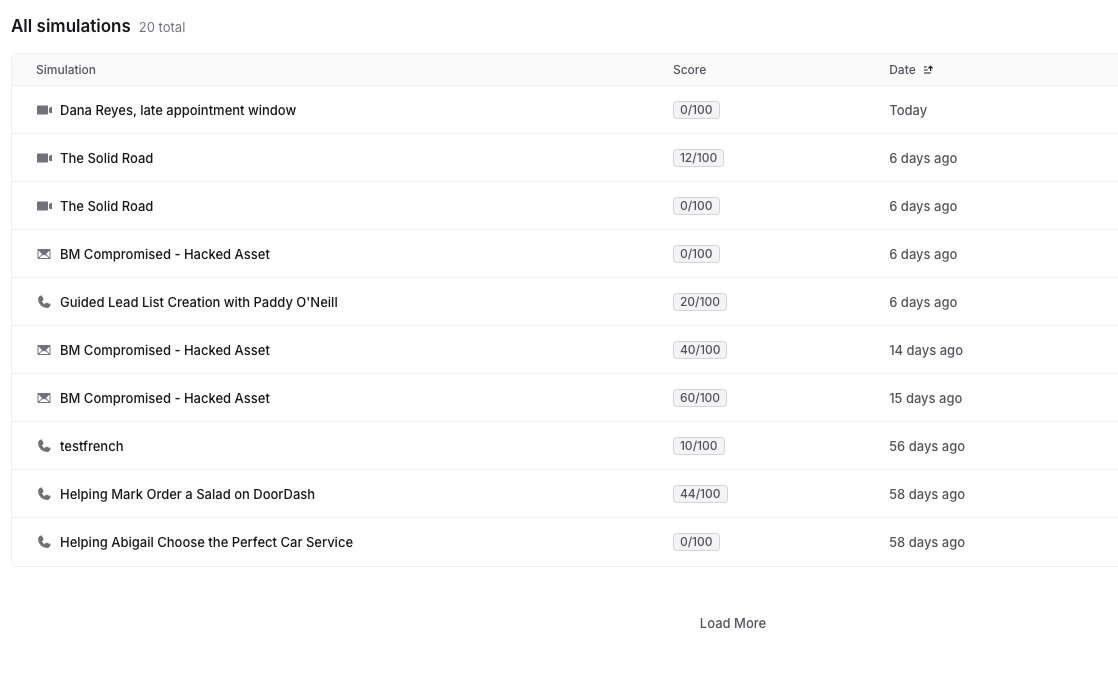
At the bottom, All simulations lists every simulation the learner has taken, with the score and the date, and a total count beside the heading. Click the Date header to sort, and Load More to pull in older attempts.
Use it to check a specific result for more details, or to see whether a score improved on a second attempt at the same scenario.
Related articles
If you have any further questions, contact the Solidroad team via the Help tab in the platform.