How to Manage Teams for Simulations
Last updated: June 12, 2026
Teams group learners by role, ensuring the right people are assigned to the right tasks in a simulation.
Creating a Team:
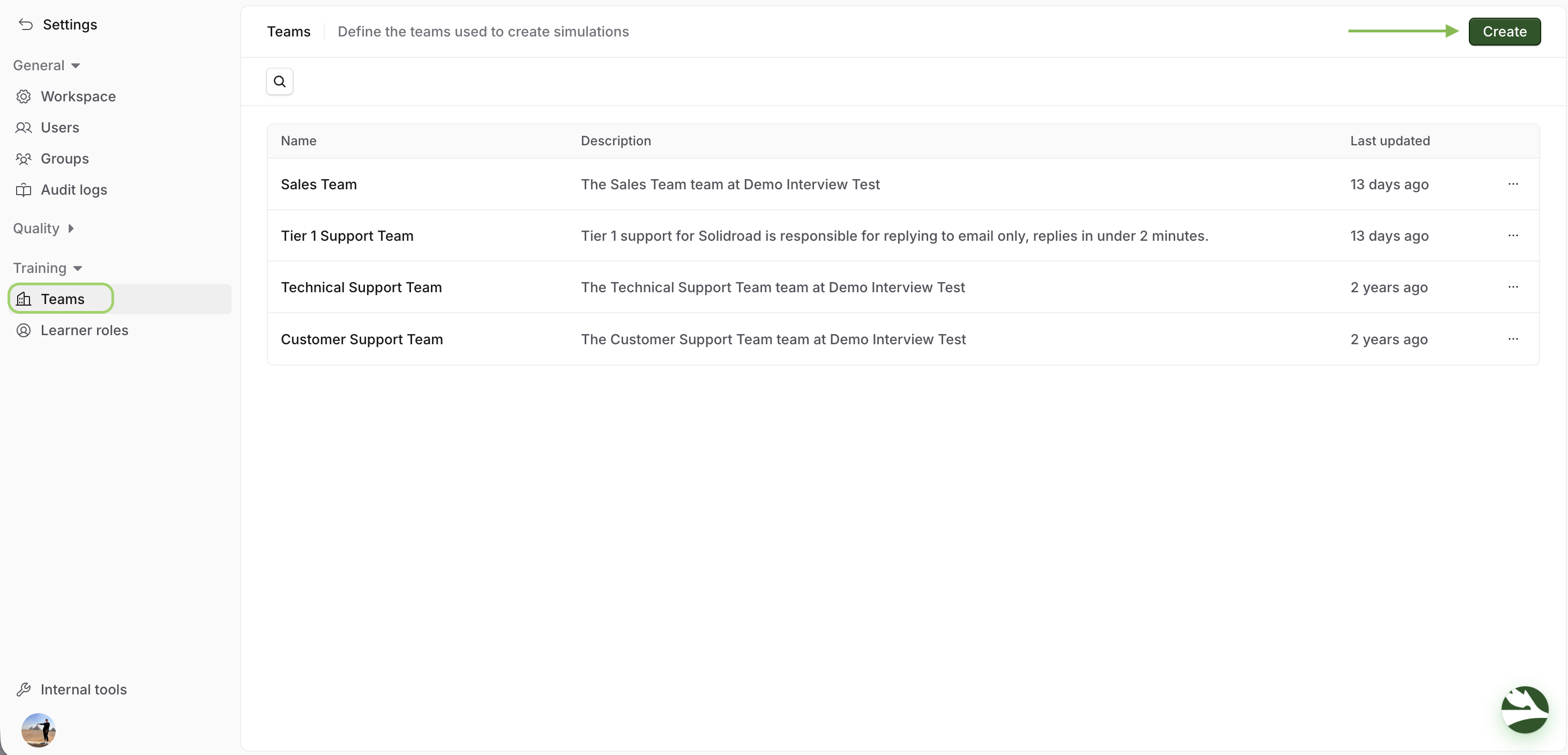
Log In to Your Solidroad Account.
Click on Settings, and select Teams located under the Training tab.
Click on the Create button.
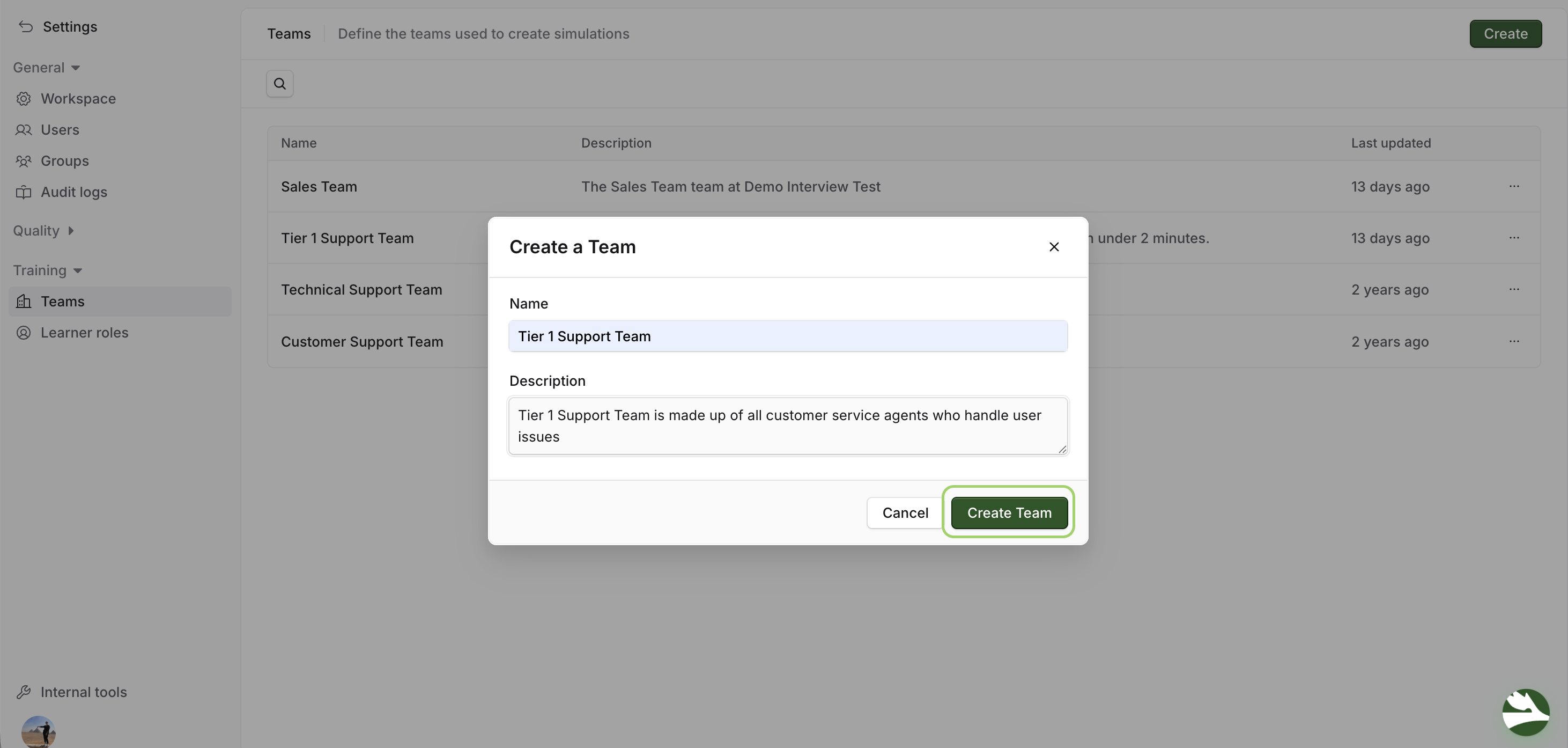
Enter the team name and description.
Click Create Team to store the team.
Editing or Deleting a Team:
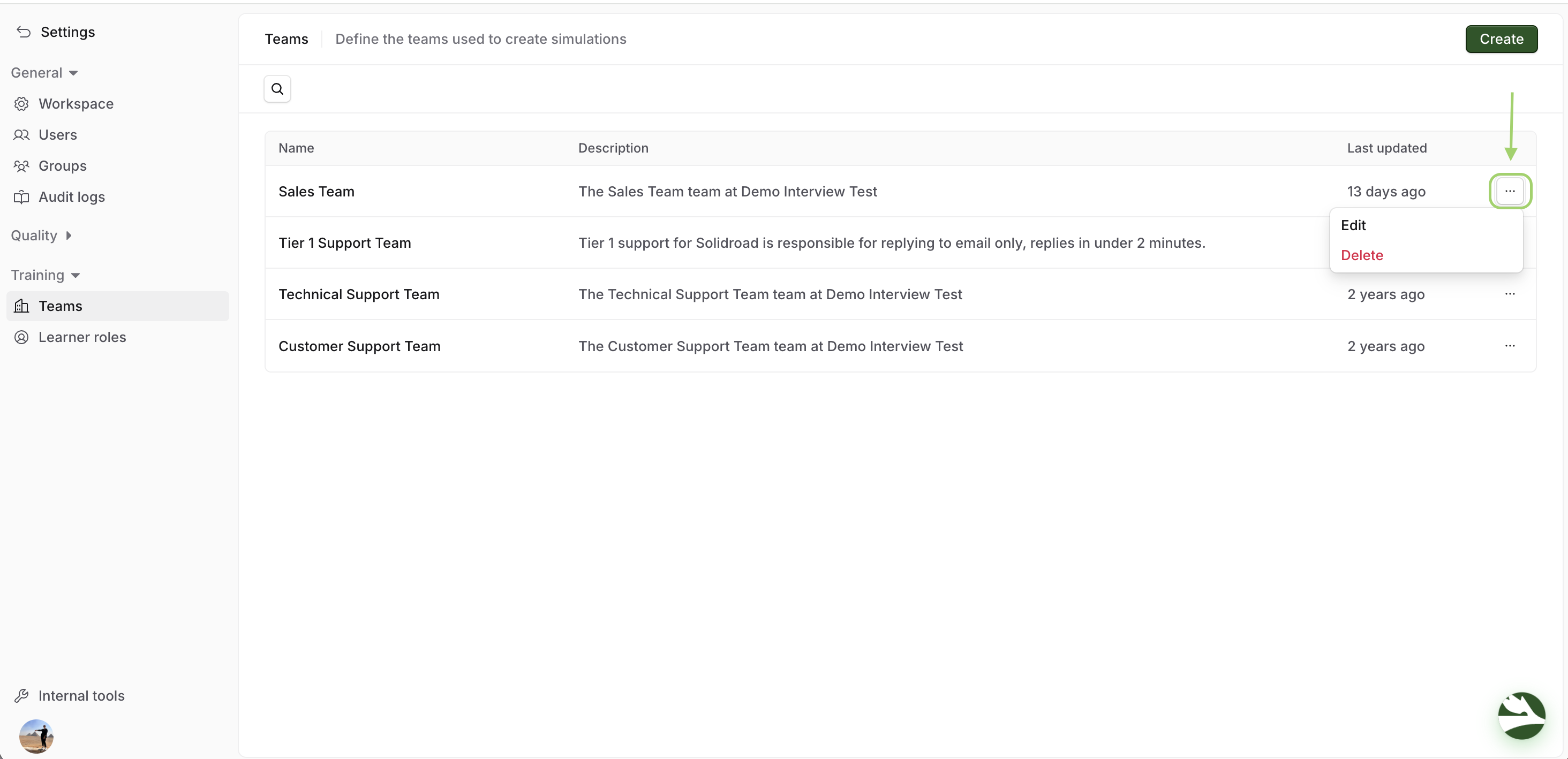
Click on Settings, and select Teams located under the Training tab.
Click on the team you want to edit or delete and make changes, or click Delete to remove it.
Assigning a Team to a Simulation:
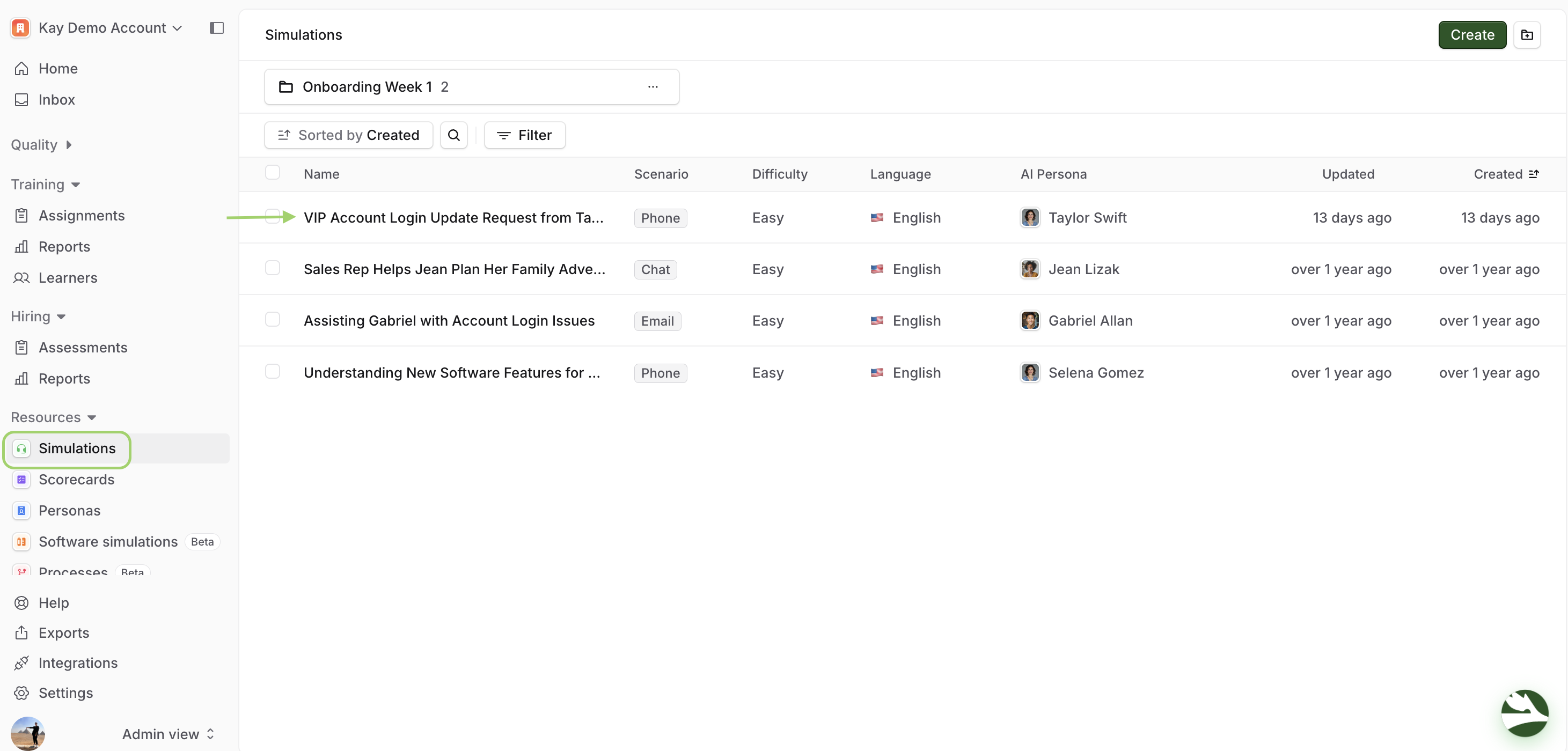
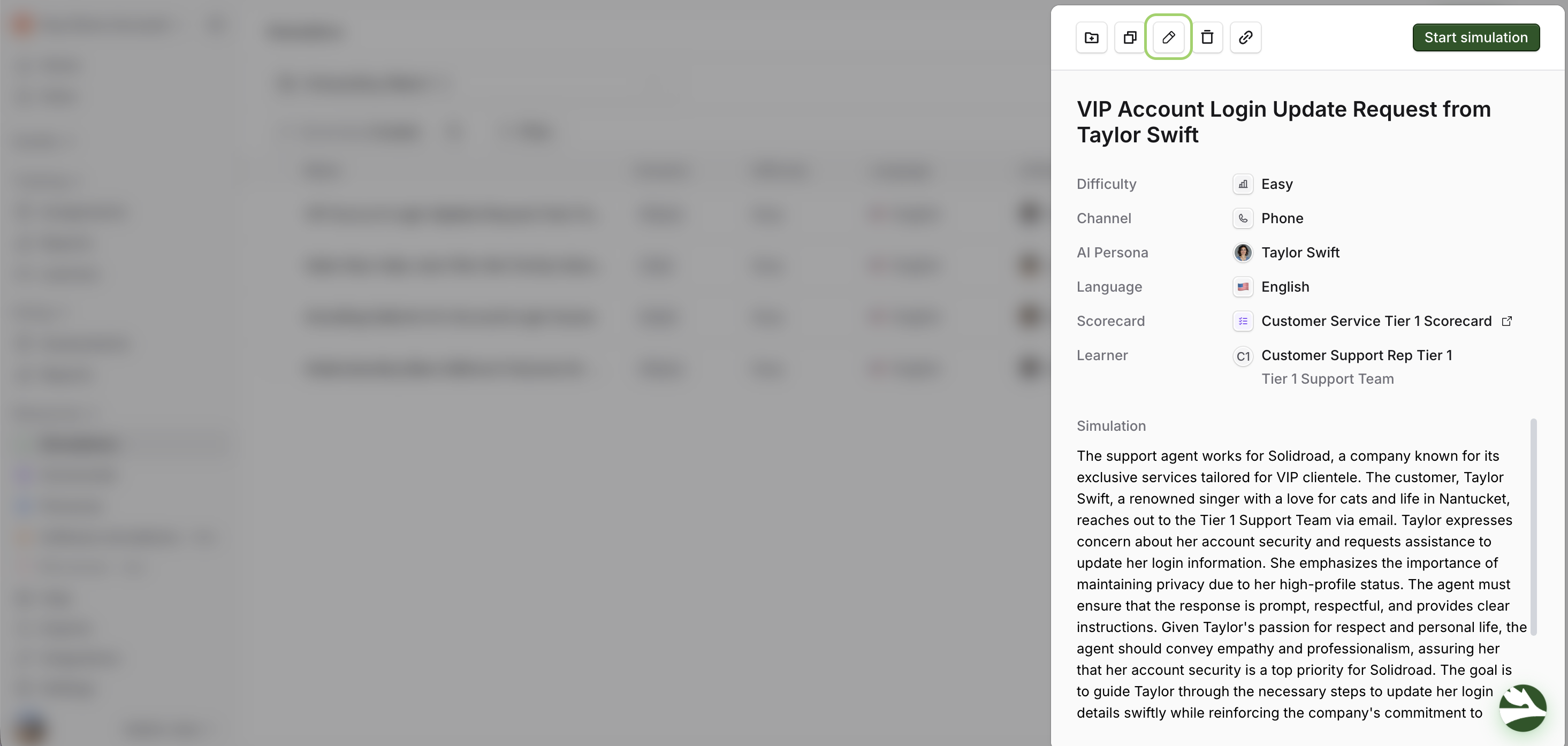
Click on Simulations, and select a simulation. Click on the pencil icon to edit the simulation.
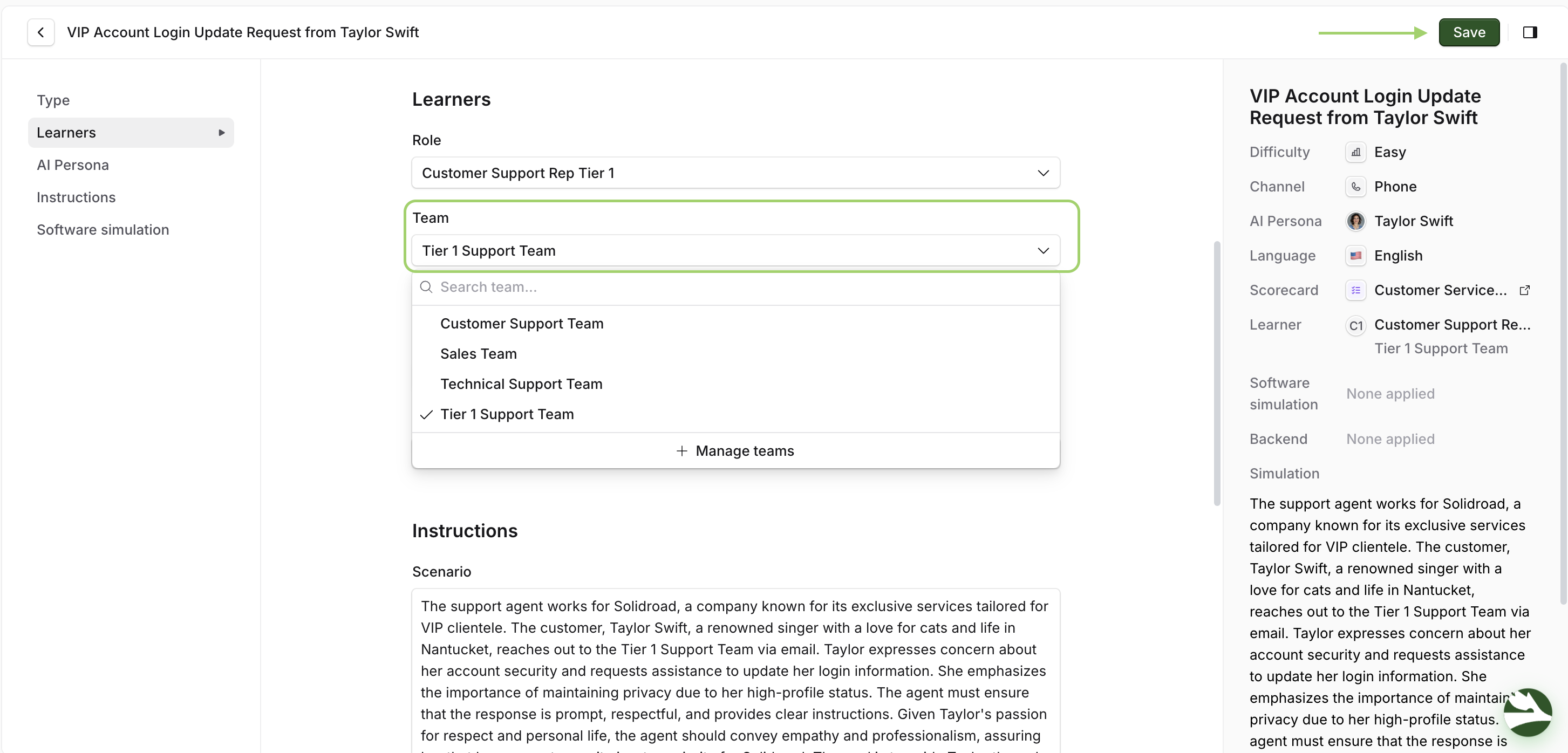
Select the team from the dropdown menu under the Learners section. Once you have selected a team, click Save. You can also click Manage Teams to add new teams!
What's Next?
Now that your teams are set up in simulations, you're ready to assign the simulations!
→How to Create and Manage Roles for Simulations
→How to Change the Language of a Simulation
Need help? Click the Get Help tab in the left panel to access live chat and additional guides.