How to build a simulation from your own material
Last updated: November 11, 2026
You can build a simulation from material you already have instead of describing it from nothing. Roadie can read one of your processes, a transcript of a real call or chat, or documents you attach as you go. This covers all three, what Solidroad does with personal details in your material, and what to do when a file cannot be read.
Choose what to start from
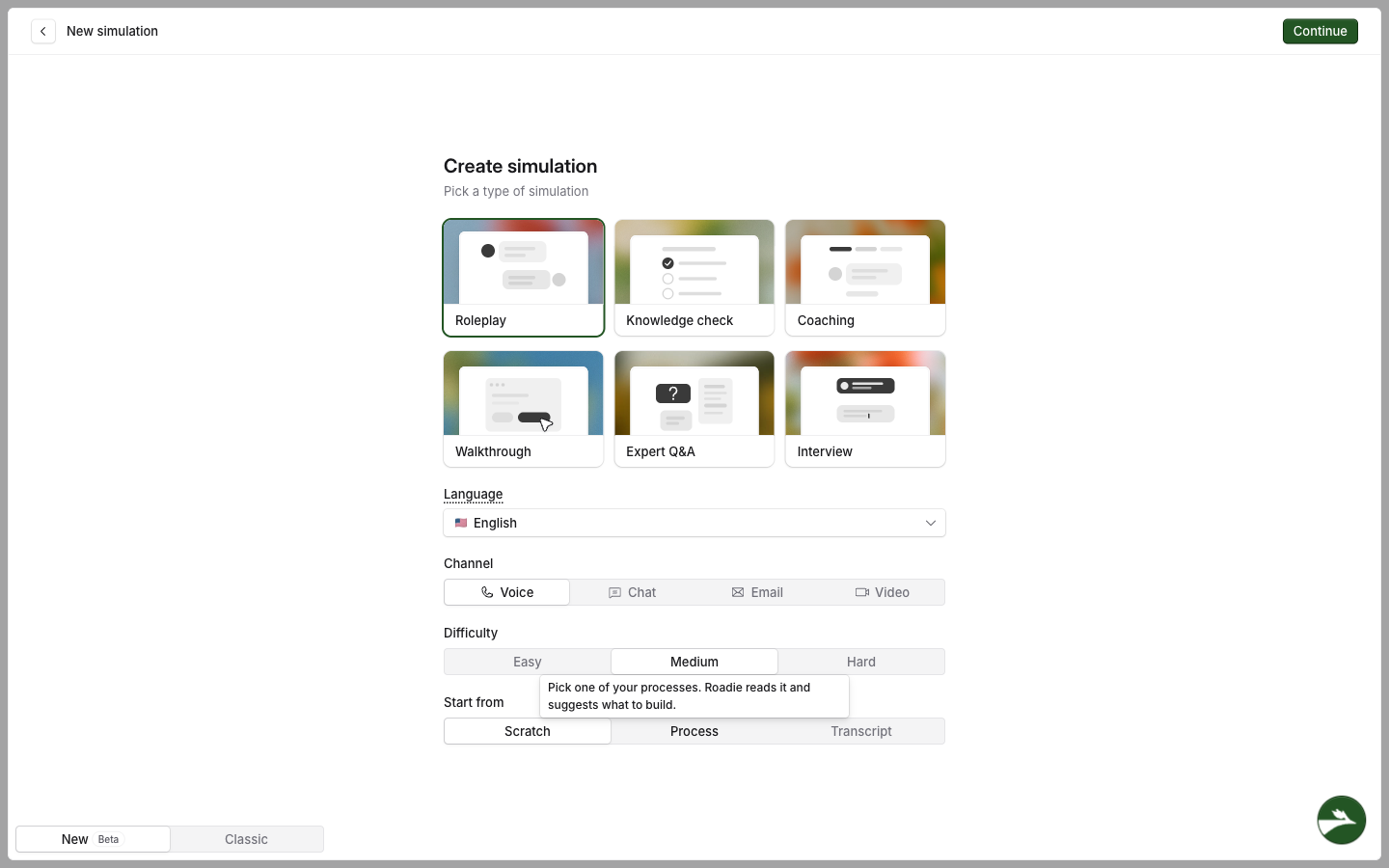
On the first step of Create simulation, under the type, language, channel and difficulty, Start from sets what Roadie begins with. Hover over an option to see what it does.
Option | What you bring | Types it works for |
|---|---|---|
Scratch | A description you type in the chat | All types |
Process | One of your live processes | Roleplay, Knowledge check, Walkthrough, Expert Q&A |
Transcript | A transcript of a real call or chat | Roleplay |
Changing the type to one an option does not work for sends Start from back to Scratch. If you do not see Start from at all, ask your Solidroad contact to turn it on for your workspace.
Build from a process
A process is a written procedure, such as a rate negotiation policy or a returns SOP. Roadie turns its steps into a simulation where the learner has to follow them. To write one first, see How to create a process.
On Create simulation, pick the type, then select Process under Start from.
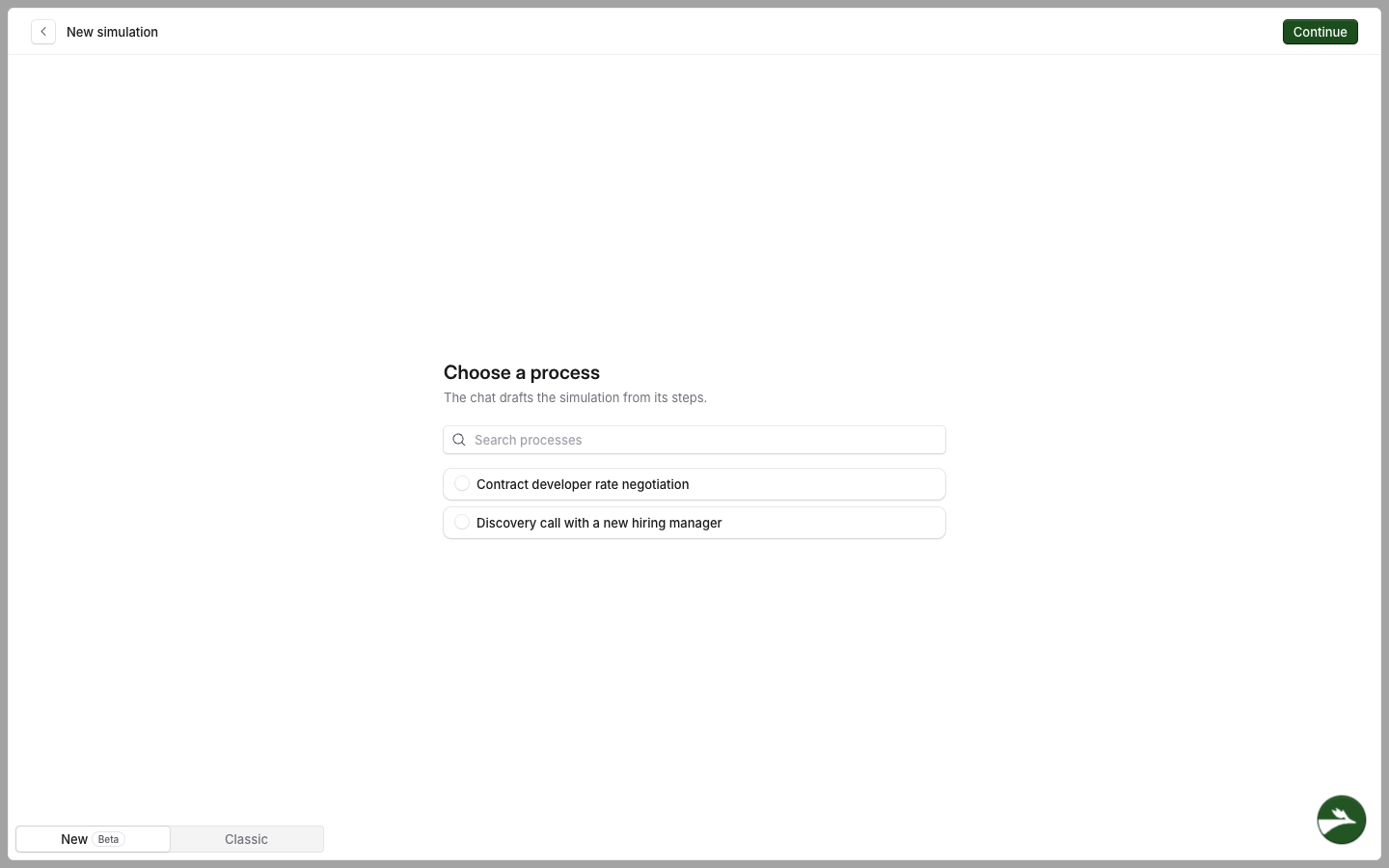
Select Continue. The Choose a process step opens.
Select a process. Search processes filters the list by name. Only live processes are listed, in name order, and one with no steps yet is left out with a line underneath saying how many. With no live processes you see No live processes yet. Publish one on the Processes page.
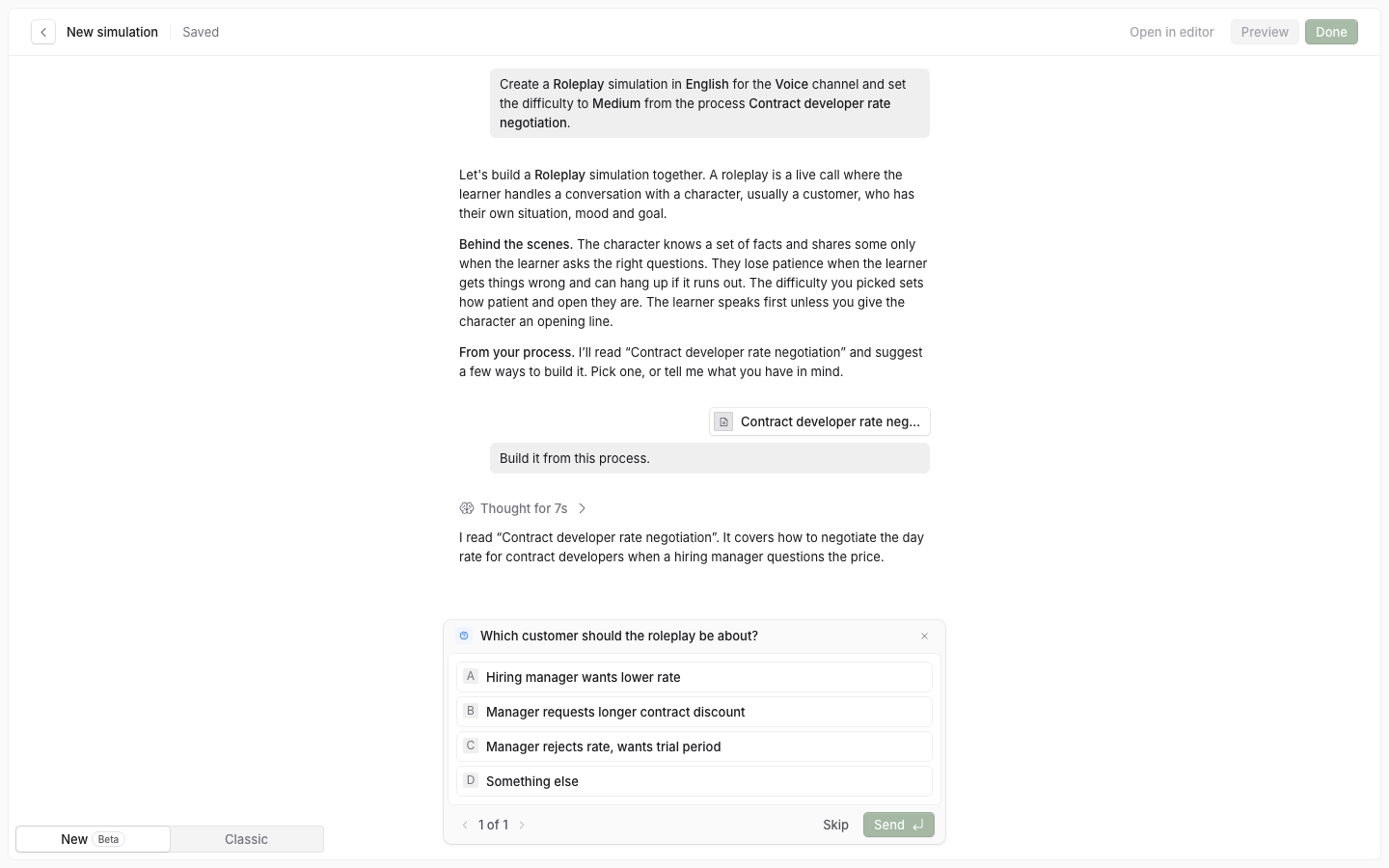
Select Continue. Roadie reads the process and says in a sentence or two what it covers.
Roadie asks what to build, with three ideas and a row for your own. For a Roleplay the question is Which customer should the roleplay be about? and each idea is a situation the process applies to. Pick one, or select Something else and type your own, then select Send.
Answer the remaining questions, including the persona and the scorecard. These work as they do in How to create a simulation with Roadie.
In a Roleplay the character never sees the process. They know only their own side of the situation, as a real customer would, and the steps become what the learner is expected to do. In a Knowledge check, Walkthrough or Expert Q&A the process text is the source material.
If a process is very long, Roadie reads as much as fits and tells you: Only the first part of [process name] fits, so I read that much.
Scoring the process steps
The simulation stays linked to the process you built it from, but the steps are only scored if the scorecard has a process section set to Auto detect process. That section matches each attempt to the right process and scores the learner against its steps.
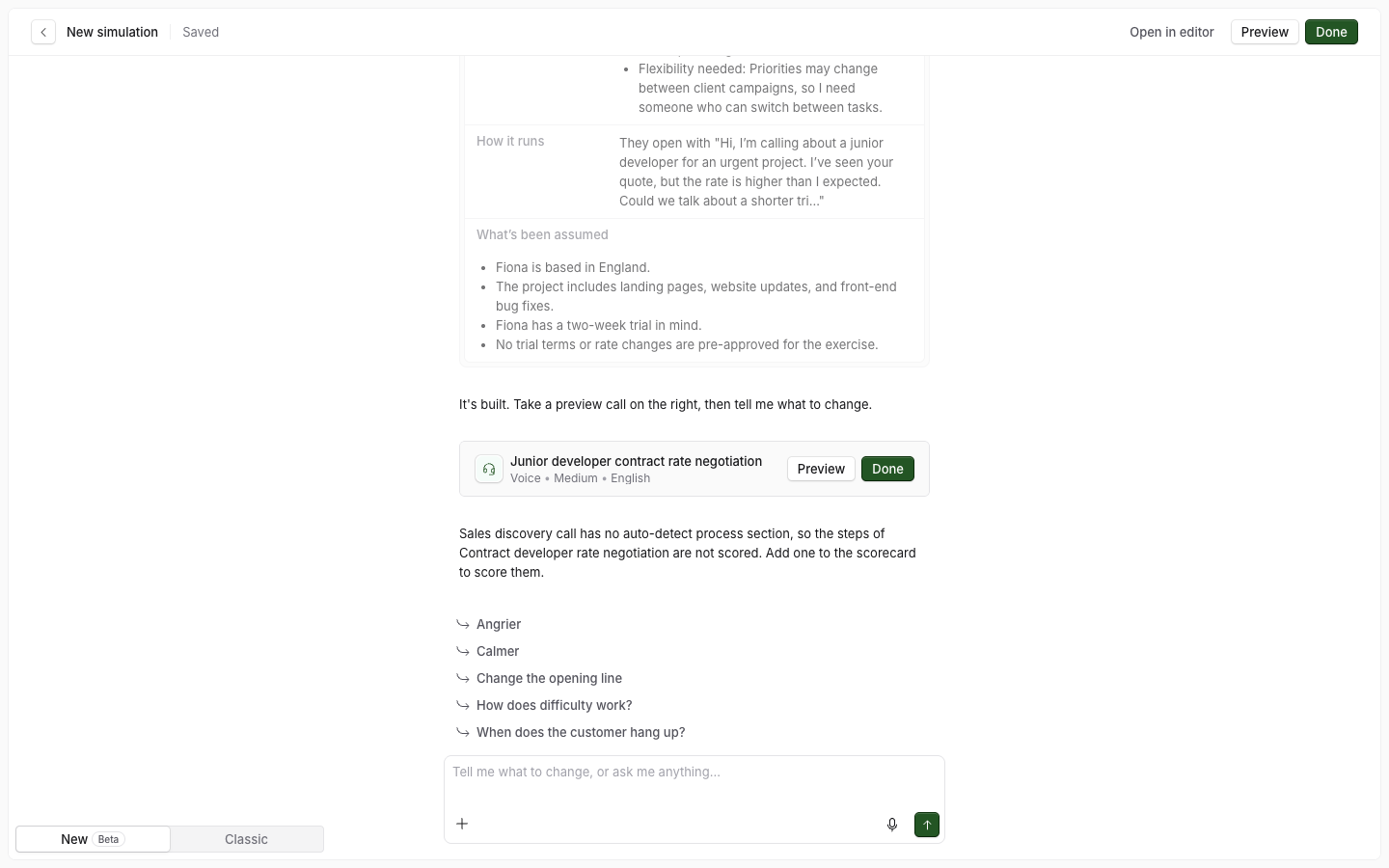
If your scorecard has no such section, Roadie says so when the build ends and names what will not be scored. To add one, see How to use a process.
If the process stops being live before the build ends, Roadie tells you and the simulation names no process. Choose one later in the editor under What success looks like.
Build from a transcript
Use a transcript of a real call or chat, one that went well or badly, to create a Roleplay. Learners can replay it, retake the part that went wrong, or practise a variation.
Before you add it, remove anything that identifies a person, and put each turn on its own line with a speaker label such as Agent: and Customer:. Roadie needs the labels to tell who said what.
On Create simulation, pick Roleplay, then select Transcript under Start from.
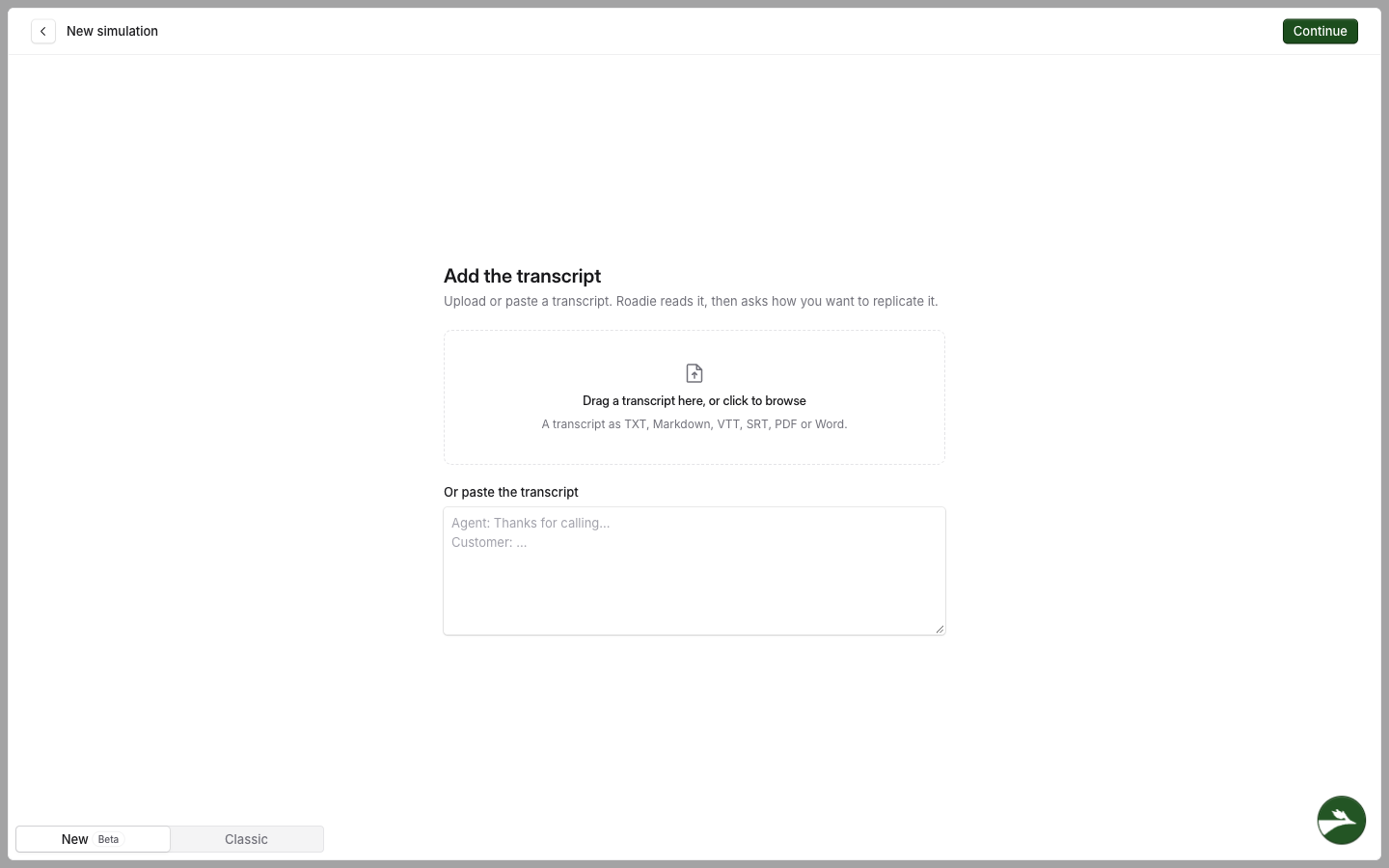
Select Continue. The Add the transcript step opens.
Add the transcript by dragging one TXT, Markdown, VTT, SRT, PDF or Word file onto the box, by clicking the box to browse, or by pasting it into Or paste the transcript.
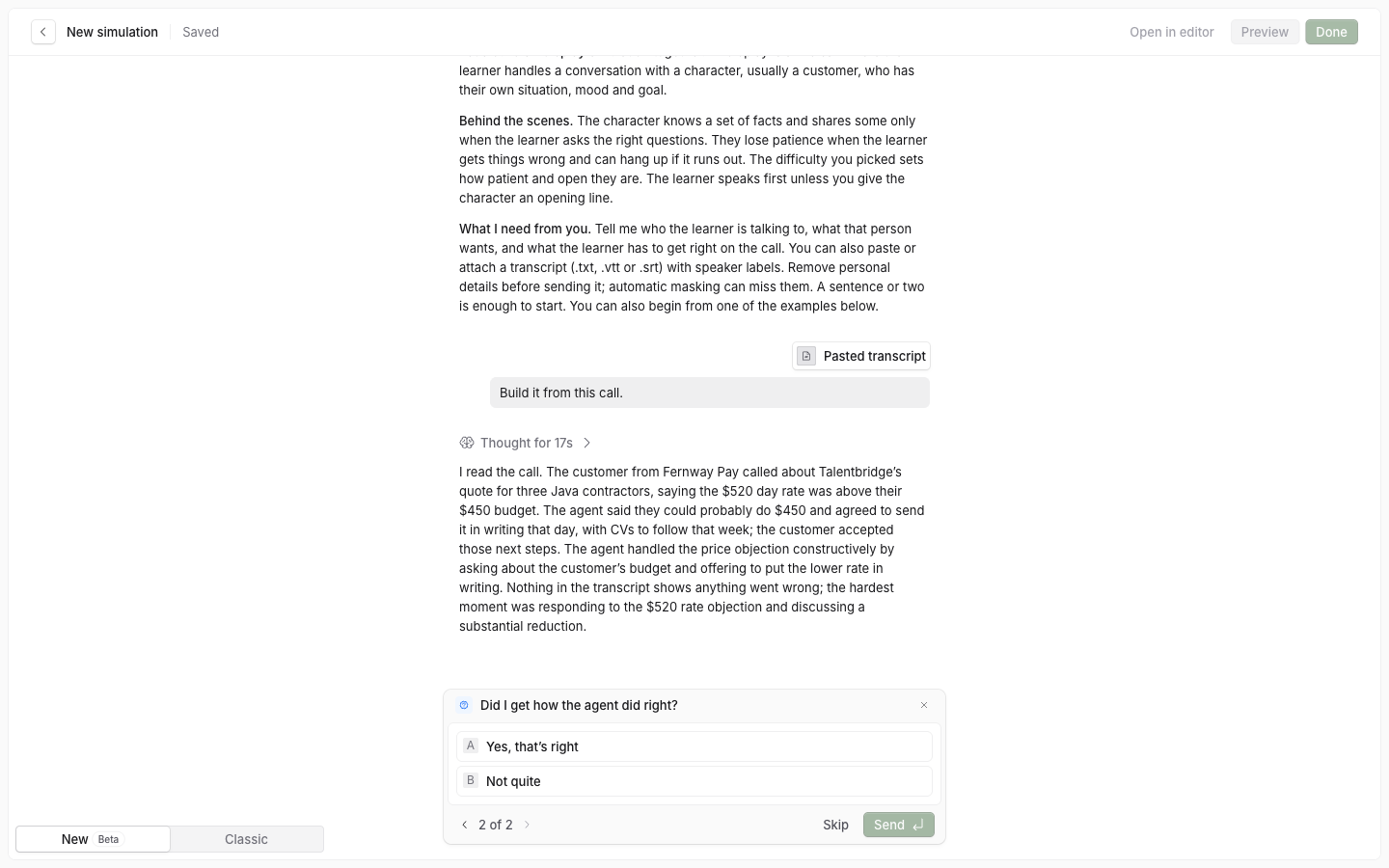
Select Continue. Roadie reads it and sums up what happened and how the agent did.
Roadie asks How should I turn it into a roleplay? with three ideas, such as replaying it as it happened or retaking the negotiation. Pick one or type your own.
Select Next. Roadie asks Did I get how the agent did right? Select Yes, that's right, or select Not quite and say what it got wrong, which Roadie uses when it builds.
Select Send, then answer the persona and scorecard questions.
A transcript can be up to 200,000 characters. If you see [file] has no words I can read, the file is empty or holds no text. If you see I couldn't read [file]. Try again., try again or paste the transcript instead.
Check the draft before you assign it
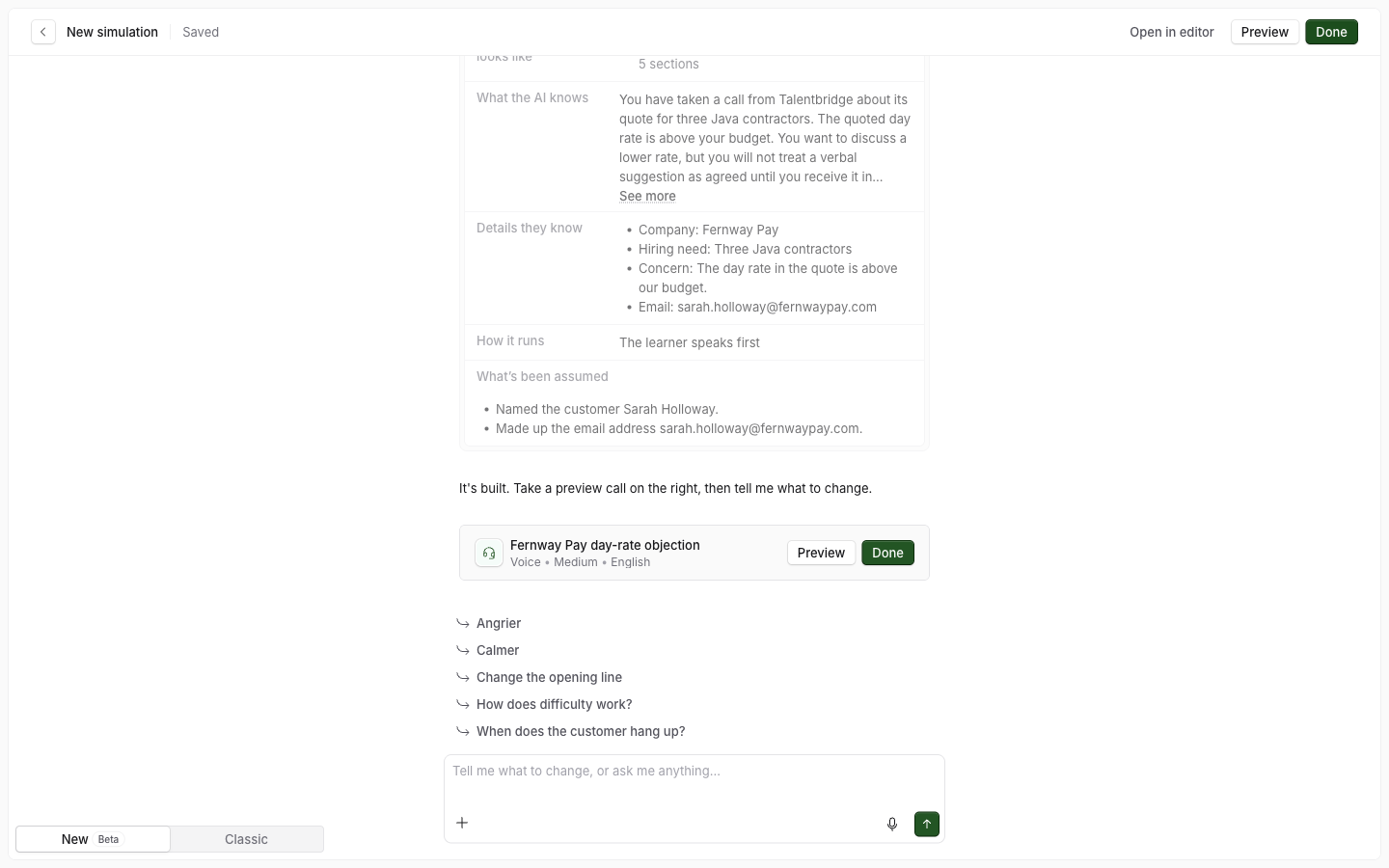
The character keeps the situation and the details of the real conversation, but not the personal details that were removed or masked. Roadie fills those gaps with invented ones and lists them under What's been assumed, for example Named the customer Sarah Holloway.
Read the draft through, paying attention to who said what and to any figures.
Attach files in the chat
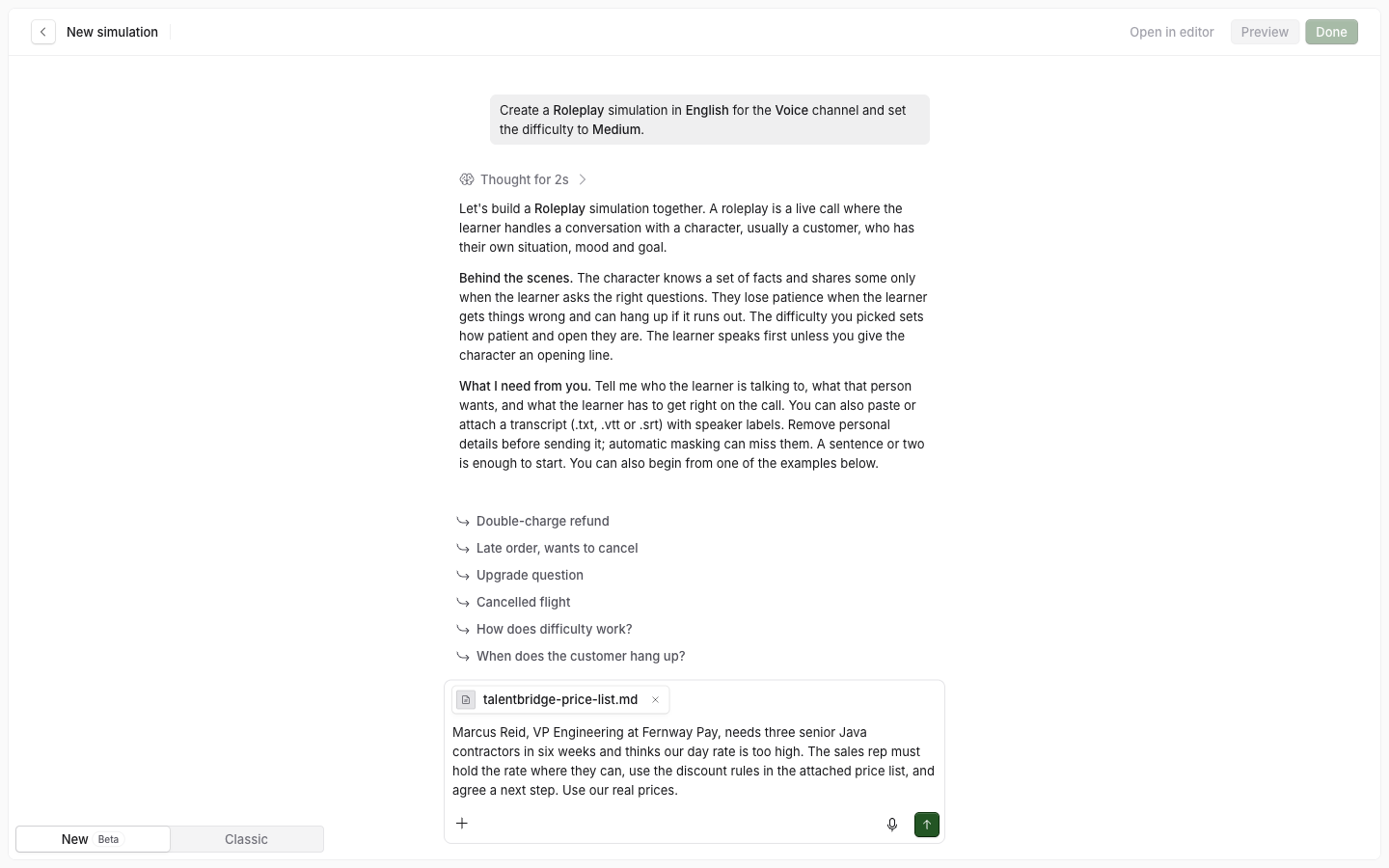
Whichever option you start from, you can attach documents as you go, such as a price list, a policy or a product sheet, and Roadie uses them as source material.
Attach the file by selecting the + button under the chat box, by dragging the file onto the chat, or by pasting a copied file into the chat box.
Type what you want, for example Use the discount rules in the attached price list.
Send the message.
You can attach files when you first describe the simulation, when Roadie asks for source material or a missing piece, and with a change after the build. When Roadie asks a short question, such as who leads the conversation, it holds the file until you send it with words.
The limits are:
Up to 5 files per message, each up to 3 MB.
PDF, Word, Excel, and text files such as .txt, .csv, .md, .json and .html. Caption files (.vtt and .srt) are read as a conversation.
Every sheet of a spreadsheet is read.
A file with the same name as one you already attached replaces it.
All the files in a draft or a change share up to 200,000 characters of text.
What Roadie does with your files
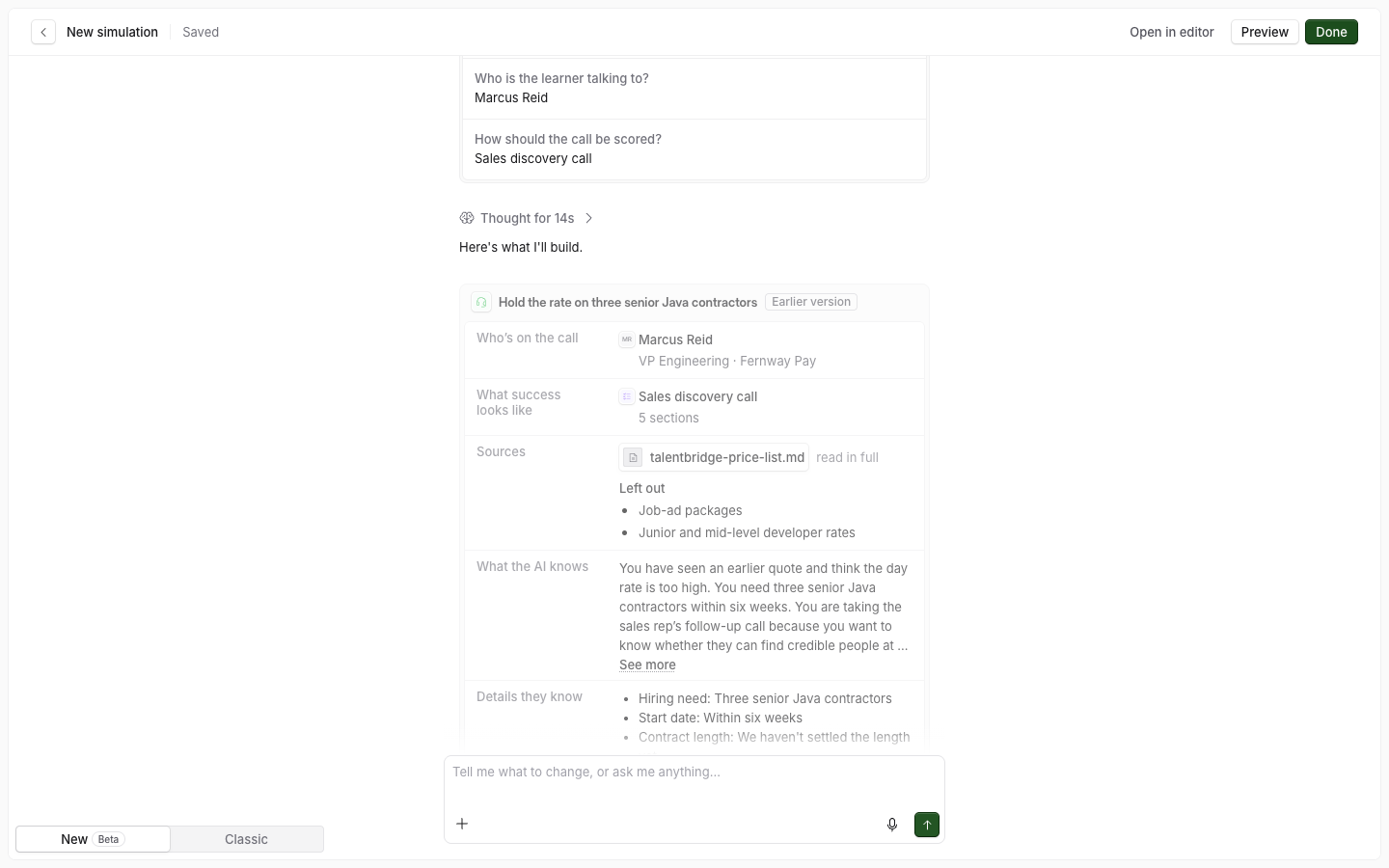
Solidroad reads the text from each file and does not keep the file. Images inside a file are not read. What Roadie takes from the text is written into the simulation, and that text is saved with it.
When the build ends, the simulation card shows Sources. Each file says read in full, or read the first N% if only part of it fit. Left out lists topics from your files that the simulation does not cover.
If a file was only partly read, split it, or attach only the part you need.
If you reload the page
The chat is saved as you go but your files are not. Ask for a change that needs a file after a reload and Roadie stops: [file name] was attached before the page reloaded, and files aren't kept. Attach it again, or carry on without it. Attach the file again, or select Carry on without it.
Personal details in your material
Do not put personal details into Solidroad. Before you paste a transcript, attach a file or type a description, remove customer names, contact details, account numbers and anything else that identifies a person. This is always the safest option.
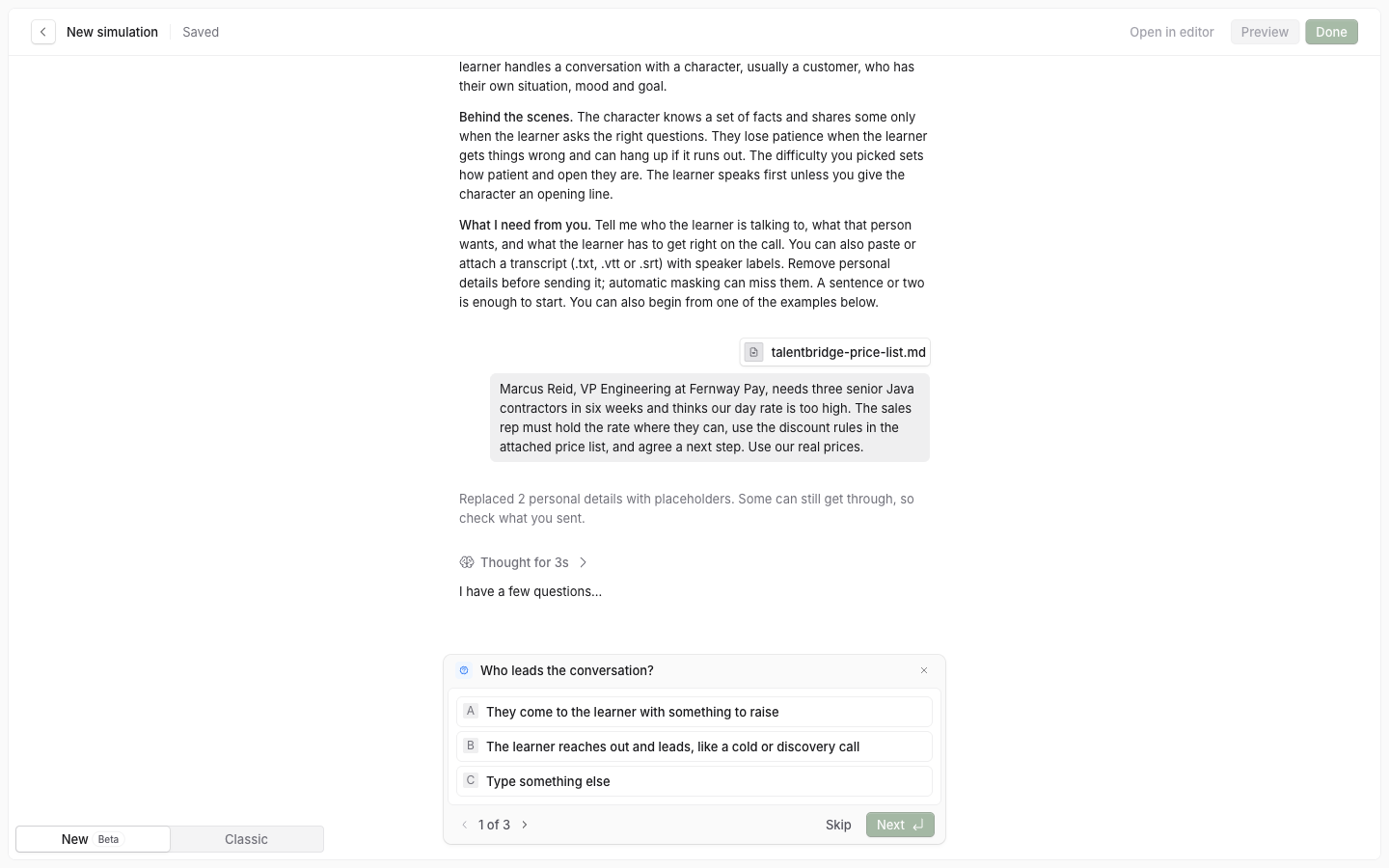
Masking is a safety net for anything that gets through. Solidroad masks personal details before what you send reaches the AI and before the chat is saved, across what you type, attached files, transcripts and the text of a process. A masked detail is replaced with a placeholder.
It finds card numbers, bank details, email addresses, IP addresses and phone numbers, including numbers read out digit by digit and spelled-out emails. It finds national ID numbers, passport and licence numbers, dates of birth, PINs and passwords when they are labelled. In a transcript with speaker labels it also finds the speakers' names, addresses and account numbers.
After you send a message, Solidroad says how many details it replaced, for example Replaced 2 personal details with placeholders. Some can still get through, so check what you sent.
Names in a description you type are not masked, because they are usually the character's name. In a transcript without speaker labels, masking does not find names either.
Masking is not anonymisation and it does not catch everything, so do not rely on it to remove personal details for you.
If a file will not attach
Message | What to do |
|---|---|
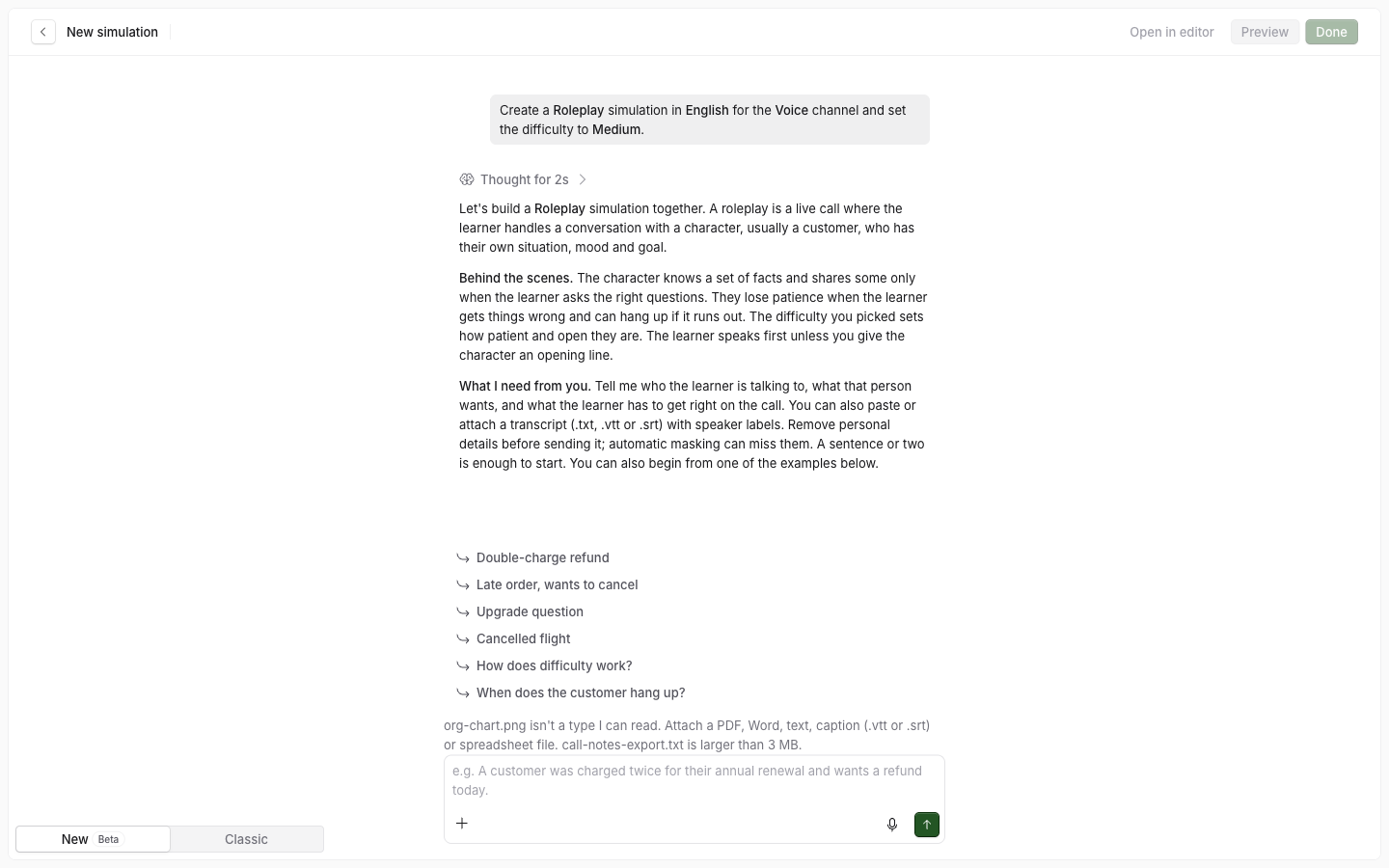
[file] isn't a type I can read. Attach a PDF, Word, text, caption (.vtt or .srt) or spreadsheet file. | Save the file in one of those formats. Images cannot be attached. |
[file] is larger than 3 MB. | Split the file, or attach only the part you need. |
You can attach up to 5 files to a message. | Send the rest in your next message. |
[file] has no text I can read. A scanned document needs its text pasted in. | The PDF is a scan. Copy the text into the chat, or attach a version with real text. |
I couldn't open [file]. It may be damaged or password-protected. | Remove the password, or save a new copy, then attach it again. |
Too many files at once. Wait a minute, then attach it again. | Wait a minute, then attach the file again. |
[file] wasn't sent: this step takes no files. | Answer the question, then attach the file with your next message. |
A message saying the material is more than a simulation can hold | Cut the material by the amount the message gives, or split it into a few simulations by topic. |
Related articles
If you have any further questions, contact the Solidroad team via the Help tab in the platform.