Hold in phone simulations
Last updated: October 8, 2026
Phone simulations have a hold button, so you can step away to check something the way you would on a real call. This covers how to use it, how long it lasts, and what it does not change.
Step 1: Put the call on hold
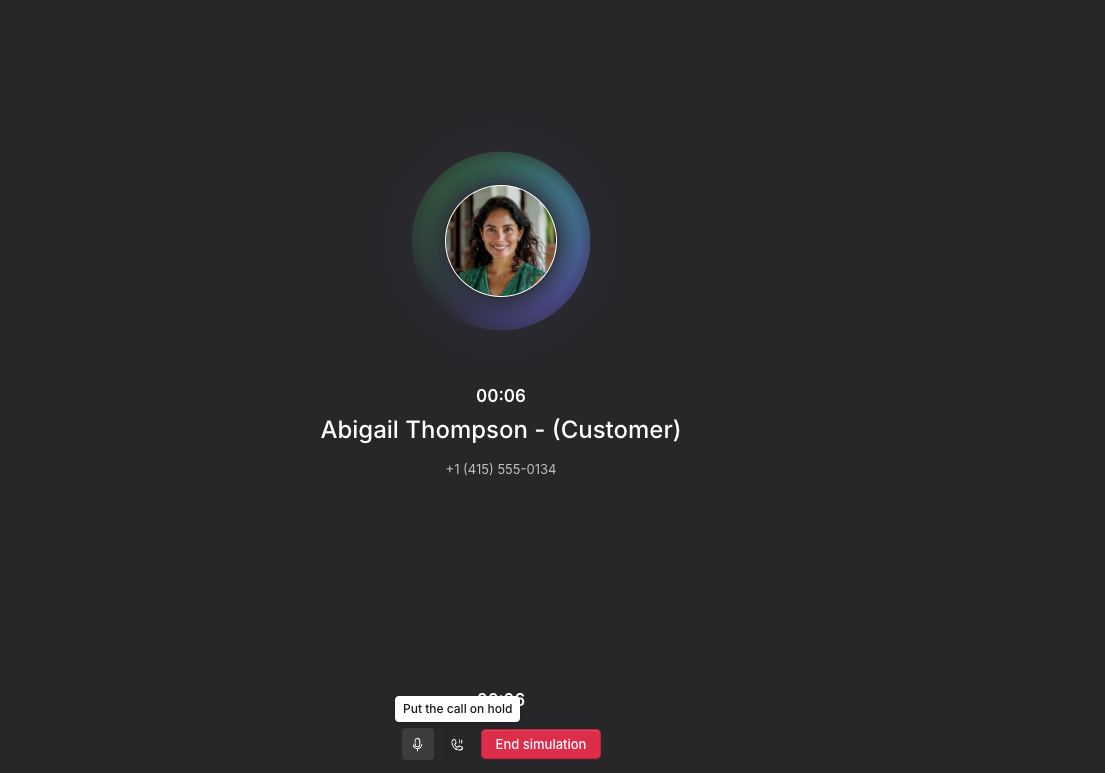
Click the hold button in the call controls at the bottom of the screen. Hovering it shows Put the call on hold.
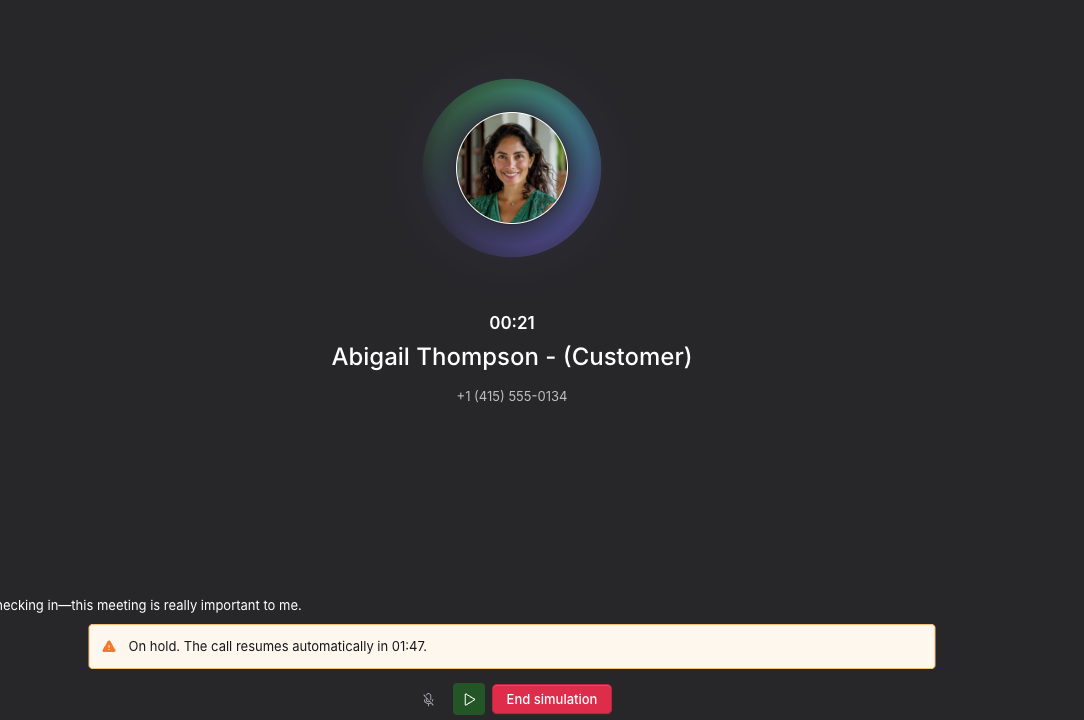
A banner appears telling you the call is held and counting down, for example On hold. The call resumes automatically in 01:47.
Step 2: Come back
You have two minutes. The call resumes on its own when they are up, or you can click the resume button to come back sooner.
You can put the call on hold again as many times as you need, so a long look-up can be broken into a couple of holds rather than one.
Two minutes is the limit
The two minutes cannot be extended, and there is no setting to change it. If you need longer than that, come back and tell the customer you are still working on it, the way you would on a real call, then hold again.
The simulation keeps running
Hold pauses the conversation, not the simulation. Time continues to run while you are held, and the hold is part of the attempt like everything else.
Where you will find it
Hold is on by default for phone simulations. There is nothing to switch on.
It is not available in email, chat or video simulations, or anywhere in hiring.
Related articles
If you have any further questions, contact the Solidroad team via the Help tab in the platform.