Scoring a simulation that covers several processes
Last updated: November 13, 2026
A real conversation often needs more than one process. A customer calls to cancel, then asks for a refund on the last renewal. When an attempt covers several of your processes, Solidroad scores the one that fits best, or every one of them, depending on a setting on the scorecard. This covers both options, what each does to the score, and what learners and reports see.
Before you start, you need process matching turned on from the Processes page, your processes written with a clear name and description, and a scorecard with a Process section set to Auto detect process. See How to use a process.
You do not set anything up per simulation. Solidroad reads each attempt and works out which processes it covers.
Choose how many processes to score
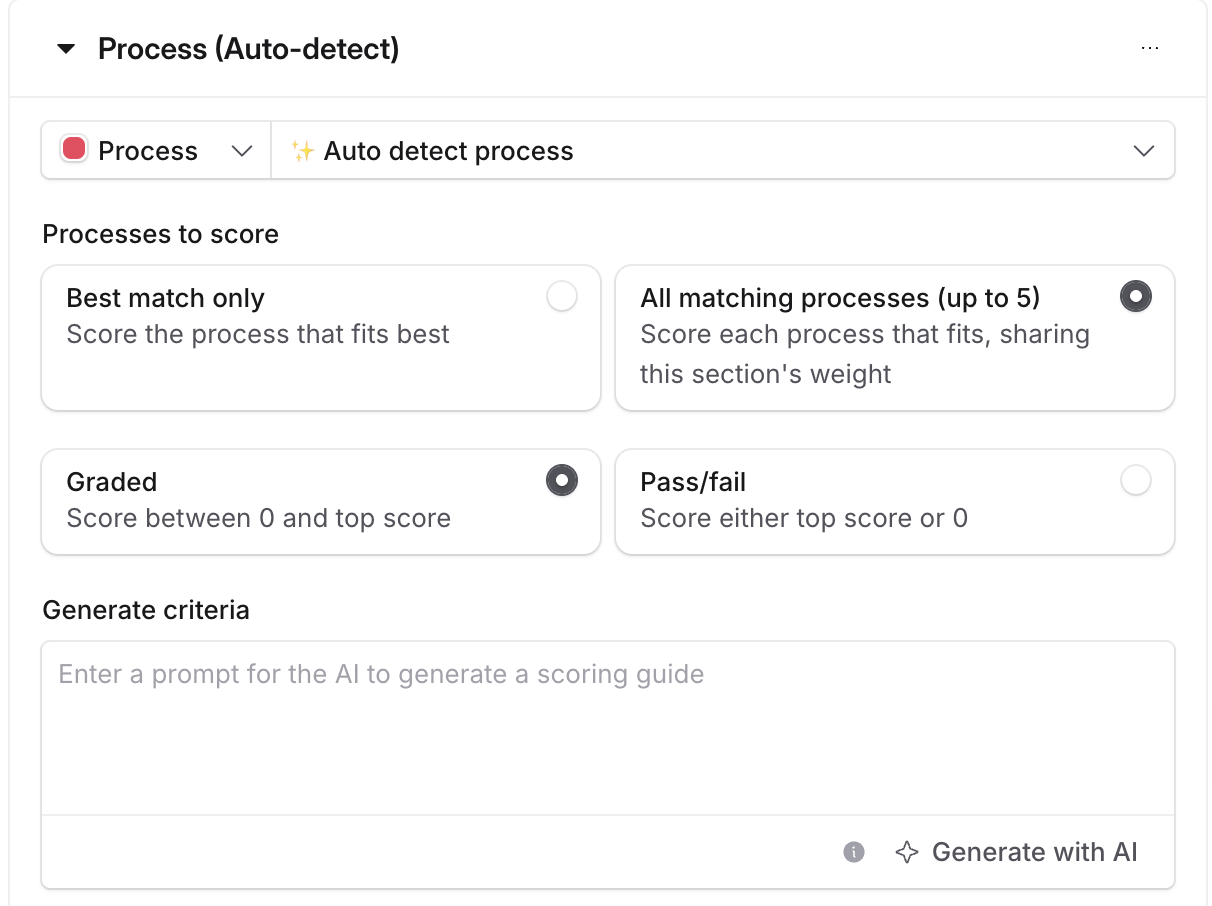
Processes to score sits on the auto-detect process section and decides how many of the processes an attempt covers are actually scored.
Option | What Solidroad scores |
|---|---|
Best match only | The one process that fits the conversation best, which takes the section's full weight. This is the default. |
All matching processes (up to 5) | Every process the attempt covers, up to five, sharing the section's weight. |
A section saved before this setting existed uses Best match only.
Open the scorecard and go to its Process section.
Check that Select a process is set to Auto detect process. Processes to score only appears on an auto-detect section.
Choose Best match only or All matching processes (up to 5).
Select Save draft, then publish the scorecard.
The setting applies to attempts scored after you publish. Attempts that were already scored keep their scores.
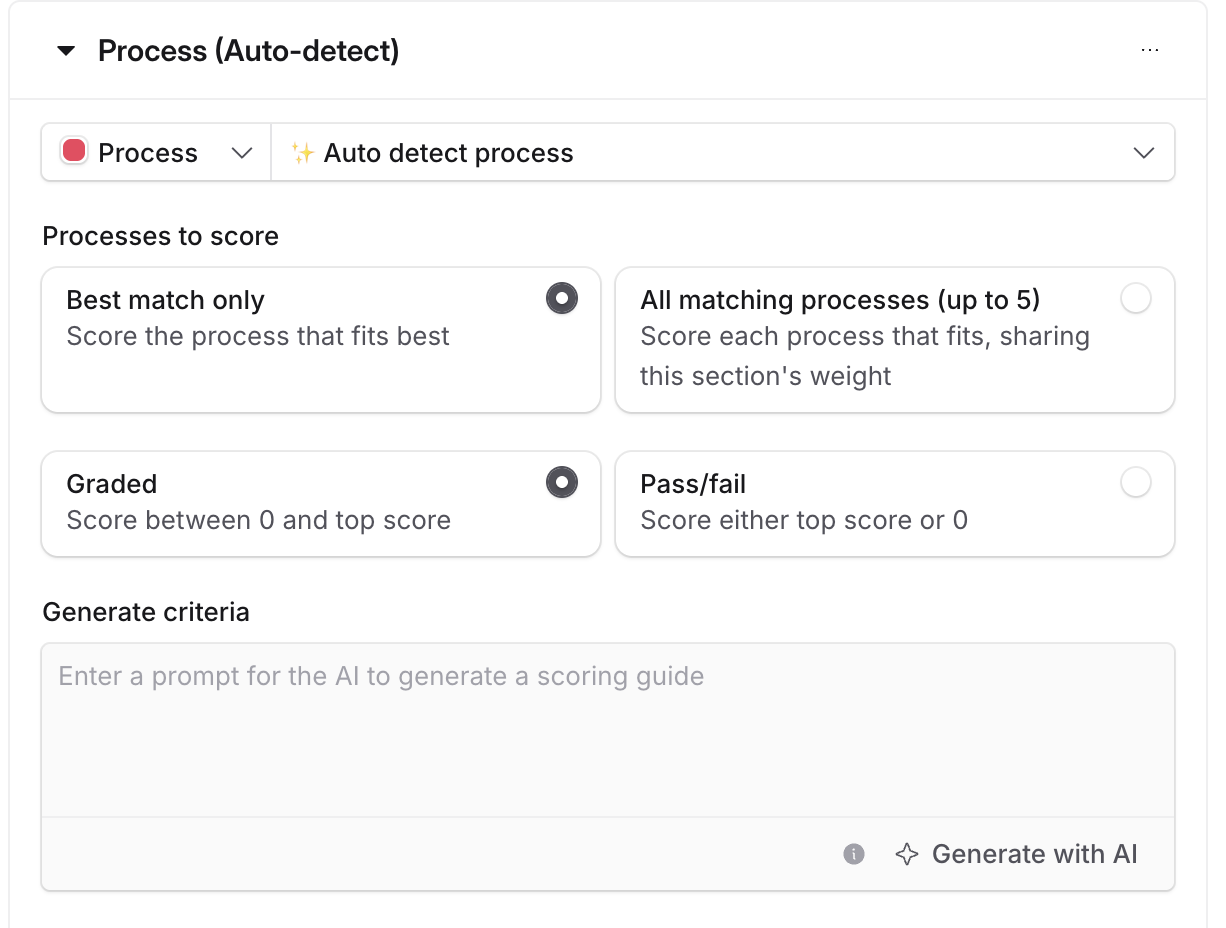
Keep Best match only when you want one process per attempt, or when some of your processes overlap. Solidroad still works out which one applies, so you are not picking it per simulation. Choose All matching processes when one conversation genuinely needs several separate processes and you want feedback on each.
How the processes are matched
When a learner finishes an attempt, Solidroad compares the conversation with the activation criteria of each of your processes. Those criteria come from the process's name and description.
Under Best match only, only the closest fit is scored. Under All matching processes, every process that applies is scored, up to five. If attempts often hit that cap, check whether two of your processes describe the same thing, or switch to Best match only.
How the score is split
The Auto detect process section becomes one section per scored process, named after that process. Each one uses the settings from the auto-detect section: the top score, Graded or Pass/fail, and the Poor, Average and Strong descriptions.
Under All matching processes, the scored processes split that section's weight evenly, so together they are worth what the single section was worth.
The auto-detect section's share | Processes scored | Share per process |
|---|---|---|
40% | 1 | 40% |
40% | 2 | 20% each |
40% | 4 | 10% each |
Under Best match only the one process takes the whole share, the same as a process you choose yourself.
Your other sections keep their weight, so a conversation that covers more processes does not count for more.
If no process matches, the process section does not count towards the score, and the learner's score comes from the other sections.
What the learner sees
An attempt scored on two or more processes, which only happens under All matching processes, shows its feedback in two tabs. Skills holds your other scorecard sections. Processes says how many processes the attempt covered, then gives the Process score, then each process with its own score, comments and a Why it matched note.
Selecting a process name opens that process in a new tab, for anyone who can open the Processes page.
An attempt scored on one process has no tabs, and the process appears as an ordinary section.
How it shows in reports
The column for the auto-detect process section shows one score per attempt. Where an attempt was scored on several processes, that score is the average of their scores, and the attempt still counts once.
Attempts that were already scored keep their scores, including when you change Processes to score.
If a process was scored that did not apply
Correct the attempt and set that process's section to N/A. The steps are in How to correct a simulation score.
The remaining processes then share the weight again, so the result is the same as if the wrong process had never been scored. Where four processes shared 40%, the three left take about 13% each.
A correction can change or remove the processes that were scored, but it cannot add one that was missed. Under Best match only that is expected, because the other processes the attempt covered were never in scope. Under All matching processes, check the missed process's name and description and generate its activation criteria again.
To stop the wrong process being scored again, look at the names and descriptions of the processes involved. Two that read alike are hard to tell apart, so one attempt can match both. Make each name and description distinct, begin the description with This process covers, and generate the activation criteria again. See Process best practices. If they overlap deliberately, Best match only scores each attempt on one of them.
Scoring one process every time
There are two ways, and they differ in who picks the process.
Leaving Processes to score on Best match only lets Solidroad pick, so each attempt is scored on whichever process fits it best.
Choosing a named process under Select a process, instead of Auto detect process, fixes it yourself, and every attempt on that scorecard is scored on that one process. Save and publish the scorecard afterwards.
Writing the Poor, Average and Strong descriptions
Describe how closely the learner followed the process rather than naming specific steps, because the same descriptions are used for every process the section scores.
For example, Poor: skipped most of the required steps, or followed the wrong process. Average: followed the core of the process but missed one or more steps. Strong: followed all required steps, in order where order matters.
Related articles
If you have any further questions, contact the Solidroad team via the Help tab in the platform.