How to update a scorecard that's already in use
Last updated: September 21, 2026
Changing a scorecard that simulations already rely on works differently from building a new one. Your edits sit as a draft until you publish them, publishing creates a new version, and nothing you do changes results that have already been scored. This covers how to make a change safely and what it does and does not affect.
Building a scorecard from scratch is covered in How to create a scorecard.
Step 1: Edit the scorecard
Open the scorecard from Resources > Scorecards.
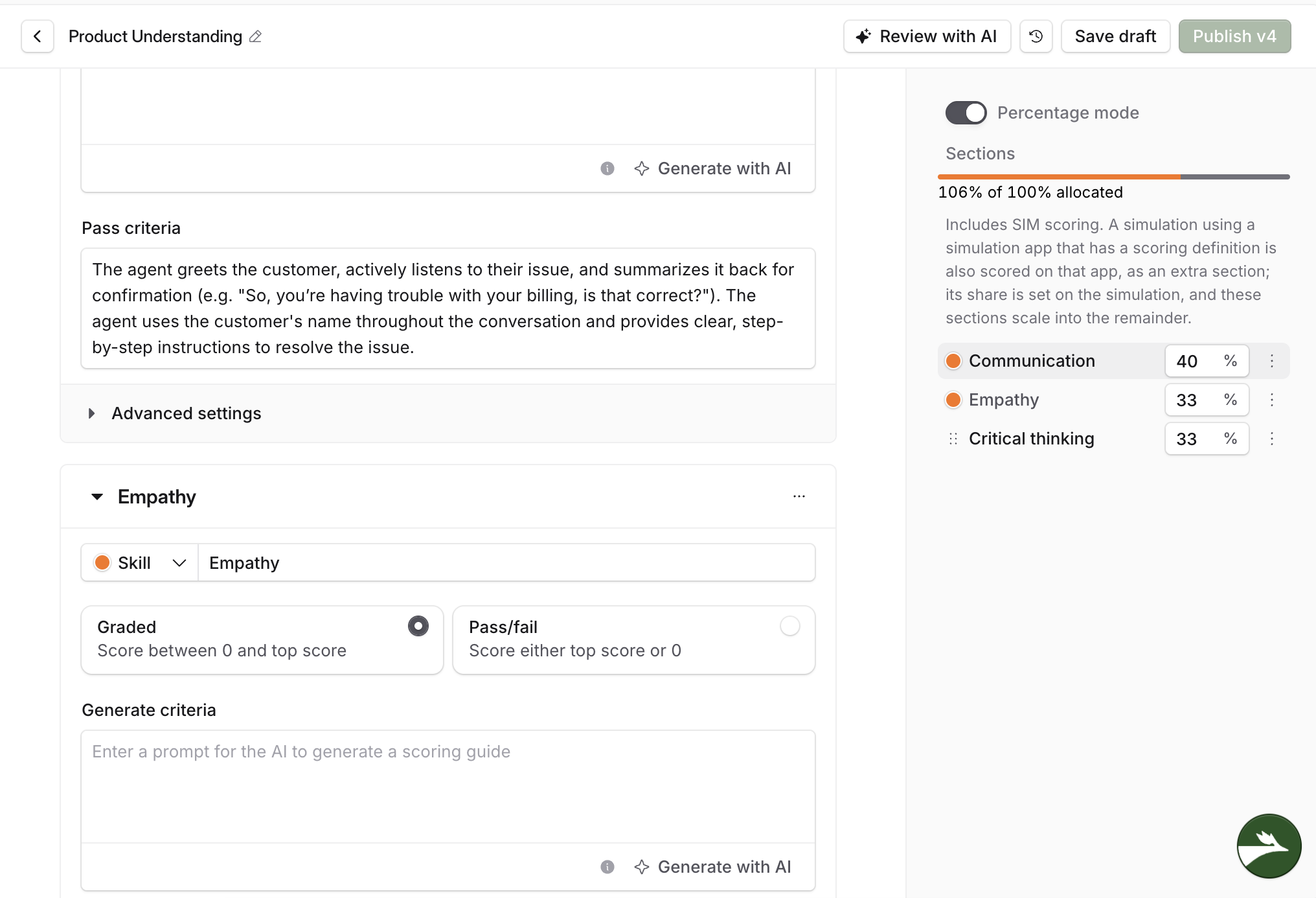
Make your changes. Nothing you edit here affects scoring yet, so you can leave a scorecard half-changed and come back to it.
Use the history icon at the top right to see earlier versions, or Review with AI to have your changes checked before you go further.
While a scorecard has an unpublished draft, every simulation using it is still being scored against the published version, not your draft.
Step 2: Save the draft
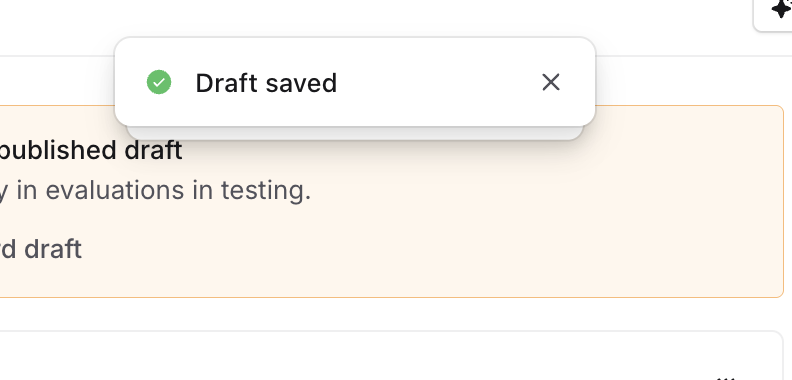
Publish stays greyed out until you have saved a draft, so Save draft is not optional. Click it before you go any further, and watch for a confirmation that the draft saved.
If the draft will not save
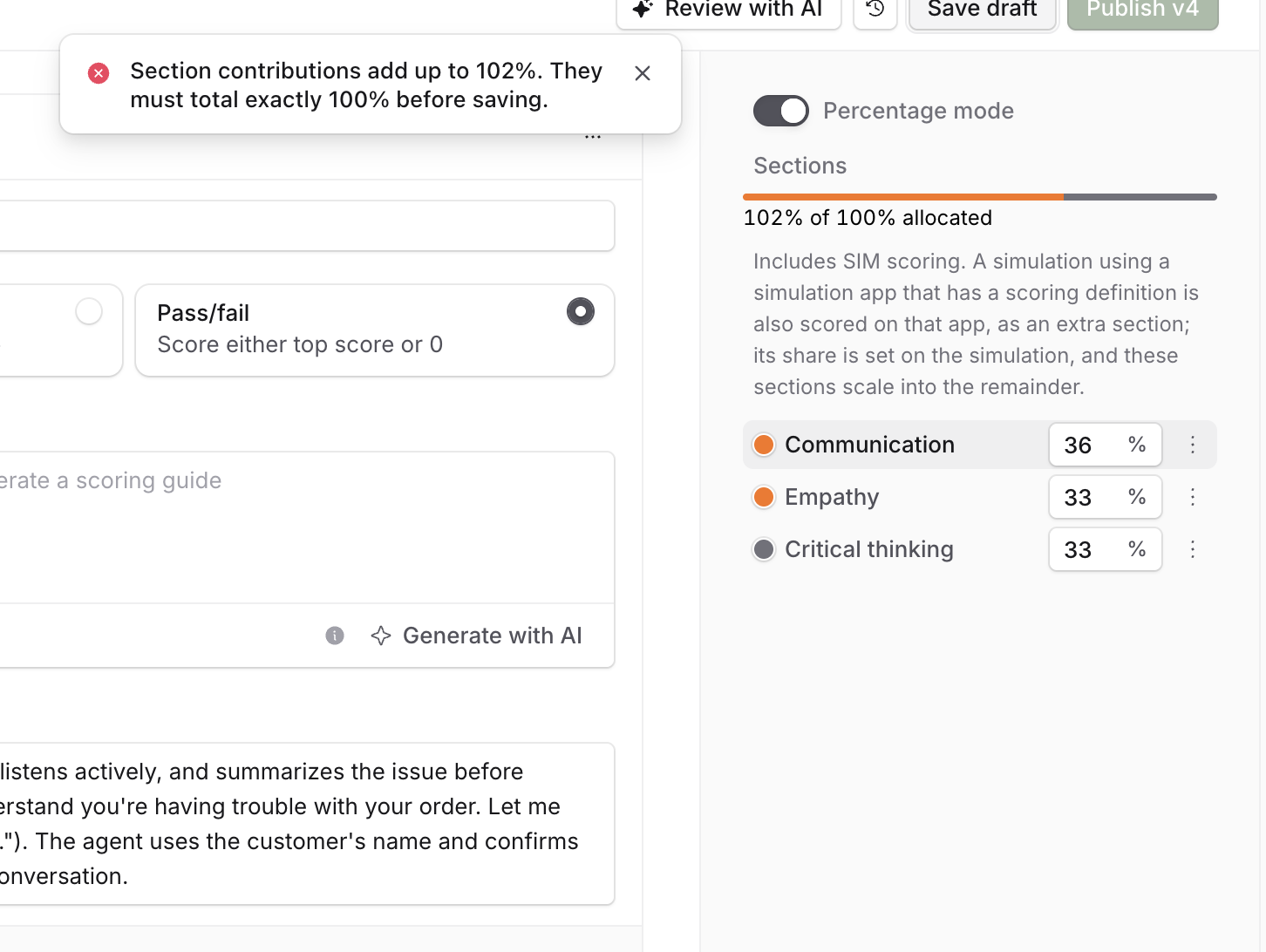
The percentages across your sections have to total exactly 100. If they do not, the save is rejected and a message appears at the top of the screen, for example Section contributions add up to 106%. They must total exactly 100% before saving.
The right hand panel shows you where you stand, under Sections, as a line reading 106% of 100% allocated. Adjust the sections until that reads 100%, then save again.
The message clears on its own, and if you leave the page after it has gone you lose your edits, because nothing was saved. An admin who changes some weightings, clicks Save draft, and moves on without reading the message comes back to a scorecard that looks untouched. If you are unsure whether a save went through, check that Publish is no longer greyed out.
Step 3: Check what the change will affect
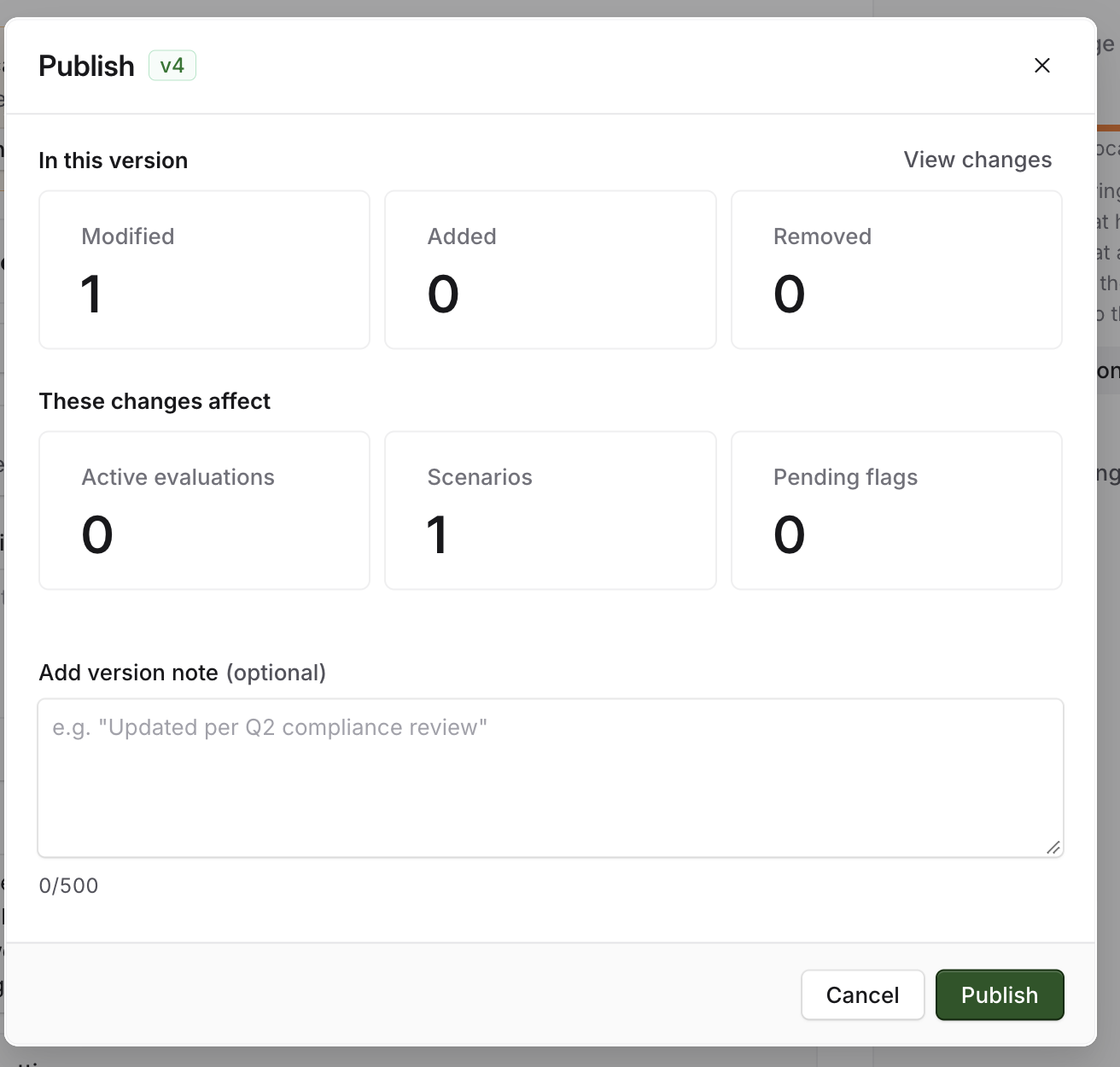
Click Publish. A window opens showing the version you are about to create, for example v3, and a summary of the change in two parts.
In this version counts what you edited, as Modified, Added and Removed. View changes opens the detail if you want to read exactly what is different.
These changes affect counts what the new version touches, as Active evaluations, Scenarios and Pending flags.
Read those numbers before you confirm. Adjusting a scorecard used by one pilot simulation and adjusting the one behind your whole library are the same three clicks, and these counts are the only thing on screen that tells you which you are doing.
You can add a version note in the same window, under Add version note (optional), up to 500 characters, for example Updated per Q2 compliance review. It is optional, and it is the only record of why a version exists. Cancel closes the window without publishing anything.
Step 4: Publish
Publishing makes the new version live. Every simulation using the scorecard moves to it at once, so there is nothing to update simulation by simulation and no way to hold some of them back on the old version.
Until you publish, nothing changes to the scoring. This is a common confusion, an admin edits the criteria, sees the same scores coming back, and assumes the change did not work.
What happens to simulations already completed
Nothing. A score and its feedback are saved as they were at the time of scoring, so publishing a new version does not go back and recalculate anything. Your existing reports stay exactly as they were.
That happens both ways - if you have corrected a section that was scoring people unfairly, the learners already scored under the old wording keep those scores. You are not able to rescore old simulations with the new version, but you can utilise "Alternate evaluations" in the feedback tab to see how they would score with the updated version.
Going back to an earlier version
Every publish is kept. Open Version history from the history icon at the top right of the editor to see them, newest first, with who published each one and when. Your unpublished draft sits at the top, labelled Draft (next: v4), and the version currently being used for scoring is labelled Current.
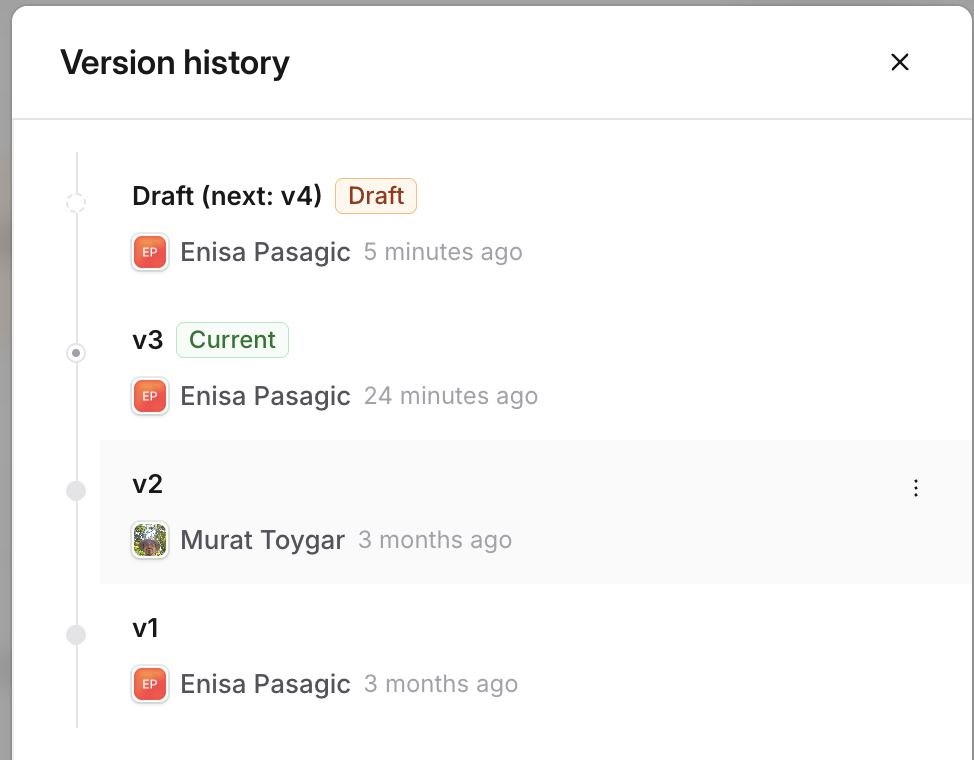
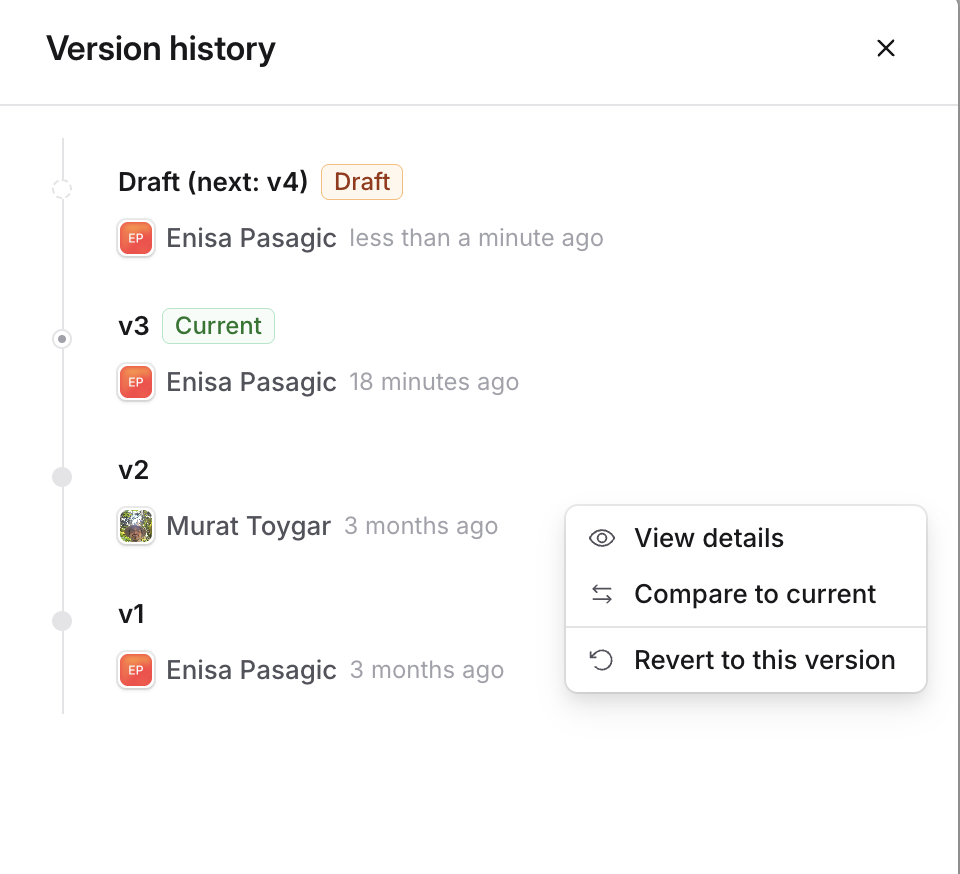
Each version has a menu with three options:
View details shows what that version contained.
Compare to current shows how it differs from the version live now, which is the quickest way to work out which one you actually want.
Revert to this version pulls that version's content back into your draft.
Reverting does not put the old version live by itself. It copies that content over your draft, and a message says so before you confirm, for example Override your draft with v2's content? This reverts v2's content into your current draft. v3 stays Current until you publish your draft. Scoring carries on against the current version until you publish, at which point the restored content becomes the next version in the sequence rather than reinstating the old number.
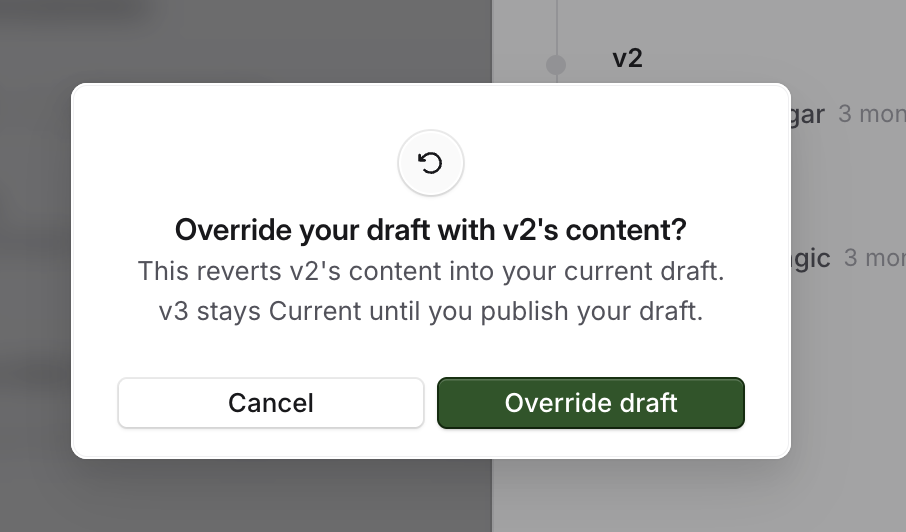
Anything sitting in your draft is replaced when you revert, so save or note any edits you still want before doing it.
Going back does not undo scores given while the newer version was live, for the same reason publishing does not change older ones.
When to duplicate instead
A new version suits a change you want applied to everything the scorecard is used for. When the change is large enough that old and new results should not sit in the same report, duplicating the scorecard and attaching the copy to new simulations keeps the two sets of results apart.
Related articles
If you have any further questions, contact the Solidroad team via the Help tab in the platform.