Solidroad + Docebo Integration Guide
Last updated: September 14, 2026
Connecting Docebo lets a pass on a Solidroad assignment count as completing a course in Docebo. This article walks you through the setup in both tools, from entering your Docebo subdomain in Solidroad to adding the launch path to a Docebo course. It is for Solidroad Admins who also have admin access in Docebo.
How the integration works
When a learner opens the linked course in Docebo, Solidroad checks whether they have already passed the linked Solidroad assignment. If they have, it sends the completion status and score to the Learning Object inside that course that is connected to Solidroad through xAPI. The check only happens at the moment the learner opens the Learning Object, so a learner who passes the assignment will not see anything change in Docebo until they next open it.
For the check to match the right person, the learner’s Docebo username must match the email saved for them in Solidroad.
Before you start, you need admin access in Docebo, and the Docebo integration must be enabled on your Solidroad account. If you do not see Docebo under Integrations, contact the Solidroad team via the Get Help tab and we will switch it on. Keep Docebo and Solidroad open in two browser tabs, because you will switch between them a few times.
Step 1: Start the connection in Solidroad
In Solidroad, go to Integrations and choose Docebo.
In tenant subdomain, enter the first part of your Docebo web address. For acme.docebosaas.com, enter acme.
Click save.
Step 2: Add the launch URL to Docebo’s allowlist
In Solidroad, go to Integrations > Docebo and copy the xAPI launch URL whitelist value. It looks like https://app.solidroad.com/api/public/docebo/xapi/<key>/*.
In Docebo, go to Admin menu > Advanced Settings > E-Learning > xAPI (Tin Can) external content and add that value to the allowed list.
You only need to repeat this step if the whole integration is deleted and reconnected from scratch, because that generates a new key. Re-entering the fields in Step 1 does not change the value, so it will not break courses you have already set up.
Step 3: Link the assignment to the Docebo course
In Docebo, open the course and look at the web address. The course ID is the number at the end, so .../course/edit/229 means the course ID is 229.
In Solidroad, enter that course ID in the Docebo course ID field in the assignment settings, then save the assignment.
Step 4: Add the additional path to the Docebo course
On the saved assignment in Solidroad, copy the Docebo additional path.
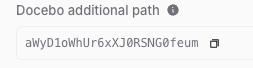
In Docebo, on the course from Step 3, add or edit a Tin Can (From URL) learning object.
Paste only the additional path into its launch URL field. Do not paste the whole allowlist value from Step 2; Docebo fills in the rest when the learner opens it.
Each assignment has its own additional path. If you are linking more than one assignment, or setting up more than one course, copy the path from each assignment separately rather than reusing one.
Step 5: Test the link end to end
Assign yourself to the Docebo course and to the Solidroad assignment, pass the assignment, then open the Docebo course and confirm it marks as complete. This is the only way to confirm Docebo accepted the additional path. Setup finishing without errors does not prove the link works.
Troubleshooting
If a learner sees This Docebo lesson isn’t ready when they open the course, the message can have several causes. Check them in this order:
The subdomain in Solidroad (Step 1) matches the Docebo tenant the course is actually in. Trial and production instances are easy to mix up.
The learner’s Docebo username matches the email saved in Solidroad.
The Docebo course ID on the assignment (Step 3) is correct, and the assignment was saved after the additional path was generated.
The allowlist entry (Step 2) is still present and matches the current key. If the integration was ever deleted and reconnected, the key changed and the allowlist needs updating.
If none of these explains it, contact the Solidroad team via the Help tab and include roughly when the learner saw the This Docebo lesson isn’t ready screen.
Related articles
If you have any further questions, contact the Solidroad team via the Help tab in the platform.