How to use Calibrations
Last updated: March 10, 2026
Calibrations help your team review AI scoring and record where Solidroad was right or wrong. QA agents can calibrate individual conversations, and QA leads can use those calibrations to improve scorecards and monitor scoring quality over time.
Before you start
- You need access to an evaluation in Quality
- QA agents or calibrators need permission to submit calibrations
- QA leads or QA managers should review patterns in submitted calibrations
Steps
1. Open the conversation you want to calibrate
Go to Quality > Evaluations and open the evaluation you want to review.
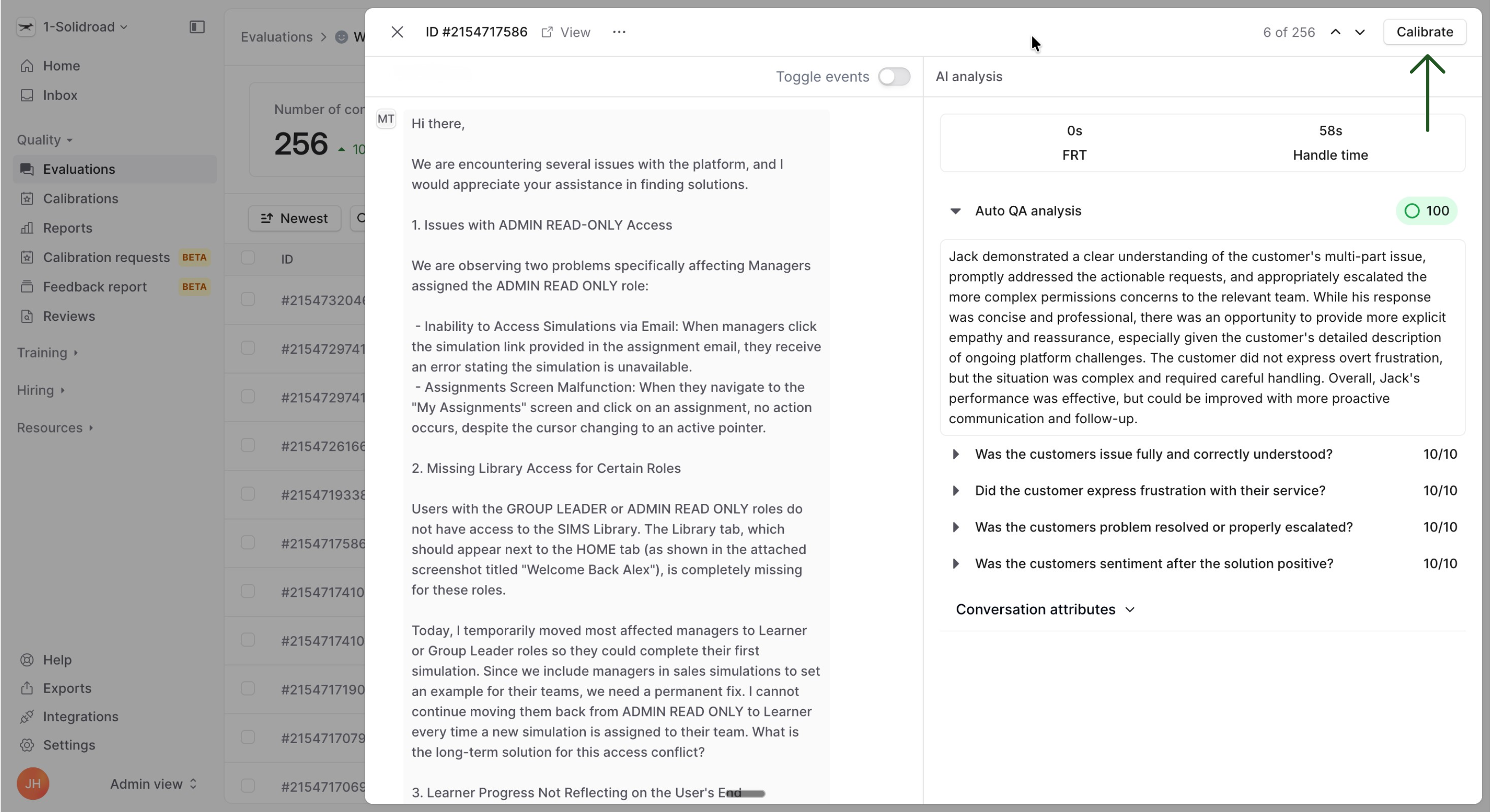
From the conversation list, select a conversation and review:
The transcript
The AI score and feedback
The assigned agent, if relevant
This helps the calibrator decide whether the AI got the result right.
2. Start the calibration
Click Calibrate in the top right of the page.
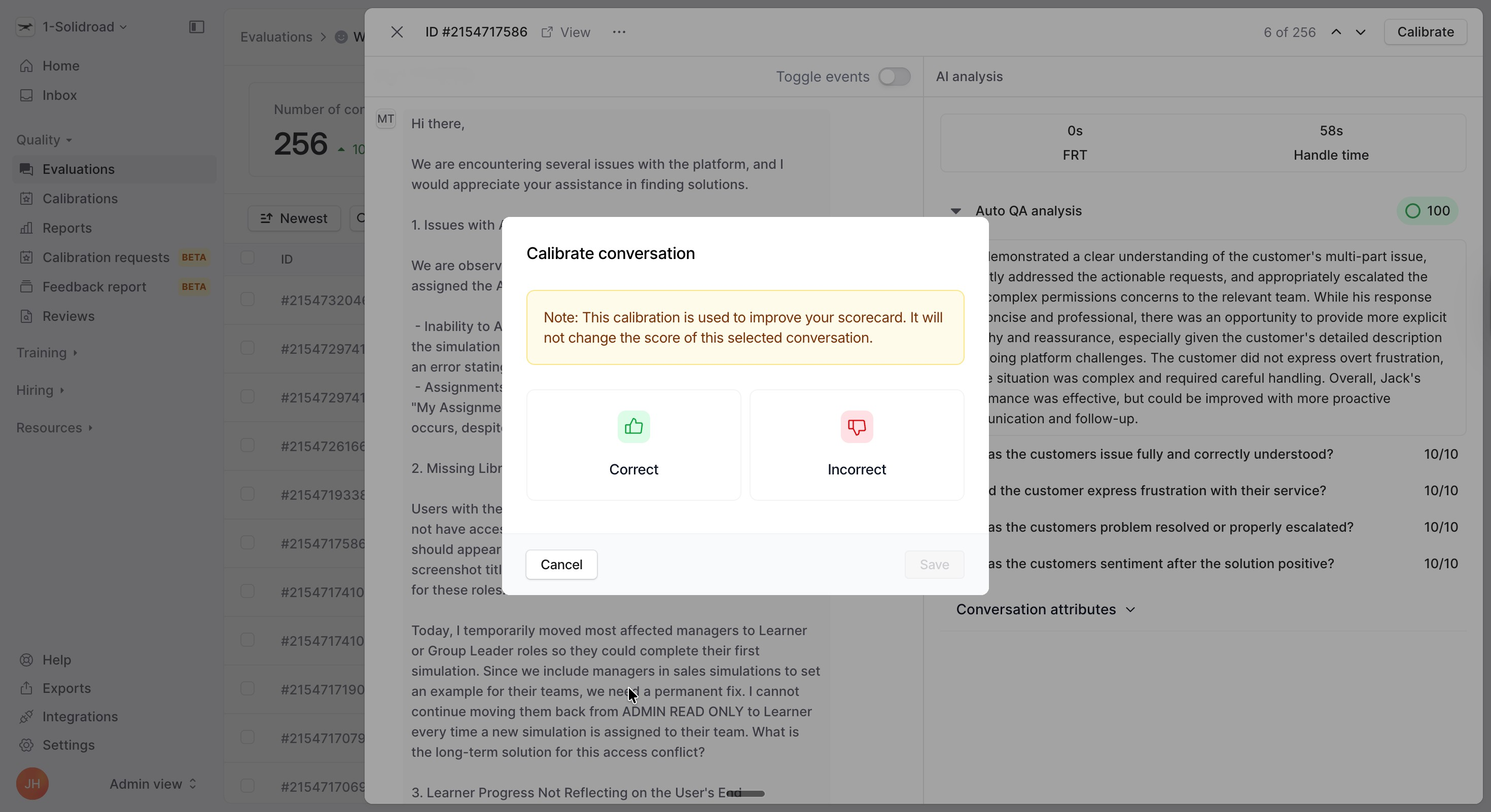
Solidroad first asks whether the evaluation is correct or incorrect.
- Choose Correct if the score and feedback look right
- Choose Incorrect if something needs to be changed
If you mark it as correct, you can submit the calibration immediately.
3. Review calibration tasks
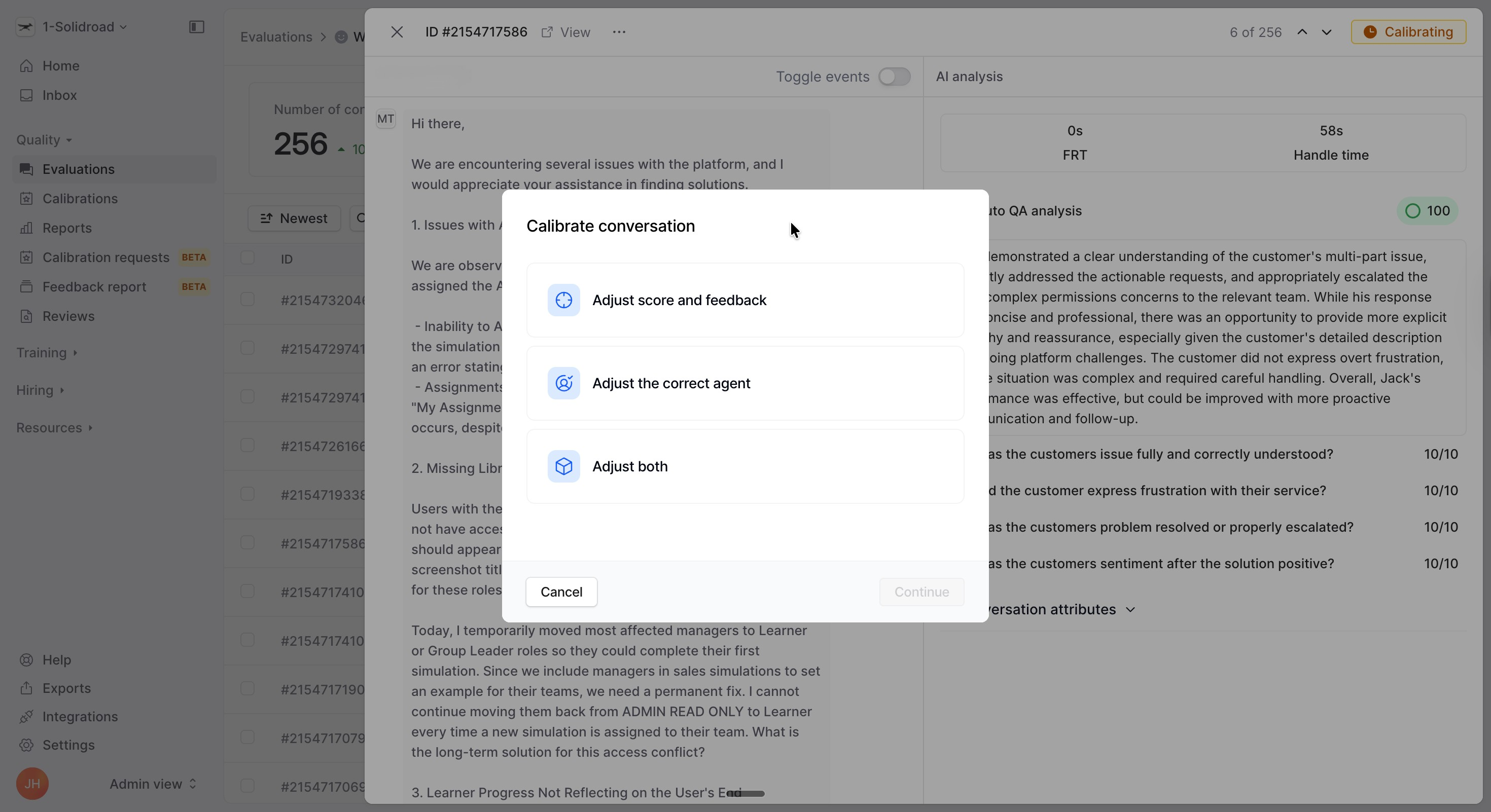
If you mark the conversation as incorrect, Solidroad asks what you want to adjust.
You can choose:
Adjust score and feedback
Adjust the correct agent
Adjust both
Options
Use Adjust score and feedback when the AI scored a section incorrectly
Select each scorecard section you want to review
Update the score where needed
Add or update comments so your QA lead can understand the reasoning
Review the explanation, example, and improvement fields when relevant
Submit the calibration when you are done
Use Adjust the correct agent if the conversation was assigned to the wrong person
Confirm the current assigned agent, mark the agent as wrong, or choose to skip agent evaluation
Use Adjust both when the conversation needs score changes and agent reassignment feedback in the same calibration
Look for repeated issues across conversations, not just one-off mistakes
Important: A calibration is used to improve future scoring and your scorecard setup. It does not change the score on the selected conversation.
4. Review submitted calibrations
A QA lead or QA manager should regularly review submitted calibrations to spot patterns.
Pay attention to:
Sections that are often marked incorrectly
Feedback that shows score descriptions are unclear
Agent assignment issues that may affect reporting quality
All submitted Calibrations can be found in the Calibrations tab in the Quality section of the navigation.
5. Update your scorecard if needed
If the AI is consistently getting sections wrong, update your scorecard wording to make expectations clearer.
Focus on:
Section descriptions
Score ranges
Criteria that are vague or overlap
What happens next
As your team submits more calibrations, you build a clearer picture of where the AI aligns with your QA standards and where your scorecard may need refinement. Over time, this helps improve scoring consistency and trust in your evaluation workflow.
If you want to understand why teams use this workflow before rolling out an evaluation more broadly, read Testing & Live Mode for Evaluations.
Frequently asked questions
Do calibrations change the score on the conversation?
No. Calibrations are used to improve future scoring and help your team review AI quality. They do not overwrite the score on the selected conversation.
Who should complete calibrations?
QA agents or calibrators typically complete the calibration itself. QA leads and QA managers usually review calibration patterns, refine scorecards, and coach the team based on what they find.
When should I adjust the correct agent?
Use this when the conversation was evaluated against the wrong agent, or when the agent should be excluded from agent evaluation.